


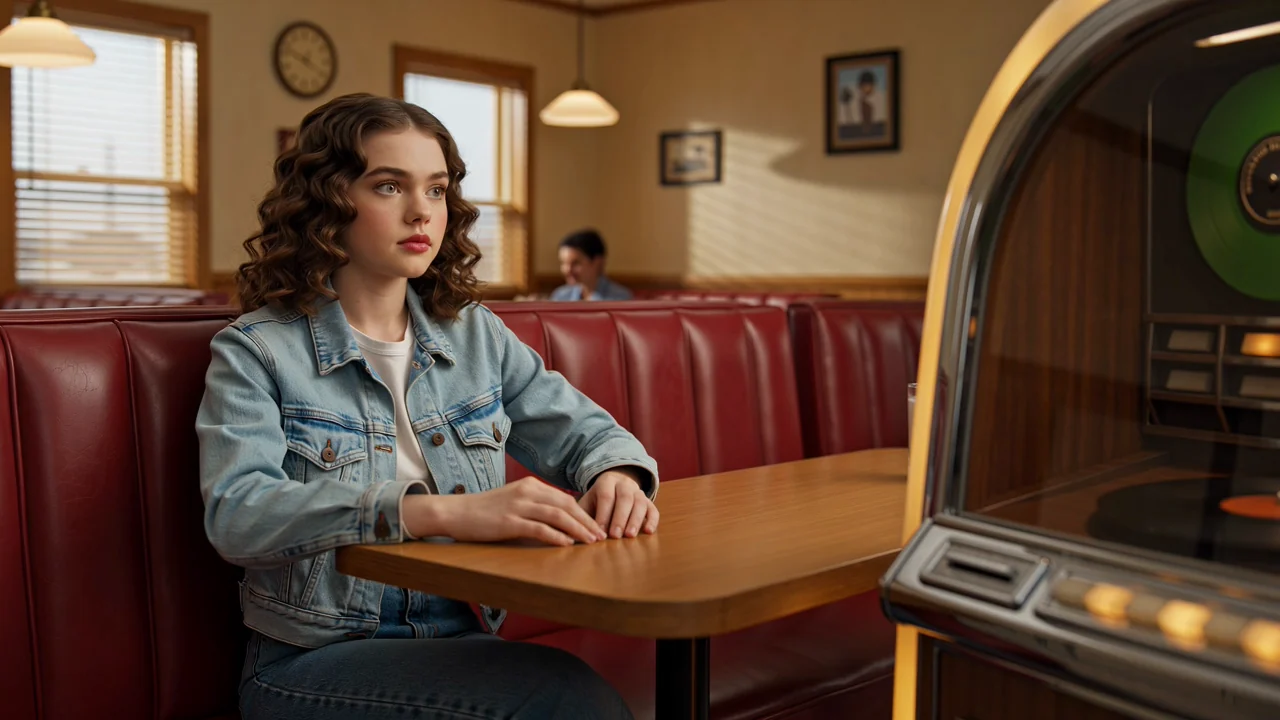
Directed Camera Work
Use camera direction in the prompt to guide framing, motion, and scene emphasis, then review the generated clip for fit.
Review PixVerse V6 capabilities, inputs, controls, and availability before choosing it for a production video task.
PixVerse V6 is an AI video model for generating short clips from a text prompt and optional reference images.
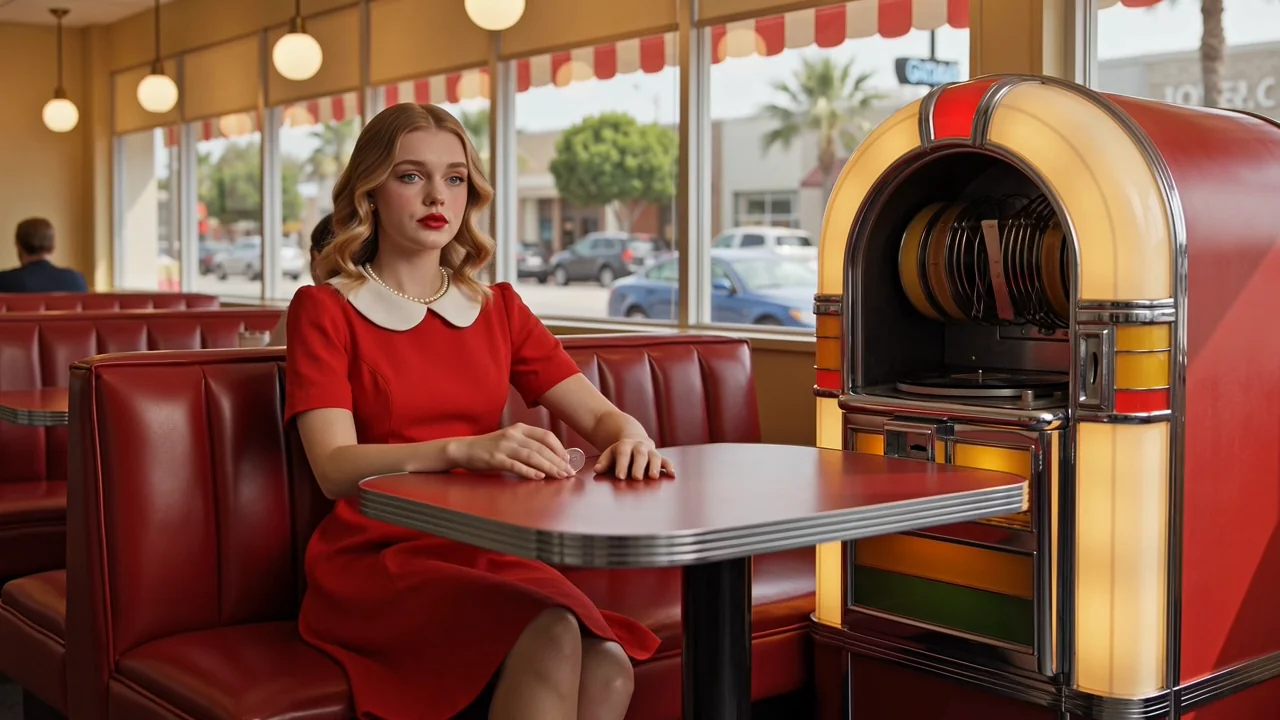
Assess PixVerse V6 capabilities for camera direction, character action, shot planning, and model-level audio-visual behavior.
Use camera direction in the prompt to guide framing, motion, and scene emphasis, then review the generated clip for fit.
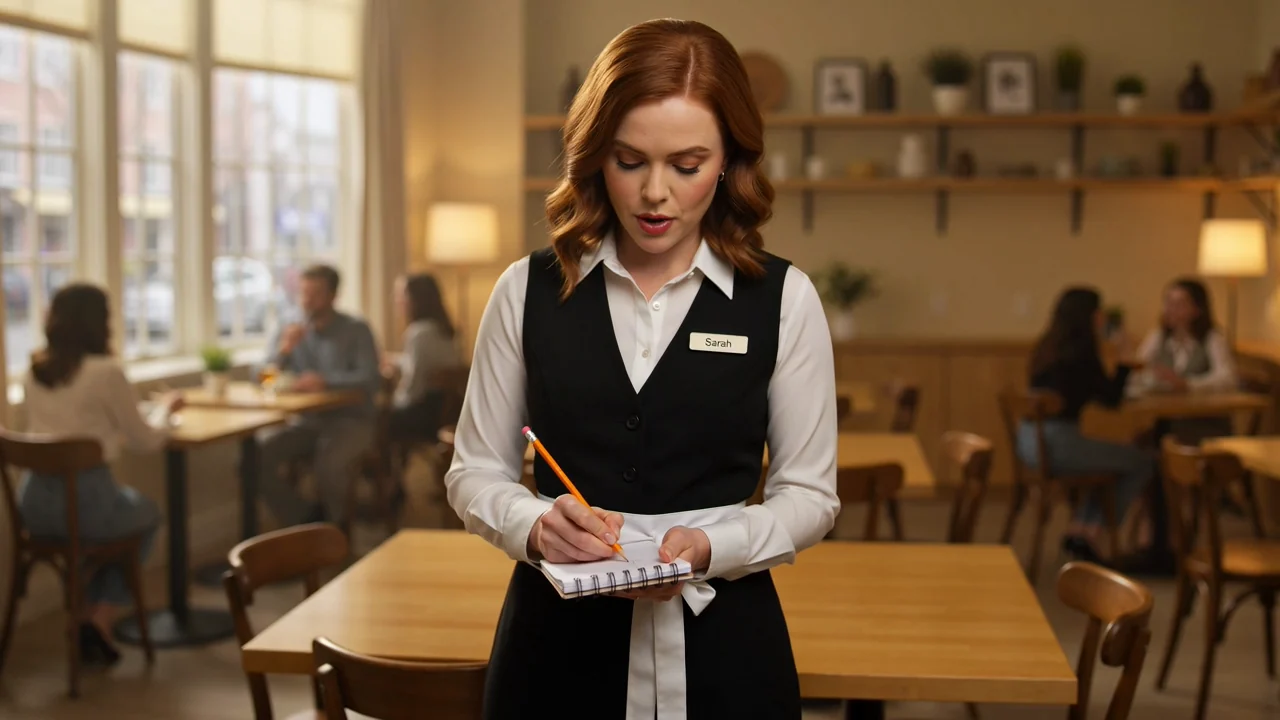
Shape character action, expression, and staging with clear scene instructions, then check continuity across the final video.
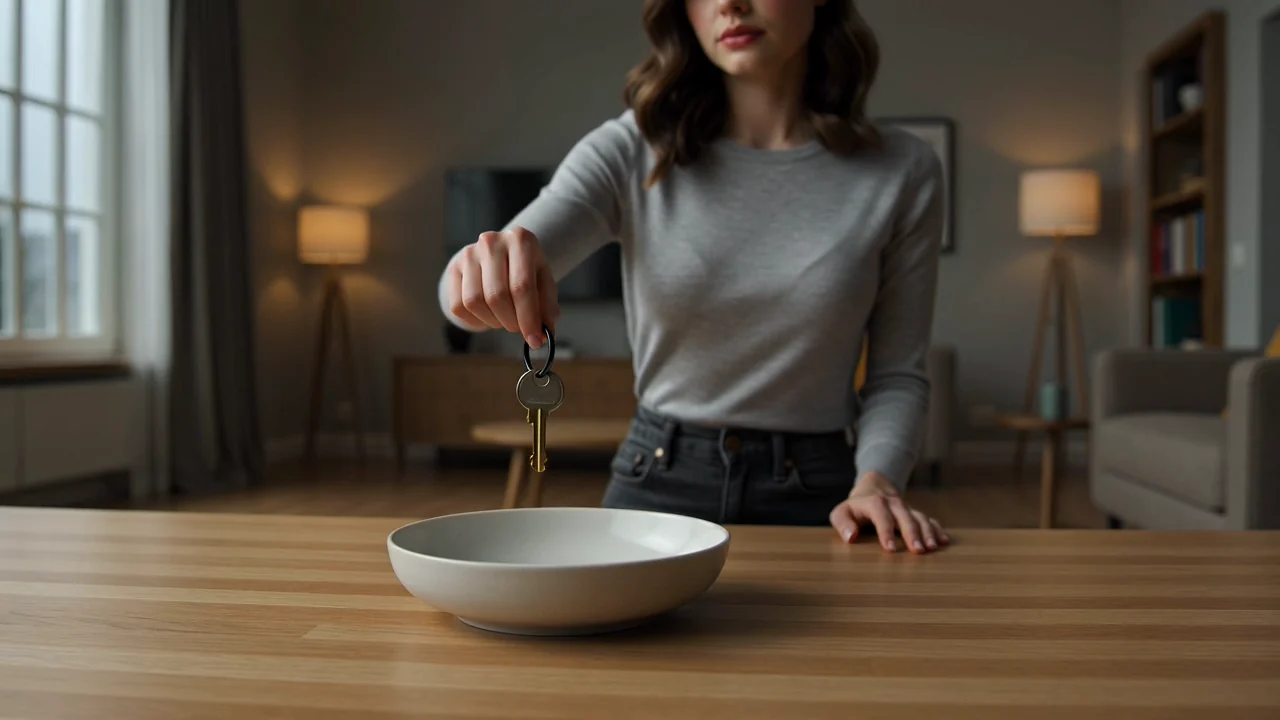
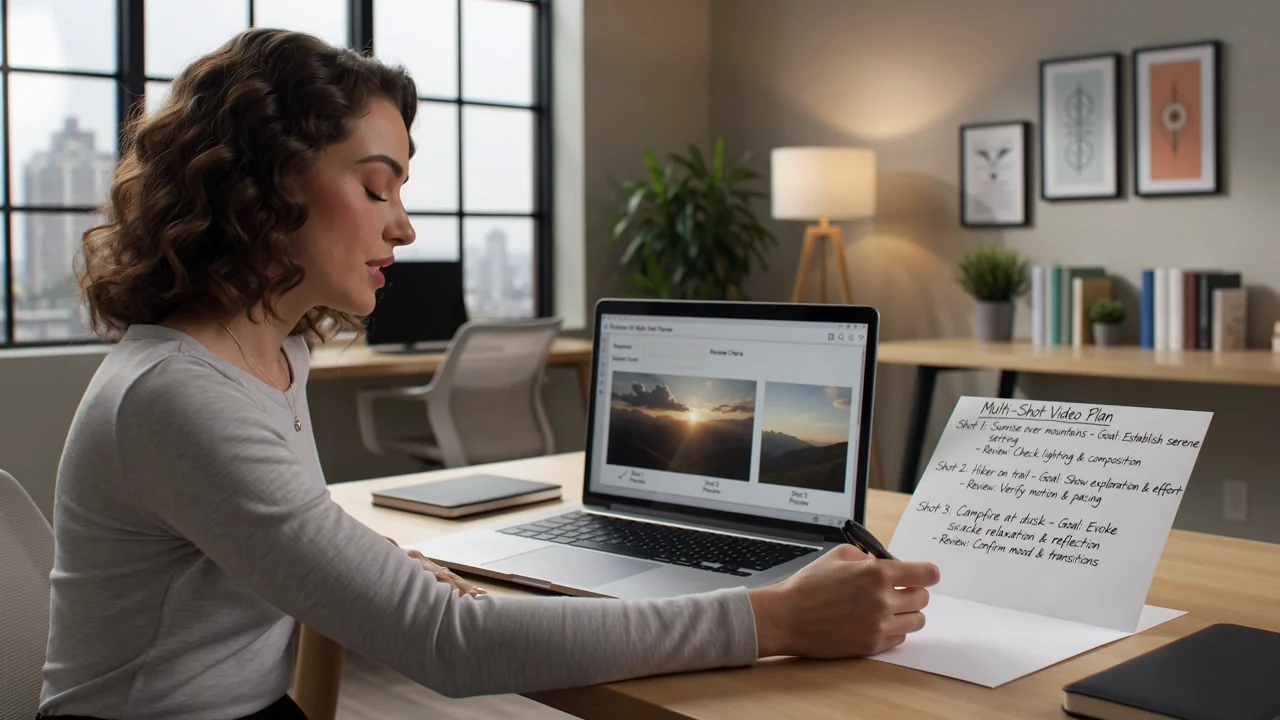
Plan multi-shot ideas with a concise sequence, visible subject goals, and review criteria for each generated transition.
Consider native audio-visual model capability as provider positioning, while noting ClipCanva currently disables provider-side audio generation.
Use the documented input modes and controls shown in ClipCanva instead of assuming unsupported provider settings.
Start with a clear text prompt, then add a reference image when the connected model supports the intended guidance.
Adjust only the ClipCanva controls exposed for PixVerse V6: model picker, aspect ratio, duration, resolution, and reference image settings.
Expect generated video clips or reference-guided videos that still need review for brief fit and final delivery needs.
Follow a prompt-led workflow that keeps the brief, supported inputs, visible controls, and human review aligned.
State the purpose, audience, subject, setting, visual style, and destination format before opening the generator.
Write a specific prompt and gather only the reference images supported by the current ClipCanva connector.
Choose the model picker, aspect ratio, duration, resolution, and reference settings that ClipCanva exposes.
Generate videos with PixVerse V6, compare the results, and revise the weakest instruction one step at a time.
Match PixVerse V6 use cases to a defined audience, supported inputs, visible controls, and a clear review standard.
Create short campaign story drafts with a clear product angle, concise scene direction, and channel-specific review criteria.
Develop character-led social clips by specifying action, expression, setting, and continuity requirements in the prompt.
Test cinematic product reveals with planned framing, motion, lighting notes, and careful brand accuracy checks.
Explore multi-shot concept tests by outlining the sequence, subject behavior, and transition expectations before generation.
Treat each generated video as a draft and review it against the brief, brand rules, factual sources, and delivery format.
Confirm that the subject, action, setting, camera direction, and motion match the original prompt and brief.
Inspect people, products, backgrounds, scene changes, and timing for consistency across the generated video.
Verify logos, product claims, visual identity, and factual information against approved source material.
Validate the selected duration, aspect ratio, resolution, crop, and video output format against the channel delivery brief.
Confirm availability, connector limits, and result variability before treating any generated clip as publish-ready.
PixVerse V6 is connected in ClipCanva today, so use the options shown before submission as the availability source of truth.
The same prompt can produce different details, motion, timing, or composition, so compare outputs and revise carefully.
The current ClipCanva connector disables provider-side audio generation and accepts at most two reference images.
Facts verified
Find concise answers about PixVerse V6 identity, inputs, availability, comparisons, access questions, and review needs.
Compare related video models, including PixVerse C1 vs V6, by inputs, controls, output behavior, and ClipCanva availability.
Start with a clear brief, use the controls visible on the page, and reserve time to review every generated video before release.