


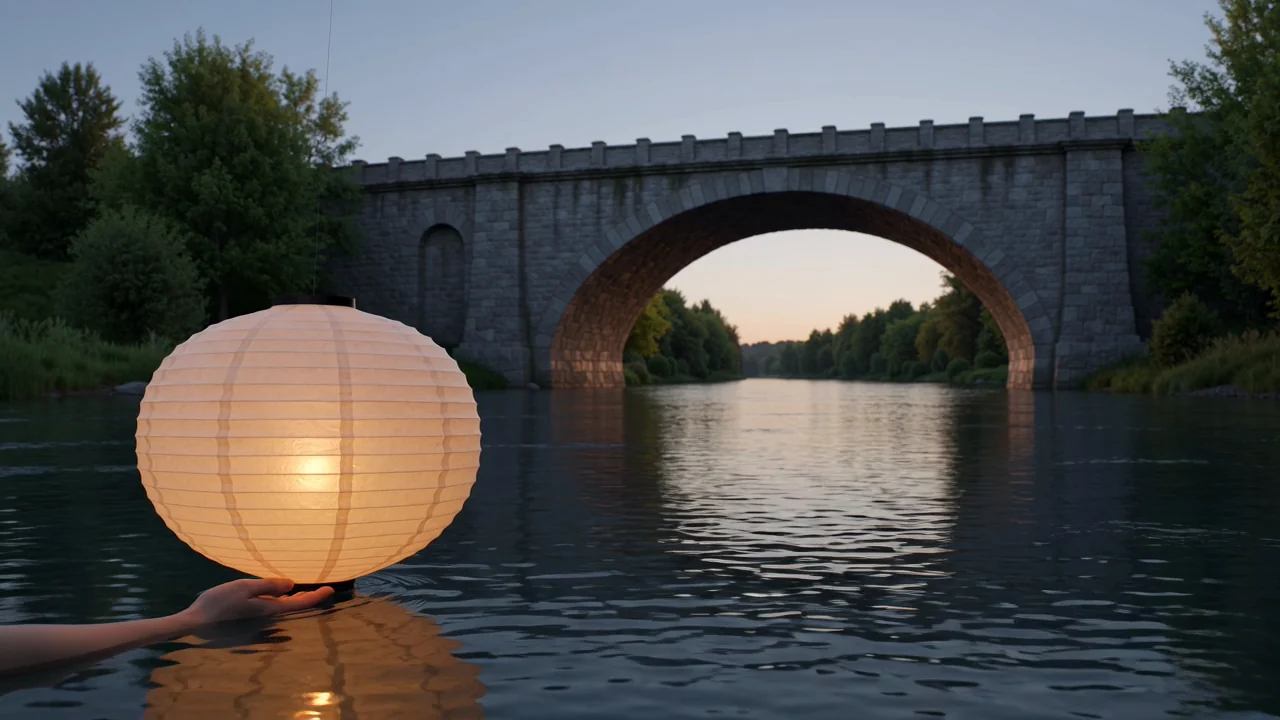
Text-to-video generation
Generate videos from a written prompt that defines the subject, setting, action, style, and intended visual direction.
Review MiniMax H3 capabilities, inputs, controls, outputs, and availability before planning a video generation task.
MiniMax H3 is a multimodal AI video model for generating prompt-led clips and reference-guided video sequences.
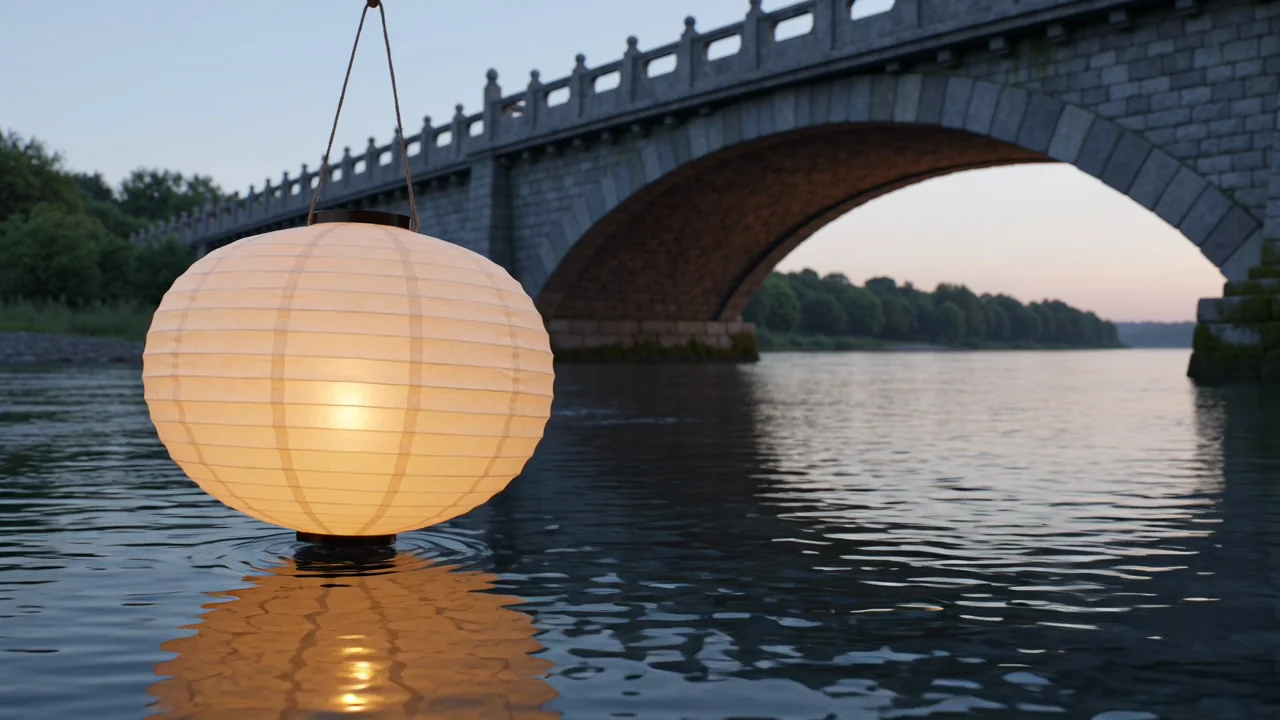
Understand the model’s capabilities from verified sources, then evaluate each generated clip against your production brief.
Generate videos from a written prompt that defines the subject, setting, action, style, and intended visual direction.
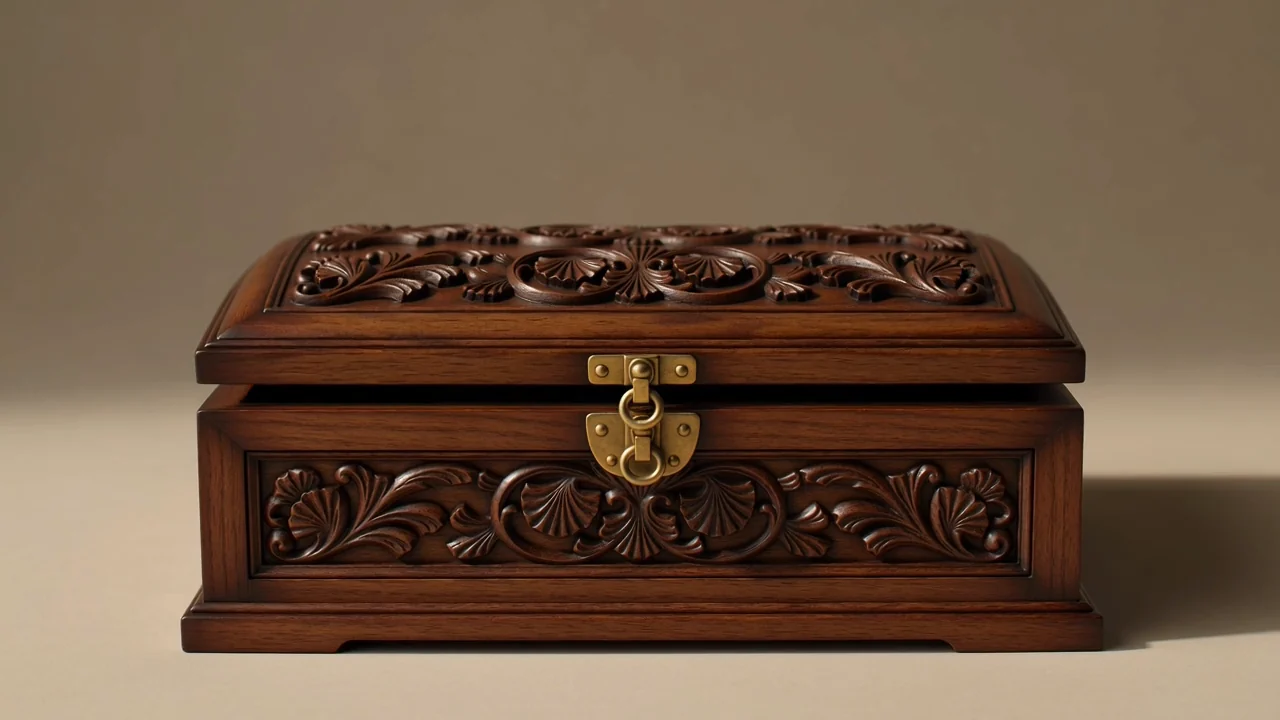
Use first- and last-frame guidance when the task needs a planned transition between starting and ending visuals.
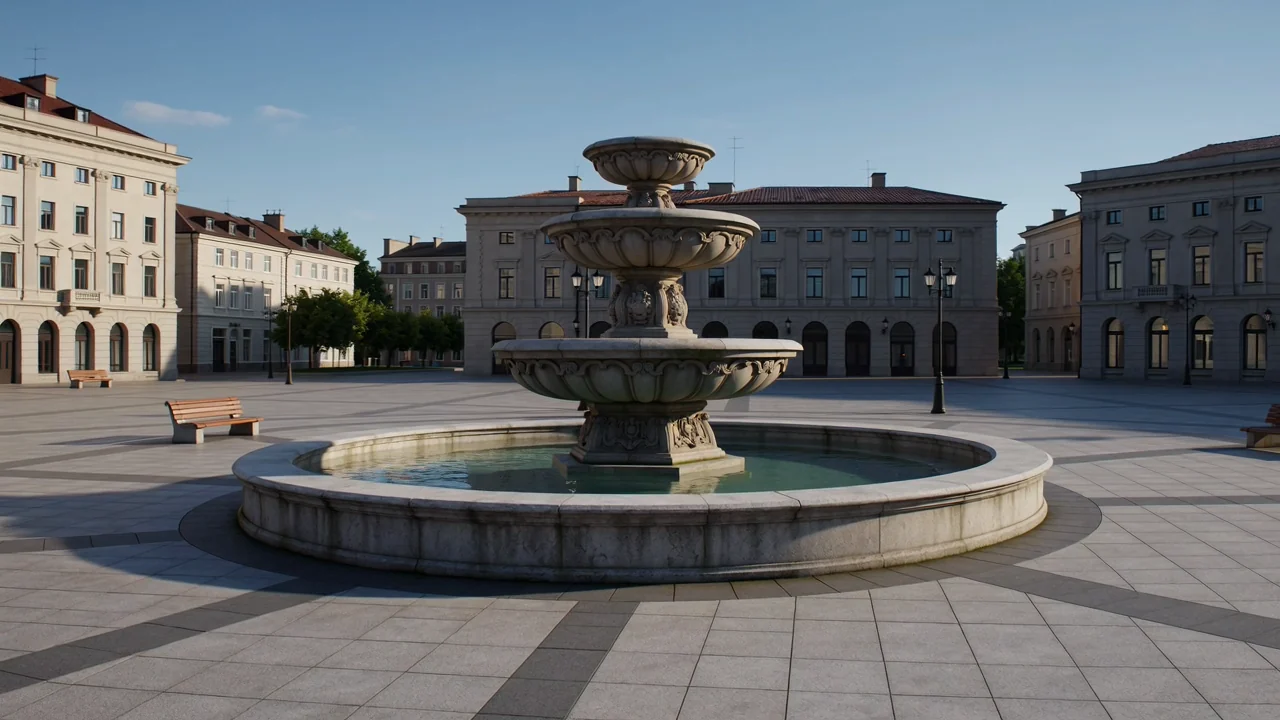
Combine prompt direction with visual references to guide scene composition, atmosphere, movement, and subject behavior.
Evaluate native high-resolution video behavior as a model capability, while checking the output settings shown before submission.
Separate the input you provide from the controls currently exposed, because the live generator defines the executable setup.
Start with a specific prompt, then add reference images when the shot or transition needs visual guidance.
Use the model picker, aspect ratio, duration, resolution, and reference image controls that appear before submission.
Expect generated video clips or reference-guided videos, then check them against the brief before publication.
Follow a practical prompt-led workflow that matches the available inputs and controls before reviewing the output.
Define the video purpose, audience, subject, setting, motion, and final destination before opening the generator.
Write a concise prompt and gather reference images only when the task benefits from visual guidance.
Set the model picker, aspect ratio, duration, resolution, and reference image options that ClipCanva currently exposes.
Generate videos with MiniMax H3, compare alternatives, and revise the weakest instruction or reference if needed.
Use cases are strongest when the prompt, reference material, audience, format, and review standard are defined up front.
Create cinematic establishing shots for campaigns, storyboards, presentations, or concept reels that need atmosphere.
Plan first-to-last-frame transitions when a sequence needs a guided visual change between two frame states.
Draft character performance clips that explore gesture, mood, action, and camera behavior before final selection.
Develop music and atmosphere concepts where lighting, rhythm, setting, and emotion need early visual exploration.
Treat every generated video as a draft and complete a review pass before it enters production or publication.
Confirm that the prompt, subject, motion, framing, and scene direction match the intended deliverable.
Inspect whether characters, products, settings, and transitions remain coherent across the generated clip.
Verify brand elements, product details, claims, and factual references against approved source material.
Check duration, aspect ratio, resolution, crop, and delivery requirements before moving the asset forward.
Keep availability, exposed controls, model behavior, and publishing responsibility separate when planning production work.
MiniMax H3 is connected in ClipCanva today, and the visible options before submission define current availability.
Results vary between runs, so human review is required before any generated video is used in a campaign or publication.
The connected workflow accepts up to two frame images and exposes only its current duration and output controls.
Facts verified
Answers clarify MiniMax H3 identity, inputs, controls, availability, workflow, output review, and planning limits.
Compare other AI video models by input modes, visible controls, output behavior, review needs, and verified availability.
Start with a defined prompt, confirm the controls available today, and leave time to review each generated video carefully.