
01
Start with the source
Upload the clearest authorized source photo available, without pre-compressing away important detail.
Upload one photo and describe the change in plain language. Generate a text-guided edit for products, portraits, rooms, or older photos, then inspect identity, objects, lettering, and context before using the result.
Upload one photo and describe the change in plain language. Generate a text-guided edit for products, portraits, rooms, or older photos, then inspect identity, objects, lettering, and context before using the result.



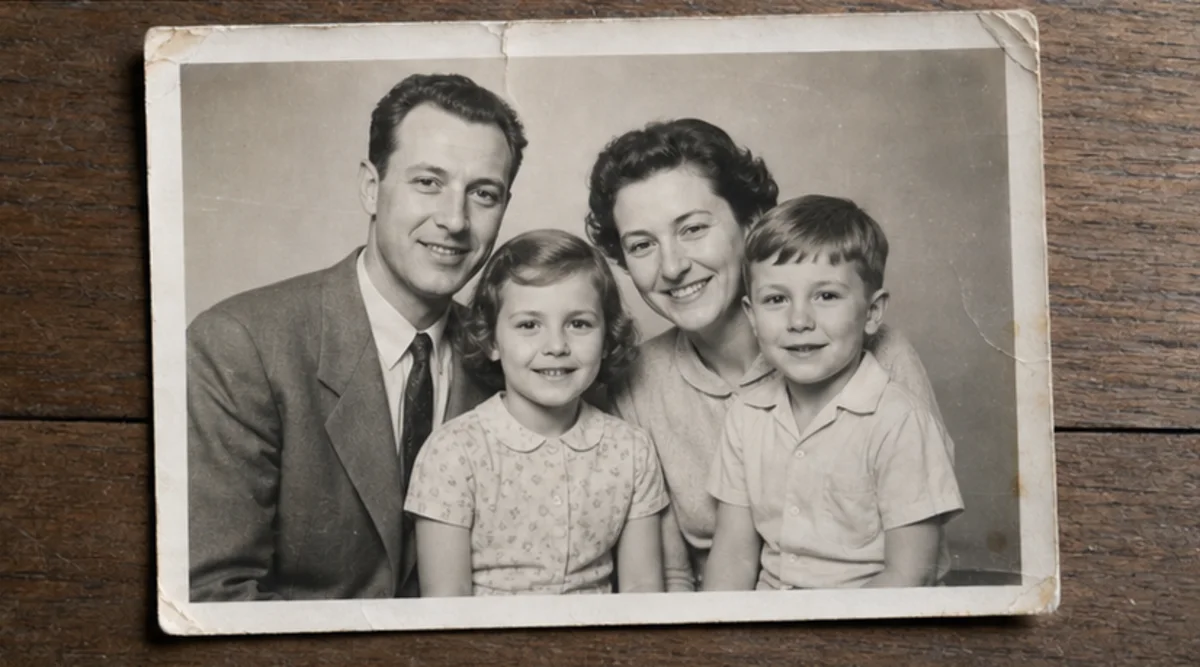
Upload one photo and describe the change in plain language. Generate a text-guided edit for products, portraits, rooms, or older photos, then inspect identity, objects, lettering, and context before using the result.
Upload the clearest authorized source photo available, without pre-compressing away important detail.
Describe the requested change and explicitly name the identity, objects, lettering, geometry, or background that must stay unchanged.
Generate one focused edit from that instruction instead of mixing several unrelated transformations.
Compare the result with the original at full size and inspect faces, products, small objects, text, edges, and context.
The editor follows text instructions, but faces, product geometry, small objects, and lettering can change. It is not a pixel-exact retouching tool.
Use one clear source and state what must stay unchanged. Compare the result with the original and inspect important details at full size.
Upload photos you own or have permission to edit. Review the result before using it for identity-sensitive, product, archival, or public-facing work.
Free images include a watermark. Upgrade for clean outputs, faster generation, and commercial use.
Starter Pack
A one-time credit pack for trying image, music, and short video generation.
Creator
Monthly plan · 1,500 credits renew each month
GPT Image 2 Unlimited
Use code FOUNDING6 at Stripe Checkout: $19/month for your first 6 months, then $29/month.
Pro
Monthly plan · 4,000 credits renew each month
Studio
Monthly plan · 12,000 credits renew each month
Secure checkout · Subscriptions renew automatically · See refund eligibility
Team
For agencies, production teams, and custom volume needs.
Upload one photo and describe the change in plain language. Generate a text-guided edit for products, portraits, rooms, or older photos, then inspect identity, objects, lettering, and context before using the result.
Upload one photo and describe the change in plain language. Generate a text-guided edit for products, portraits, rooms, or older photos, then inspect identity, objects, lettering, and context before using the result.