
Describe the idea
Write what you want to see in plain language. Naming the subject and the purpose matters more than length.
Prompt planning
Describe a rough idea, pick the image type, style, target model, and aspect ratio, and the image prompt generator writes a structured prompt, a short version, and a negative prompt you can copy.
Prompt workspace
Idea to copy-ready image prompt
Write one rough sentence. The generator will add structure, style, lighting, and composition.
Copy the result or open it in the image generator.
Your copy-ready image prompt will appear here.
Describe an image idea to generate a prompt.
Use this prompt as a starting point, then refine after seeing the first image.
Use in Image GeneratorIt turns a short description into prompt language an image model can act on. Instead of guessing at phrasing, you set the image type, visual style, target model, and aspect ratio, and get a prompt that names subject, composition, lighting, and what to keep out of frame.
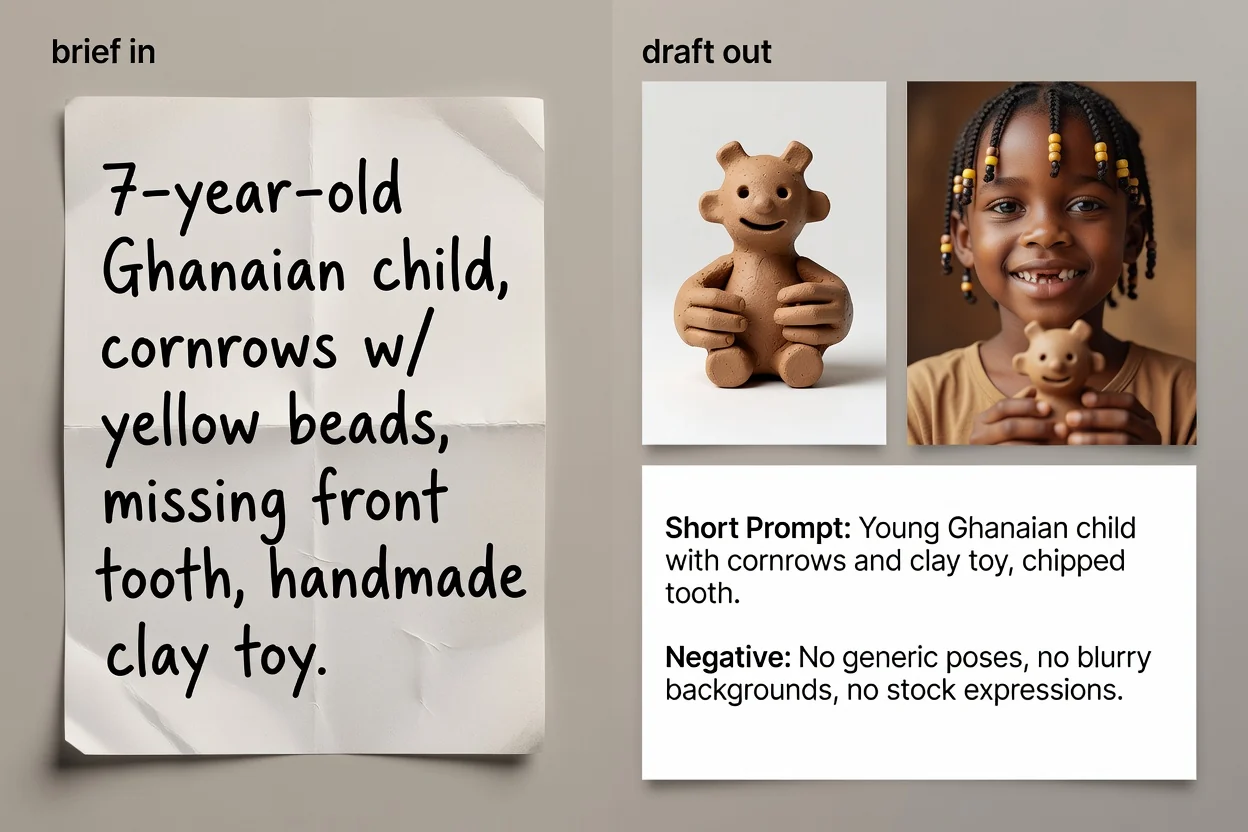
Four steps from an idea to copy-ready prompt text.
Write what you want to see in plain language. Naming the subject and the purpose matters more than length.
Choose the image type and the visual style so the prompt uses the right vocabulary for that category.
Select the model you plan to use and the aspect ratio, so phrasing and framing match the destination.
Build the prompt, review it, and optionally run the AI improvement pass to tighten wording and add missing detail.
Three prompt versions for three different situations.
The full prompt with subject, composition, lighting, style, and framing spelled out in order.
An optional rewritten version that tightens phrasing and fills gaps the short description left open.
A compressed version for interfaces with tight input limits or for quick iteration.
The list of things to keep out of the image, such as text, watermarks, or distorted details.
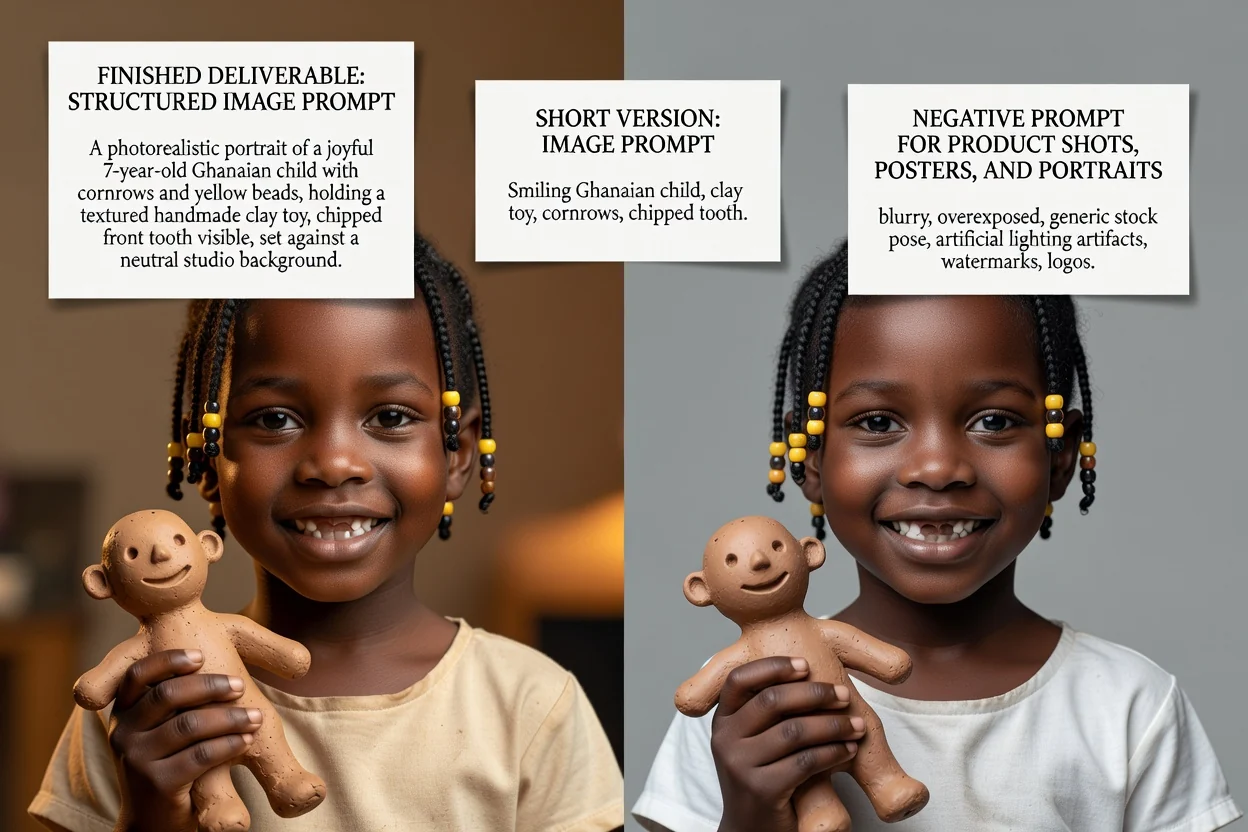
Each control changes the wording, not just the label.
Product photo, portrait, poster, logo, social graphic, or illustration. This sets which composition terms appear.
Photorealistic, cinematic, editorial, minimal, 3D render, or anime, which drives lighting and rendering language.
GPT Image, Midjourney, Flux, Stable Diffusion, or DALL-E. Phrasing conventions differ between them.
Square, landscape, vertical, or portrait, so framing and negative space suit the final placement.
Frequent jobs that start here.
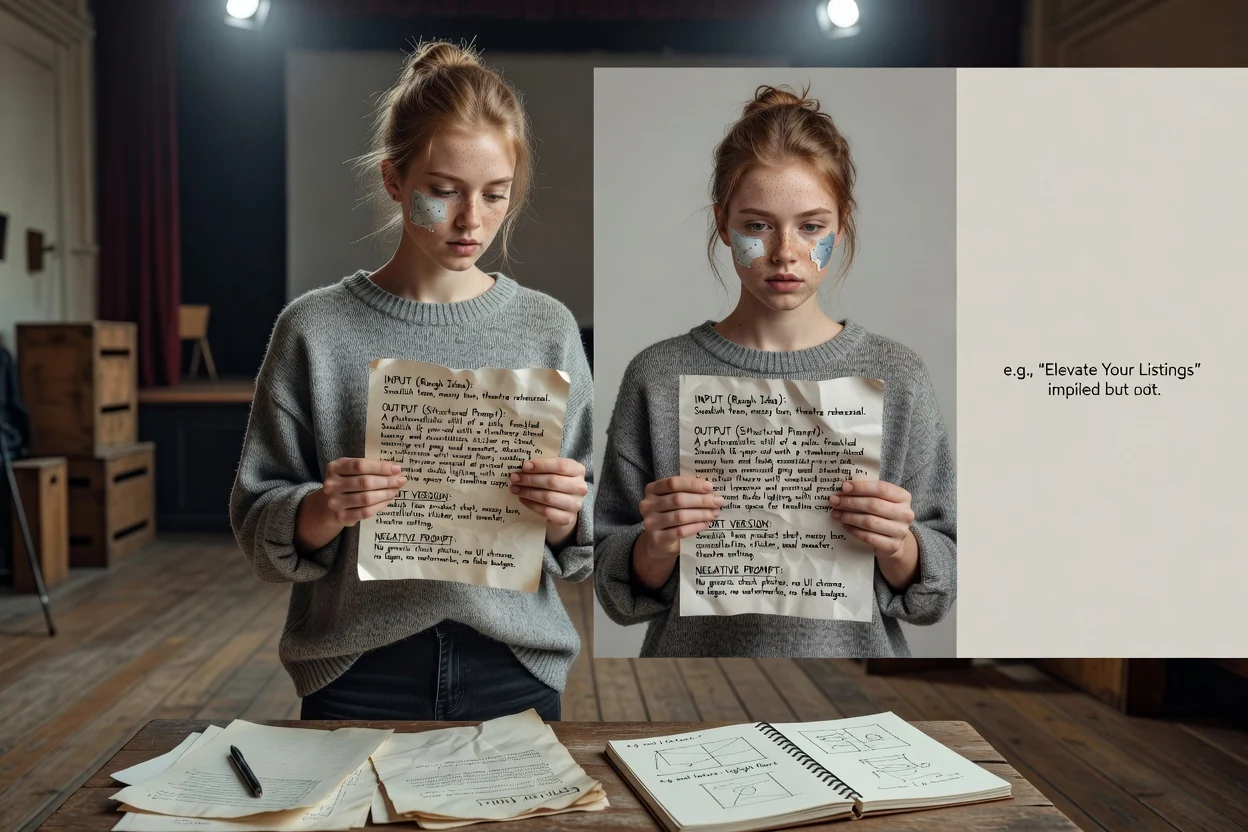
Write prompts that name surface, lighting, and negative space so a product still leaves room for headline copy.
Build a product prompt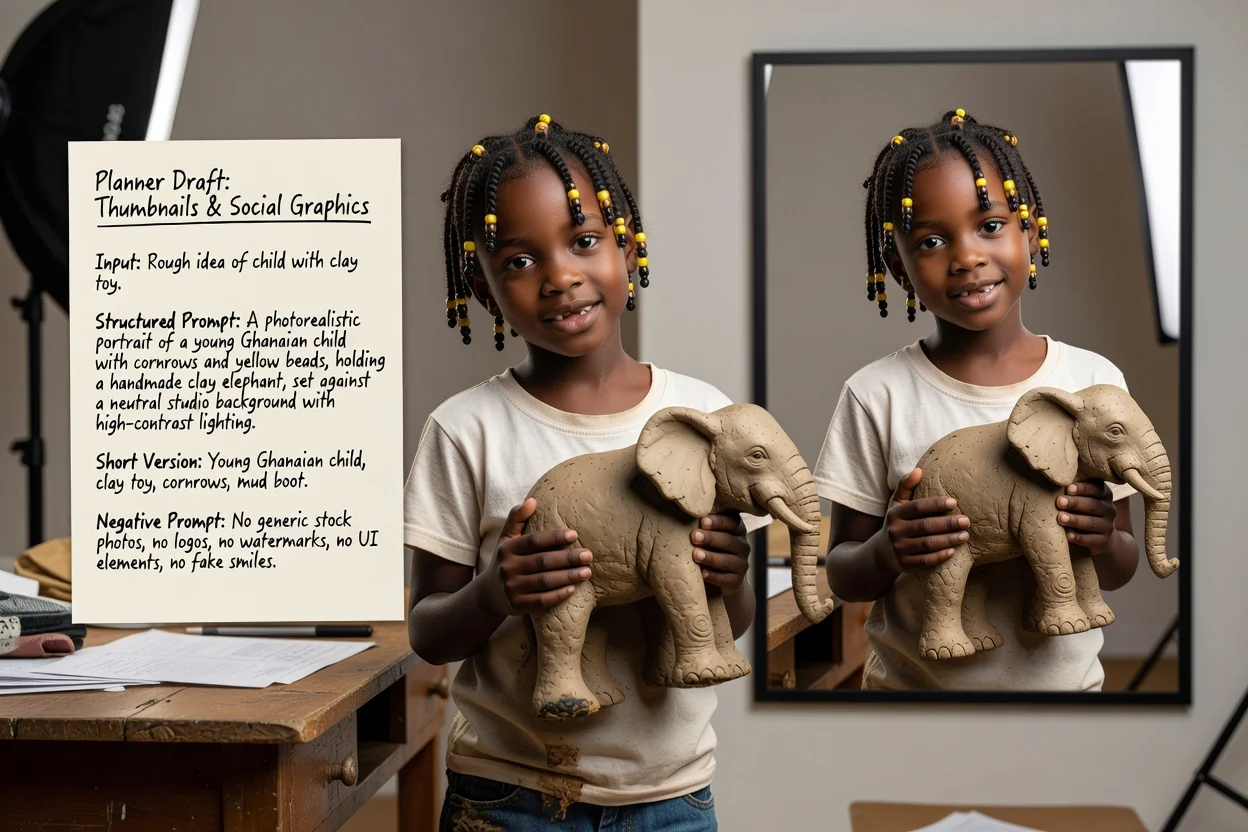
Set a vertical or landscape ratio and a high-contrast style so the result reads at small sizes.
Build a social prompt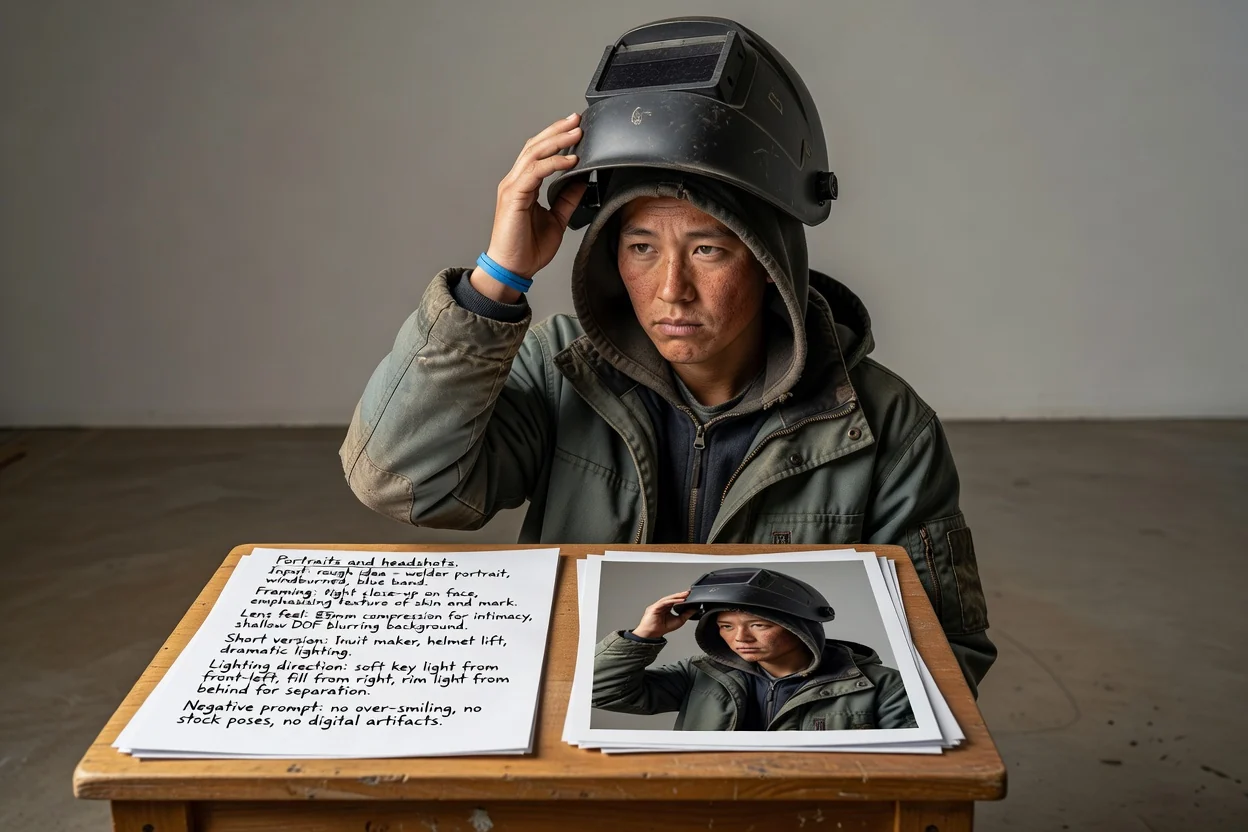
Describe framing, lens feel, and lighting direction instead of relying on the model to guess a look.
Build a portrait prompt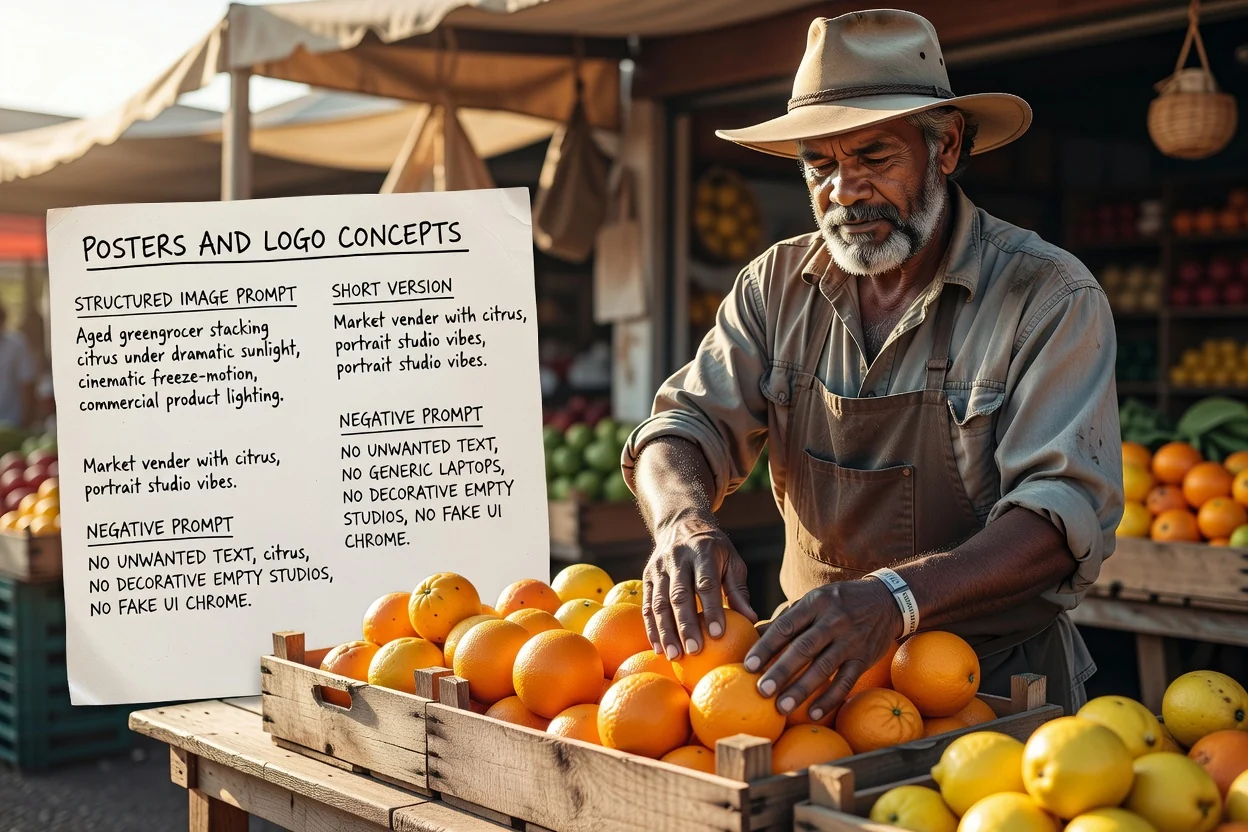
Plan layout and typography space up front, and use the negative prompt to control unwanted text.
Build a poster promptFour quick checks that reduce retries.
If the prompt describes two competing subjects, split it into two prompts instead of one crowded frame.
A vertical ratio needs vertical composition language. Mismatches are the most common cause of awkward crops.
If text will sit on the image later, make sure the prompt asks for negative space in the right place.
Remove exclusions you do not actually need, because over-long negative prompts can flatten the result.
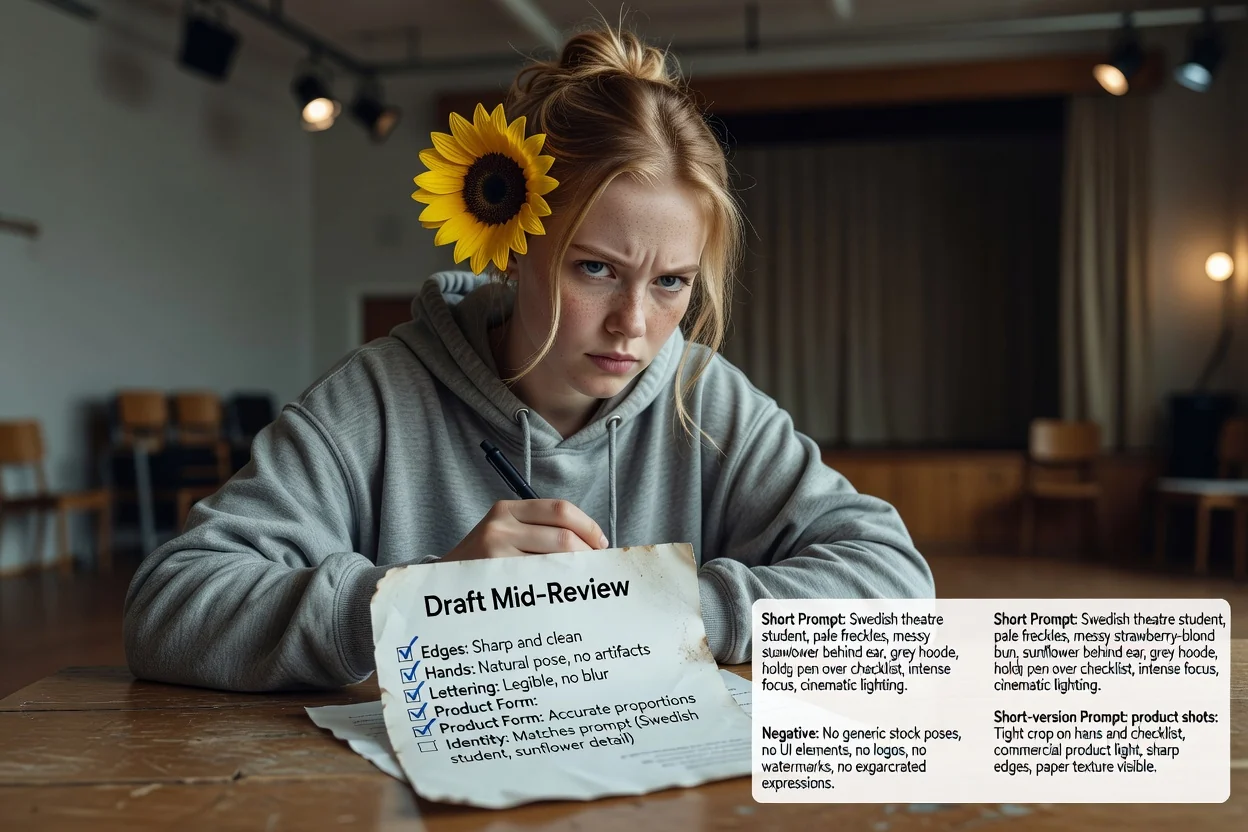
Boundaries worth knowing before you rely on it.
Generating the picture happens in an image workflow. This step only produces the text you send there.
The same prompt returns different results across models and versions. Treat the first output as a test.
Asking for exact wording in an image often fails. Plan to add real typography during layout instead.
Common questions about writing prompts for AI image models.
Give the image prompt generator a rough idea and get a full prompt, a short prompt, and a negative prompt to test.