Text to Video AI

Describe a scene, choose the model that fits your goal, and create a short AI video with controlled camera motion, subject action, and social-ready MP4 output.

Text to VideoVideo ModelsCamera MotionShort Clips
0 / 2000

Choose a Video Model

Use Veo for cinematic realism, Kling for energetic short-form clips, Sora for longer story flow, or Seedance for smooth natural motion.

Video Prompt Examples

Use these prompt examples as a starting point, then add subject action, camera movement, lighting, aspect ratio, and pacing.

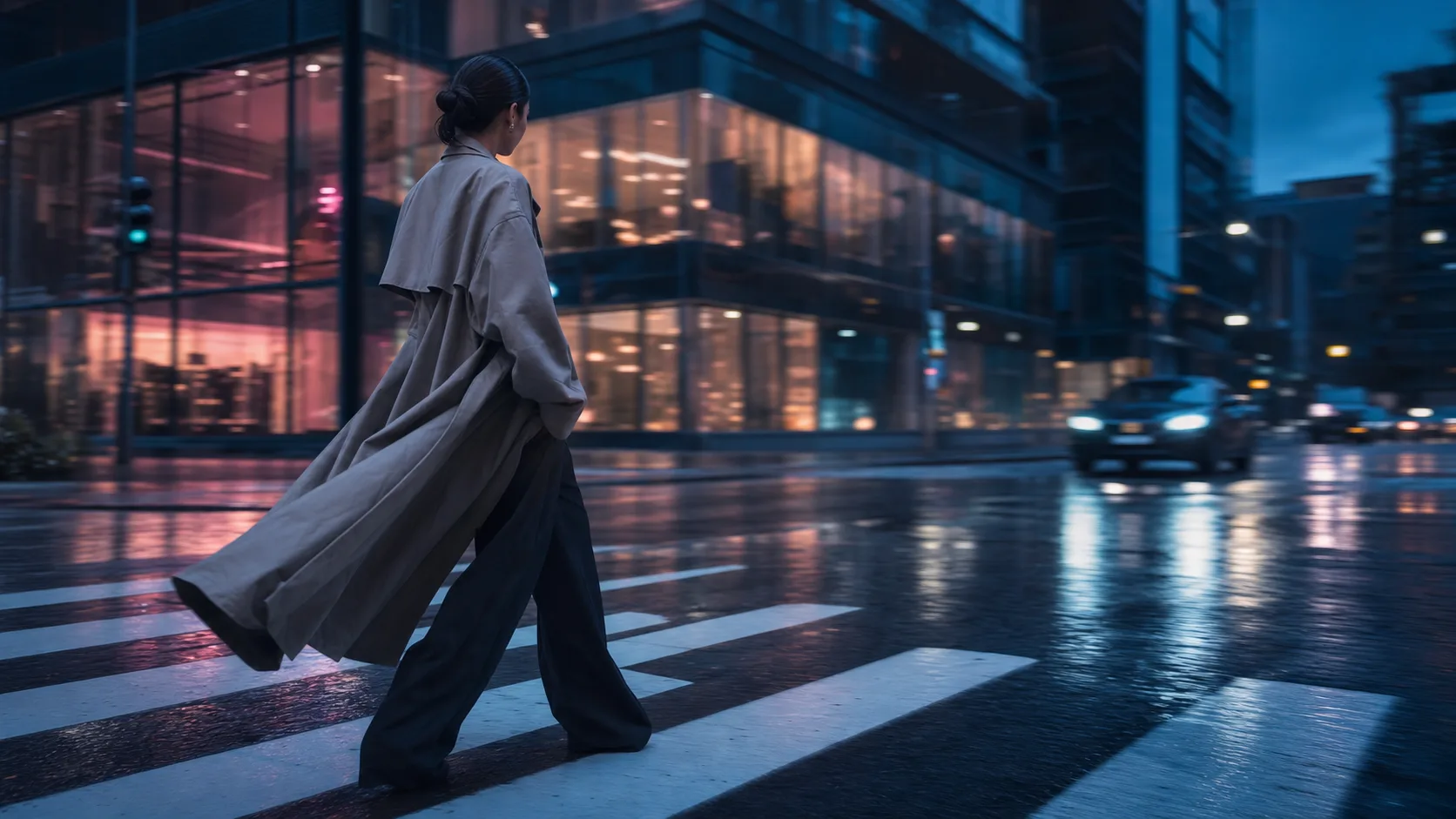
VEO 3.1 · Friends at Skate Park

VEO 3.1 · Friends at Skate Park

VEO 3.1 · Arctic Snowmobile Ride

VEO 3.1 · Arctic Snowmobile Ride

Kling 2.6 · Fox in Rainy Junkyard

Kling 2.6 · Fox in Rainy Junkyard

Sora 2 · War Room Briefing

Sora 2 · War Room Briefing

Create Videos in 3 Simple Steps

From a text prompt to a video draft you can review:

01

Describe Your Scene

Write a detailed text prompt describing the video you want. Include scenes, characters, actions, camera movements, and visual style.

02

Choose AI Model

Select Veo for cinematic realism, Kling for fast social motion, Sora for longer story continuity, or Seedance for smooth everyday clips.

03

Generate & Download

Generate the clip, review motion and composition, then download the available video output for editing or publishing.

Key Features

Natural Language

Write prompts in plain English. No technical skills or video editing knowledge required.

Physics Simulation

Realistic physics including gravity, fluid dynamics, lighting, and material interactions.

Camera Control

Specify camera movements, angles, and shots. Drone shots, close-ups, tracking, and more.

Style Transfer

Apply any visual style - documentary, sci-fi, anime, vintage film, or any aesthetic.

Model Selection

Match the model to the job: Veo for camera polish, Kling for short-form energy, Sora for longer continuity, and Seedance for smooth motion.

Related Tools

Explore more AI-powered tools

Choose Your Plan

Free images include a watermark. Upgrade for clean outputs, faster generation, and commercial use.

Starter Pack

$9

A one-time credit pack for trying image, music, and short video generation.

  • 600 credits
  • ≈ 100 GPT Image 2 images at 1K Low (6 credits each)
  • Up to 7 short videos
  • Credits valid for 30 days
  • No watermarks

Creator

$19/mo

Monthly plan · 1,500 credits renew each month

  • 1,500 credits per month
  • ≈ 250 GPT Image 2 images at 1K Low (6 credits each)
  • Up to 18 short videos/month
  • Works with ClipCanva Pro and other credit models
  • Priority queue
  • Community support
  • No ads
  • No watermarks
30 founding memberships

GPT Image 2 Unlimited

$29/mo

Use code FOUNDING6 at Stripe Checkout: $19/month for your first 6 months, then $29/month.

  • Unlimited GPT Image 2 generations
  • Text-to-image and image-to-image
  • No credits required for GPT Image 2
  • Other models use credits
  • No watermarks
Best value

Pro

$39/mo

Monthly plan · 4,000 credits renew each month

  • 4,000 credits per month
  • ≈ 666 GPT Image 2 images at 1K Low (6 credits each)
  • Up to 50 short videos/month
  • Works with ClipCanva Pro and other credit models
  • Highest priority queue
  • Unlock ClipCanva Pro
  • No ads
  • No watermarks
  • Advanced Refine

Studio

$109/mo

Monthly plan · 12,000 credits renew each month

  • 12,000 credits per month
  • ≈ 2000 GPT Image 2 images at 1K Low (6 credits each)
  • Up to 150 short videos/month
  • Works with ClipCanva Pro and other credit models
  • Highest priority queue
  • Early access to new features
  • Priority support

Secure checkout · Subscriptions renew automatically · See refund eligibility

Team

For agencies, production teams, and custom volume needs.

Contact us

Frequently Asked Questions

Everything you need to know about Text to Video AI

What is Text to Video AI?
Text to Video AI turns a scene description into a video draft. Describe the subject, action, setting, camera movement, lighting, and pacing, then review the generated clip.
How long can videos be?
Clip length varies by model and selected settings. Check the current model controls before generating, and combine separate clips in an editor when you need a longer sequence.
What resolution do I get?
Available resolution depends on the selected model and settings. Confirm the current resolution options in the generator before you submit the job.
Can I specify camera movements?
Yes. Include camera directions such as slow push-in, drone shot, tracking shot, or pan right, then review how closely the generated clip follows them.
What video format is output?
Review the export format shown for your selected model, then check the destination platform's current size, duration, and codec requirements before publishing.
Which model should I choose for text-to-video?
Choose Veo for cinematic realism and controlled camera direction, Kling for TikTok/Reels-style motion and quick variations, Sora for longer story flow, and Seedance for smooth natural movement.
What makes a strong text-to-video prompt?
Name the subject, action, setting, camera move, lighting, mood, aspect ratio, and pacing. Example: close-up product reveal, slow push-in, soft studio light, clean background, premium commercial look, 9:16.
When should I use image-to-video instead?
Use image-to-video when you already have a product shot, character, poster, or exact visual direction. A strong first frame gives the model a clearer composition than text alone.
Can I create TikTok, Reels, or Shorts?
Yes. Use a vertical aspect ratio, keep one clear subject, ask for motion in the first second, and generate a few variations before choosing the final clip.

Start Creating Videos Today

Transform your ideas into cinematic reality with AI-powered video generation.