
Upload the reference image
Choose the image you have permission to edit and check that the subject, framing, and area requiring change are clear.
Upload an image, choose the whole image or a selected area, then describe the local change while keeping the rest of the visual under review.
Nano Banana Inpaint is a ClipCanva workflow for changing a selected area of an uploaded reference image with a written instruction. Use it when the composition already works but an object, background area, surface, or visual detail needs a focused new version.
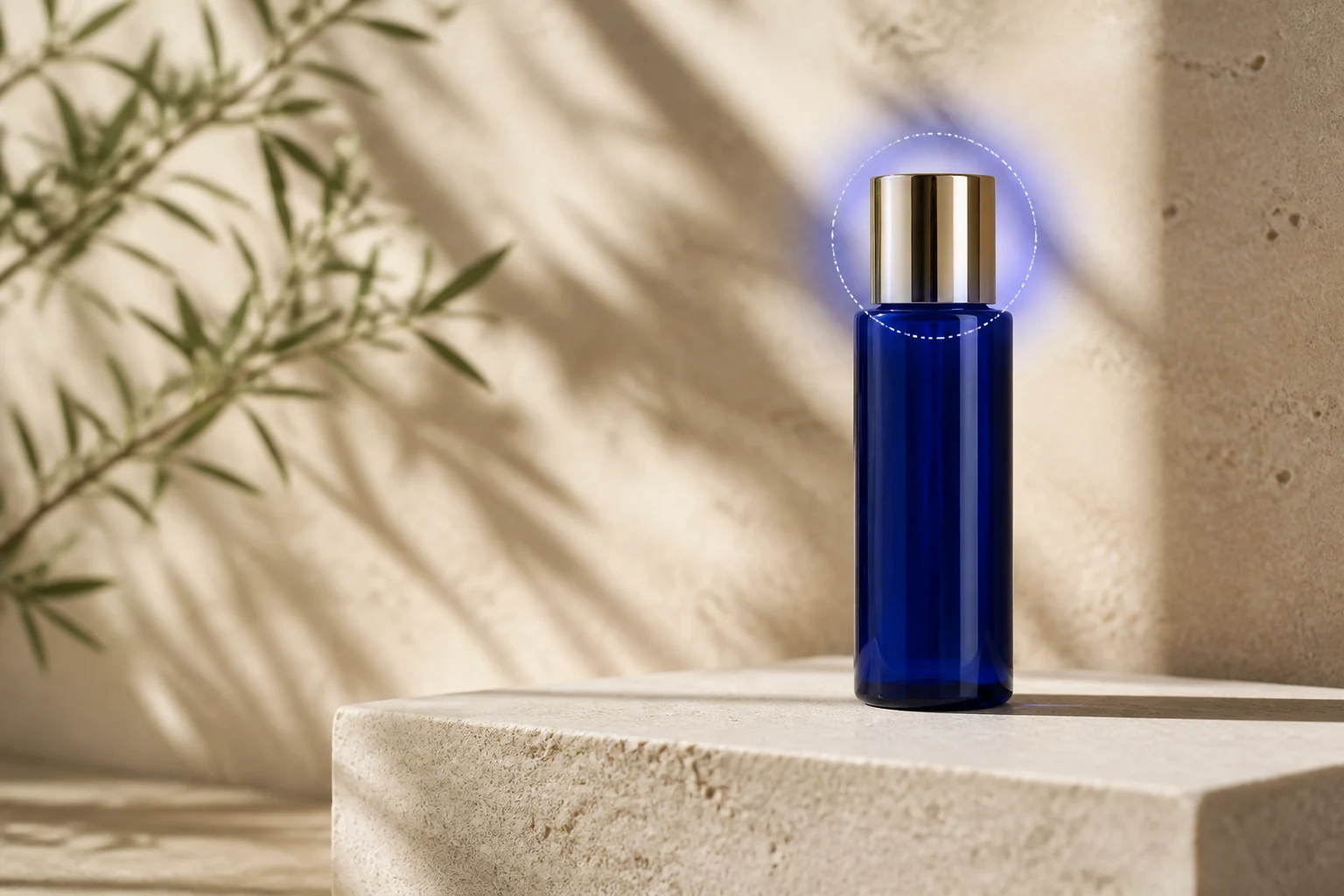
Keep the requested change narrow so it is easier to assess how the edited area blends with the original image.
Choose the image you have permission to edit and check that the subject, framing, and area requiring change are clear.
Select whole-image editing for a broad change, or mark a selected area when only one object, surface, or background section should change.
Write an edit instruction that states what should be removed, replaced, repaired, or added, including material, lighting, color, and surrounding context when it matters.
Compare the result with the original image, then refine the instruction or selection if the boundary, subject, or lighting needs another pass.
The image editor keeps the reference, area selection, edit instruction, and output controls together for one focused change.
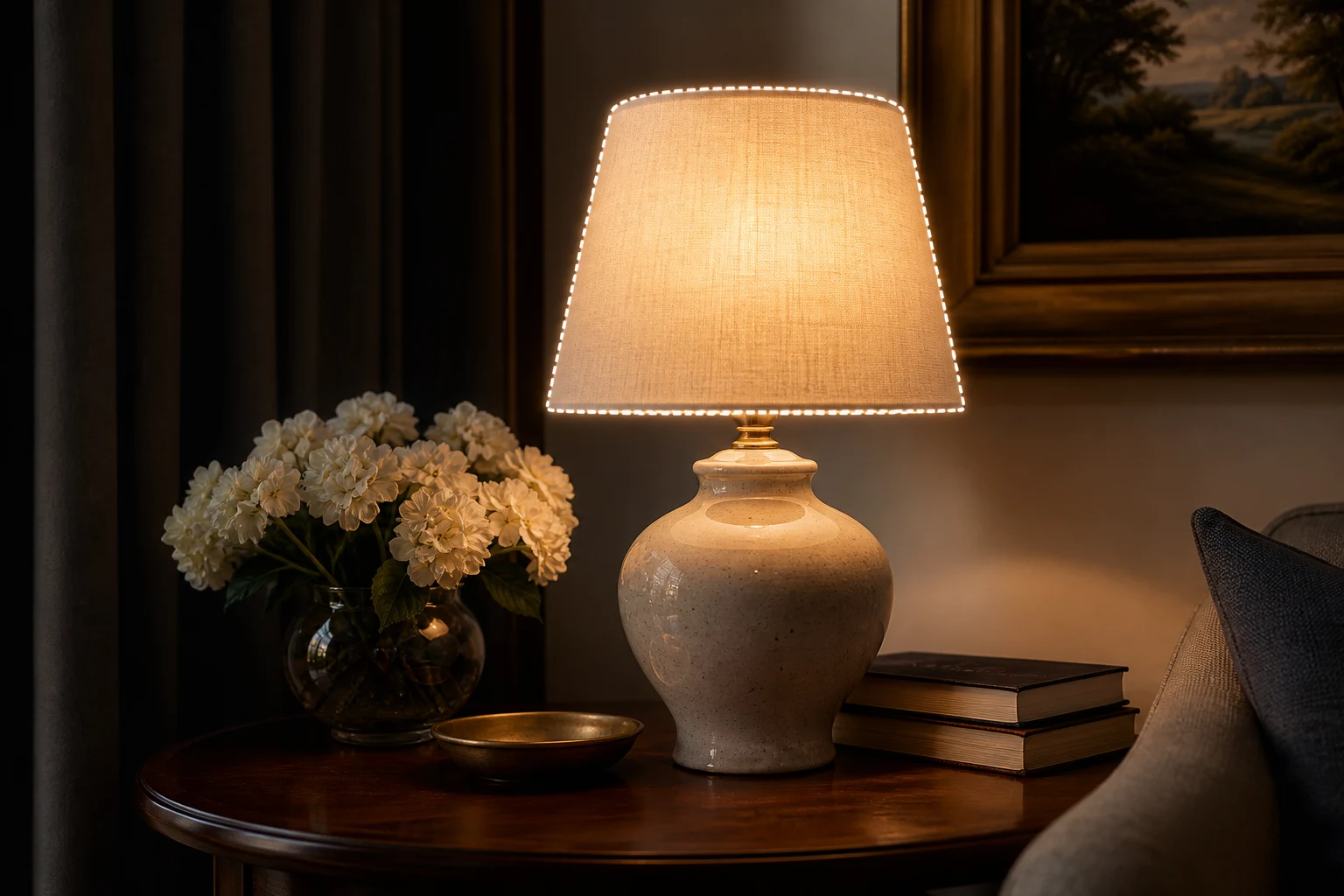
Mark the part of the image to change when you need a local edit instead of asking the system to reinterpret the full composition.
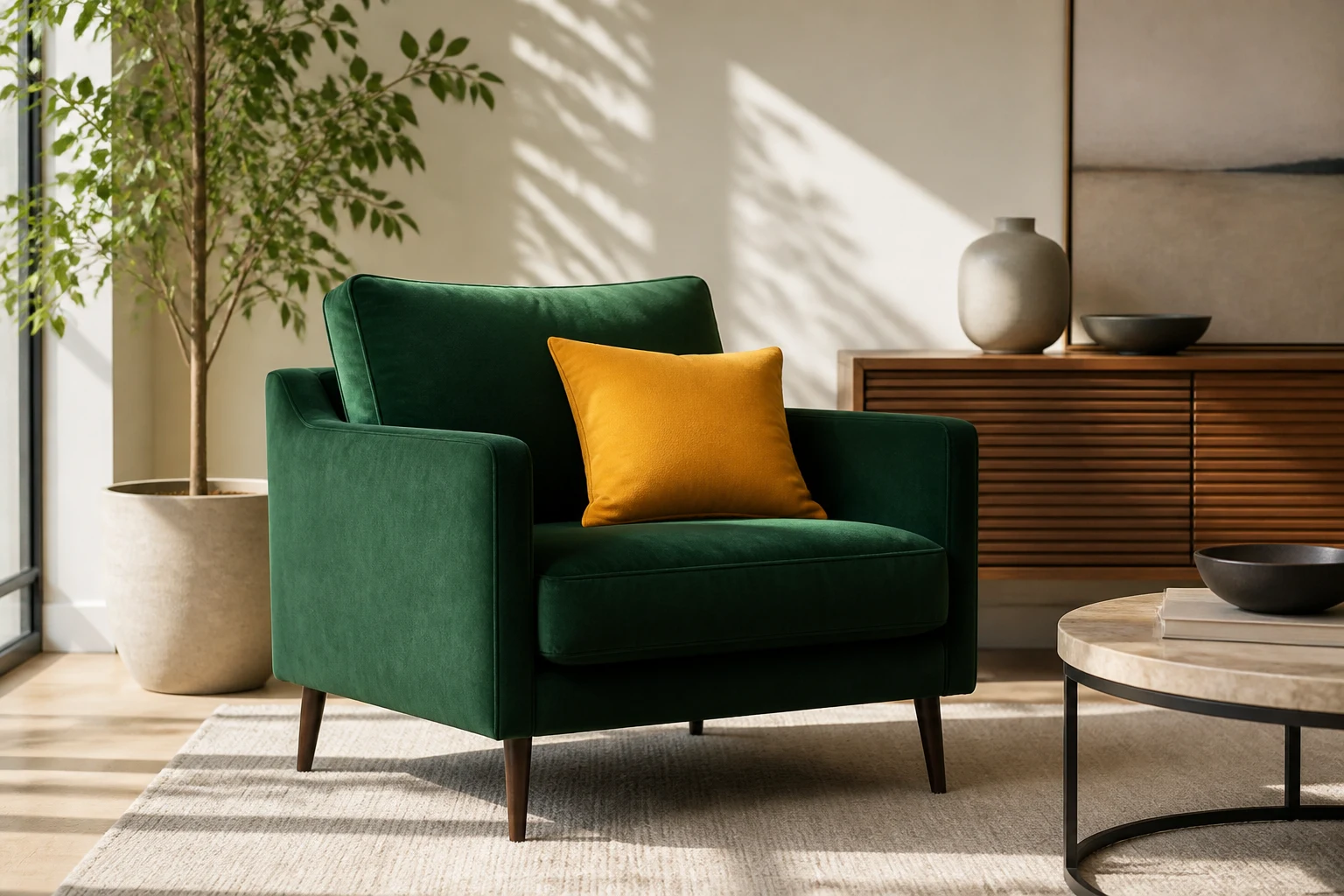
Describe the object or detail, requested change, material, lighting, and background context so the edited area has practical direction.
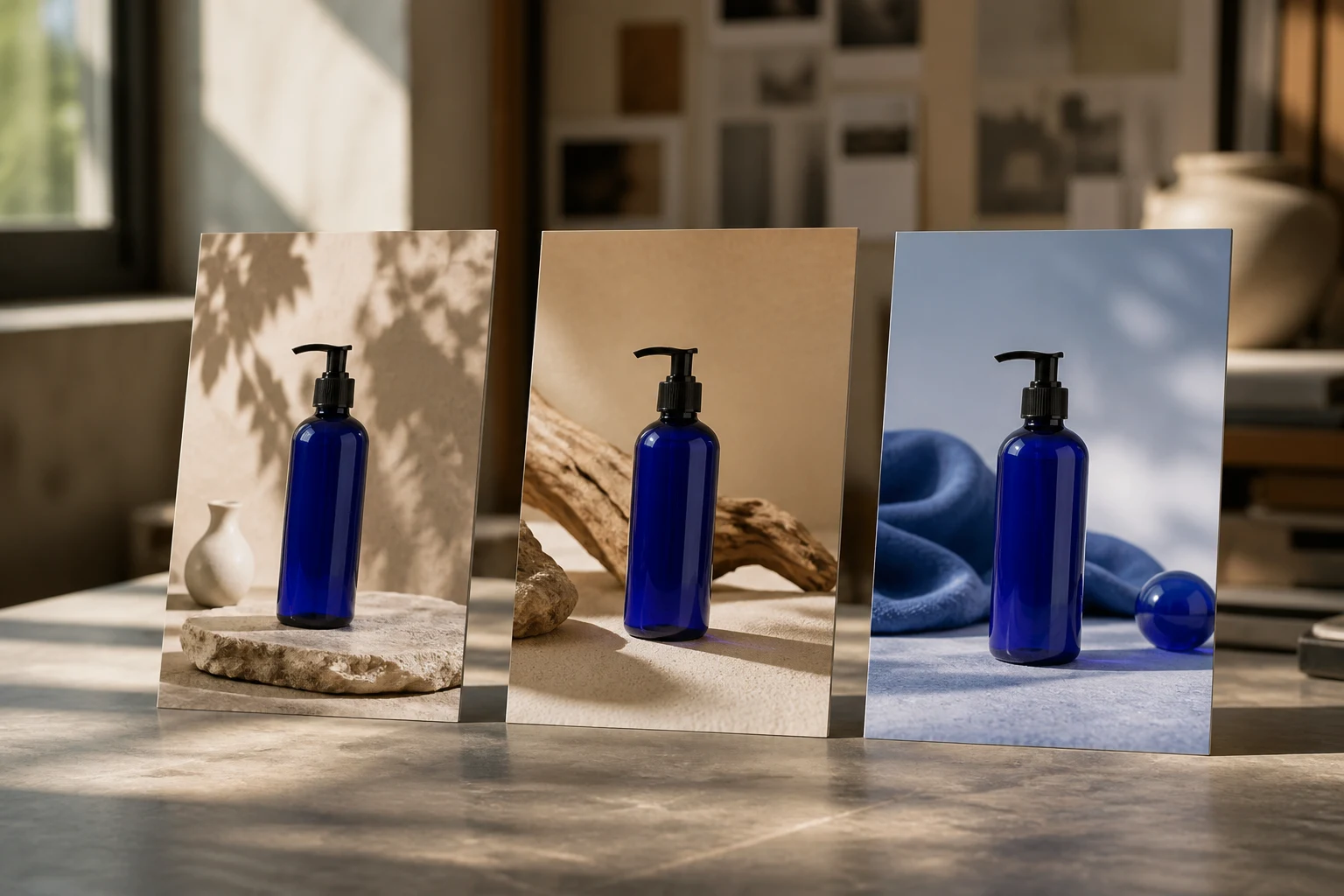
Use available image settings for aspect ratio, resolution, output count, and quality when the updated visual has a specific destination.
Use a focused local edit when the original image is useful but one section needs a new visual direction.
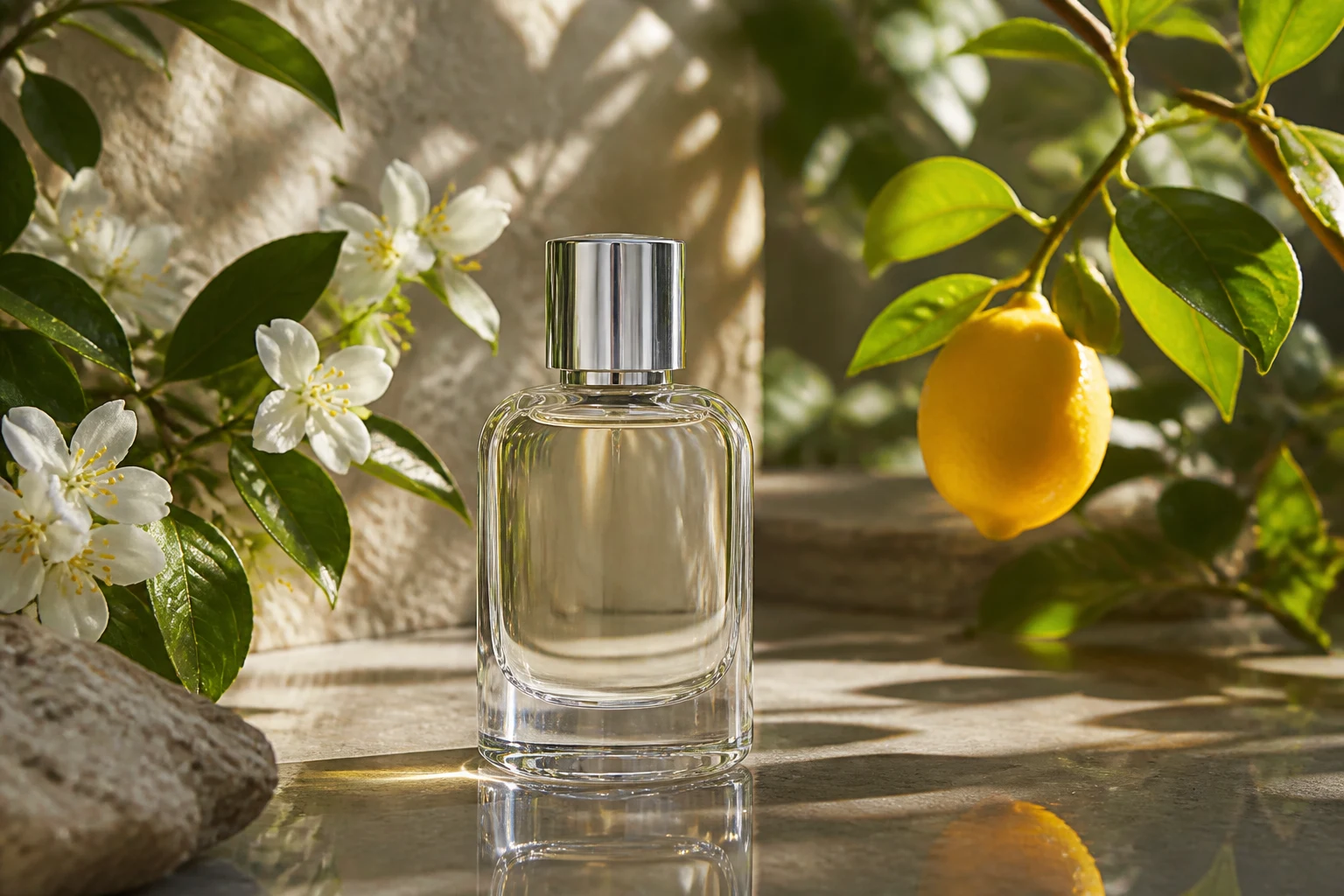
Replace a prop, surface, color, label area, or small background distraction while retaining the product framing that already works.

Refine a small object, background section, clothing detail, or edge in a portrait or lifestyle image before using it in a concept or campaign draft.
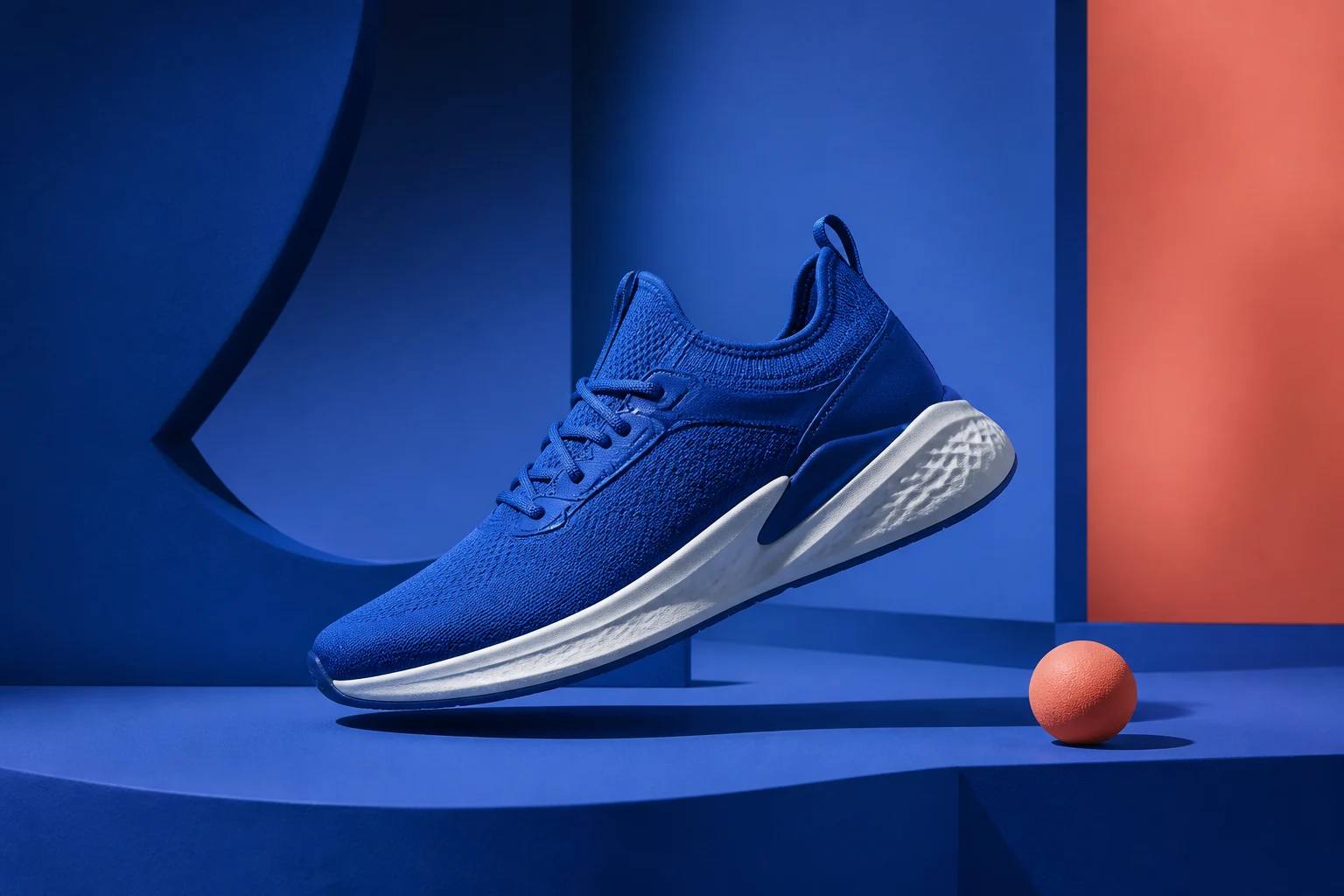
Create a targeted edit to a post, thumbnail, banner, or ad concept instead of regenerating the full image when only one visual element changes.
Inspect both the changed area and the untouched surroundings, because a local edit can introduce visible boundary, lighting, or consistency issues.
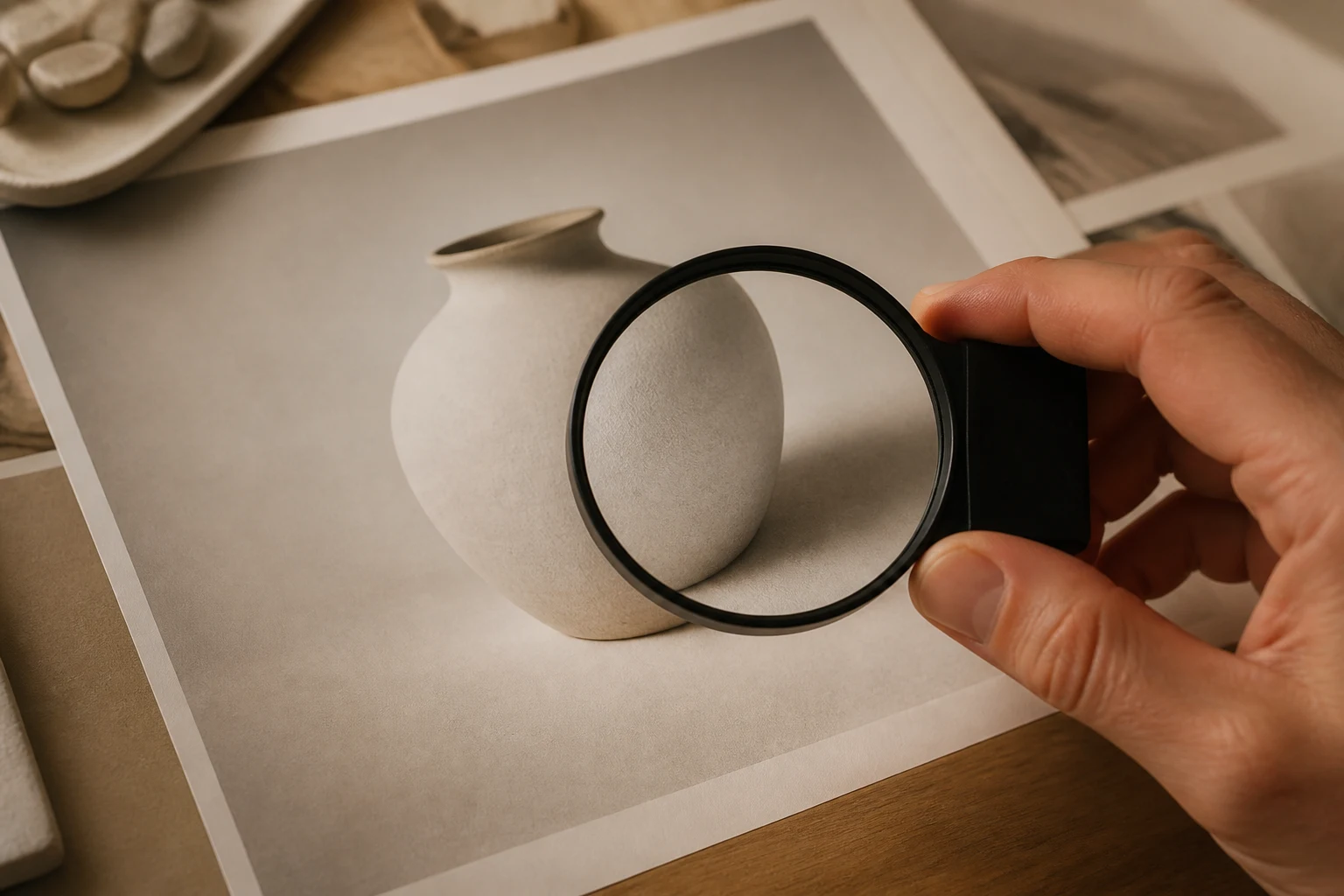
Check the edges where the selected area meets the original image for seams, halos, abrupt texture changes, or misplaced details.
Confirm that the main subject, pose, product shape, composition, and important unselected details remain suitable for the intended use.
Compare shadows, reflections, color temperature, grain, texture, and perspective between the edit and the surrounding image.
Verify that the updated image has the right aspect ratio, resolution, crop, and safe area for the channel or review deck.
A selected-area image edit is generated variation, so it may not preserve every original pixel, texture, or visual relationship exactly.
An edit may change nearby shadows, reflections, textures, or edges, especially when the selected area overlaps a complex object or subject.
Hands, faces, repeated patterns, transparent materials, fine lettering, and intricate geometry can need another selection or manual correction.
Only upload images you own or have permission to edit, and check brand, product, and third-party rights before publishing the result.
Answers about AI inpainting, selected-area edits, instructions, image results, and what to check before using an updated visual.
Upload a permitted reference image, mark the selected area, describe the local change, then generate an edit you can inspect closely.