ClipCanva
AI canvas expansion

AI Image Extender

Use AI Image Extender to expand a source image for a new layout, crop, or format. Upload your image, choose an extend direction, and guide the result with prompt detail, visual direction, subject and setting, and destination format.

0 / 2000
  • Start from a source image and extend direction
  • Guide what should continue beyond the original frame
  • Create extended image results for new crops and formats
Definition

What Is an AI Image Extender?

AI Image Extender helps expand an existing image beyond its current borders. It uses your source image, extend direction, and written guidance to create a larger composition while keeping the original visual context in mind.

Input
Image plus direction
Output
Extended image results
Best for
Reframing project visuals
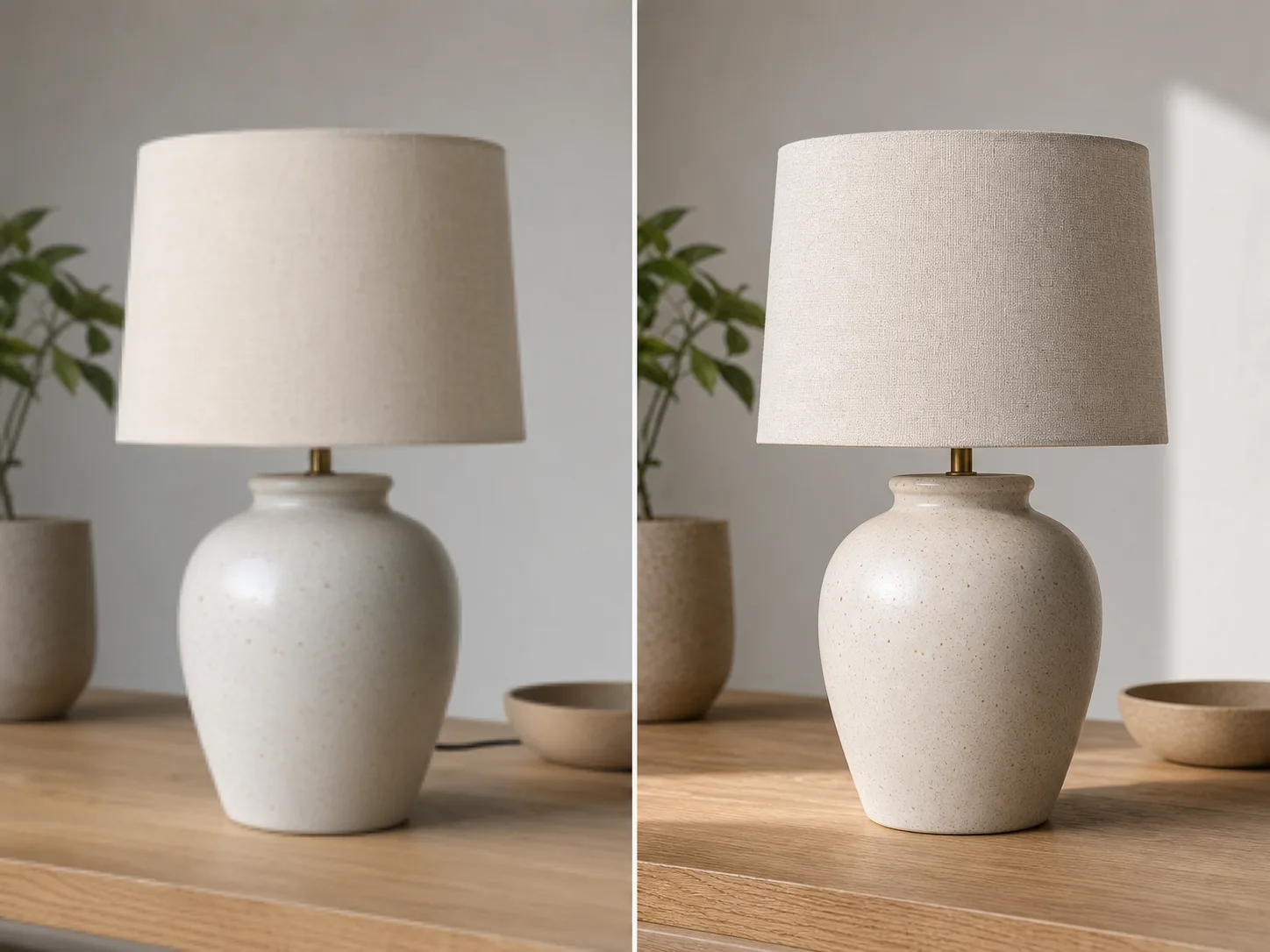
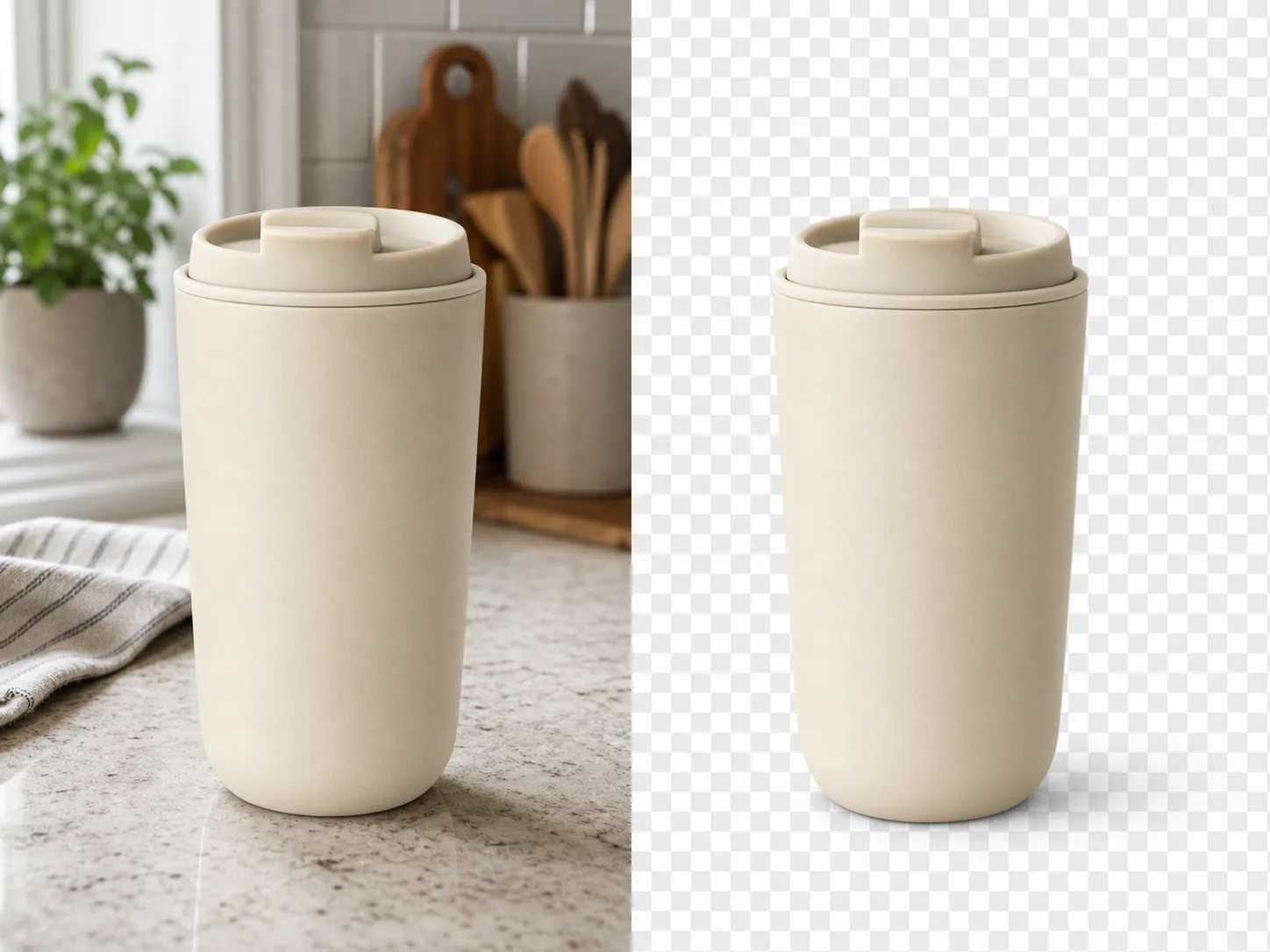
Planned uncrop definition example
Example output

How to Use AI Image Extender

Use the online flow to uncrop image content in a few focused steps, from upload to guided expansion.

1

Upload the image

Add the source image you want to expand and choose the direction where the canvas should grow.

2

Guide the extension

Describe the subject, setting, and visual direction so the added area follows the intended scene.

3

Check the output

Select the destination format and inspect the extended result before using it in your project.

AI Image Extender Controls

Control how the image should expand so the added area fits the original subject, setting, and intended layout.

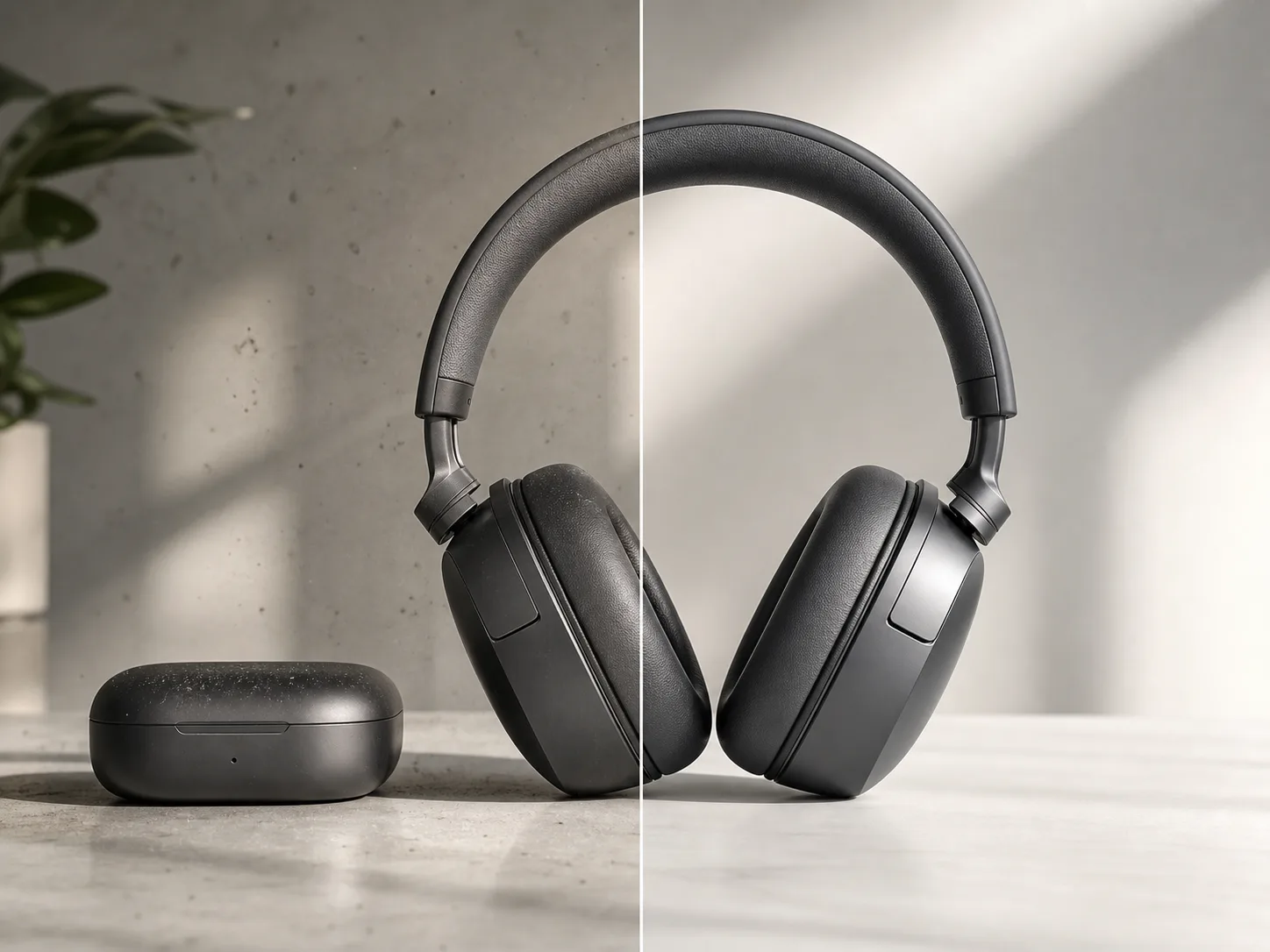
Planned uncrop capability input example

Prompt-guided image expansion

Describe the subject, background, mood, or scene details that should continue beyond the original frame.

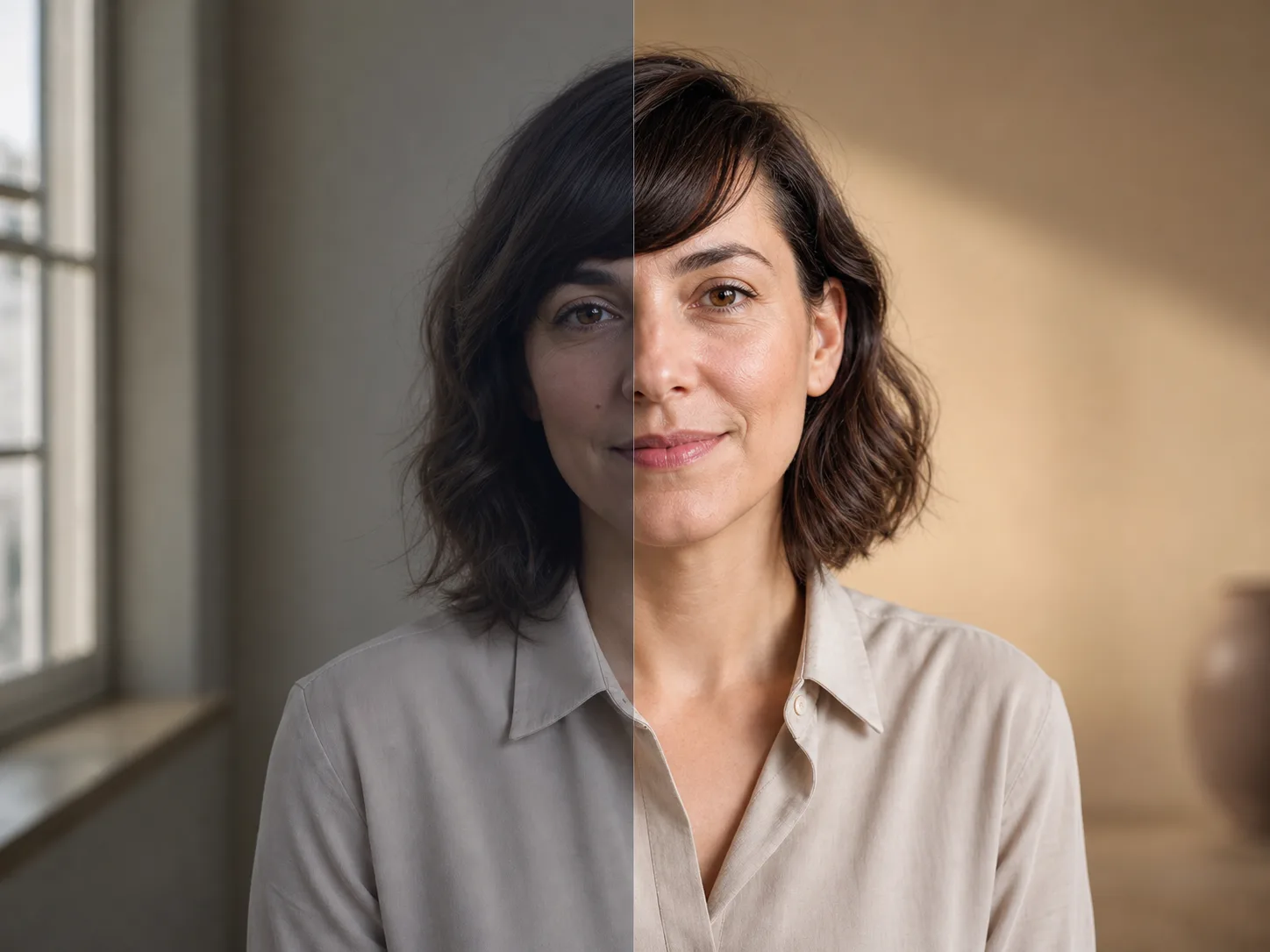
Planned uncrop capability direction example

Directional canvas extension

Choose the direction and visual intent for the new space when you need to extend image canvas with AI for a wider, taller, or reformatted composition.

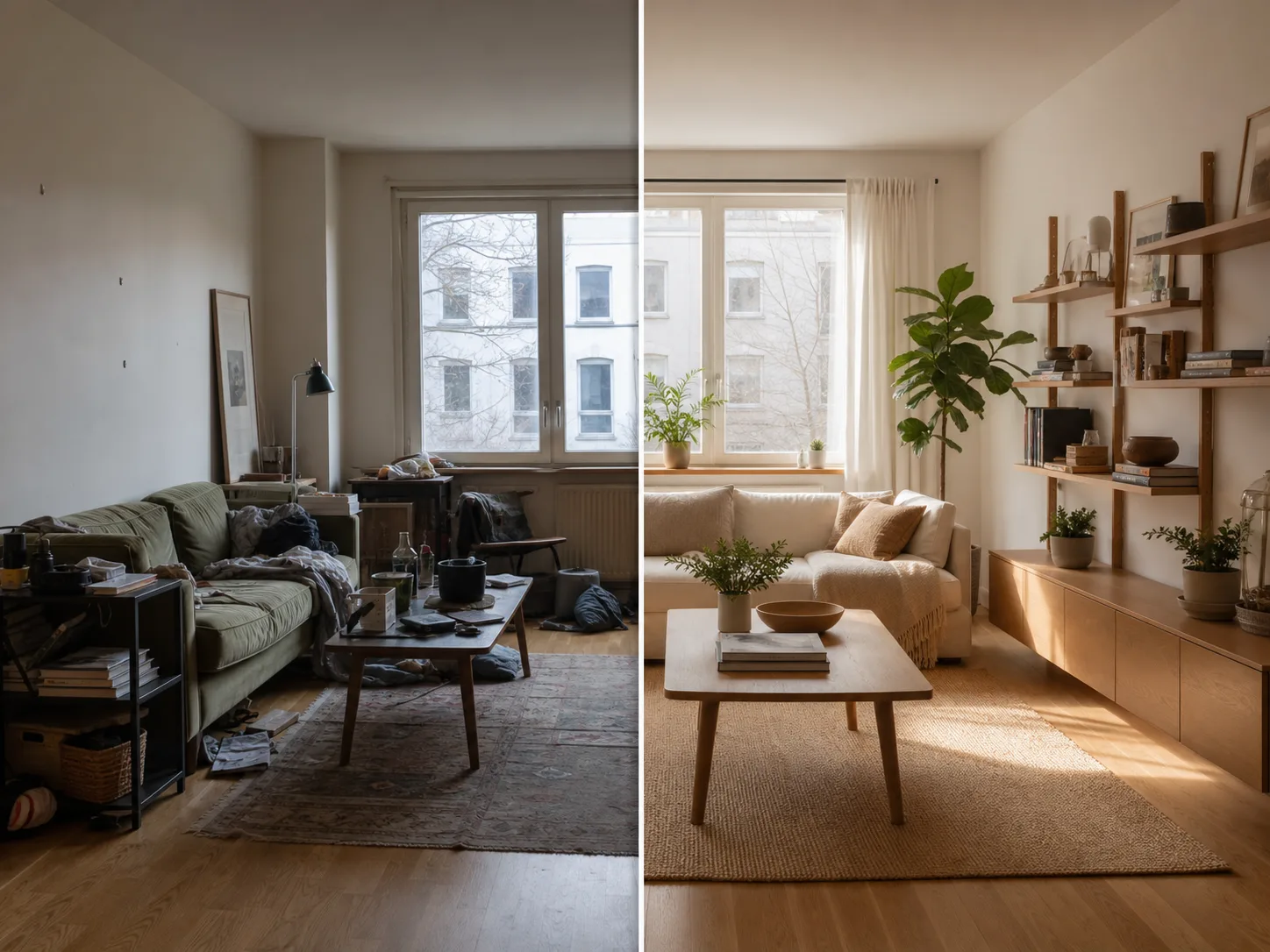
Planned uncrop capability result example

Format-aware image output

Set the destination format so the output is shaped for the placement you have in mind.

What You Can Create with AI Image Extender

Create image results that adapt an existing visual to a new layout without starting from scratch.

Planned uncrop use case one example

Upload the image

Upload the image you want to expand and use the extend direction to make room around the current frame.

Planned uncrop use case two example

Pick the target layout

Prepare wider, taller, or alternative compositions for banners, posts, covers, and presentation spaces.

Planned uncrop use case three example

Describe what to preserve

Tell the tool what to keep consistent when you extend image canvas with AI, including subject, setting, colors, and atmosphere.

Review AI Image Extender Results Before Use

Before using the extended image, check the result against the brief, the original subject, and the final placement.

Planned uncrop review example

Brief fit

Confirm the expanded composition still matches the project goal, placement, and audience.

Important details

Inspect important details such as faces, hands, text, product shapes, and background continuity.

Destination crop and format

Compare the final crop and destination format against the space where the image will be used.

AI Image Extender Limitations

AI image extension has practical boundaries. Results can vary, and important visual details may need careful inspection before you choose a final output.

Variable image results

Generated results can differ between attempts, especially when the source crop gives limited context for the added area.

Detail-sensitive boundaries

Small objects, faces, text, product edges, and brand-sensitive areas may need extra review after expansion.

AI Image Extender FAQ

Answers to common questions about AI Image Extender inputs, controls, and expected results.

What does AI Image Extender do?
AI Image Extender is designed for expanding an existing image rather than starting from a blank canvas. You provide a source image, pick where the frame should grow, and add guidance for the scene.
When should I uncrop image content?
You can uncrop image compositions for new layouts, widen a product scene, add vertical space for a social post, or adapt a visual to a different destination format.
What should I inspect after extending a canvas?
Extending or uncropping a canvas can add plausible surrounding space, but fine details near faces, text, logos, hands, or product edges should be checked before the result is used.
How do I guide the extension?
Use the prompt detail field to describe what should be preserved, what the new area should contain, and how the subject and setting should continue.

Create with AI Image Extender

Upload a source image, choose the extend direction, and create with AI Image Extender for a composition that fits your next layout.