
Upload a video
Choose an MP4, WebM, or MOV clip up to 100 MB with the subject, movement, and framing you want to use as the starting point.
Use Video to Video AI online to upload a source clip, describe the visual change you need, then generate a 1080p variation and inspect the motion, subjects, and scene.
Upload Your Source Video
Start with a clip that has the motion, subject, or composition you want to reuse.
Video to Video AI creates a new video variation from an uploaded clip and a written transformation prompt. Start with footage whose motion and framing are useful, then specify the visual direction you want to explore in the next version.
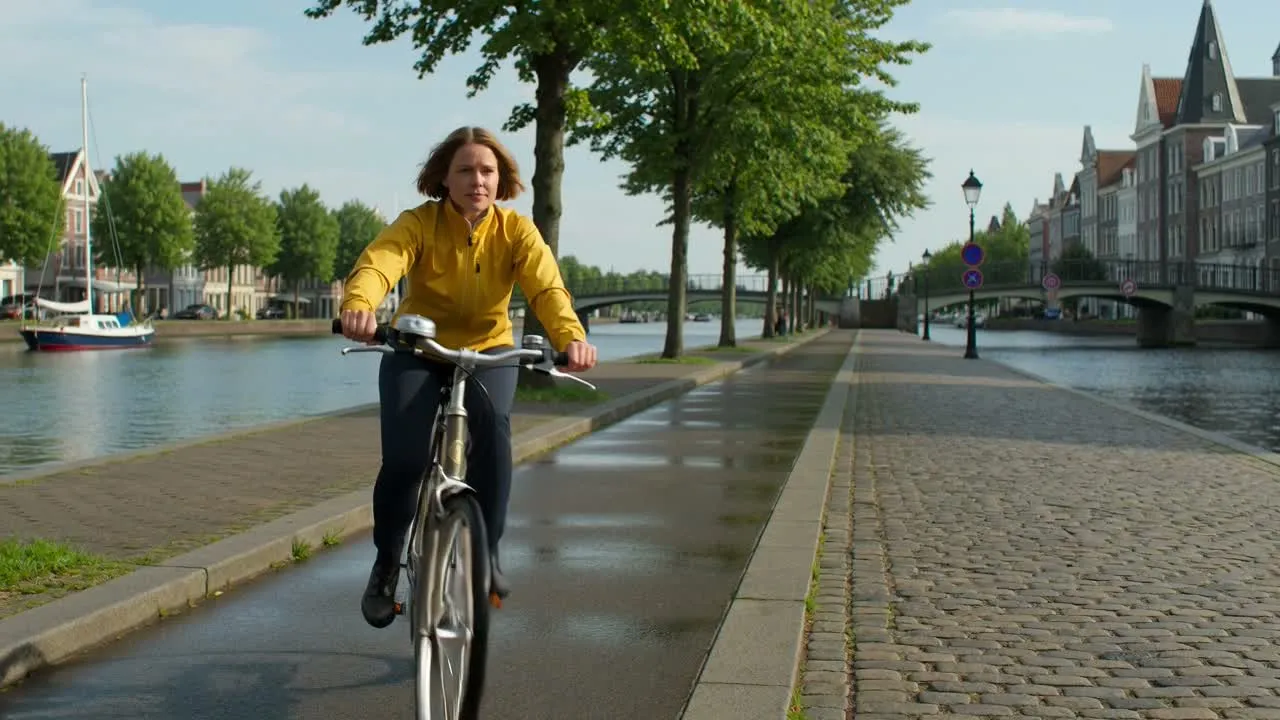
Use a short, clear source clip and define the visual change rather than repeating details that are already present in the footage.
Choose an MP4, WebM, or MOV clip up to 100 MB with the subject, movement, and framing you want to use as the starting point.
State the intended scene treatment, style, lighting, atmosphere, objects, camera feel, or other visual change for the video variation.
Submit the uploaded video and prompt to create a new 1080p result instead of starting from a blank video brief.
Inspect the generated video for subject continuity, motion, scene changes, and the final placement before changing the prompt for another pass.
The tool combines an uploaded clip and transformation prompt so the next video variation has a specific creative direction.
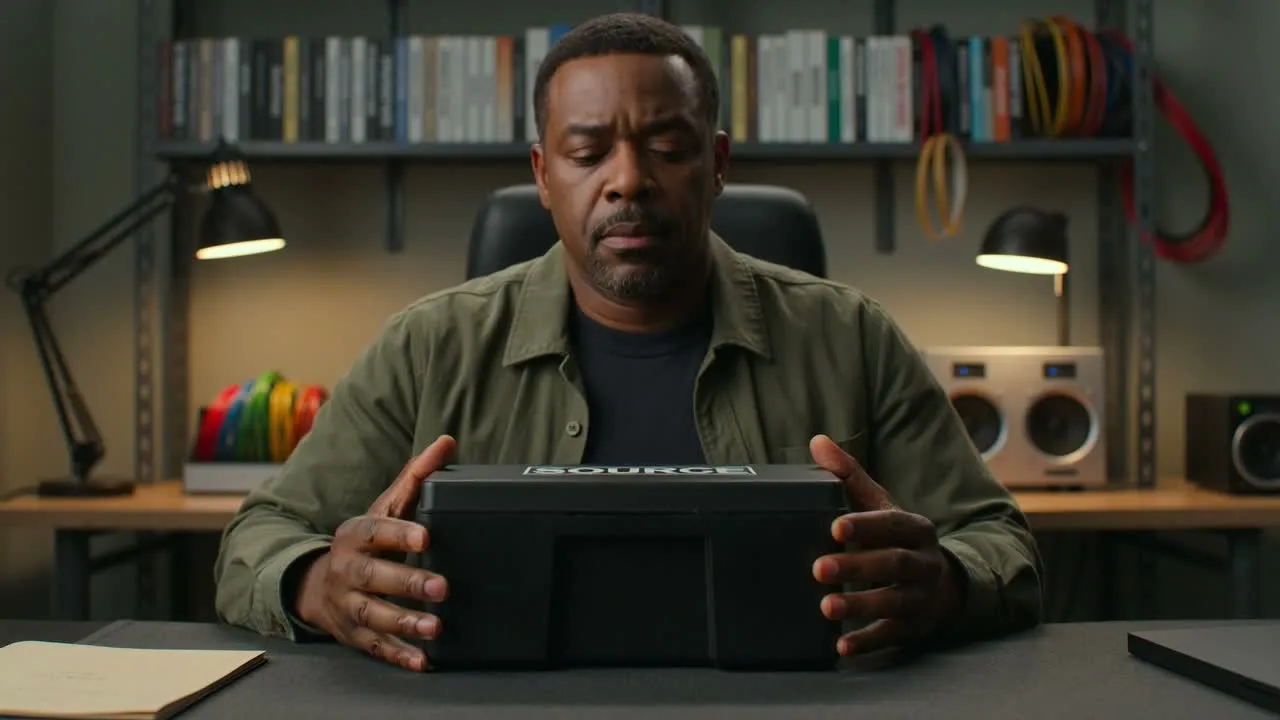
Use existing footage as the visual starting point when its motion, subject, composition, or performance is relevant to the new video version.
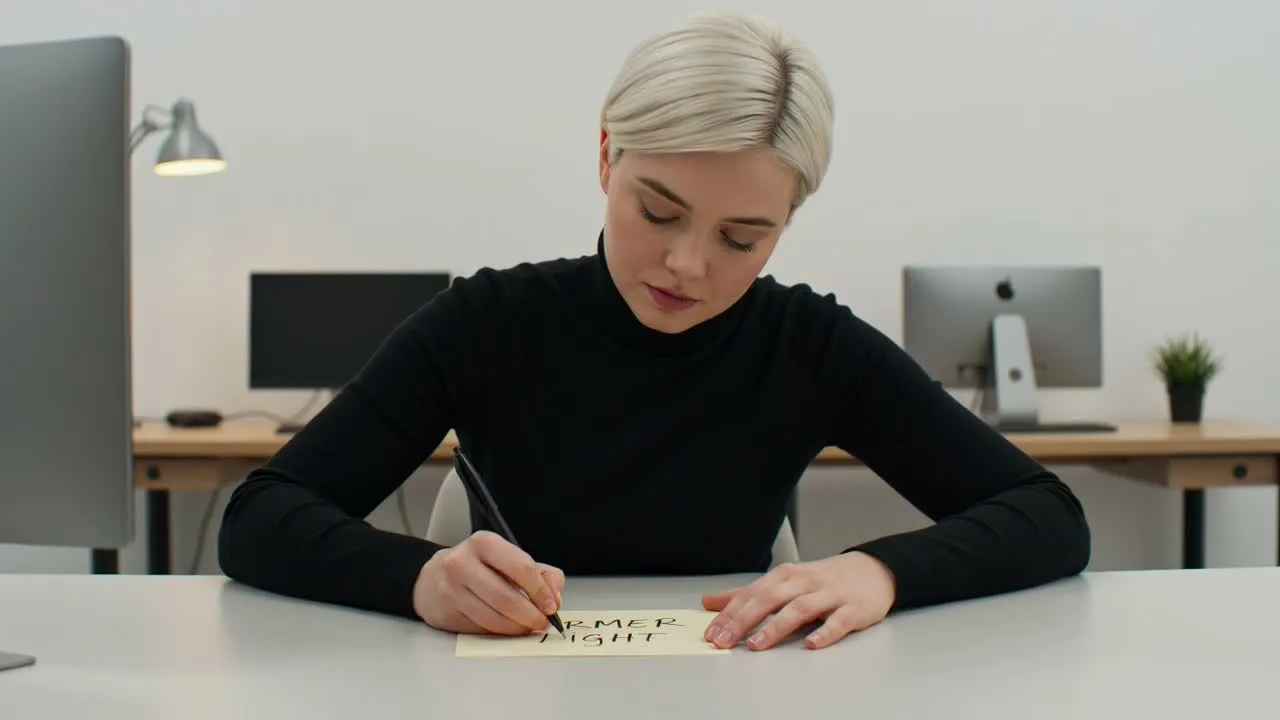
Describe the visual change you want, such as a new scene treatment, lighting direction, atmosphere, object change, or overall style.
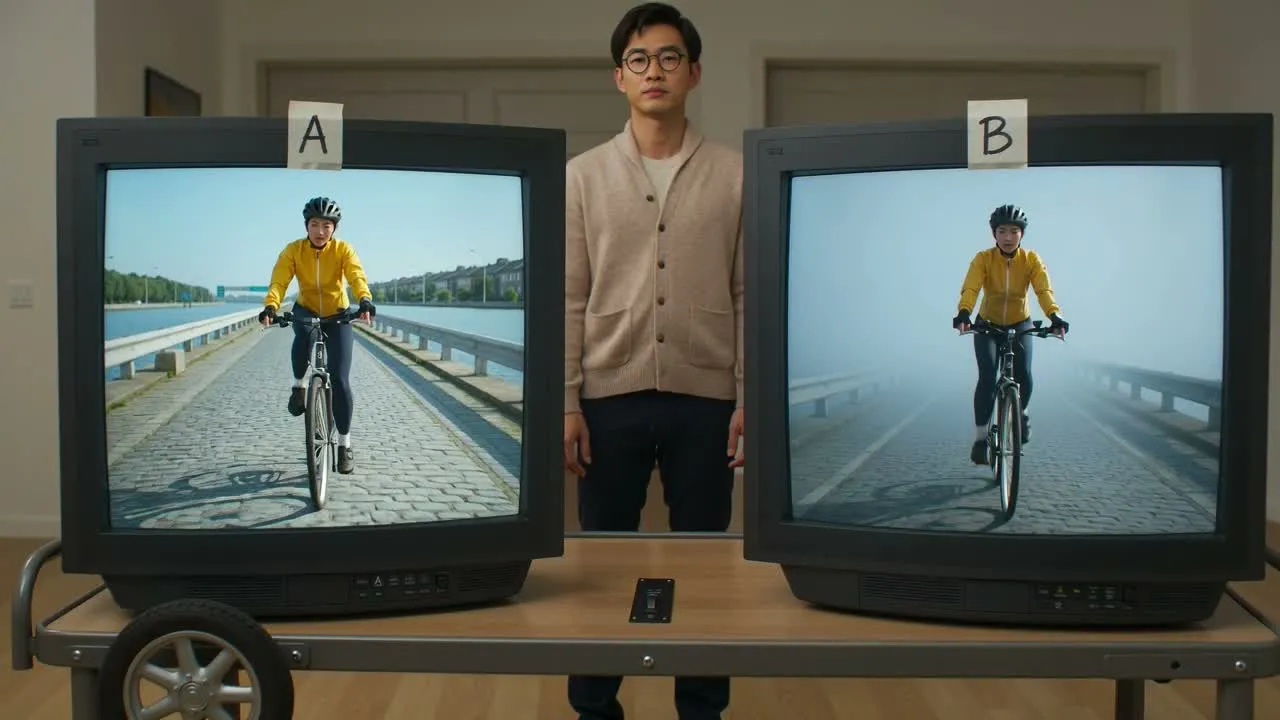
The current transformation flow submits a 1080p video result that you can play back and compare with the source clip before using it.
Begin with footage that already contains useful movement or framing, then create an alternate visual direction for a specific publishing or review job.
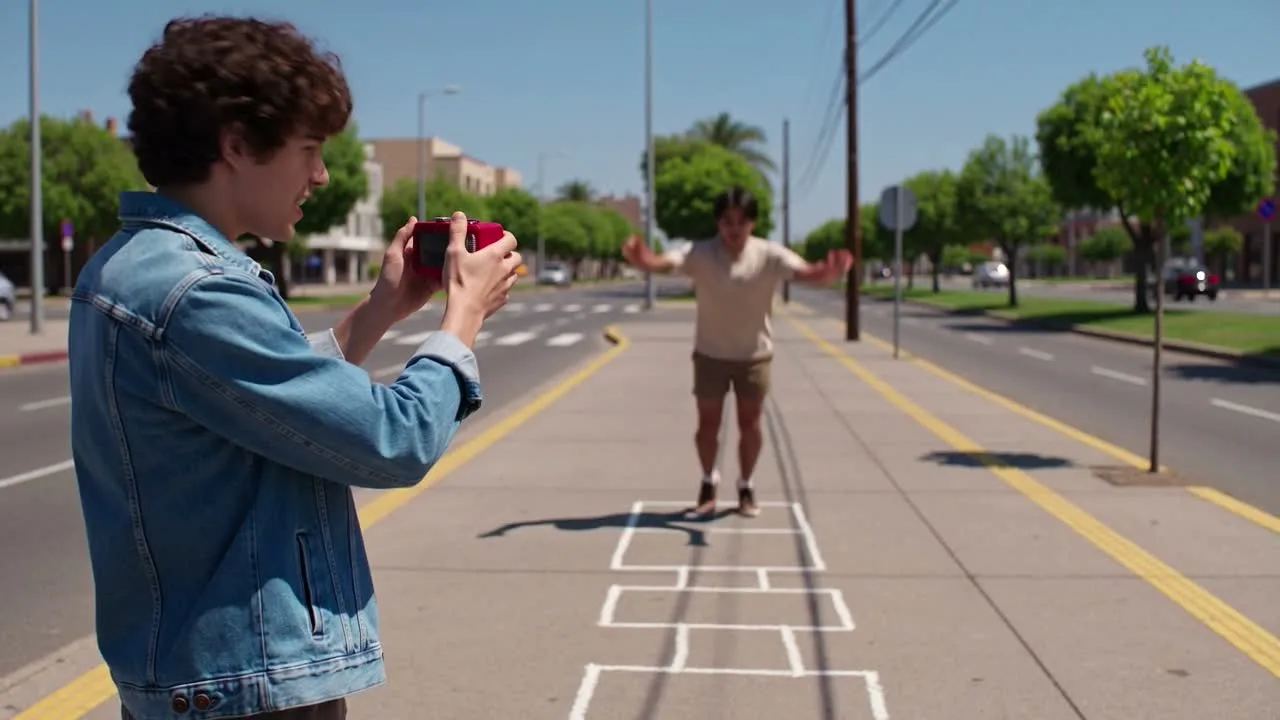
Explore a new visual treatment for a short social clip while keeping the source action or camera movement as a starting point for the variation.
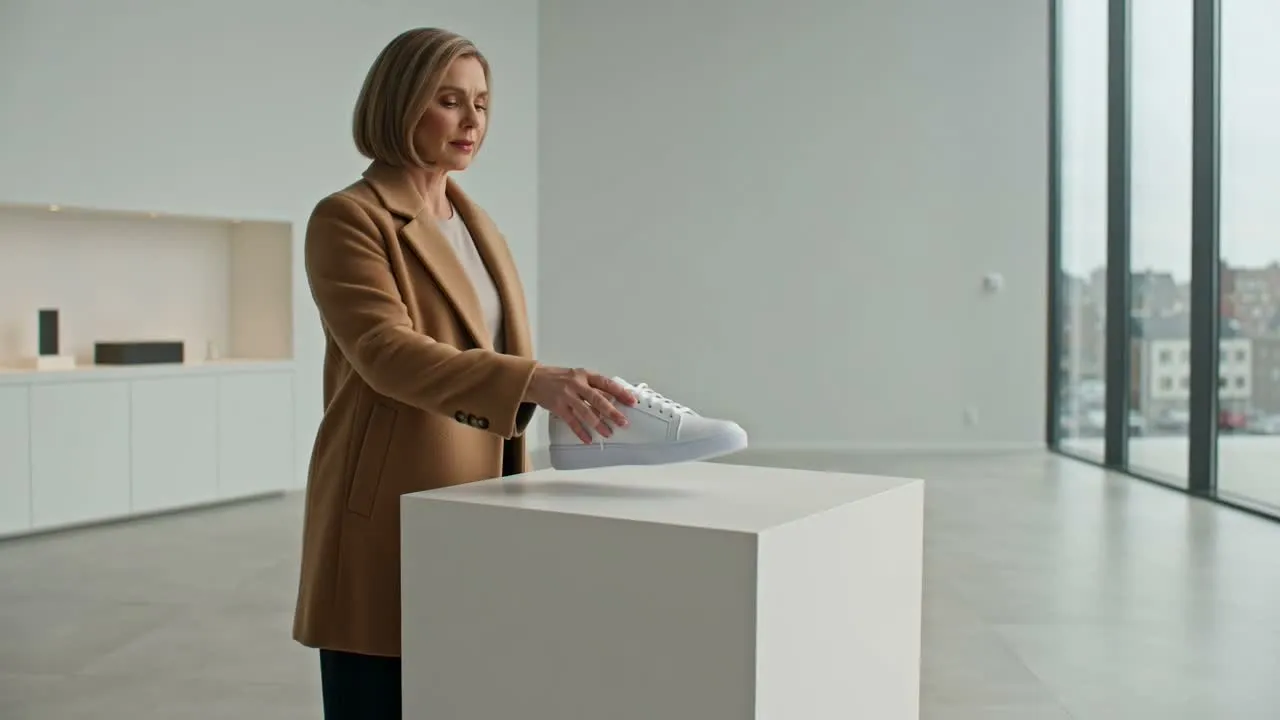
Compare scene atmosphere, product treatment, lighting, or stylized directions for an early campaign concept before final production decisions.
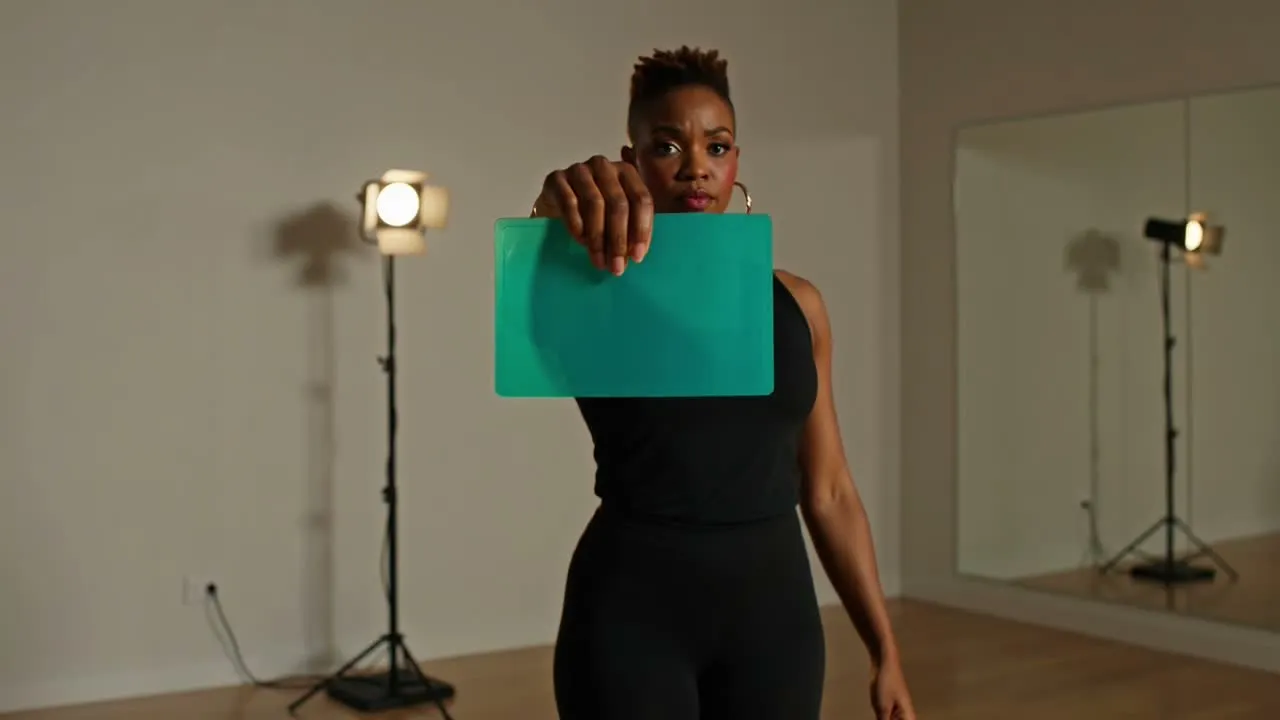
Test how an existing performance, action, or composition might read with a different visual world, mood, or color treatment.
Watch the result through rather than relying on one frame, because temporal changes can affect motion, subject detail, or scene continuity.
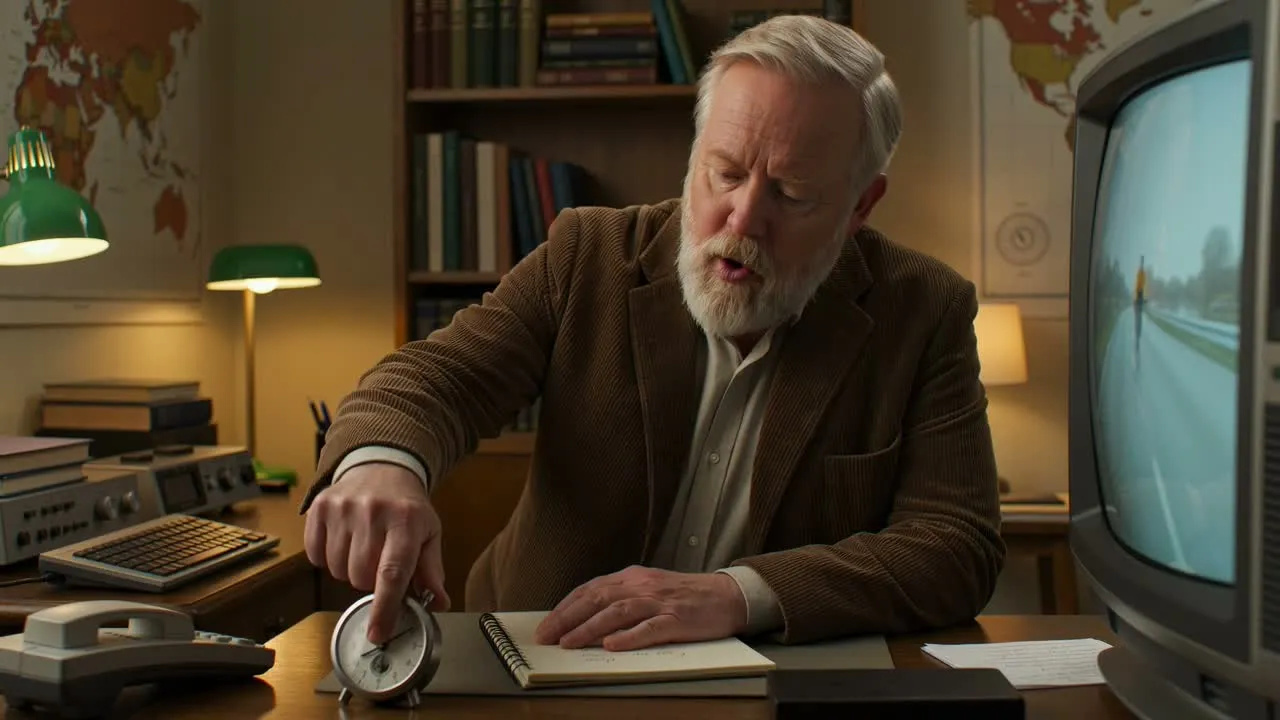
Confirm that the requested visual direction is present throughout the clip instead of appearing only in an opening or isolated frame.
Look for changed faces, hands, products, objects, motion paths, timing, or abrupt transitions that make the video difficult to use.
Check lighting, perspective, textures, background elements, and visual treatment from frame to frame for noticeable drift or flicker.
Verify the 1080p result plays correctly and suits the crop, duration, safe area, and channel where the video will appear.
A generated video variation can reinterpret parts of the source clip, so it does not guarantee identical motion, subjects, timing, or scene details.
Faces, hands, products, repeated objects, fast movement, and detailed backgrounds can change between frames or differ from the source video.
The current video transformation flow returns a 1080p result, so check your destination requirements before starting a variation.
Only upload footage you own or have permission to transform, and review brand, performer, music, and third-party rights before publishing.
Answers about online source-video uploads, transformation prompts, 1080p output, and result checks.
Upload a permitted source clip, describe the visual change you want, then generate a 1080p video variation to play back and inspect.