
Comment rédiger la consigne vidéo
Écrivez ce qui doit se passer dans la scène, notamment le sujet, le décor, l’action et les indices d’ambiance ou de style importants.
Transformez une consigne écrite en clip court et ciblé pour une campagne, un concept ou un brief créatif. Décrivez le sujet, le décor, le mouvement et la direction visuelle, puis créez avec l’outil Texte vers vidéo par IA afin d’obtenir un point de départ prêt pour votre projet.
Texte vers vidéo par IA crée de courts clips vidéo à partir d’instructions écrites. Il est conçu pour les créateurs, les spécialistes du marketing et les équipes qui ont besoin d’un résultat visuel ciblé pour un projet précis plutôt que d’une suite de montage complète.
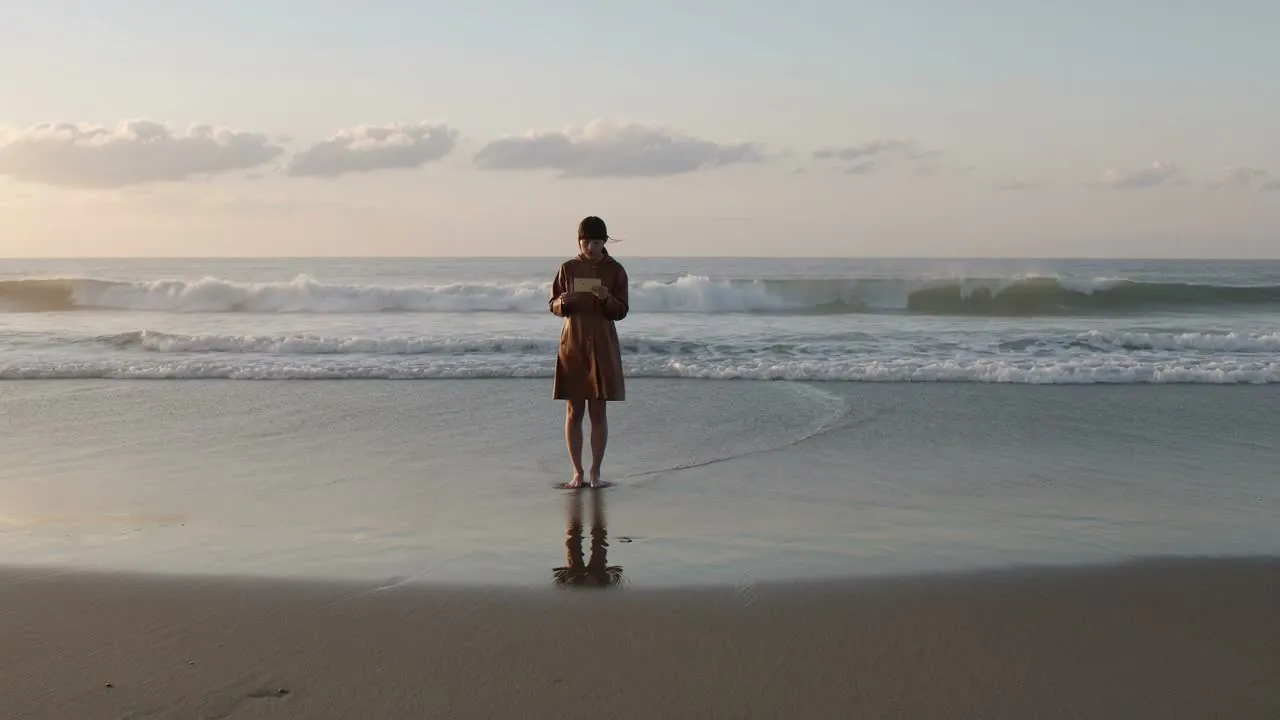
Commencez par une consigne, ajoutez les détails qui définissent la scène et choisissez le format correspondant à la destination du clip.
Écrivez ce qui doit se passer dans la scène, notamment le sujet, le décor, l’action et les indices d’ambiance ou de style importants.
Affinez la consigne avec une direction visuelle pour que la vidéo IA créée à partir de texte exprime mieux le ton, le rythme et le contexte.
Choisissez le format de destination avant de créer afin que le résultat soit mieux adapté au canal ou au brouillon prévu.
Utilisez le générateur de texte en vidéo pour façonner la vidéo selon les informations créatives les plus importantes pour votre projet.
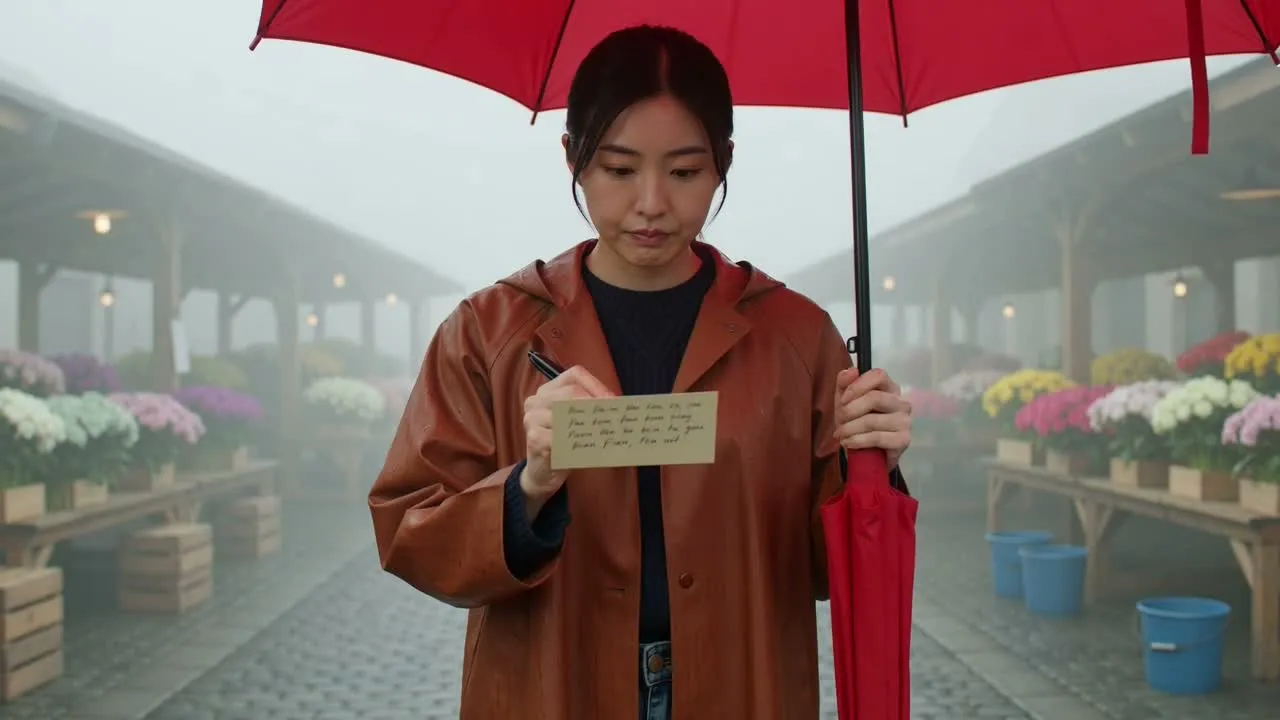
Décrivez le sujet, l’environnement, l’action et le ton pour donner à la vidéo une direction créative plus claire dès le départ.
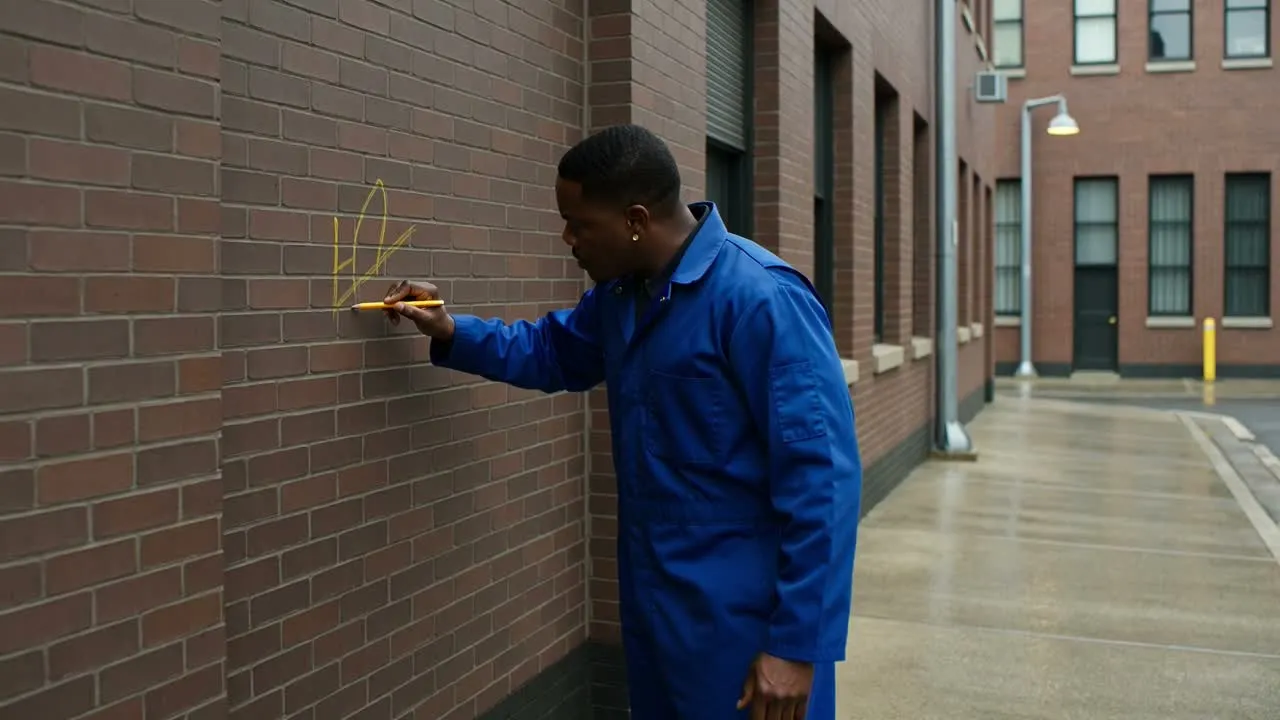
Utilisez une direction visuelle pour orienter le résultat vers une ambiance, un style ou un type de scène adapté à votre brief.
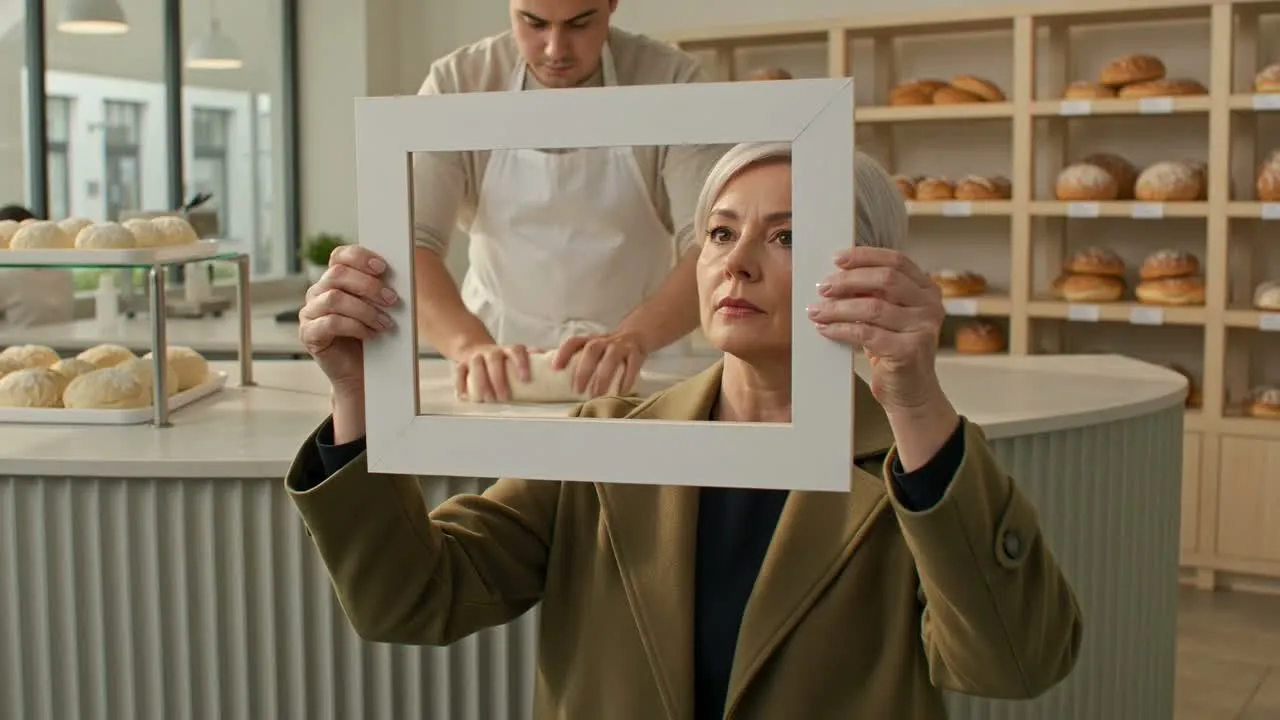
Sélectionnez le format de destination pour préparer le concept vidéo à des espaces comme les fils de contenus courts, les publicités ou les brouillons de présentation.
Créez ou utilisez un résultat qui aide à transformer des idées écrites initiales en matière visuelle pour la planification, les tests et la présentation.
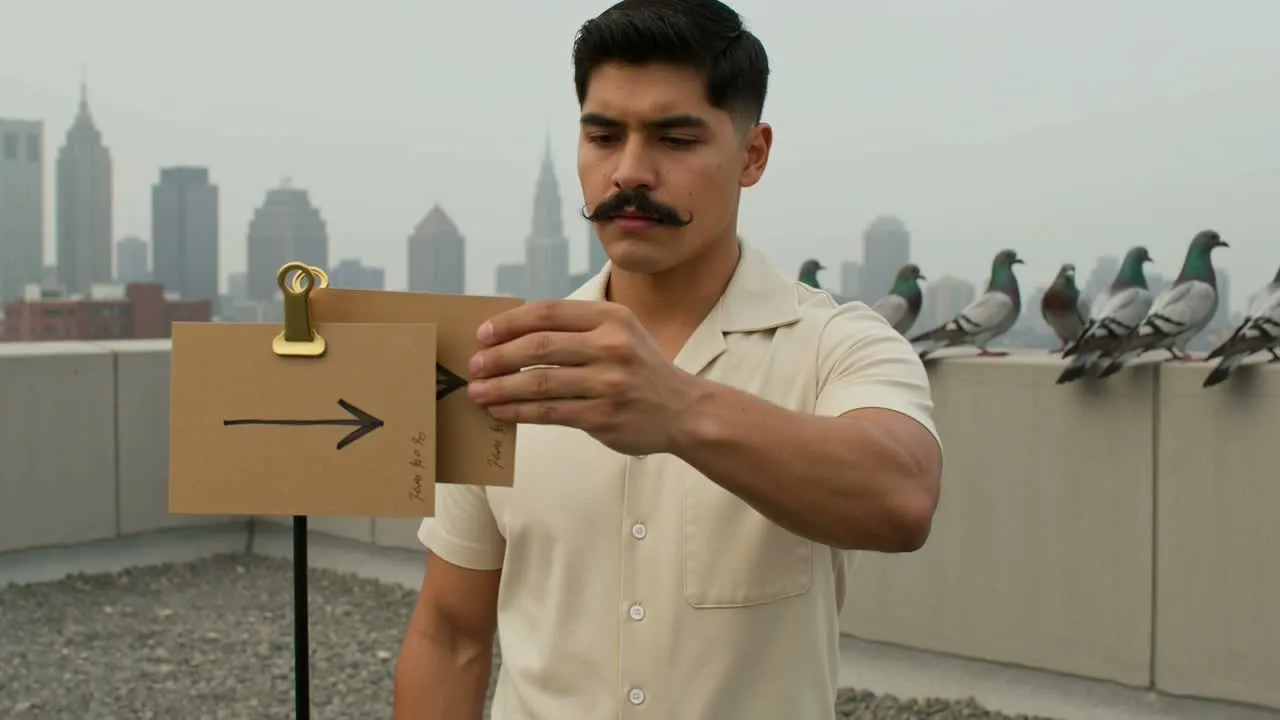
Transformez une description de scène en court concept vidéo pour explorer une direction avant de vous engager dans la production.
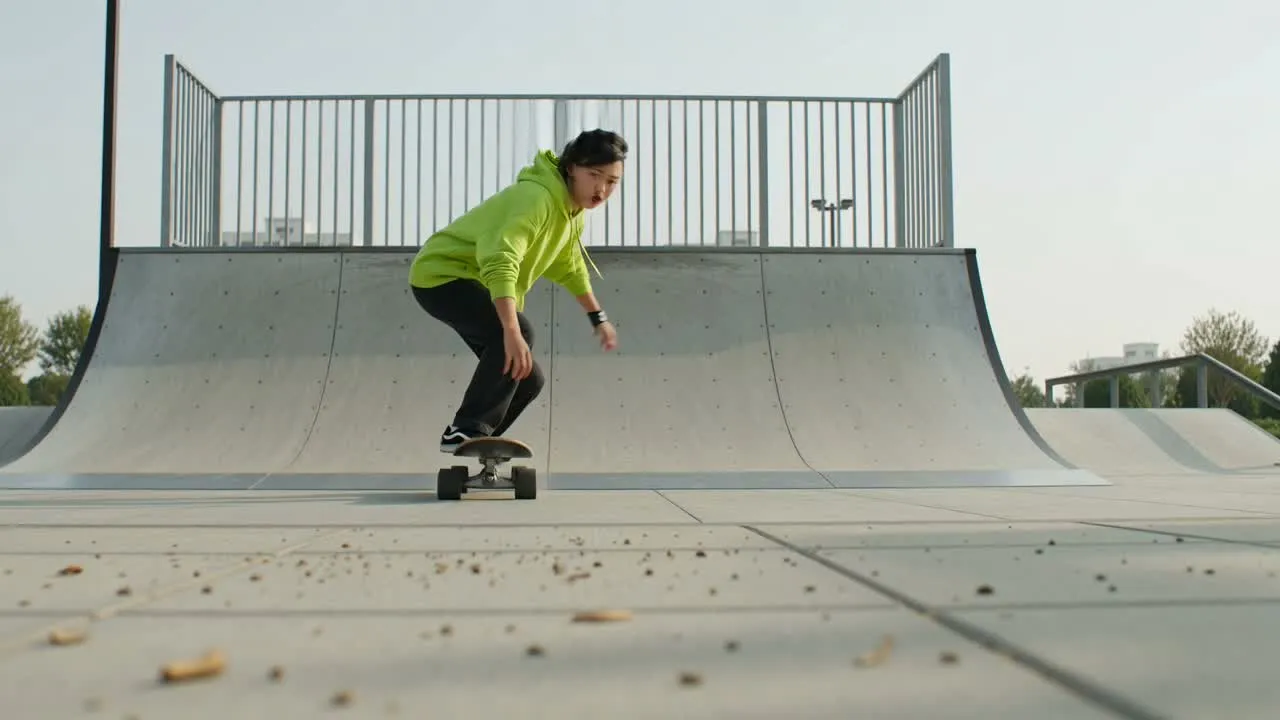
Créez rapidement des directions visuelles pour des publicités, des Shorts, des Reels ou des concepts sociaux nécessitant un sujet et un décor clairs.
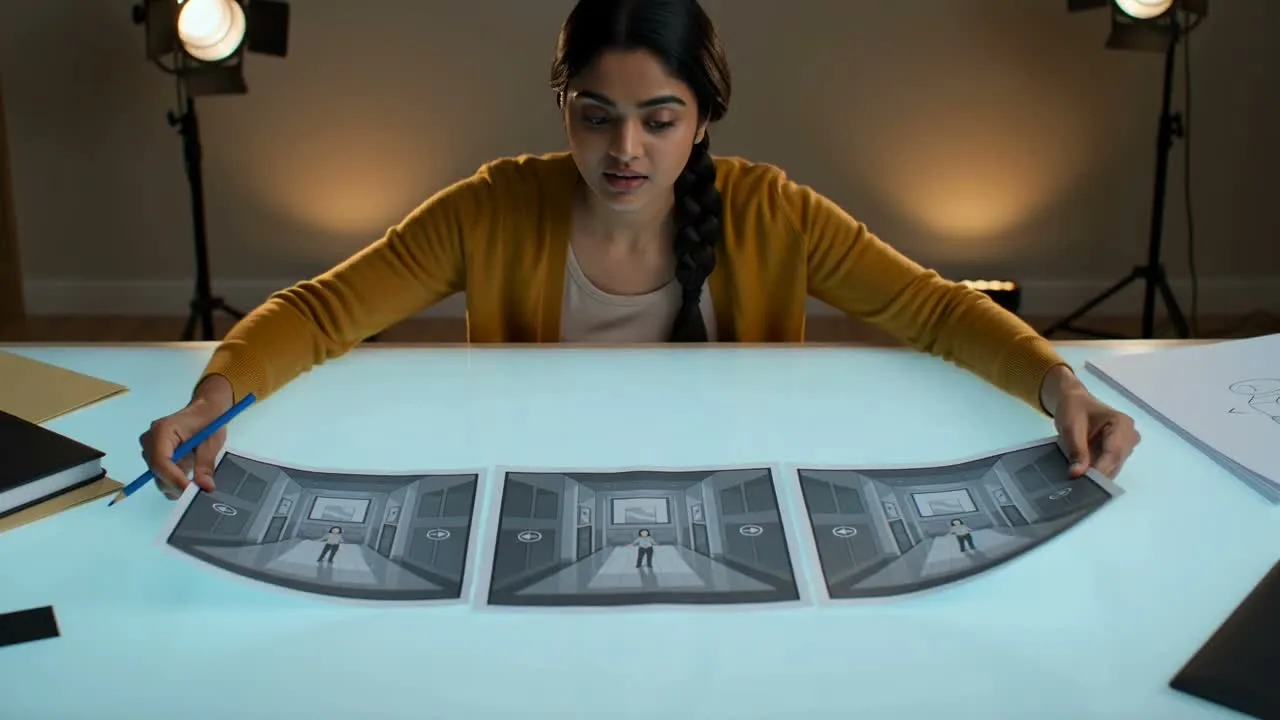
Utilisez le résultat pour explorer les temps forts d’un storyboard, des options de campagne ou des références d’ambiance lors d’une discussion d’équipe.
Examinez la vidéo générée avant de la partager avec vos collègues ou de l’intégrer à un brouillon créatif plus vaste.
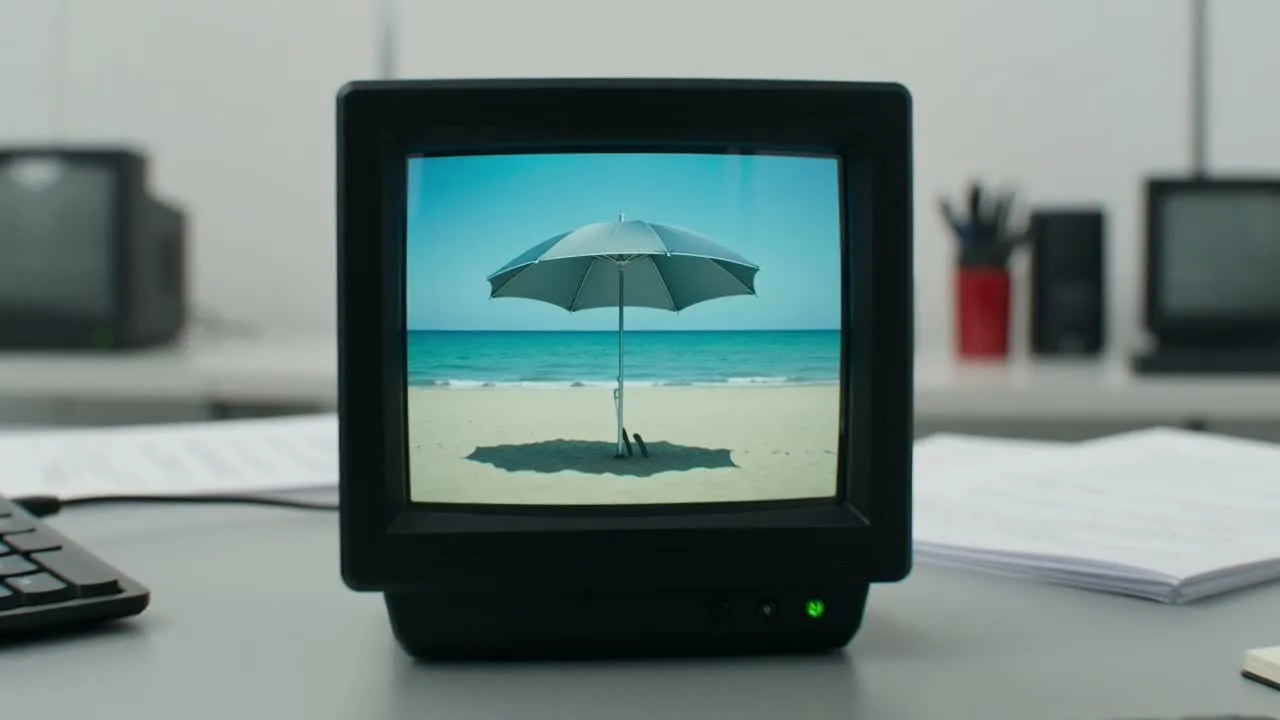
Comparez le clip au brief d’origine pour confirmer que le sujet, le décor, le ton et l’usage prévu restent cohérents.
Vérifiez les détails importants, tels que les objets, l’accent visuel et la continuité de la scène, avant de faire avancer le concept.
Vérifiez le recadrage et le format de destination afin que le clip convienne à l’endroit où vous prévoyez de l’utiliser ou de le présenter.
Les résultats générés peuvent varier ; prévoyez donc d’inspecter le clip avant de l’utiliser dans un flux créatif final.
Une même idée peut produire des choix visuels, des mouvements ou des accents différents, surtout lorsque la consigne laisse place à l’interprétation.
Les noms, les petits objets, le texte exact et d’autres détails importants peuvent nécessiter une vérification attentive par rapport à votre brief.
Réponses aux questions fréquentes sur Texte vers vidéo par IA, les consignes, les résultats et les usages pratiques.
Écrivez une consigne, définissez la direction et créez avec Texte vers vidéo par IA pour votre prochain concept visuel court.