01
Écrivez la scène
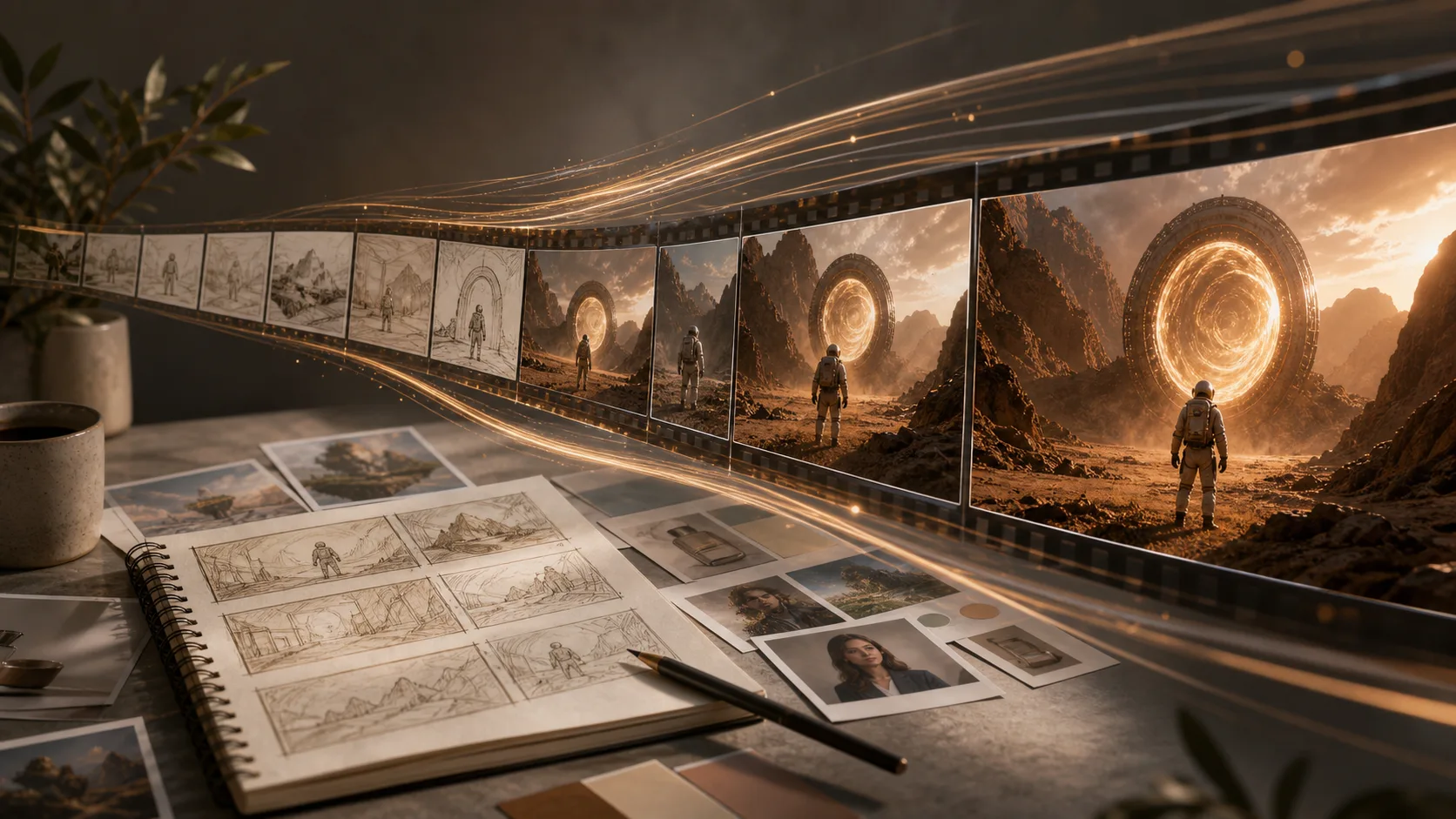
Commencez par le sujet et l'objectif: une annonce de produit, un portrait, une affiche, une maquette d'interface utilisateur ou une scène d'histoire.
Décrivez l'image dont vous avez besoin, choisissez un style et générez des visuels épurés pour le marketing, les réseaux sociaux, les maquettes de produits et les ébauches créatives.
Choose the best model or workflow for this task.
Start from an example and adapt it to your own project.






Une bonne invite est pratique: sujet, réglage, style, angle de caméra, éclairage et format de sortie.
Commencez par le sujet et l'objectif: une annonce de produit, un portrait, une affiche, une maquette d'interface utilisateur ou une scène d'histoire.
Spécifiez l'ambiance, la palette de couleurs, les proportions, les besoins en typographie et ce qui ne doit pas apparaître dans l'image.
Comparez les résultats, ajustez les détails et réutilisez l'invite la plus puissante comme modèle pour votre prochain actif.
Créez des concepts de campagne, des images publicitaires, des miniatures, des bannières et des publications sur les réseaux sociaux sans partir d'une toile vierge.
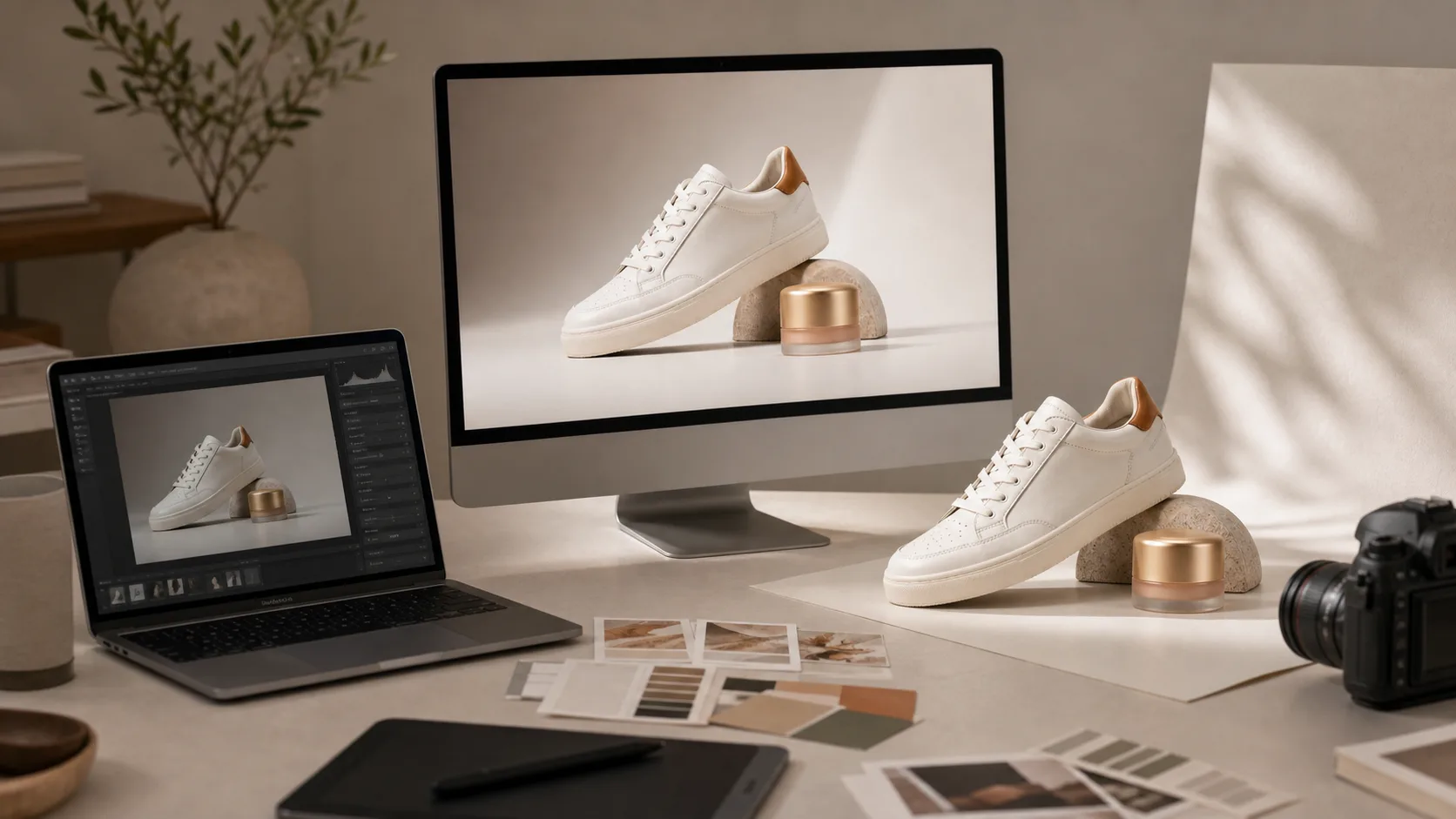
Générez des scènes de produits, des idées d'emballage, des arrière-plans et des tableaux d'ambiance avant de réserver une séance photo ou d'ouvrir un outil de conception.
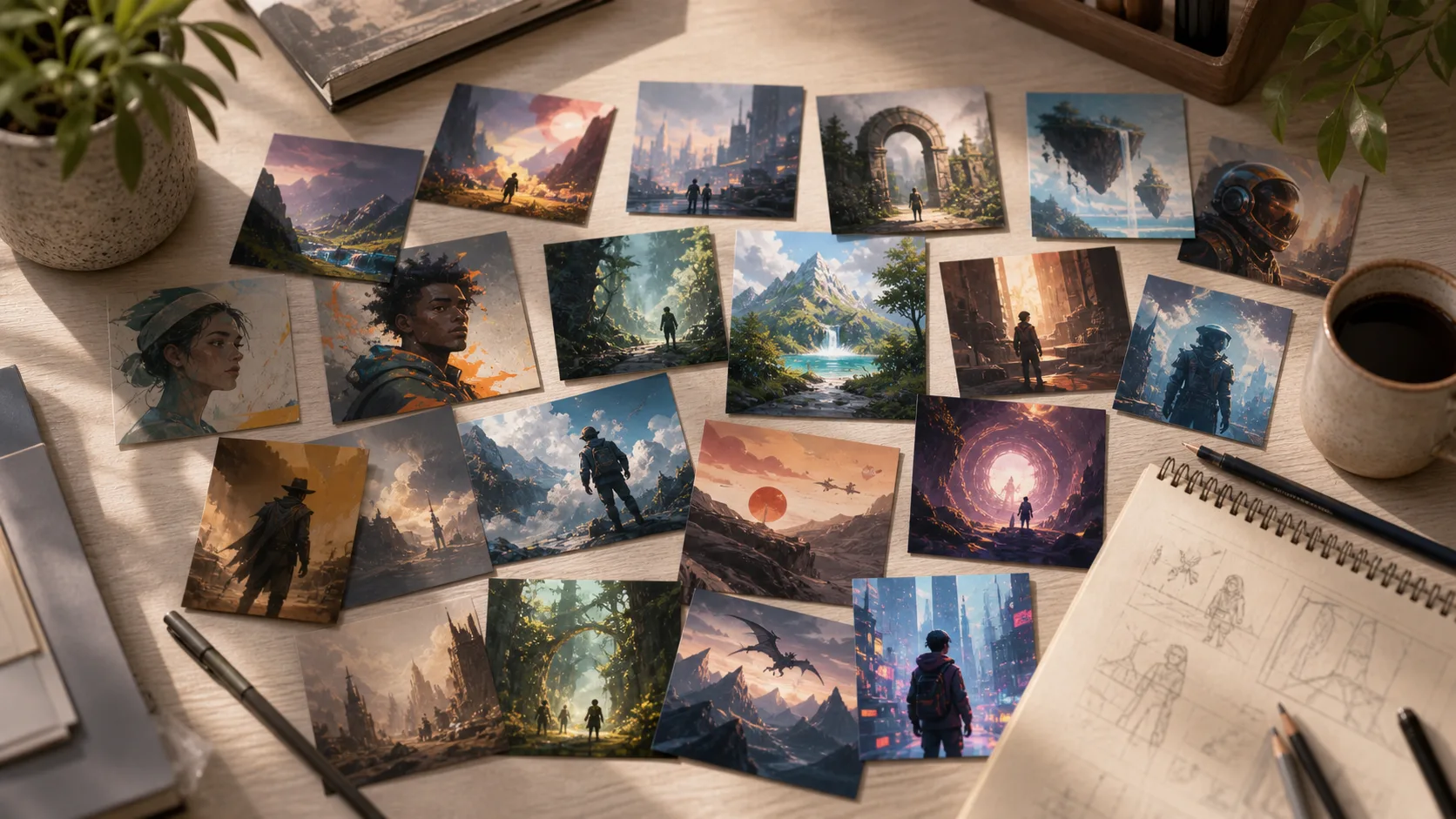
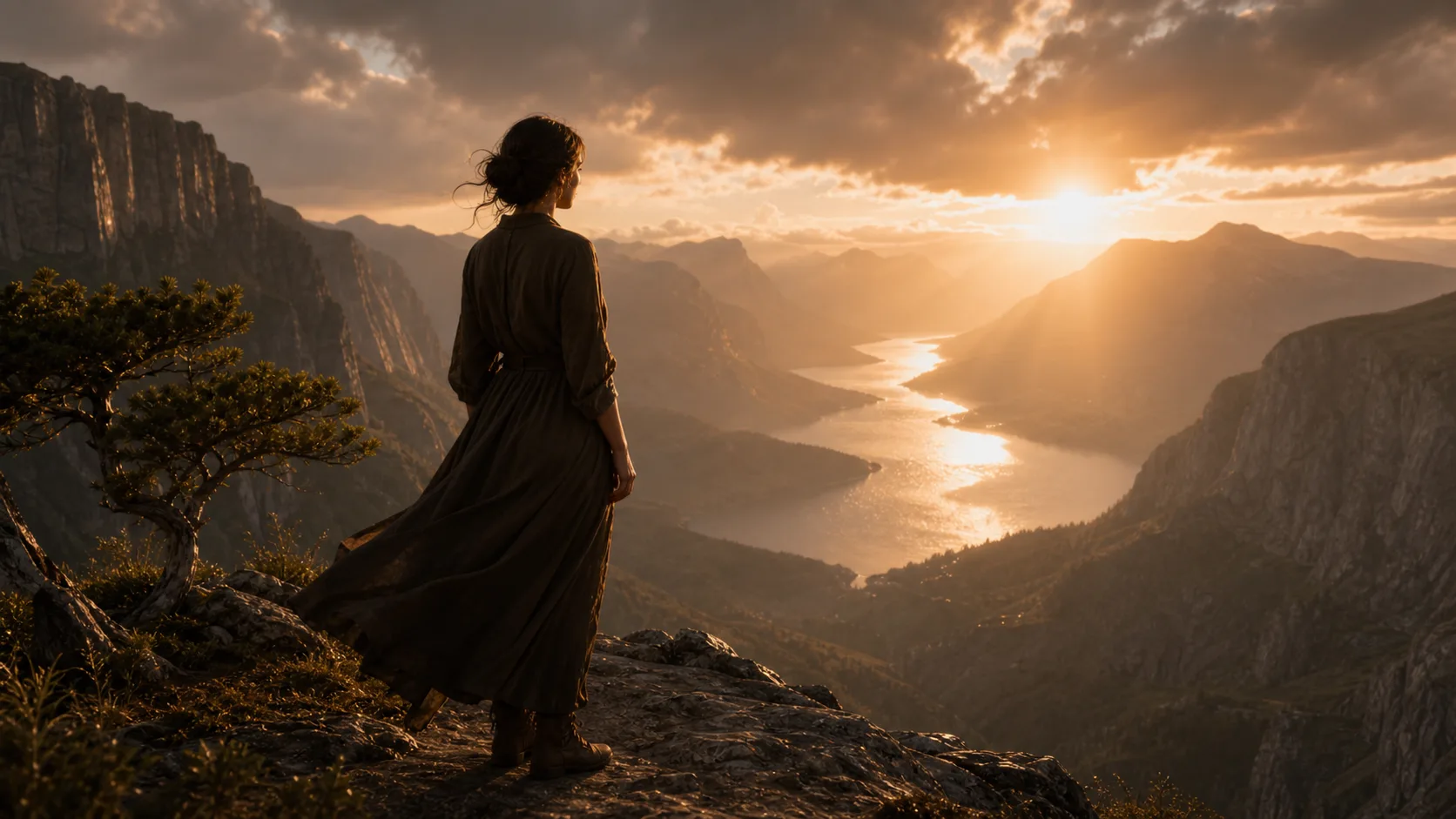
Demandez des instructions photoréalistes, éditoriales, cinématographiques, animées, de rendu 3D, d'aquarelle, d'illustration à plat ou inspirées de la marque.
Utilisez des modèles tels que GPT Image 2, DALL-E 3 et Stable Diffusion à partir d’un seul espace de travail, puis comparez le style de sortie.
Passez de l'invite à l'actif fini avec le bon flux de travail ClipCanva
Les images gratuites incluent un filigrane. Passez à une offre payante pour des sorties propres, une génération plus rapide et un usage commercial.
Pack de démarrage
Un pack de crédits unique pour essayer la génération d'images, de musique et de courtes vidéos.
Créateur
Forfait mensuel · 1 500 crédits renouvelés chaque mois
GPT Image 2 Unlimited
Saisissez le code FOUNDING6 dans Stripe Checkout : $19/mois pendant vos 6 premiers mois, puis $29/mois.
Pro
Forfait mensuel · 4 000 crédits renouvelés chaque mois
Atelier
Forfait mensuel · 12 000 crédits renouvelés chaque mois
Paiement sécurisé · Renouvellement automatique · Voir les conditions de remboursement
Équipe
Pour les agences, les équipes de production et les besoins de volume personnalisés.
Questions courantes sur la génération d'images à partir d'invites
Commencez par une simple invite, puis affinez-la en un visuel prêt pour la production.