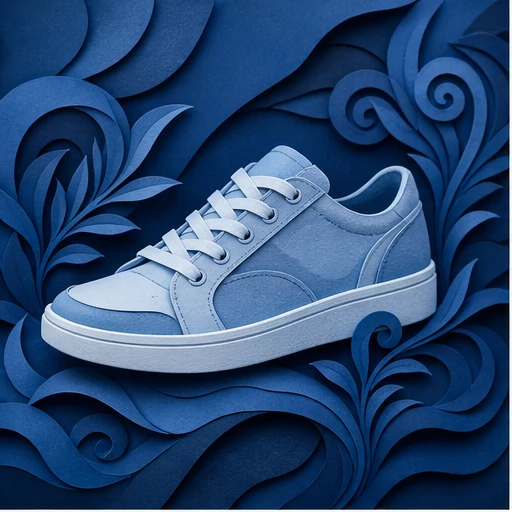
01
Importer une image source autorisée
Choisissez une image que vous possédez ou que vous êtes autorisé à modifier, avec un sujet principal bien visible.
Supprimez par IA l’arrière-plan de photos produit, de portraits et de logos. Vérifiez les contours transparents avant le téléchargement.
Mode par défaut
Prêt à importer
Prévisualiser, comparer et télécharger
Supprimez par IA l’arrière-plan de photos produit, de portraits et de logos. Vérifiez les contours transparents avant le téléchargement.
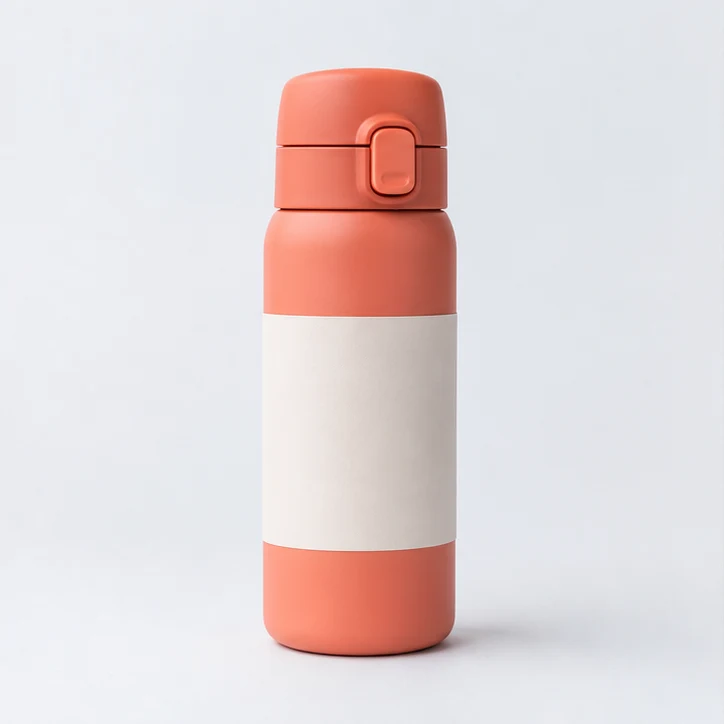
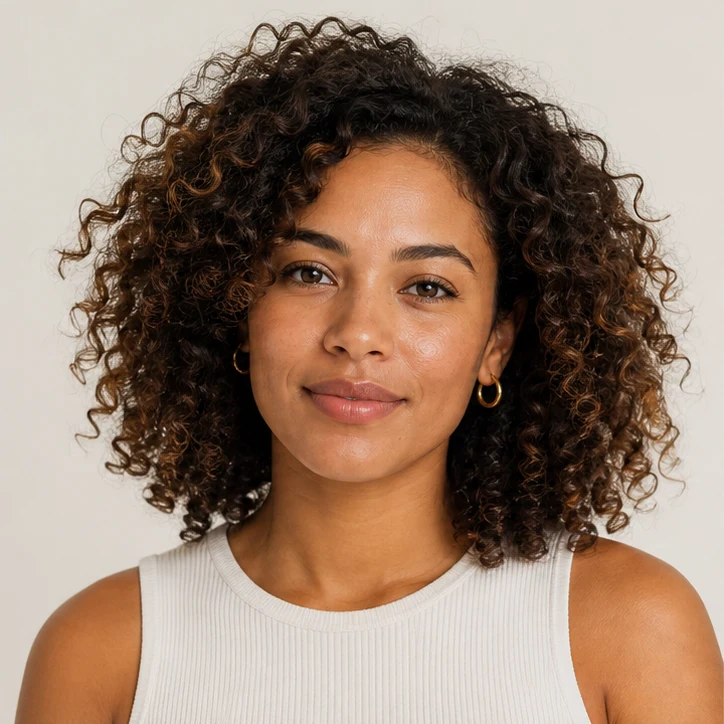

Supprimez par IA l’arrière-plan de photos produit, de portraits et de logos. Vérifiez les contours transparents avant le téléchargement.
Choisissez une image que vous possédez ou que vous êtes autorisé à modifier, avec un sujet principal bien visible.
Le traitement par défaut crée une image détourée avec des zones transparentes. Vérifiez les contours du sujet avant le téléchargement.
Vérifiez le contour du sujet et les zones transparentes avant publication, puis comparez le résultat à l’original. Le contraste et la résolution de la source influencent les détails fins.
Utilisez une image nette et bien éclairée, avec un sujet principal distinct de l’arrière-plan. Une résolution élevée aide à préserver les contours fins.
Le traitement par défaut crée une image détourée avec des zones transparentes. Vérifiez les contours du sujet avant le téléchargement.
Utilisez un logo net et en haute résolution, puis comparez son contour transparent généré avec l’original avant publication.
Vérifiez le contour du sujet et les zones transparentes avant publication, puis comparez le résultat à l’original. Le contraste et la résolution de la source influencent les détails fins.
Explorez d'autres outils ClipCanva pour la création et l'édition d'images
Les images gratuites incluent un filigrane. Passez à une offre payante pour des sorties propres, une génération plus rapide et un usage commercial.
Pack de démarrage
Un pack de crédits unique pour essayer la génération d'images, de musique et de courtes vidéos.
Créateur
Forfait mensuel · 1 500 crédits renouvelés chaque mois
GPT Image 2 Unlimited
Saisissez le code FOUNDING6 dans Stripe Checkout : $19/mois pendant vos 6 premiers mois, puis $29/mois.
Pro
Forfait mensuel · 4 000 crédits renouvelés chaque mois
Atelier
Forfait mensuel · 12 000 crédits renouvelés chaque mois
Paiement sécurisé · Renouvellement automatique · Voir les conditions de remboursement
Équipe
Pour les agences, les équipes de production et les besoins de volume personnalisés.
Supprimez par IA l’arrière-plan de photos produit, de portraits et de logos. Vérifiez les contours transparents avant le téléchargement.
Supprimez par IA l’arrière-plan de photos produit, de portraits et de logos. Vérifiez les contours transparents avant le téléchargement.