
Add your source photo
Upload the filtered photo you want to adjust and decide what should look more natural in the final image.
Create with AI Filter Remover using a filtered photo and a clear edit prompt. Guide the look, subject, setting, and destination format to produce a more natural-looking photo edit for your project.
AI Filter Remover helps turn a filtered photo and edit prompt into a more natural-looking reconstruction. It is built for creators, marketers, and teams who need a focused visual result for a specific project.
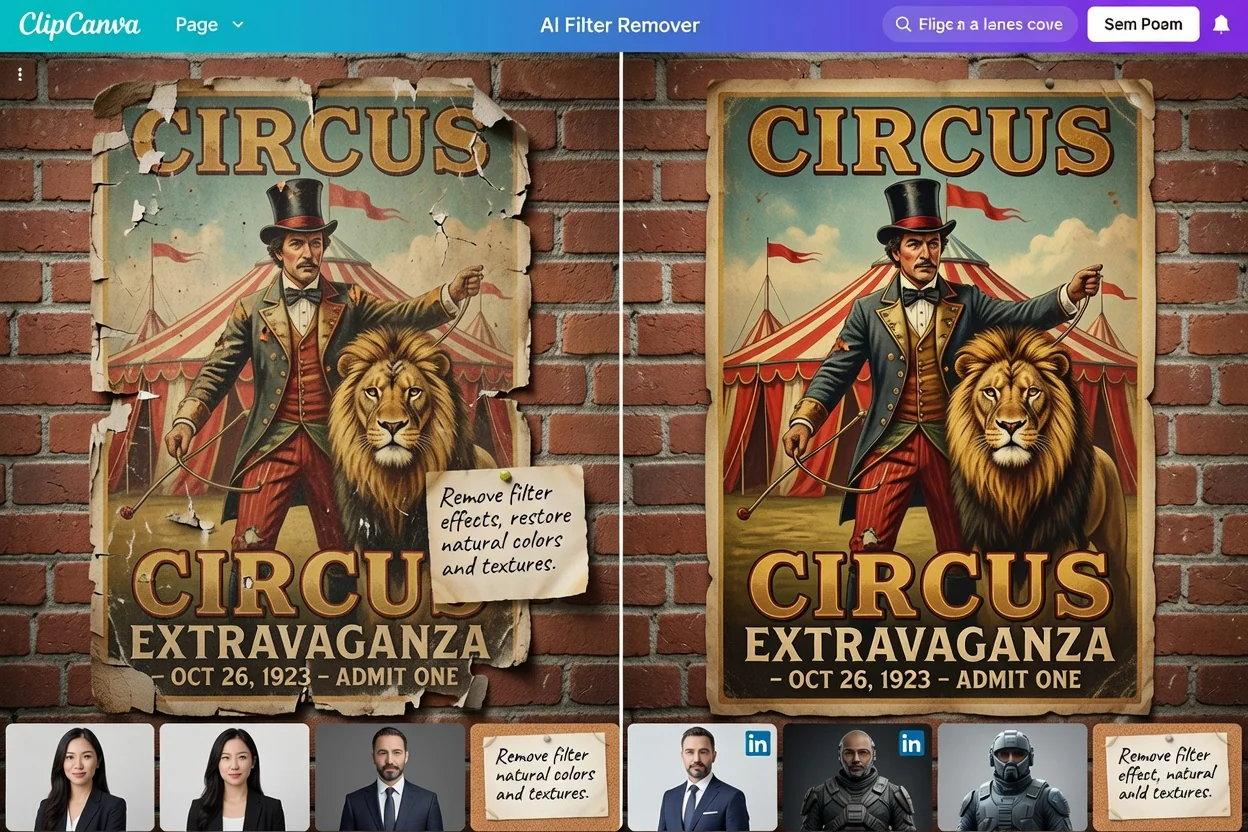
Follow a simple creation flow: provide the filtered photo, describe the edit, choose the visual direction, then review the generated reconstruction.
Upload the filtered photo you want to adjust and decide what should look more natural in the final image.
Write a prompt that explains the subject, setting, filter issue, and desired natural-looking photo edit.
Set the visual direction and destination format so the result fits your campaign, post, listing, or presentation.
Use focused controls to guide the image toward a natural-looking photo edit while keeping your project goal clear.
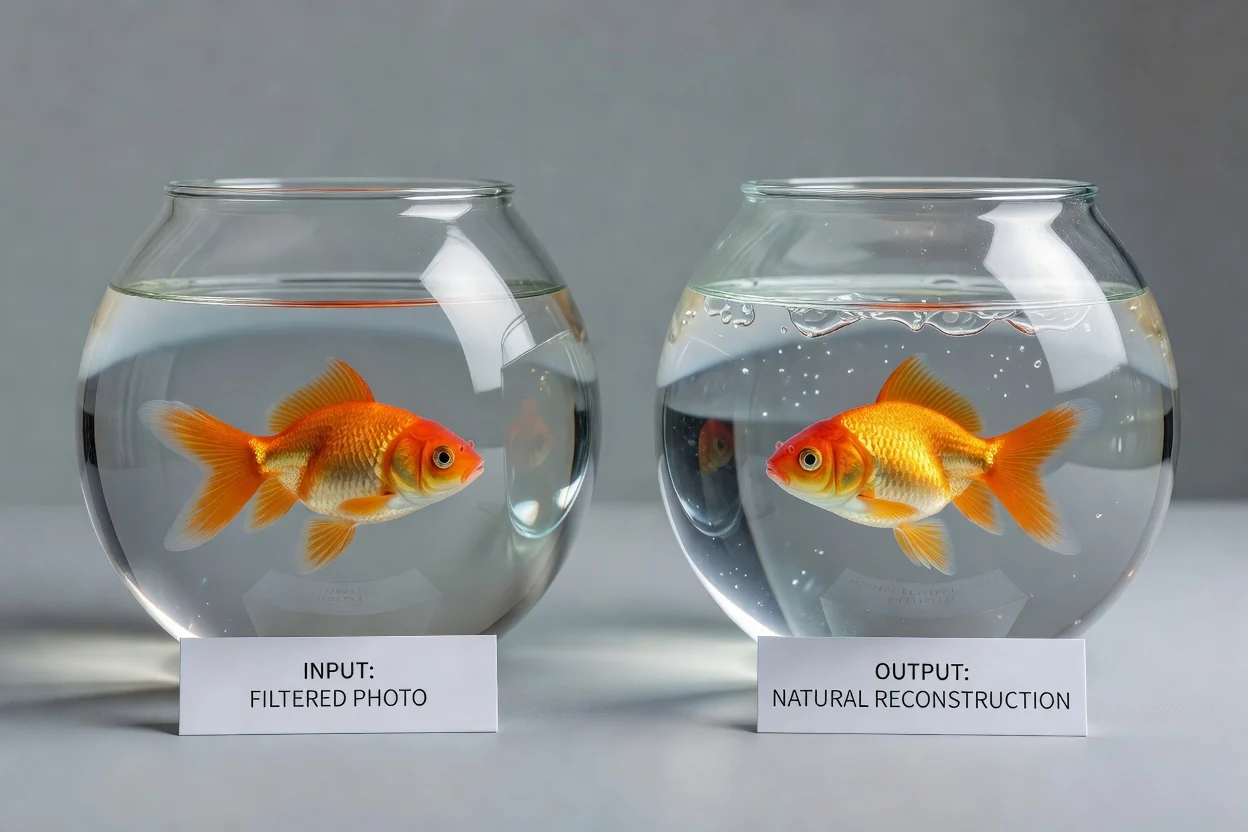
Describe what should feel more realistic, such as skin texture, product color, lighting, contrast, or background balance.
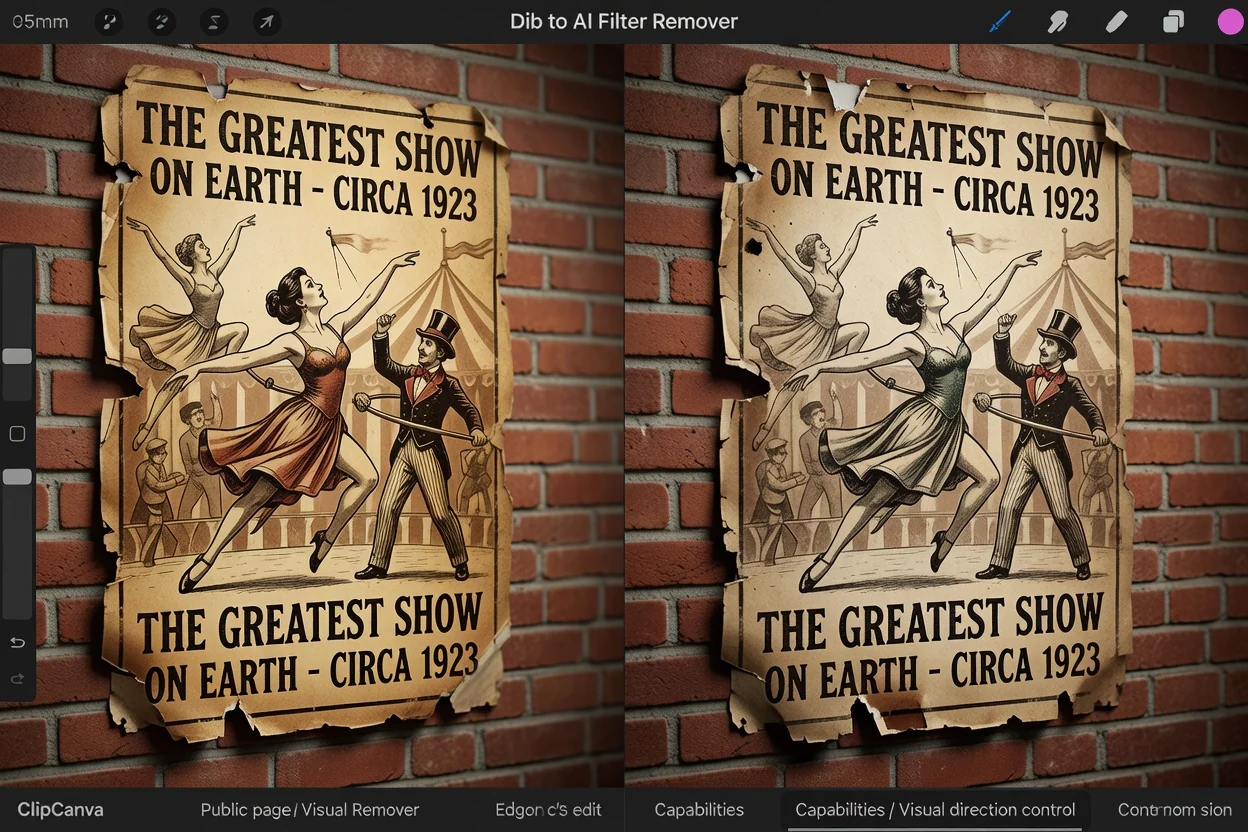
Set the intended mood, subject treatment, and setting so the edit follows the creative direction you need.
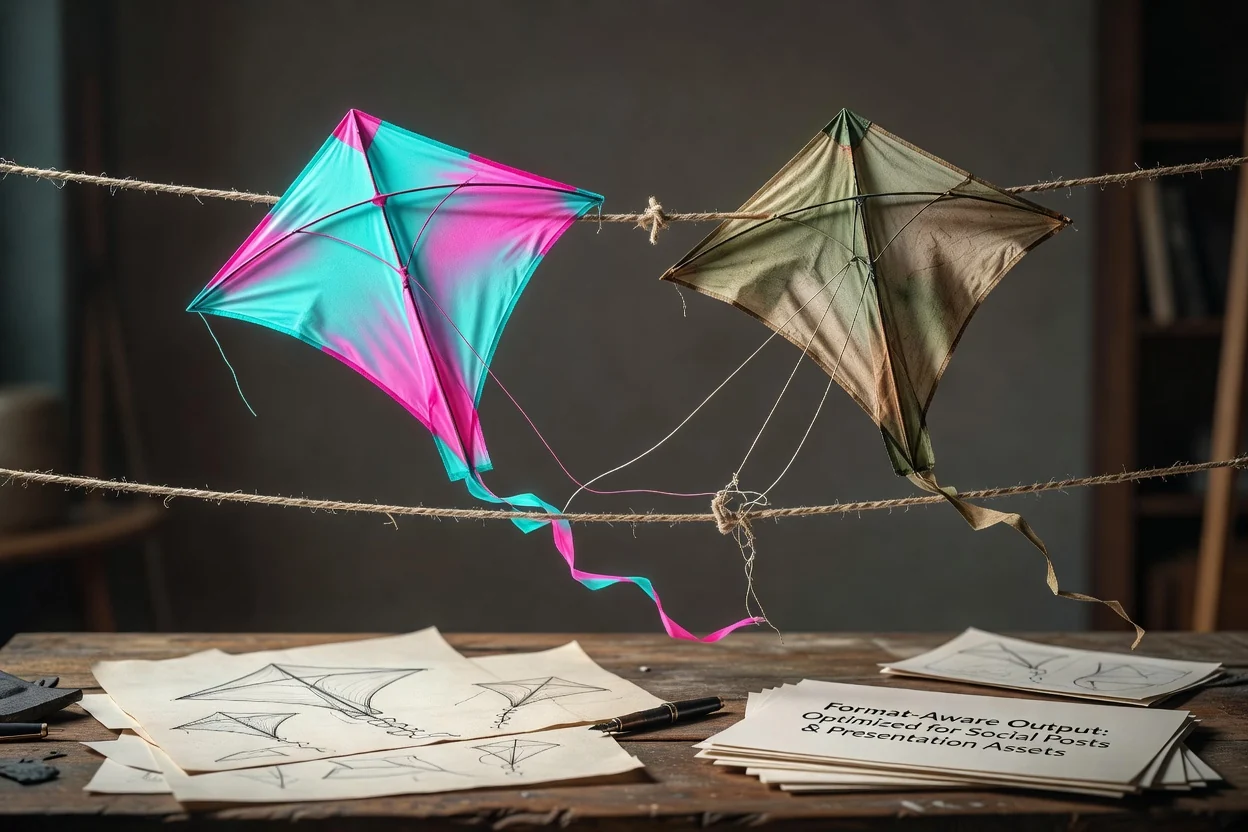
Choose a destination format that fits where the edited image will be used, from social posts to presentation assets.
Create or use results for practical visual fixes where a filtered look needs to feel more balanced and natural.
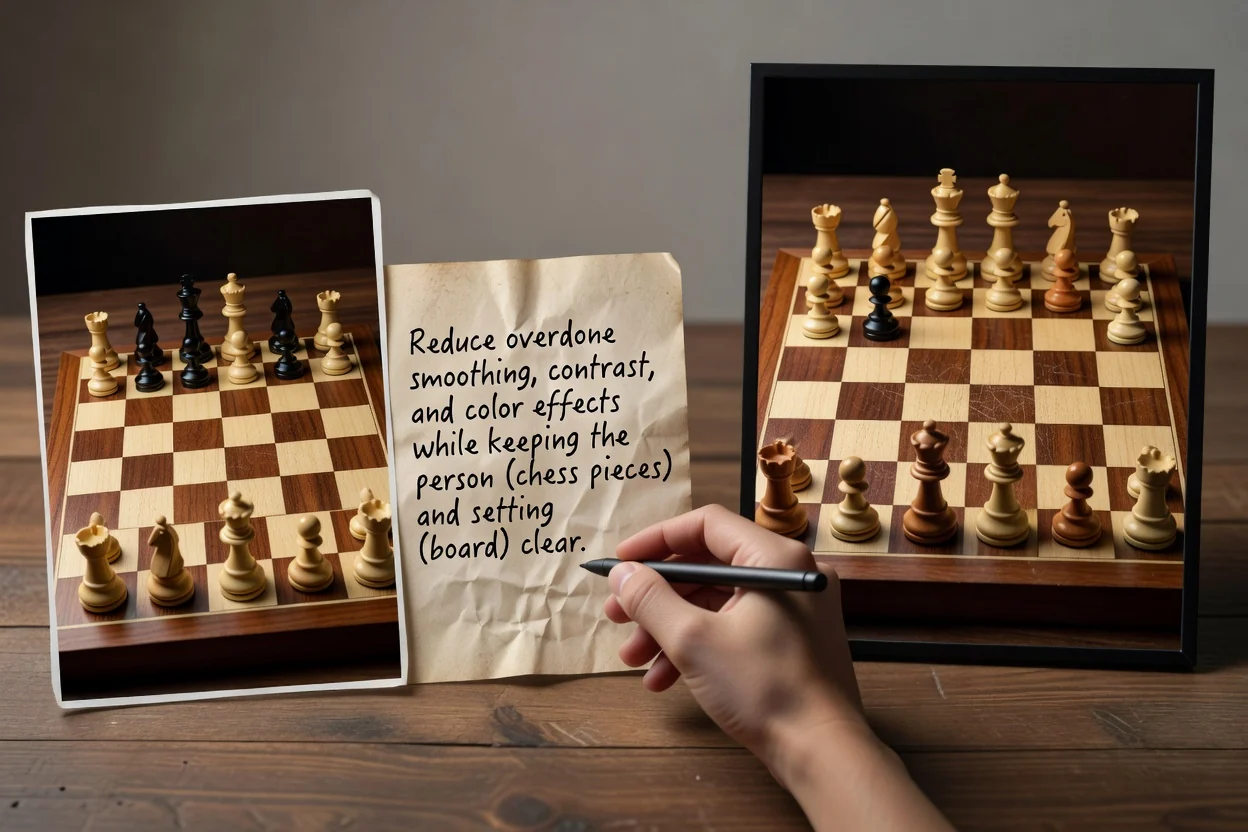
Create a softer portrait result by reducing overdone smoothing, contrast, or color effects while keeping the person and setting clear.
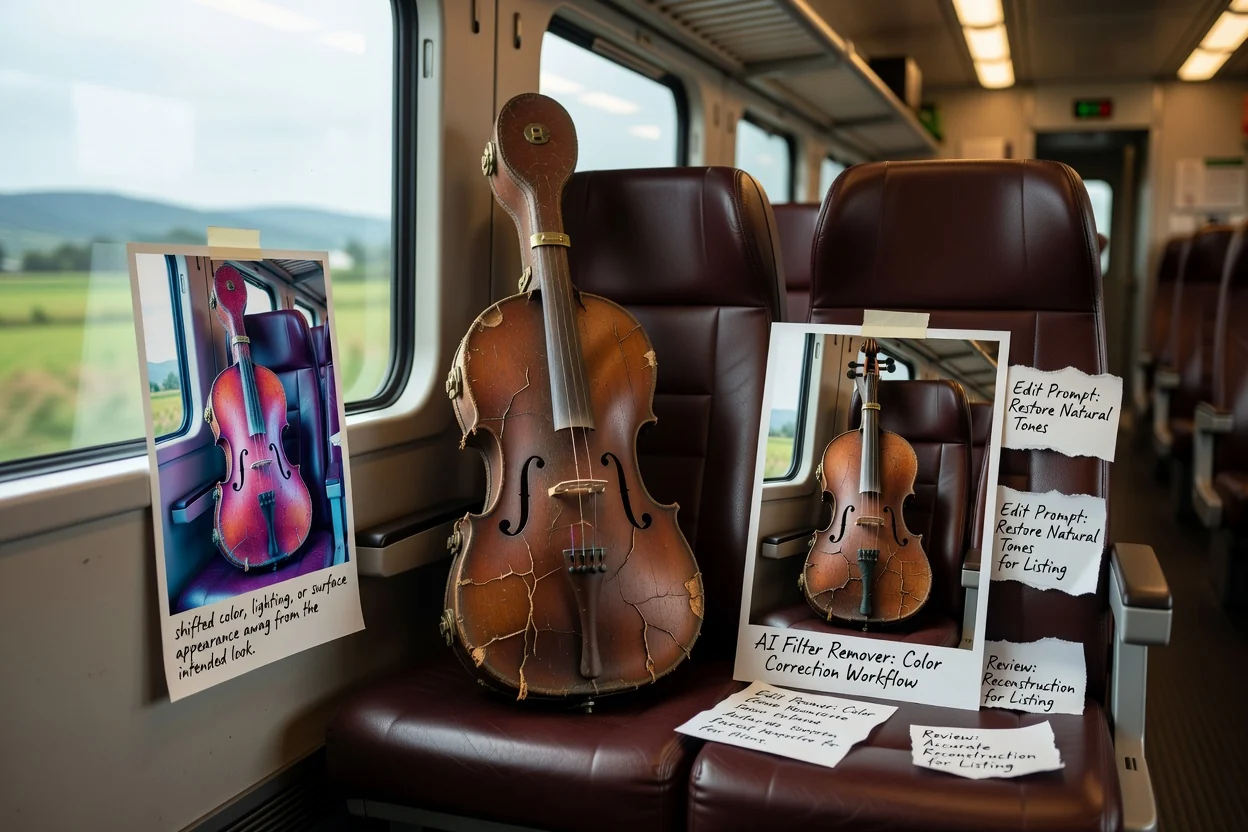
Use a more accurate product result when a filter has shifted color, lighting, or surface appearance away from the intended look.
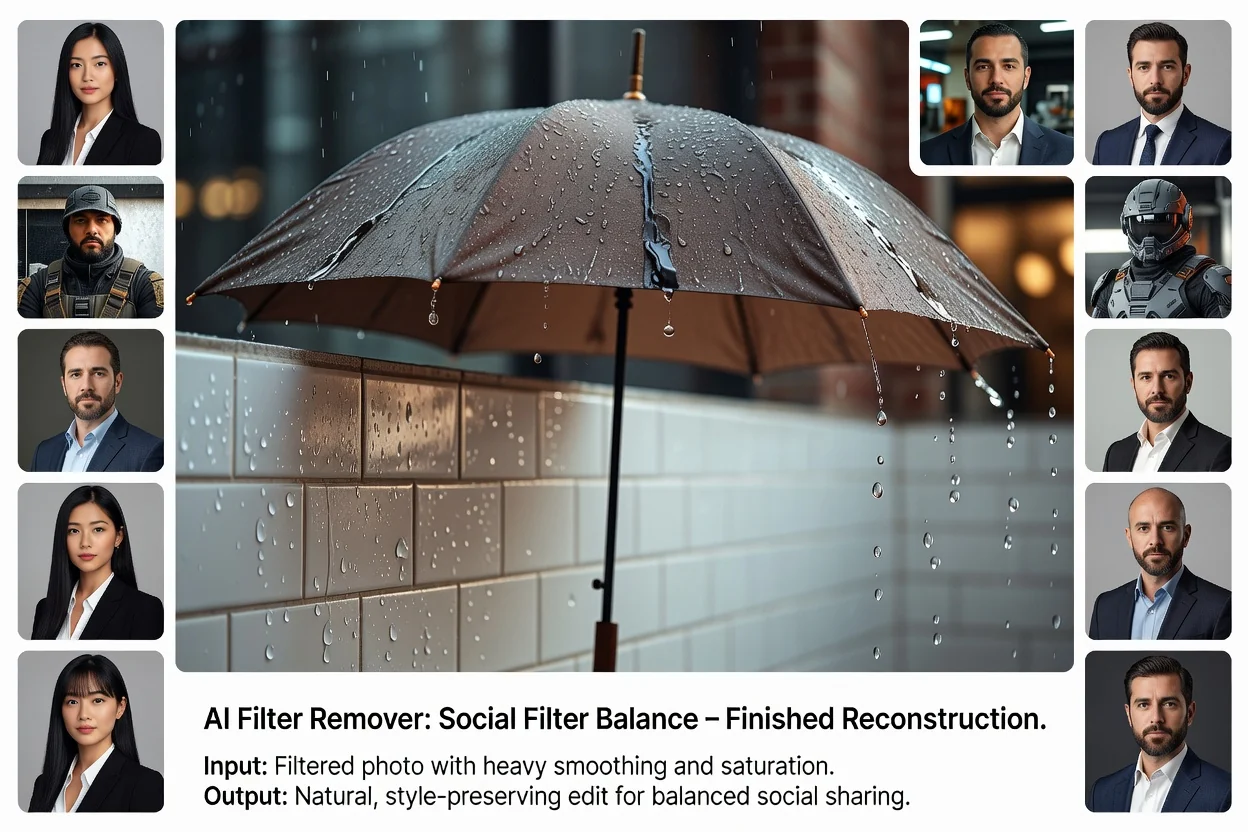
Create a balanced social result that keeps the style approachable without making the photo look overly processed.
Before you use the edited image, review the details that affect trust, clarity, and placement in your final project.
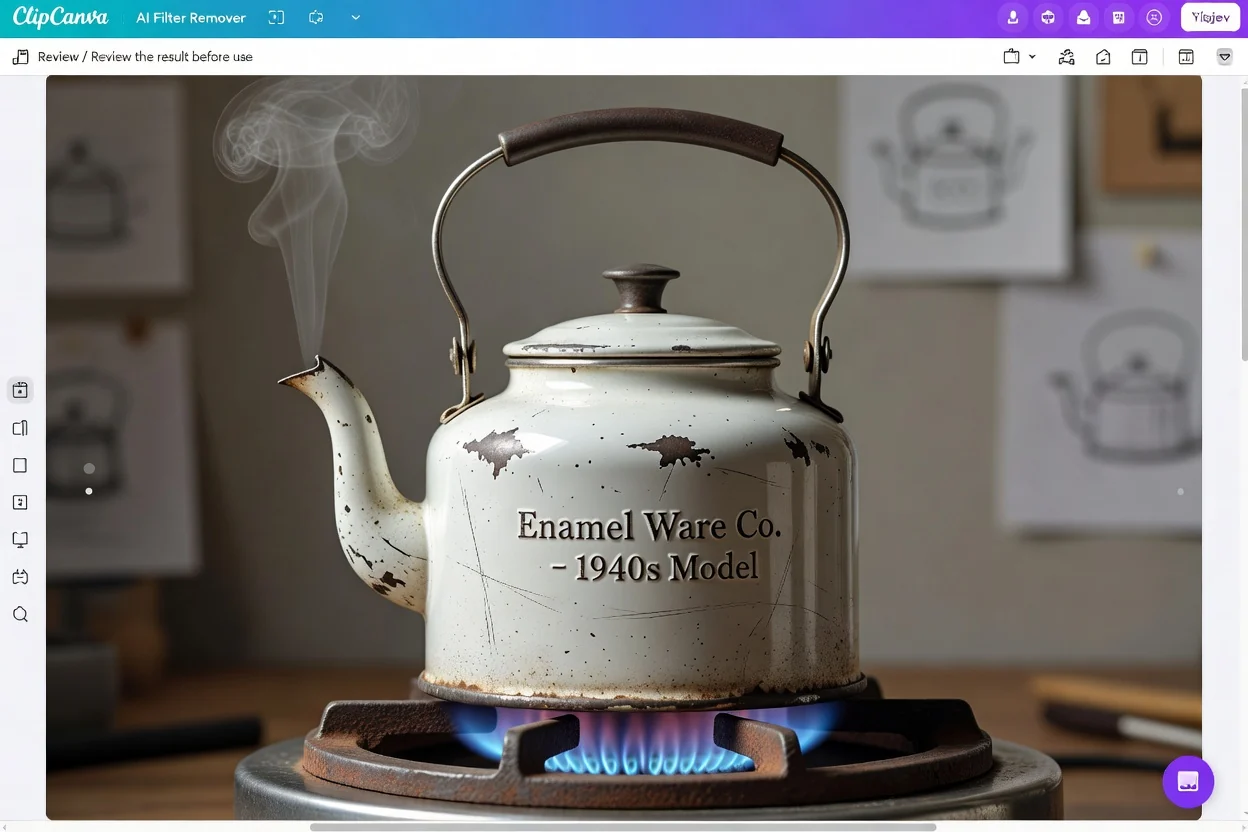
Compare the edited image with the project brief to confirm the tone, subject, and setting match your intended use.
Look closely at faces, hands, product surfaces, labels, colors, and background elements that matter to the final asset.
Check the destination crop and format so the composition still works for social, product, or presentation placement.
AI-generated edits are useful for fast reconstruction work, but results can vary and important details require review.
The output may differ from your expectation when the source photo has strong filters, heavy compression, blur, or missing visual information.
Faces, logos, product colors, text, and small objects should be checked carefully before the edited asset is used in a final layout.
Answers to common questions about using AI Filter Remover with filtered photos, prompts, review steps, and expected outputs.
Upload a filtered photo, describe the edit you want, and guide the output toward a natural-looking result for your next project.