
Prepare the image for video
Upload or choose the source image that should guide the subject, setting, and overall visual style.
Create with FLUX Video AI from a source image and a motion prompt. Set the subject, scene, movement, and destination format to produce a short clip for your project.
FLUX Video AI helps creators turn a still source into a short motion result using an image and a written prompt. It is suited to focused visual ideas where the subject, setting, and movement can be described clearly.
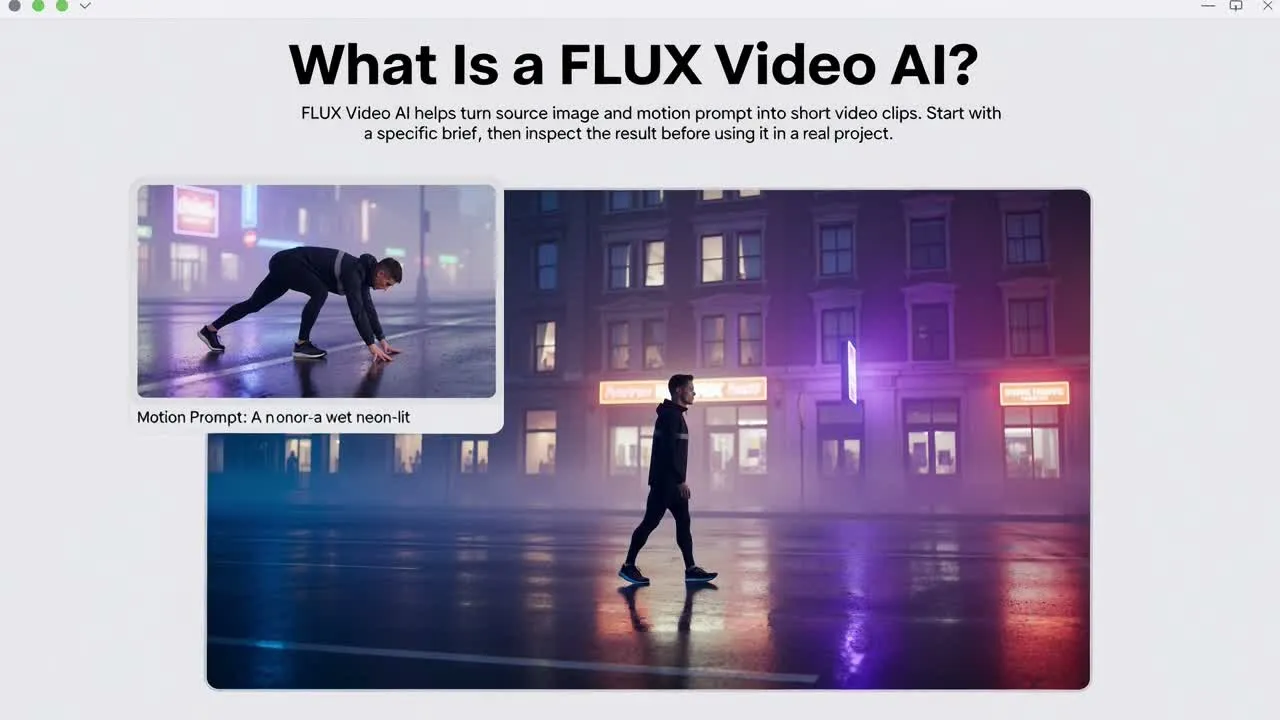
Follow a focused process to turn an image into a video with clear motion instructions and destination requirements.
Upload or choose the source image that should guide the subject, setting, and overall visual style.
Write a motion prompt that explains what changes, how the subject moves, and what the camera should do.
Select the destination format, then create with FLUX Video AI and assess the generated clip against your brief.
Control the core choices that shape a Flux image to video request before you start creating.
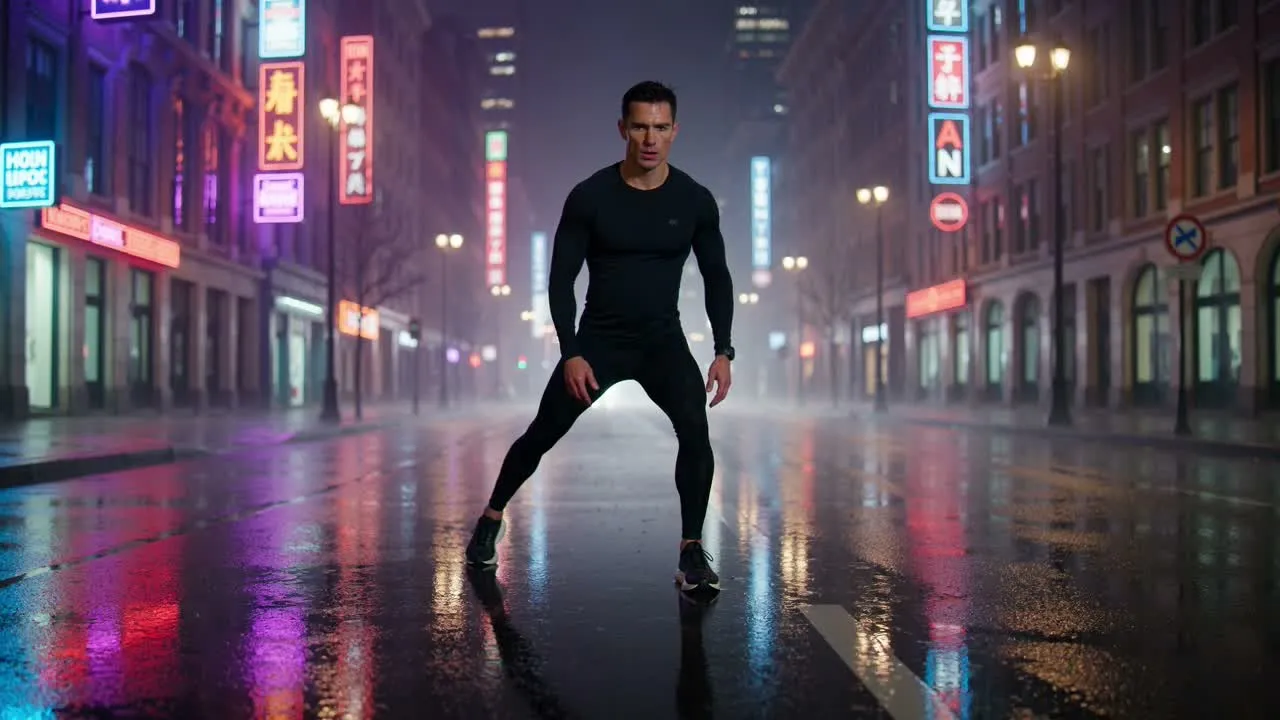
Describe what should move, how fast it should feel, and which visual details matter most in the video.
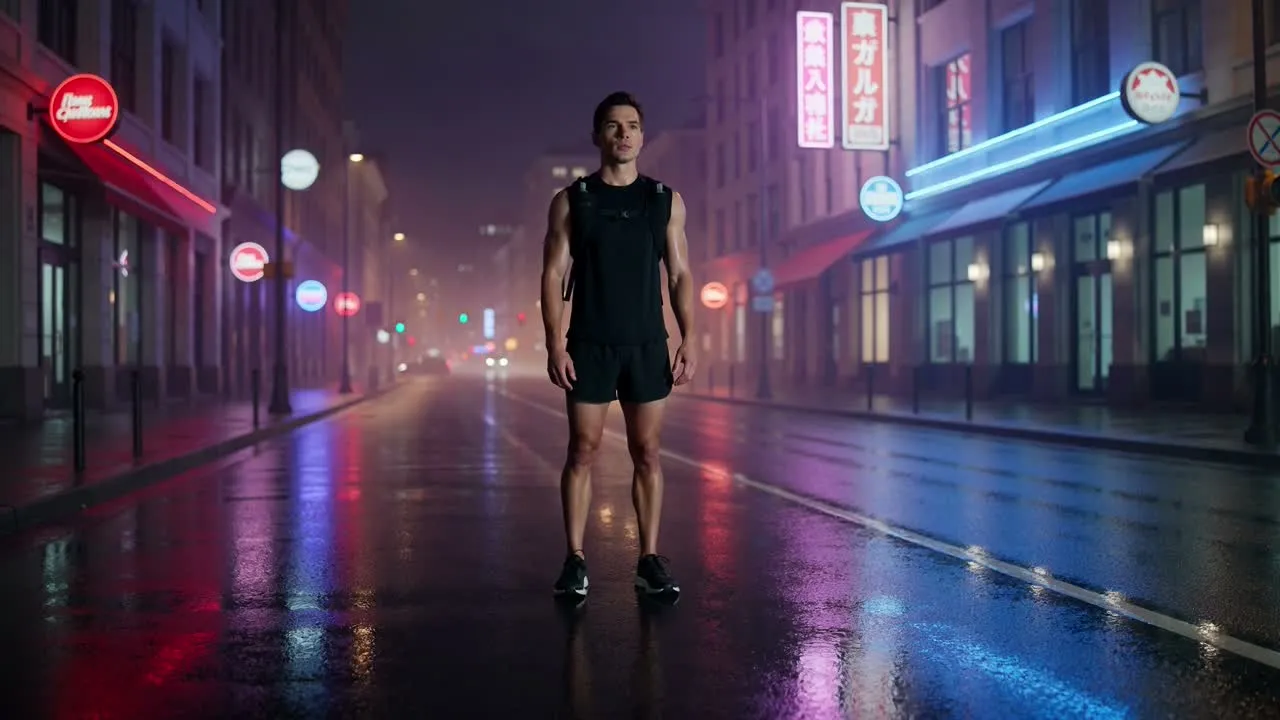
Guide the look with notes about mood, framing, lighting, background, and the subject’s setting.
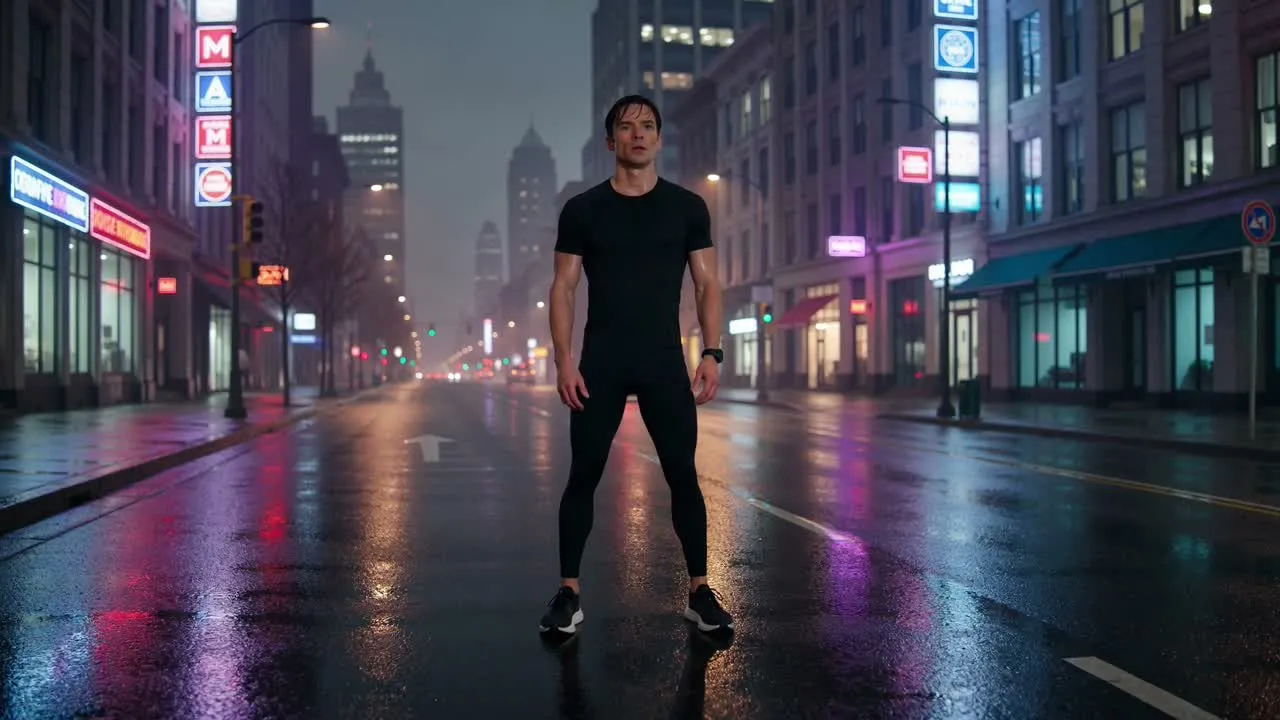
Choose the destination format so the clip is prepared for the placement you have in mind.
Use the result when you need a compact motion asset from a still visual, rather than a long-form production workflow.
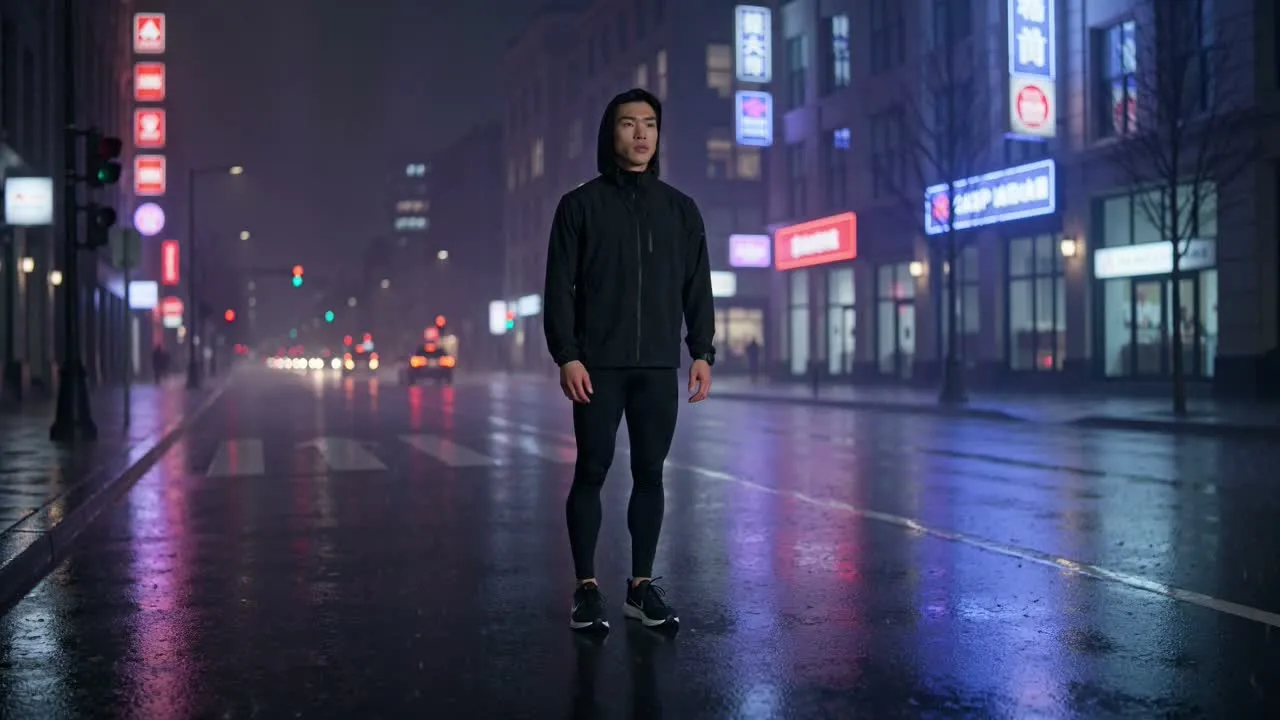
Animate a selected source image into a short concept clip for campaign drafts, moodboards, or creative testing.
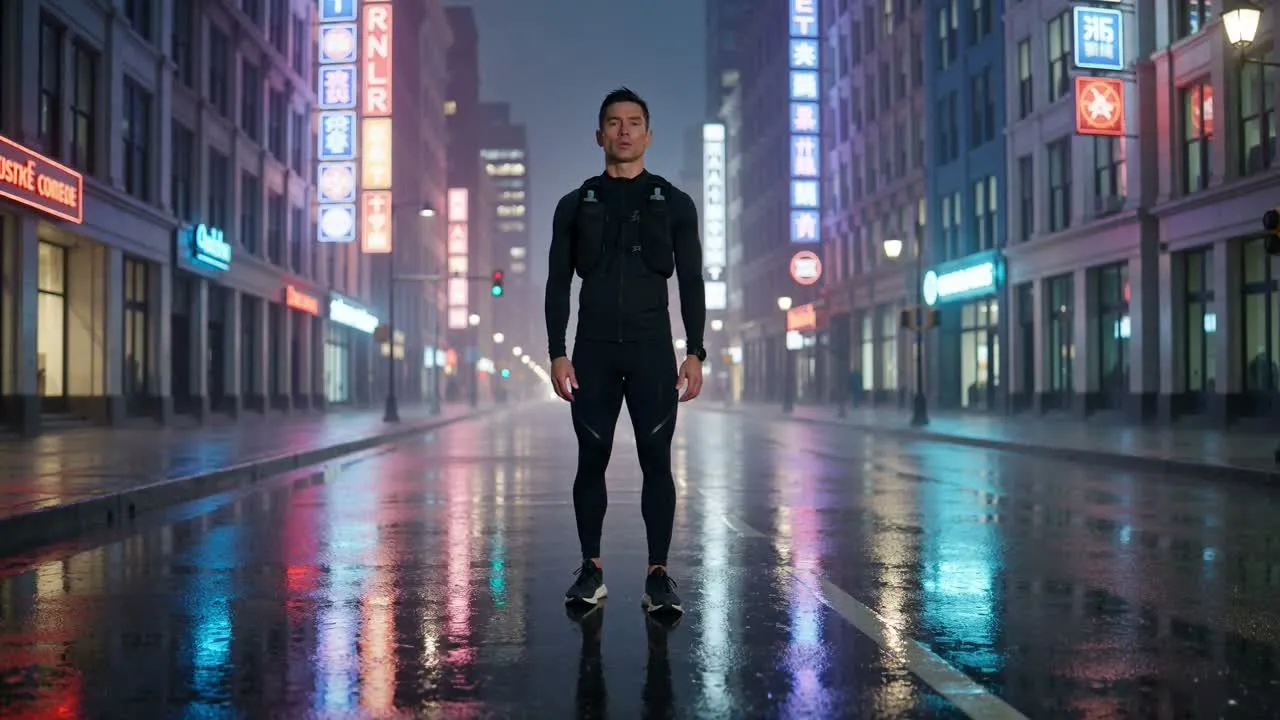
Show a product, character, or object with simple motion that helps communicate an idea quickly.
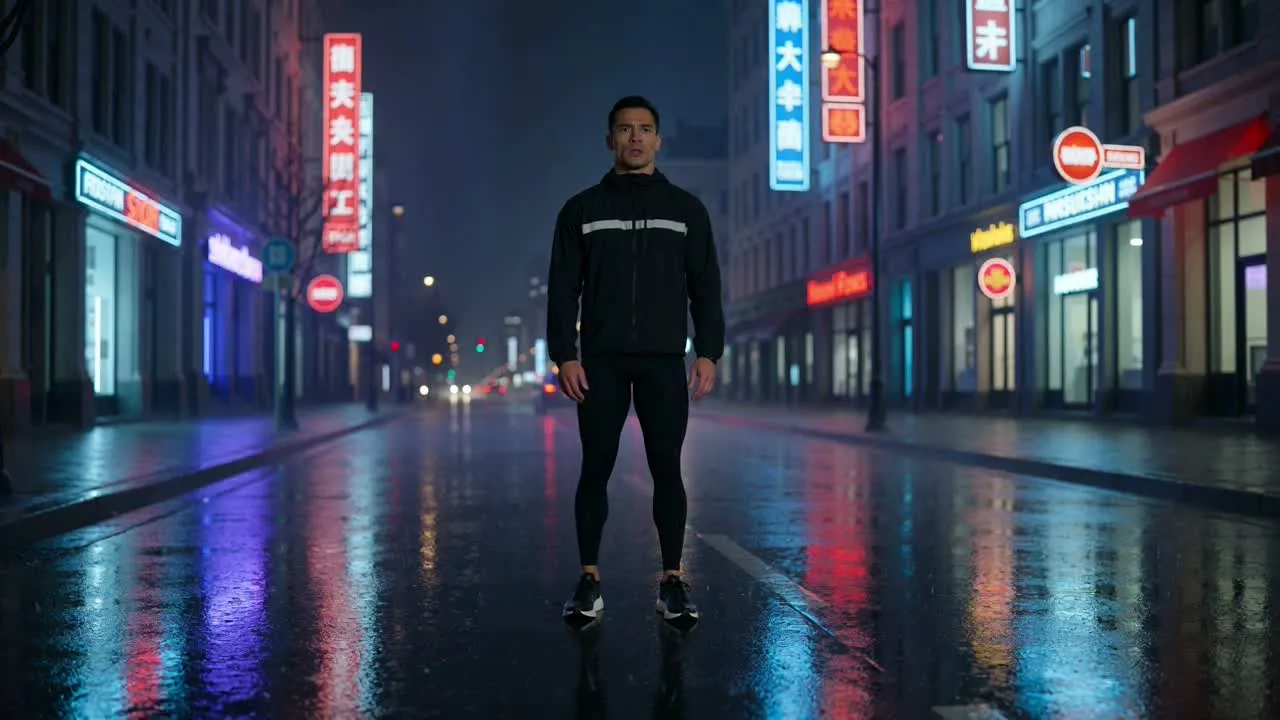
Explore push-ins, pans, or other camera direction cues to make a static visual feel more dynamic.
Review the generated clip before you use it. Focus on whether the motion supports the brief, whether important details are preserved, and whether the format fits the destination.
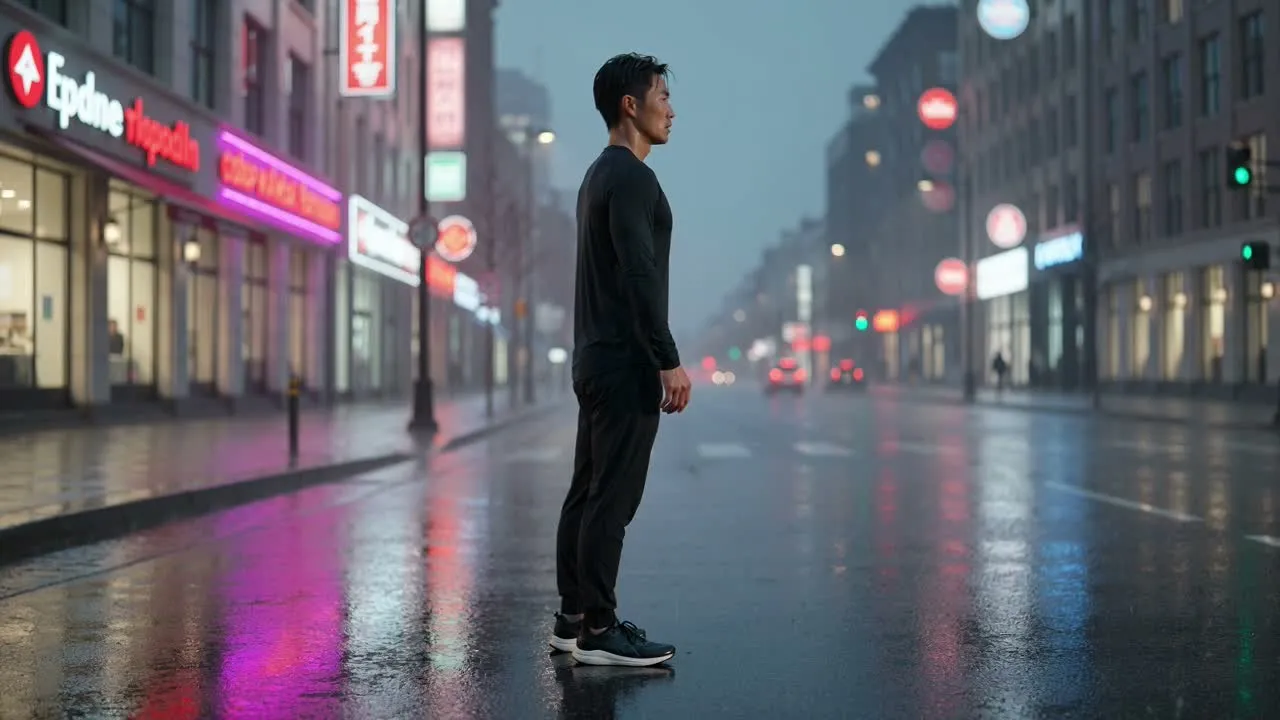
Compare the clip with the original brief and confirm that the subject, action, and overall message still fit.
Look closely at key details such as identity cues, products, text-like areas, and any object that must remain consistent.
Confirm that the crop, framing, and destination format suit the channel or layout where the clip will appear.
Understand the practical boundaries before you create. Generated results can vary, and important details may need careful checking.
Motion, framing, or small visual elements may not always match the prompt exactly on the first result.
Faces, hands, text, product marks, and other fine details should be checked before using the clip in a final project.
Common questions about FLUX Video AI, source images, prompts, and expected results.
Bring a source image and motion prompt, then create with FLUX Video AI for a focused short clip.