
AI Video With Audio: Script & Sound Workflow
Plan voiceover, dialogue, sound effects, and scenes before generation. Use this AI video with audio workflow to create clips that are easier to edit.
Quick answer: plan the sound before you generate the picture. Decide whether each moment is led by dialogue, voiceover, ambience, music, or a sound effect, then give the visual action enough space to support that primary layer. Generate one manageable scene at a time, review synchronization and wording, and finish the mix during editing.
Start with an AI script generator when you need approved spoken copy and scene beats. Use an AI video generator after the audio role, visible action, and shot boundaries are clear. This order reduces the common problem of attractive footage that cannot carry the intended message.
Quick answer: make one audio layer the lead
Every scene needs a priority. If a character delivers a key line, dialogue is the lead and other sound should leave it room. If a product action tells the story, the related sound effect may lead. If the visuals are a montage, voiceover or music may provide continuity.
Write the lead layer first, then list supporting layers. Do not describe all of them as loud, dramatic, or central. A useful brief tells the viewer what to notice and gives the editor a clean way to separate or replace elements later.

Choosing the lead sound before the visual keeps the scene focused on one communication goal.
Why audio-first planning makes clips easier to edit
Picture-first generation often produces a sequence with no natural opening for a line, a sound event that happens at the wrong moment, or a camera move that competes with the message. Audio-first planning gives the scene a rhythm before details accumulate.
Read the script aloud. Mark where the listener needs a pause and where a visible action should land. Shorten lines that require rushed delivery. If the sound event must be recognizable, describe the preparation, event, and release: a hand reaches for a switch, the switch clicks, then the machine starts.
This does not mean sound must be final at generation. It means the generated picture has timing and visual space that will still work if the editor replaces dialogue, music, or effects.
Assign roles to dialogue, voiceover, ambience, music, and effects
Use each layer for a distinct purpose:
- Dialogue: a visible speaker communicates exact information or emotion.
- Voiceover: a narrator connects scenes, explains context, or delivers wording that does not need a visible speaker.
- Ambience: establishes place and realism, such as a quiet office, kitchen room tone, rain, or a distant street.
- Music: supports energy, progression, and transitions without carrying factual information.
- Sound effects: make visible actions legible, such as a latch closing, a package opening, or an interface confirmation tone.
Limit each scene to the layers that improve comprehension. A product demonstration may need clean action sound and a short voiceover but no dialogue. A testimonial-style shot may need dialogue and subtle room tone but no prominent effect.
Build a multi-track timing plan
Draft a simple timeline before generation. The exact duration can change; the value is in understanding which event leads each beat.
| Beat | Visual | Dialogue or voiceover | Ambience | Music | Sound effect |
|---|---|---|---|---|---|
| Opening | Product enters frame | One-line hook | Low room tone | Starts quietly | Soft placement |
| Demonstration | Main action in close view | Benefit line or silence | Continues | Holds | Action sound leads |
| Proof | Result is shown | Short explanation | Reduced | Small lift | Optional detail sound |
| Close | Clean final composition | Next-step line | Fades | Resolves | None |
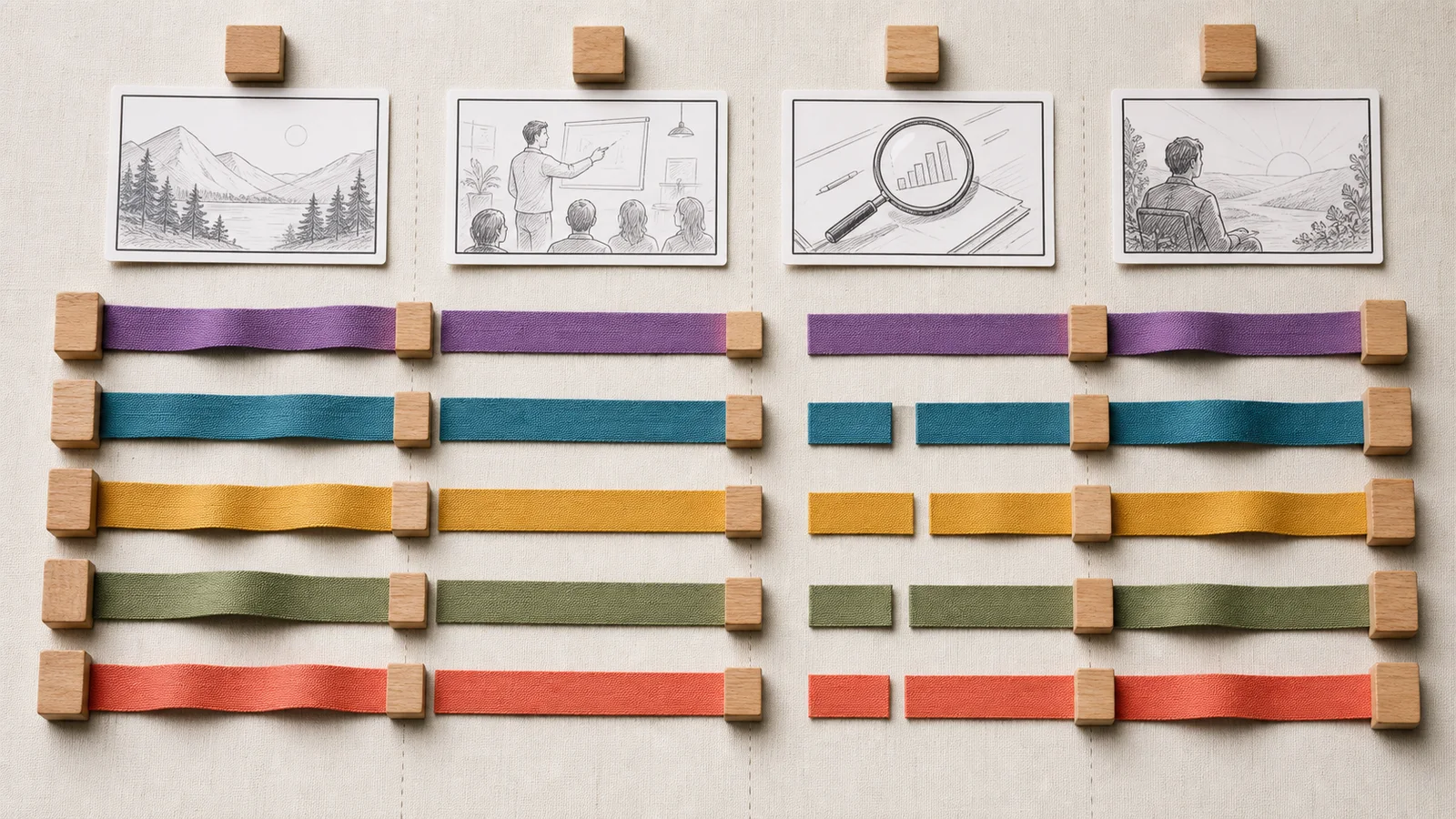
A track plan exposes collisions before generation, such as dialogue competing with the most important action sound.
Leave breathing room around important lines. If an effect is part of the proof, do not place the densest sentence over it. If music marks a transition, give the camera cut or visual change a matching beat.
Use a scene table before writing the prompt
Complete one row per scene:
| Scene field | Decision |
|---|---|
| Message | What the viewer should understand |
| Lead sound | Dialogue, voiceover, ambience, music, or effect |
| Exact words | Approved line, or “none” |
| Visible action | One action that supports the message |
| Sync point | The word, movement, or contact that must align |
| Camera | Framing and one movement |
| Supporting sound | Only the layers that help |
| Edit plan | What may be replaced, captioned, or mixed later |
For a close product shot, the sync point might be “the lid click happens as the hand finishes turning.” For a presenter, it might be “the speaker pauses before the result appears.” Specific timing relationships are more useful than a general request for perfect synchronization.
Prevent the most common synchronization failures
Watch for five recurring problems:
- Too much speech: the line cannot fit the visual action at a natural pace.
- Unclear speaker: the prompt contains multiple people but does not assign the line.
- Competing events: music, dialogue, and a major effect all peak together.
- Invisible cause: a sound occurs without a matching visible action.
- No edit handle: the scene begins or ends mid-word or mid-motion.

Reviewing one scene at this level makes it easier to diagnose whether a problem belongs to the script, picture, or mix.
Revise only the layer causing the issue. Shorten the line if delivery is rushed. Simplify the visual action if the timing is ambiguous. Remove a supporting layer if it masks the lead sound.
Worked example: a short product demonstration
Goal: show that a desk light moves from work mode to a softer evening setting.
Script beat: “Bright when you need focus. Warm when the day slows down.”
Scene one: close view of a hand turning the light on over a notebook. Cool, clear light; the first sentence is voiceover. The switch click lands just before “Bright.”
Scene two: the hand adjusts the control and the light becomes warmer. The second sentence begins after the change is visible. Quiet room tone supports the scene; music stays low and does not peak during the transition.
Edit plan: replace the voiceover if any word is unclear, add captions from the approved script, and preserve the switch sound if it aligns cleanly.
The same planning method also applies to the time-sensitive product context covered in the Canva AI video generator guide. Check the current interface before relying on a particular sound feature.
Review checklist before publishing
Review with headphones, phone speakers, and muted playback:
- Can the visual story be understood without sound?
- Can the lead audio be understood without the picture?
- Is every spoken word accurate and assigned to the right speaker?
- Do effects have a visible cause at the correct moment?
- Does ambience remain consistent across the cut?
- Does music support rather than mask speech?
- Are there clean frames and silence around edit points?
- Are captions copied from approved wording and timed for reading?
- Have you removed or replaced any unclear generated text or audio?
The final review treats sound, picture, and captions as three connected versions of the same message.
FAQ
Should I generate dialogue or record it later?
Generate dialogue when the visible performance and spoken delivery need to be explored together. Record or replace it later when wording, pronunciation, brand approval, or mixing control is more important.
How much sound detail belongs in a prompt?
Include the lead layer, its timing relationship to the action, and only the supporting layers that matter. Keep a more detailed track plan outside the prompt for review and editing.
What if the audio is usable but the sync is slightly wrong?
First check whether a small edit can align the action without making motion look unnatural. If the key proof depends on precise synchronization, revise the scene brief and create another take.
Do I need music in every short video?
No. Dialogue, action sound, or ambience may carry the scene more clearly. Add music when it gives the sequence useful pace or emotional direction.
Why review the video while muted?
Muted playback reveals whether the action and composition communicate the intended idea. It also helps you catch captions, visual continuity, and edits that were being hidden by an engaging soundtrack.