
Upload an image
Add a JPG, PNG, WEBP, or AVIF image to the workspace.
Use the image color picker to sample a rendered pixel from a supported image and review its color values before saving the processed result.
Move over the image or drag on touch to inspect a pixel. Use the arrow keys to move precisely, then press Enter or Space to lock it.
An image color picker is a focused image-processing tool for selecting a specific pixel from an uploaded picture and reading its color values. It is useful when you need an exact sampled color from a design, product photo, screenshot, or brand asset rather than an automatically generated palette.
A simple workflow helps you pick color from image files and confirm the value before saving the result.
Add a JPG, PNG, WEBP, or AVIF image to the workspace.
Move over the image to preview live color samples, then lock the pixel you want to keep.
Review the HEX, RGB, HSL, and HSV values, including alpha-aware output when available.
The utility accepts common web image formats, processes the selected sample, and provides output that can be reviewed before the final file is saved.
Upload a JPG, PNG, WEBP, or AVIF image as the source file for color sampling.
The output is a processed result for review with a downloadable output file that reflects the selected color information.
Controls include live and locked samples, HEX, RGB, HSL, and HSV readouts, and alpha-aware output handling when transparency information is present.
Built for precise, reviewable sampling from a single image result, with color formats that are easy to copy into design and production work.
Move across the image to preview a live sample, then lock the color when you find the pixel you want to keep.
Use the image HEX color picker readout for HEX, or switch context with RGB, HSL, and HSV values when your workflow needs another format.
Alpha-aware output helps preserve transparency-related information when the source image includes alpha data.
After processing, review the selected color information and the generated output file before using it in your next step.
Use the tool when a project needs a dependable color sample from an image rather than a generated palette.

Pick color from image assets such as campaign graphics, social posts, or screenshots to keep supporting visuals consistent.
Read HEX, RGB, HSL, or HSV values from an image when handing a selected color to design, development, or marketing teammates.
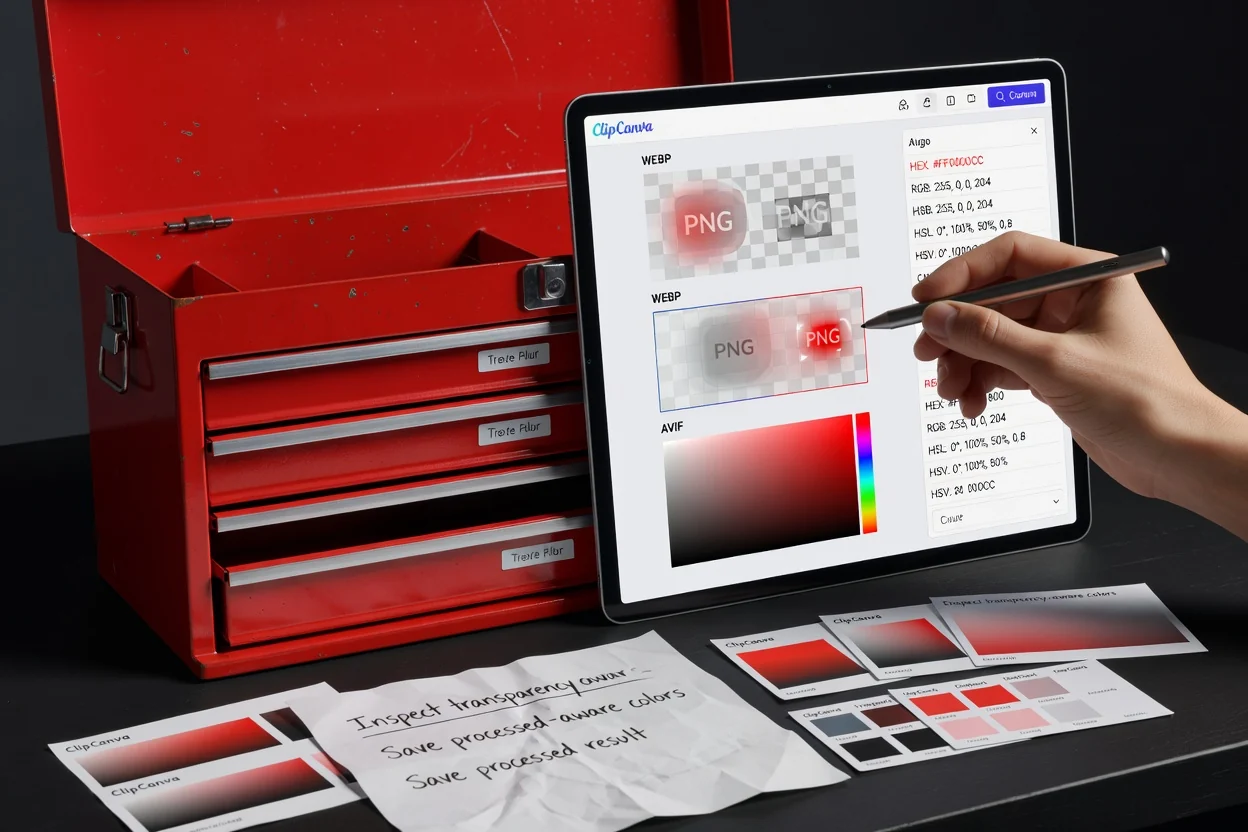
Check alpha-aware output when sampling from transparent logos, overlays, or interface captures that may include opacity information.
The tool is designed for direct pixel sampling from the source image, so it has clear boundaries.
Each selection samples one rendered pixel from the source; it does not average neighboring pixels or identify colors by object.
The tool does not generate an automatic palette or export a collection of swatches from the source file.
Visual differences can occur if the source has compression artifacts, scaling, transparency, or color-management differences in the rendered view.
Common questions about using the image color picker and interpreting the sampled result.
Other ClipCanva utilities can help prepare or inspect an image before or after sampling a color.
Upload a supported image, sample the pixel you need, review the color values, and save the processed result.