
Upload one image
Choose a supported JPG, PNG, WebP, AVIF, or JFIF file from your device.
Upload one image, adjust the encoding quality, compare the original and compressed file sizes, and download the result without changing its pixel dimensions.
Source image
Choose an image to see the source preview.
Result
An image compressor re-encodes an image to reduce its file size. This page keeps the source dimensions, lets you choose the quality level, and shows the output size so you can decide whether the reduction is suitable.

Inspect both visual quality and file size before keeping the compressed copy.
Choose a supported JPG, PNG, WebP, AVIF, or JFIF file from your device.
Move the quality control between 20 and 95 to set the compression tradeoff.
Process the image, compare source and result sizes, inspect the preview, and download the output.
The output format depends on the source while the pixel dimensions remain unchanged.
Use JPG, JPEG, JFIF, PNG, WebP, or AVIF up to 24 MB and within the current 40 megapixel limit.
JPEG sources remain JPG; PNG, WebP, and AVIF sources are encoded as WebP for the quality-controlled result.
The starting value is 82. Lower values usually reduce file size further but can make artifacts more visible.
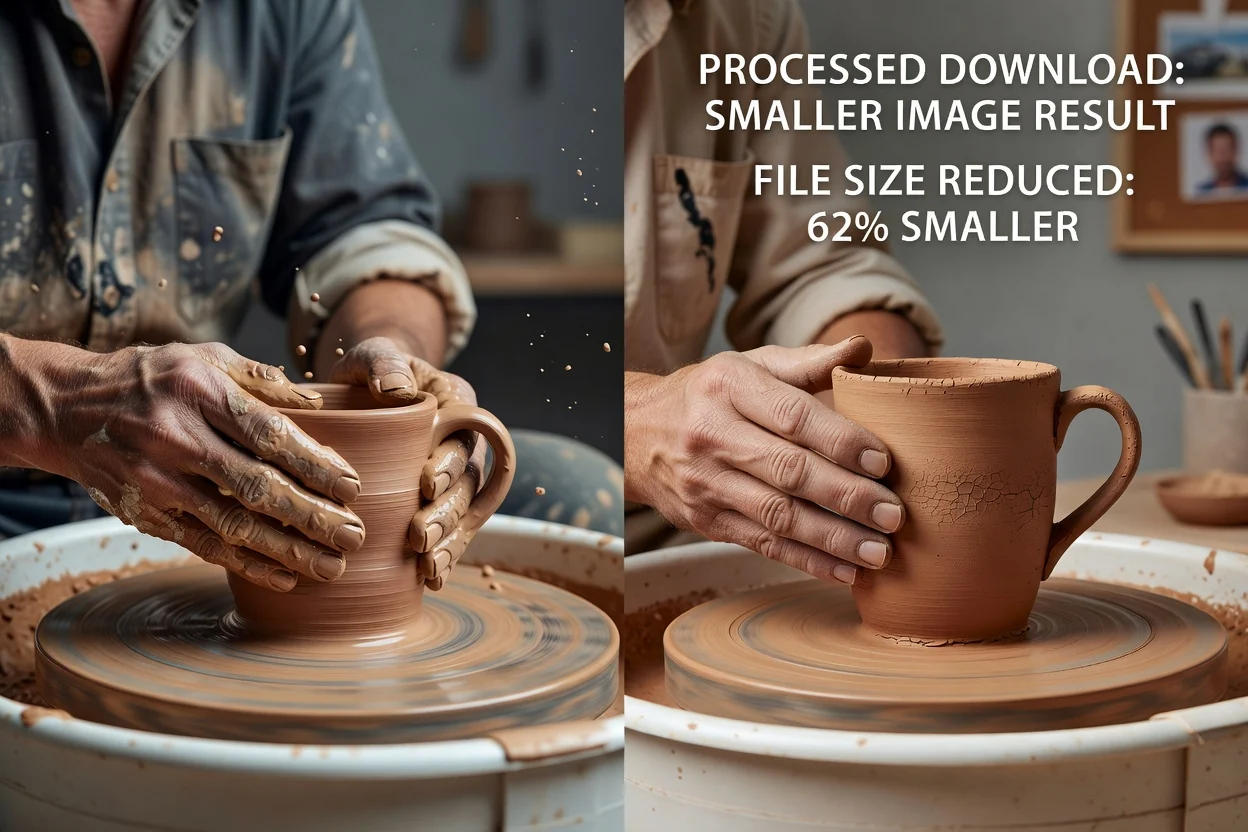
The controls focus on one file-size decision instead of combining compression with unrelated edits.
Choose how strongly to compress the image before creating the downloadable result.
See both sizes and the signed percentage change after processing.
Compression keeps the original width and height rather than resizing the image.
The current compression workflow decodes and re-encodes the selected image in your browser.
Compress for a known file-size or delivery constraint, then verify the result in context.

Reduce an image before submitting it to a portal, listing, or form with a smaller file-size allowance.

Prepare lighter product photos, article images, and page graphics while keeping their dimensions.

Create a smaller copy for an attachment, review link, handoff, or shared document.
Compression changes encoding, not the subject, dimensions, or missing image detail.
The quality control does not guarantee an exact KB or MB result because image content affects compression.
PNG, WebP, and AVIF inputs produce WebP output; use a dedicated converter when the destination requires another format.
Inspect text, edges, gradients, faces, and detailed textures before using a heavily compressed copy.
Answers about formats, dimensions, quality, and file-size results.
Use a focused tool when the next requirement is format, framing, or pixel dimensions.
Upload one image, adjust the quality, and inspect the file-size change before downloading.