
Upload one source image
Choose the product photo, thumbnail, social graphic, scanned image, or other visual that needs larger pixel dimensions.
Upload a small image, increase its pixel dimensions, compare the before and after result, and download the larger version when it fits your destination.
Default
Ready for upload
Preview, compare, then download the finished file.
An AI image scaler creates a larger pixel version of one source image. It is useful when an image is too small for a product listing, thumbnail, presentation, social post, or print draft, but the larger result still needs visual inspection.
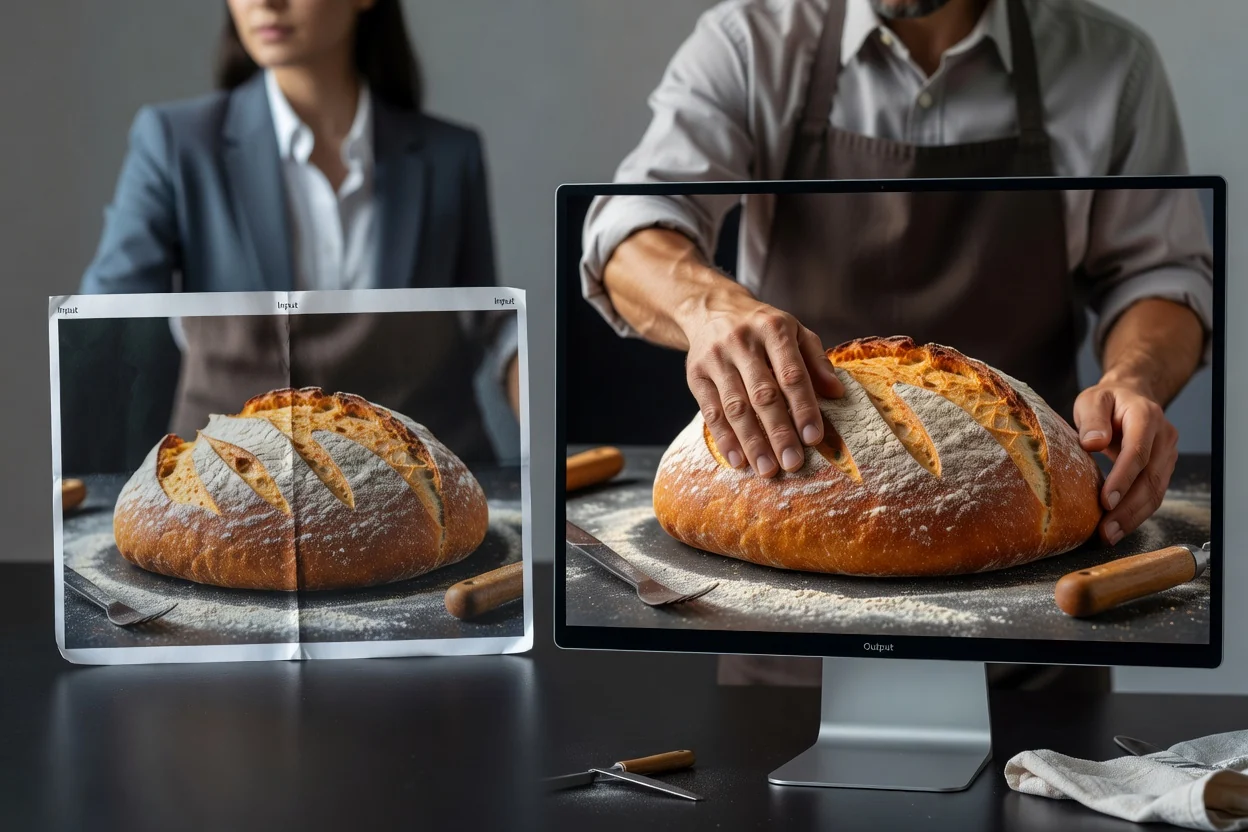
Start from the final use and inspect the larger result at the size where it will appear.
Choose the product photo, thumbnail, social graphic, scanned image, or other visual that needs larger pixel dimensions.
Decide whether the larger image is for a listing, thumbnail, ad, presentation, social post, or print draft.
Process the image, compare the source and result, then inspect edges, text, faces, and textures before downloading.
The tool keeps one source image, one larger result, and the available scale options together for direct comparison.
Upload the clearest available image so edges, text, faces, and textures provide useful source information.
Download an upscaled version with increased pixel dimensions after comparing it with the source.
Choose the available enlargement level, process the image, and inspect the before and after panels.
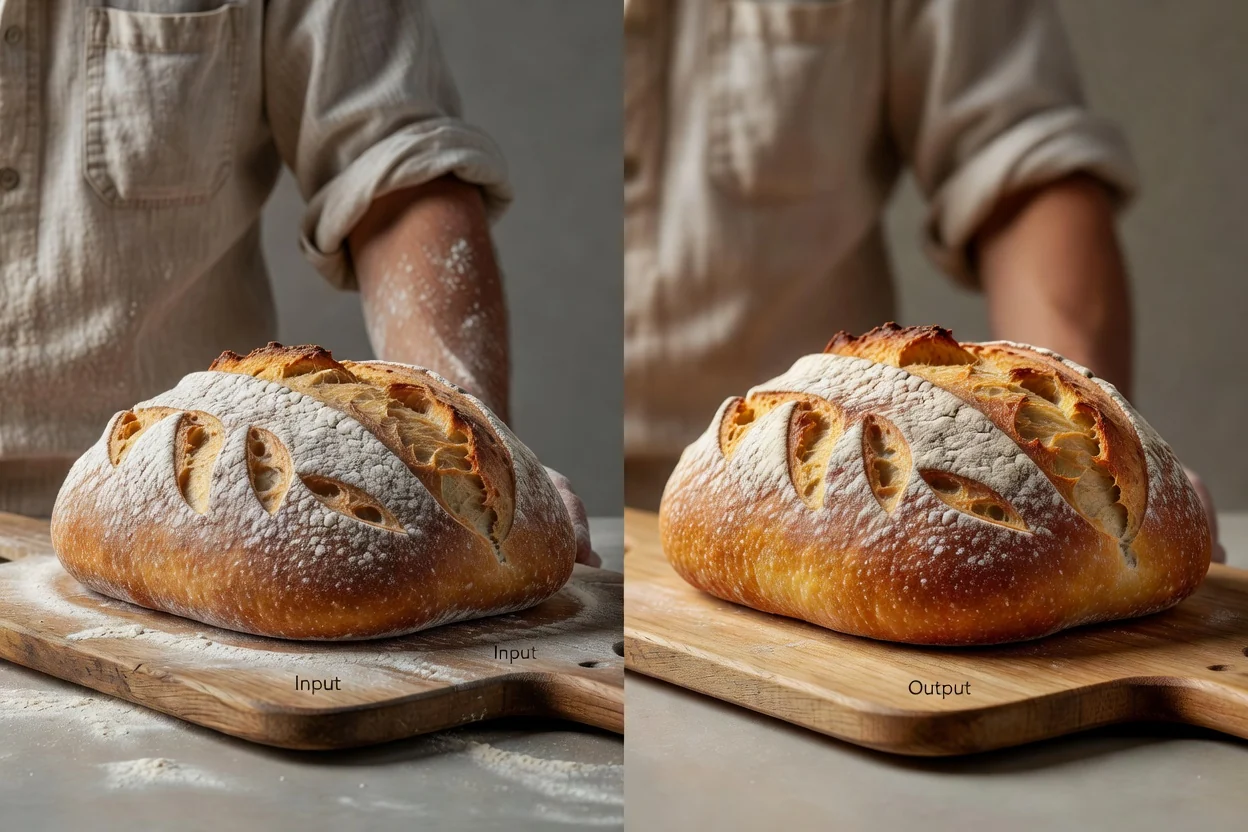
The fixed utility workflow keeps upload, processing, comparison, and download around one image task.
Create a larger output when the source file is too small for the layout or channel where it must appear.
Use the image enhancement process when a basic resize would only stretch the existing pixels into a larger file.
Compare the source and upscaled result before keeping the finished image.
Prepare larger source images for ecommerce, thumbnails, ads, presentations, social posts, and print drafts.
Choose a larger output for a specific destination instead of enlarging every file by default.
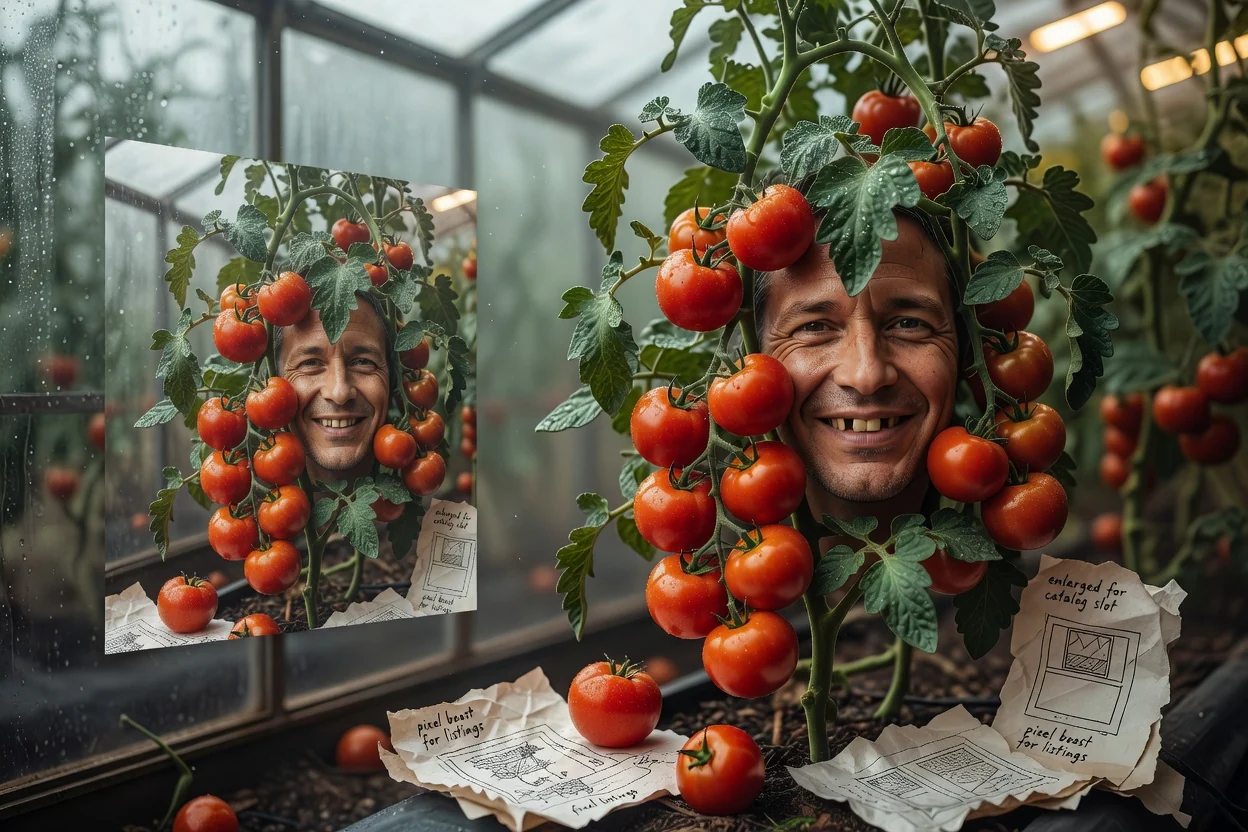
Prepare a larger product image when a marketplace, storefront, or catalog slot needs more pixels.
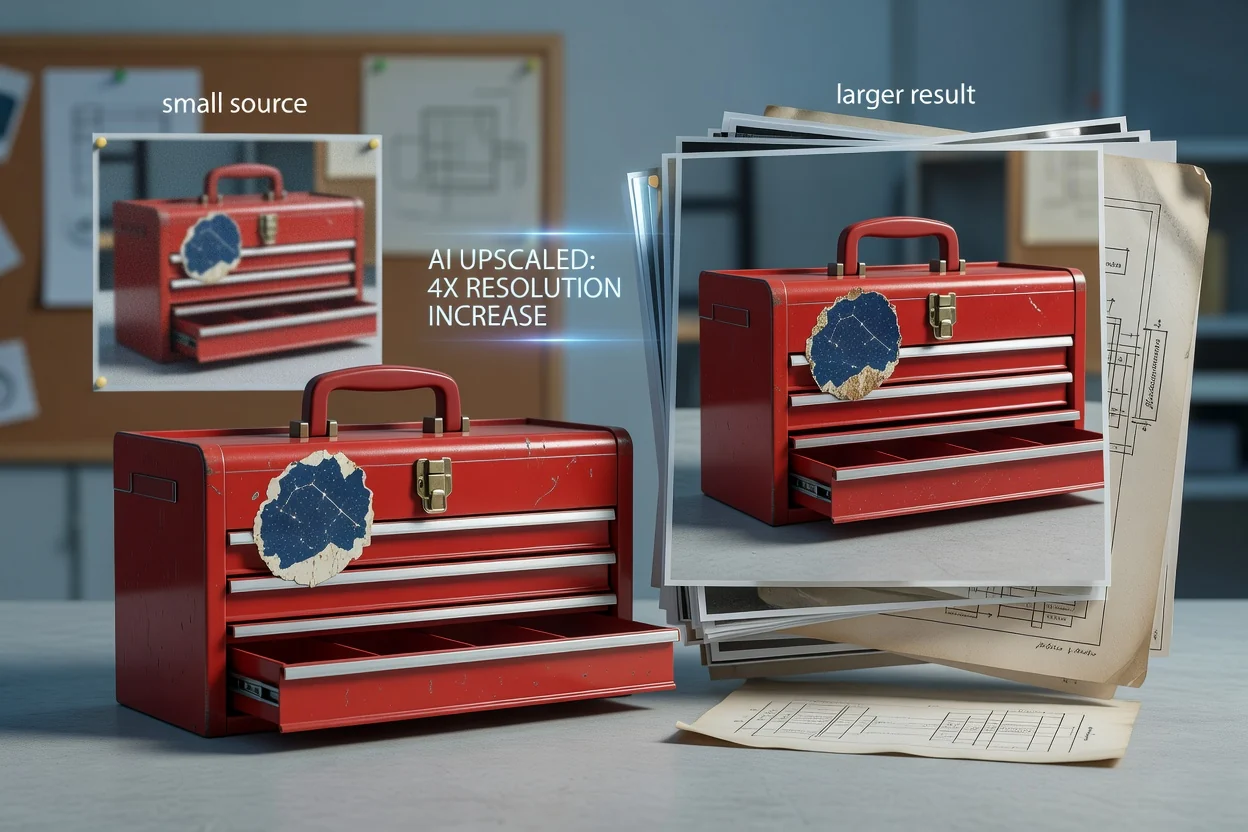
Increase a small source before placing it into a thumbnail, campaign graphic, presentation, or social layout.
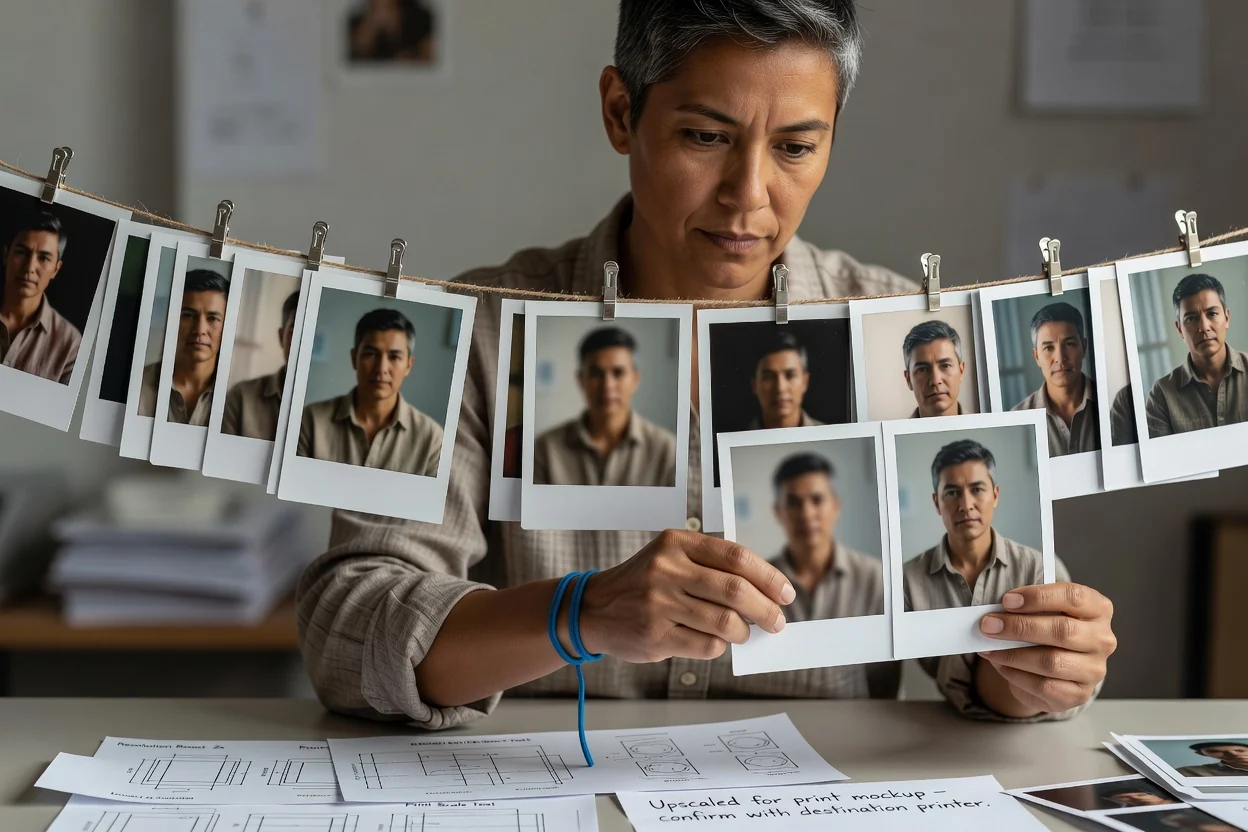
Test a larger version for a print mockup or slide, then confirm effective resolution with the final destination.
Upscaling can create a larger and cleaner-looking output, but it cannot recover source information that was never captured.
Very small, blurred, compressed, or damaged source images may still look soft or contain invented texture after upscaling.
Inspect lettering, logos, facial features, repeated patterns, edges, and small product details at the final display size.
Choose an output size that matches the destination instead of creating unnecessarily large files with no visible benefit.
Answers about image scaling, output dimensions, source quality, and before-and-after review.
Continue with a focused operation when the next job is compression, cropping, or format conversion.
Upload one source image, process the larger version, then compare important details before downloading.