
Choose an image
Select a JPG, PNG, WEBP, AVIF, or JFIF image to resize.
Use the image resizer to adjust a supported picture for a layout, post, profile, thumbnail, or upload requirement. Set pixel dimensions, protect proportions when needed, and review the processed result before saving the output file.
Source image
Choose an image to see the source preview.
Result
An image resizer changes the pixel dimensions of an image while keeping the task focused: choose a file, set the size, process it, and check the result. It is useful when a design slot, website field, marketplace listing, or social channel needs a specific width and height.
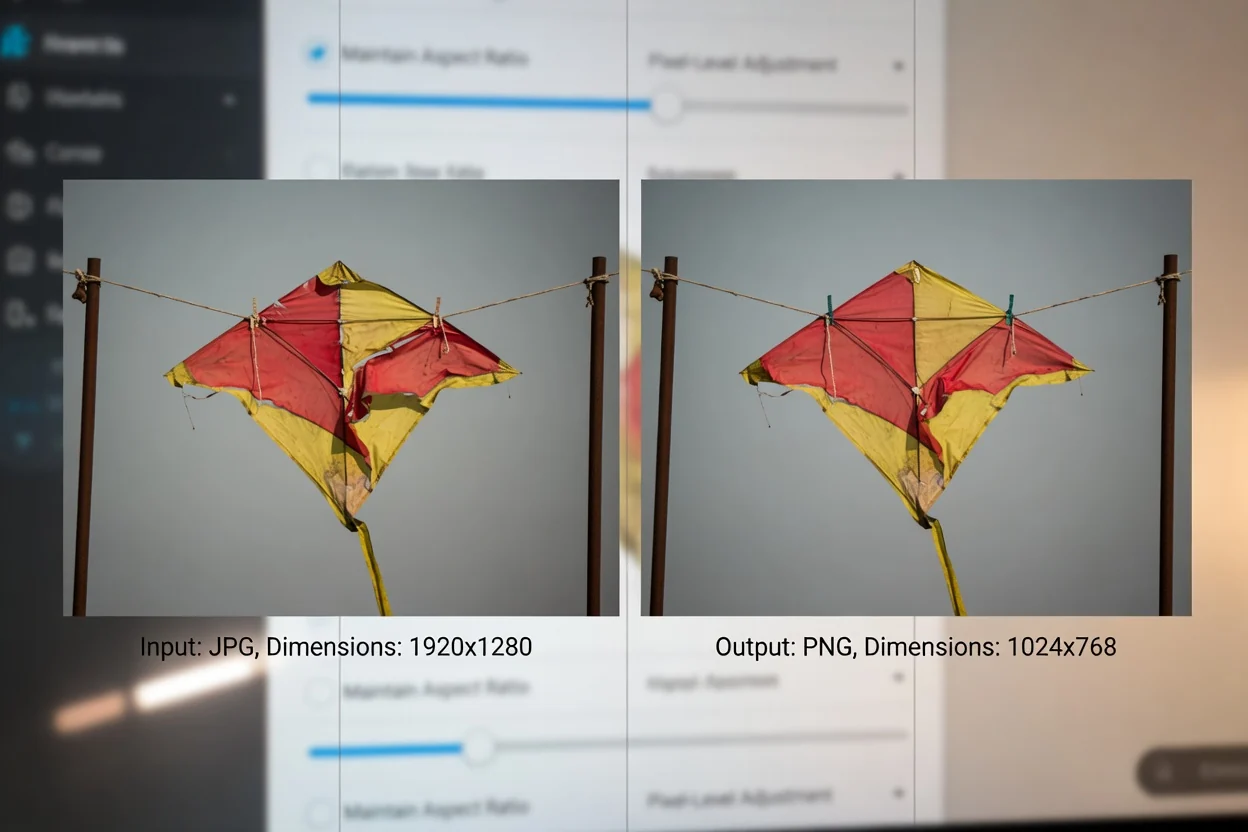
A simple browser-based flow to resize image online and check the result.
Select a JPG, PNG, WEBP, AVIF, or JFIF image to resize.
Enter the target pixel width and height. Keep proportions locked if the image should retain its original aspect ratio.
Process an image to create the resized result.
The image resizing task is defined by supported input formats, dimension controls, and a reviewable output.
Accepts JPG, PNG, WEBP, AVIF, and JFIF image files.
Creates a processed result for review with a downloadable output file.
Pixel-level control for width and height, proportion protection for preserving aspect ratio, and a no image upload processing flow that stays in your browser.
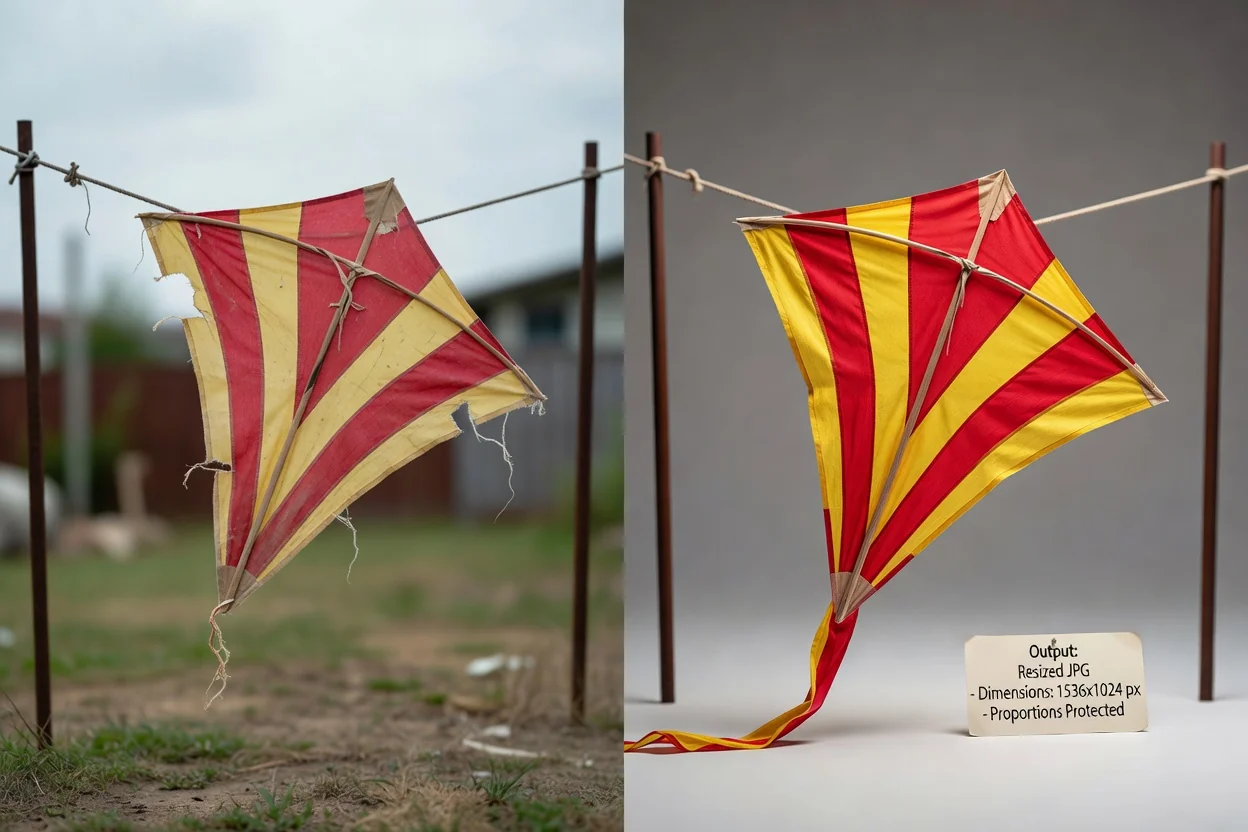
Controls built for precise resizing and a reviewable result.
Enter specific pixel values so the image fits a required canvas, ad slot, avatar frame, product listing, or content template.
Lock proportions to preserve the original aspect ratio while changing one dimension, reducing the chance of unwanted stretching.
Process the image and inspect the result before using the downloadable output file in your next step.
Resize image online in your browser without adding extra creative effects or unrelated editing steps.
Common reasons to resize image online with clear pixel control.

Set an image to the exact width and height required by a website banner, CMS field, email block, or design handoff.
Prepare profile pictures, thumbnails, previews, and social visuals while using proportion protection to keep the image natural.
Resize image to exact pixels for marketplace listings, app screens, documentation, or team templates that require consistent dimensions.
The tool changes dimensions based on the source image and the values you choose.
Increasing the width or height changes the pixel dimensions, but the source does not gain new photographic detail or extra sharpness from the resize alone.
If you turn off proportion protection and enter independent width and height values, the image can be intentionally stretched or squeezed.
This tool focuses on resizing. It does not add background removal, retouching, color correction, or creative generation to the source image.
Answers to common questions about using the image resizer and reviewing the resized result.
Other ClipCanva utilities that help prepare images and visual assets for publishing workflows.
Choose a supported image, set the pixel size you need, process it, and review the resized result.