
Upload your image
Select a JPG, PNG, or WebP image from your device and load it into the converter.
Use the grayscale image converter to turn a supported image into balanced grayscale tones in your browser, then review the result before saving the output file.
Source image
Choose an image to see the source preview.
Result
A grayscale image converter changes color information in an uploaded image into grayscale tones, creating a monochrome result while preserving the picture’s structure.
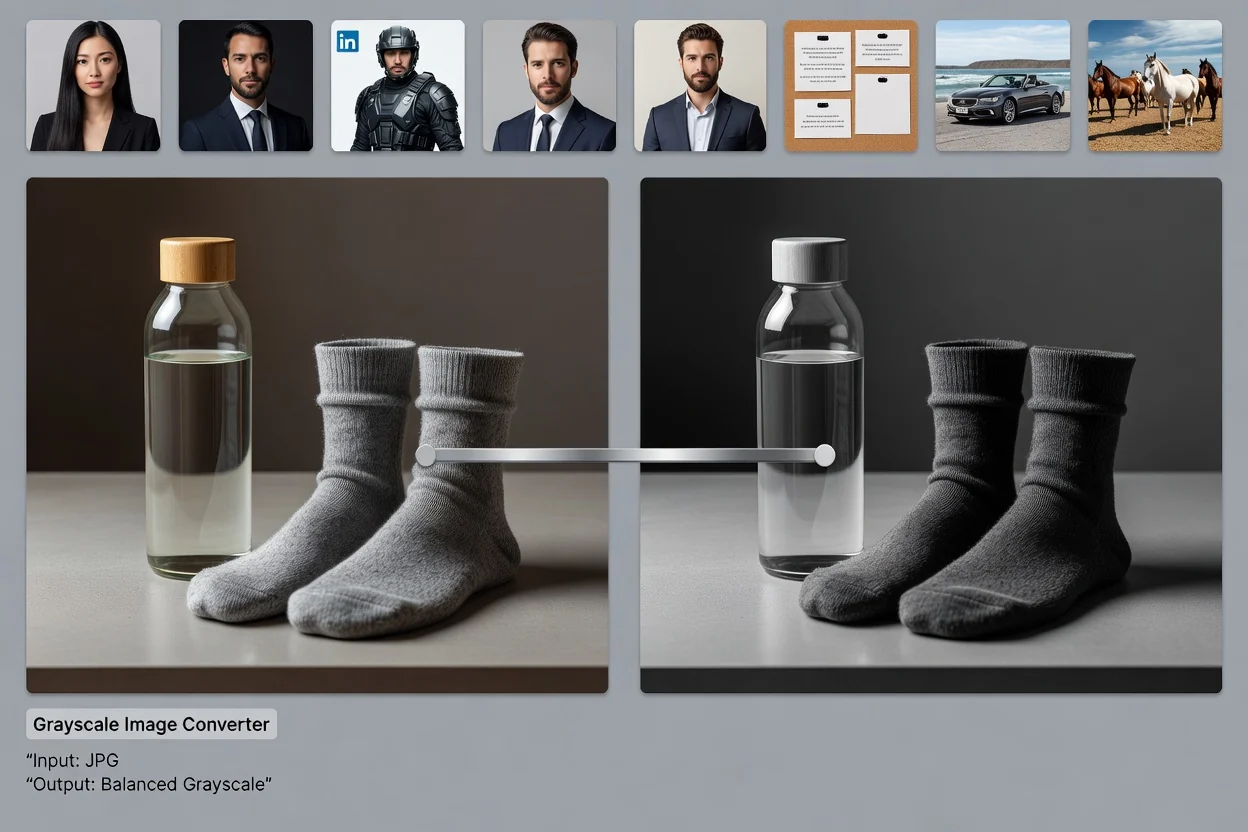
The workflow is built around one task: convert image to grayscale and review the processed result.
Select a JPG, PNG, or WebP image from your device and load it into the converter.
Process the image with balanced luminance conversion so color values become grayscale tones.
Inspect the result in the preview to confirm contrast, detail, and transparency look right.
The converter accepts common web image formats and returns a processed output for review before you save it.
Upload a JPG, PNG, or WebP image. The conversion is applied to the full canvas of the uploaded file.
The output is a grayscale result that you can review before saving it as a downloadable output file.
Available controls include balanced luminance conversion, processing that runs on your device, and transparency retention for supported transparent sources.
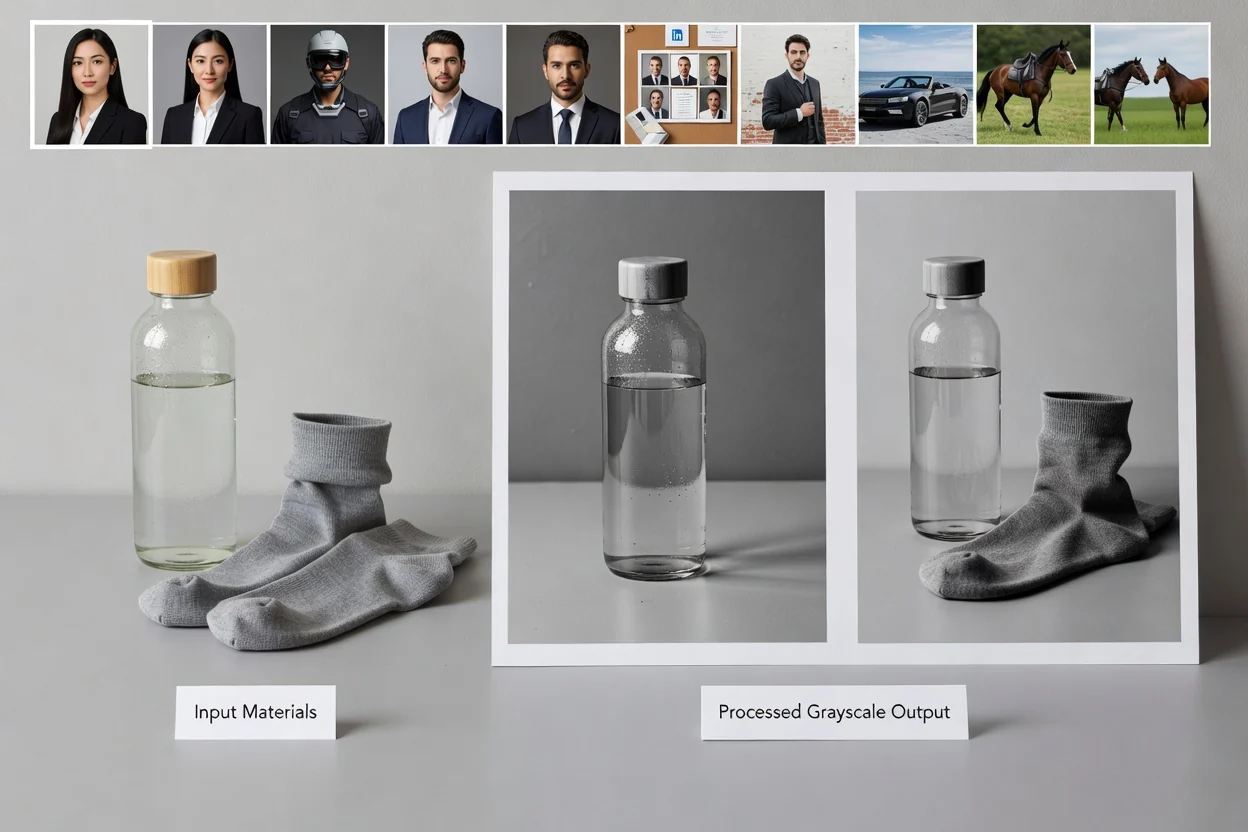
Controls are focused on producing a clear grayscale result without adding extra editing steps.
The conversion balances red, green, and blue channel information into luminance-based gray values so the result keeps readable contrast.
Processing runs on your device in the browser, helping you complete the task without a separate desktop editor.
For PNG and WebP files with transparent pixels, the converter keeps transparency instead of replacing it with a solid background.
Use it as a black and white image converter when you need a softer tonal range than a harsh two-color threshold effect.
Common reasons to process an image with grayscale conversion include brand, editorial, and production workflows.

Convert product, portrait, or campaign visuals when a grayscale image better matches a layout, mood board, or publication style.
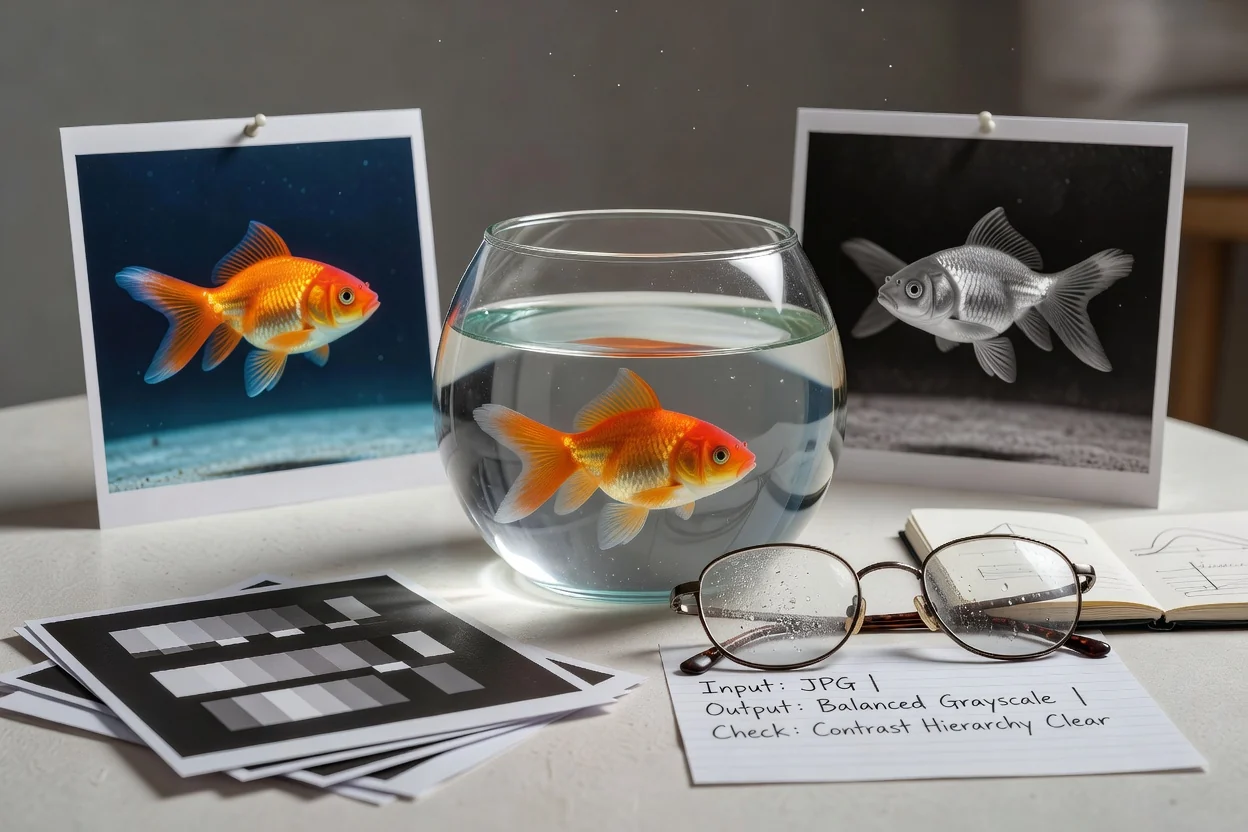
Use balanced luminance to check whether contrast and hierarchy remain clear when color cues are removed.
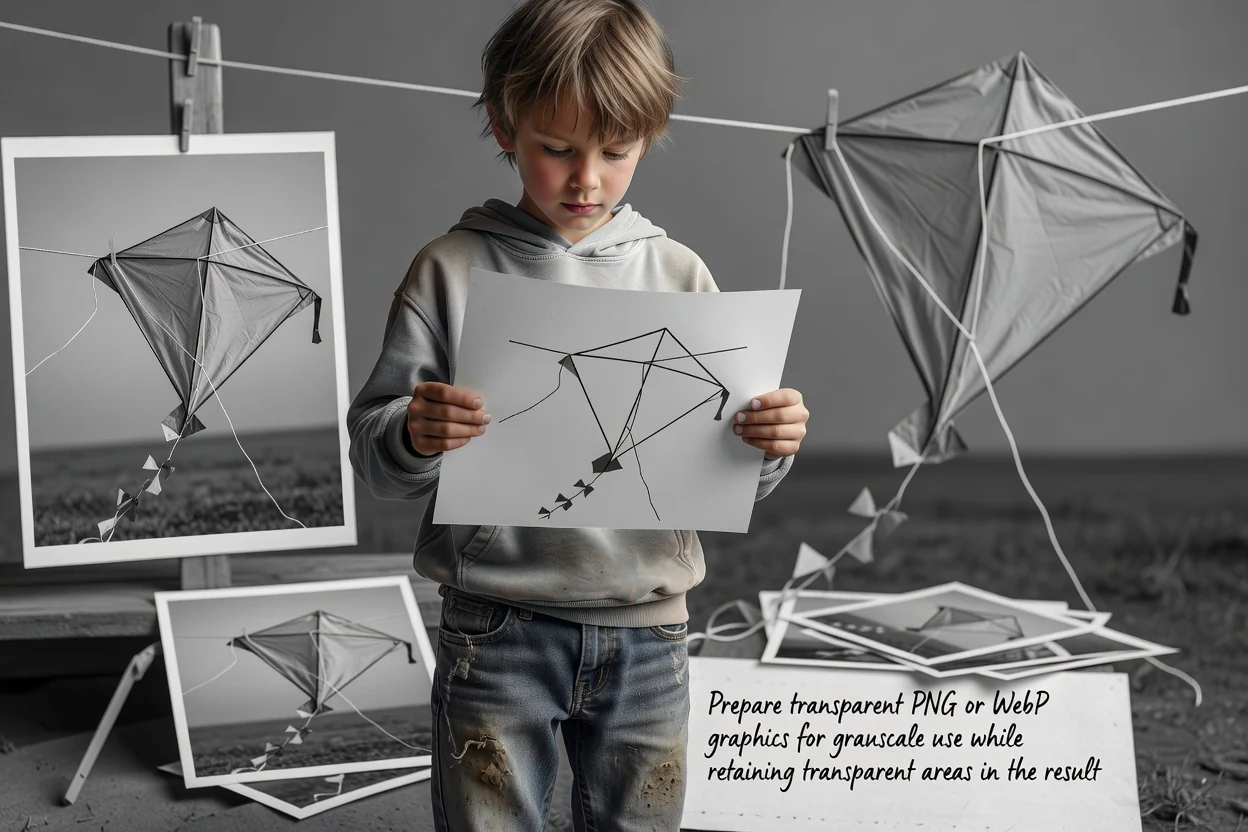
Prepare transparent PNG or WebP graphics for grayscale use while retaining transparent areas in the result.
The tool is designed for straightforward whole-image grayscale conversion from a supported source file.
The conversion affects the entire source image. It does not apply grayscale to a selected region, layer, subject, or background only.
Once a source has been saved as grayscale, the converter cannot reconstruct the original colors from that grayscale file.
Results depend on the quality, resolution, transparency, and compression of the source file you upload.
Answers to common questions about using the grayscale image converter for JPG, PNG, and WebP files.
Use these related utilities when your image task needs a different kind of format or visual adjustment.
Upload a supported image, process it into grayscale, review the result, and save the output file when it is ready.