
Add your files
Add JPG, PNG, WEBP, or AVIF image files. Keep the batch within the supported source-image limit.
Use the combine images tool to arrange supported image files into one reviewable result. Add JPG, PNG, WEBP, or AVIF files, choose a layout, adjust spacing and background color, then process the image in your browser.
Image order
Result
Your combined image or PDF will appear here.
Combine images means placing multiple image files onto a single canvas so they can be viewed, shared, or saved as one processed file. This tool is built for a focused task: bring separate visuals together, control their arrangement, and produce a single result you can review before using.
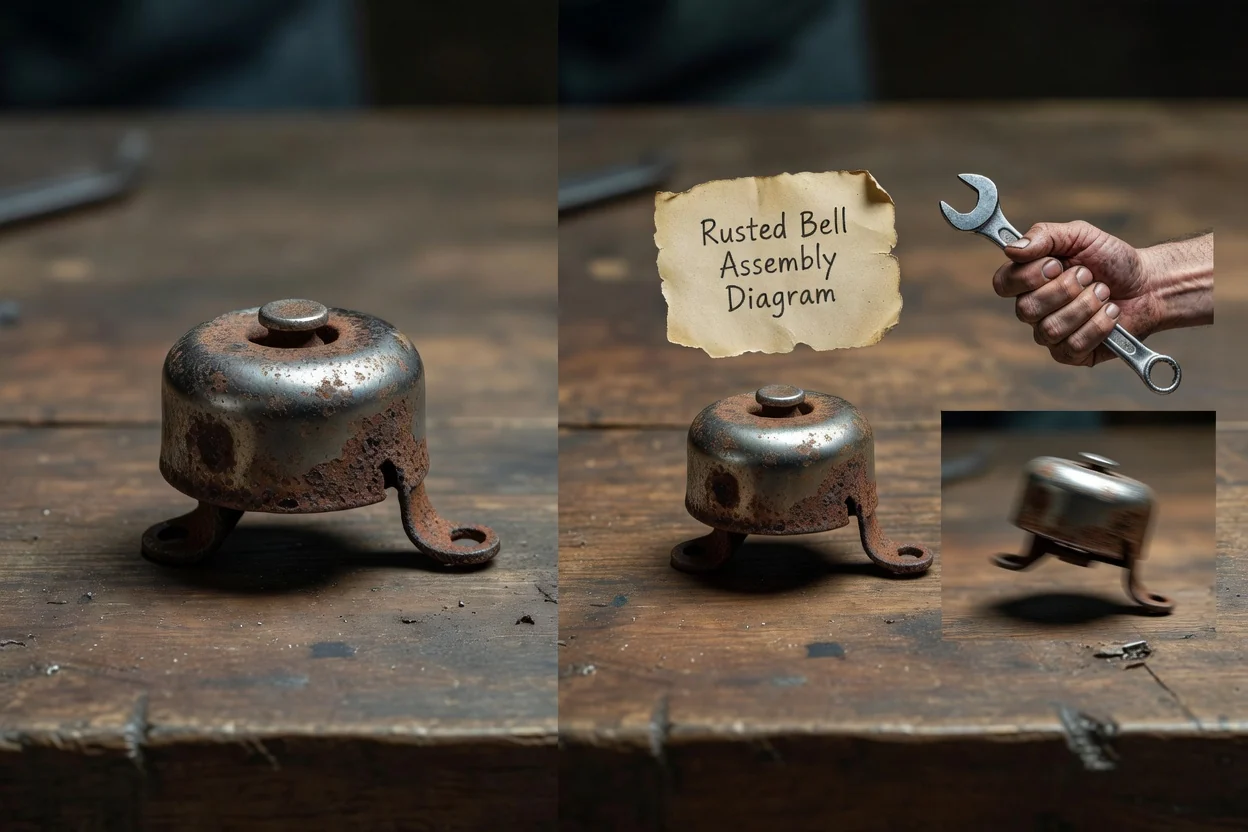
A short browser-based flow helps you combine images online and review the result before saving it.
Add JPG, PNG, WEBP, or AVIF image files. Keep the batch within the supported source-image limit.
Pick one of the available layouts, then arrange the image order to match the comparison, sequence, or collage you want to create.
Set the gap between items and choose a background color so the combined canvas looks clean.
Technical behavior for input files, processing controls, and output from the combine images tool.
Add JPG, PNG, WEBP, or AVIF image files. A single run supports up to 20 source images.
The tool creates a processed output file for review. After processing, you can save the downloadable output file.
Available controls include three useful layouts, file order, gap size, background color, and local processing in the browser.
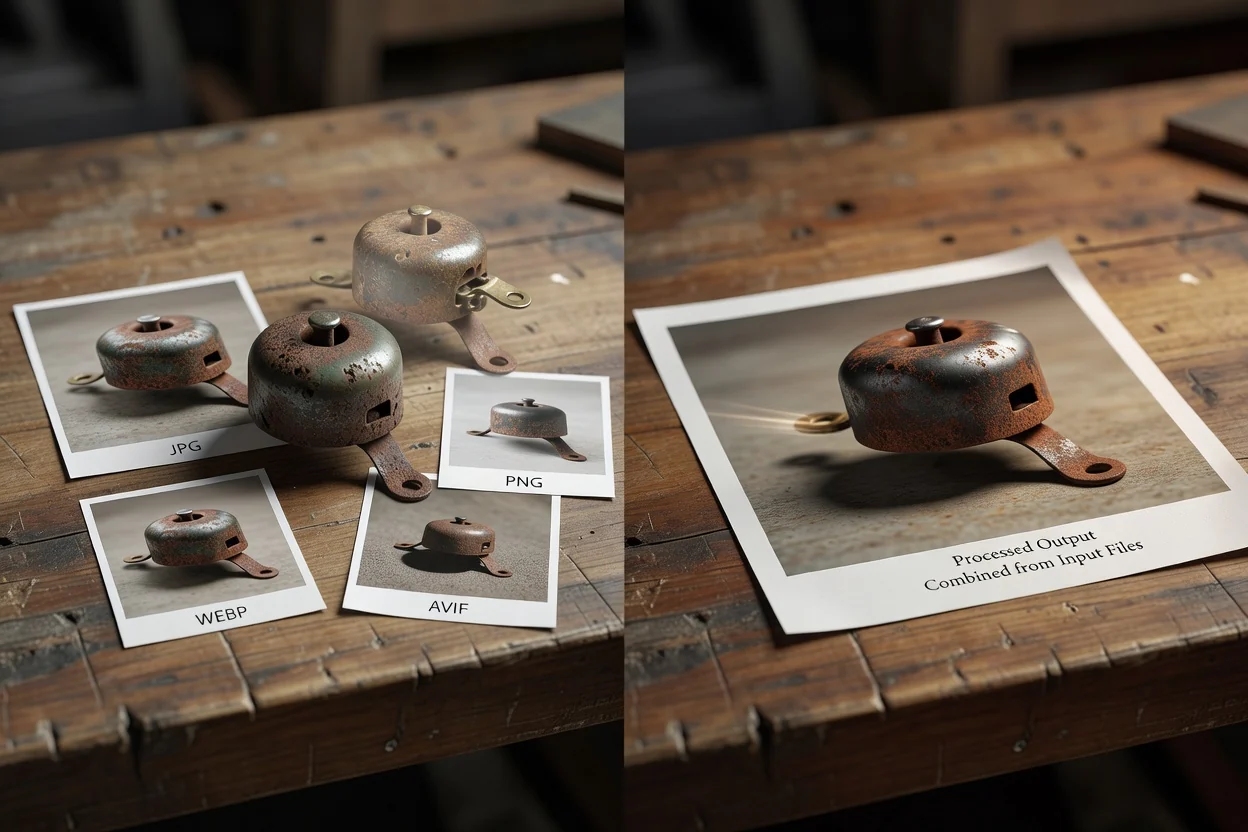
Controls are focused on producing a clean, predictable result from multiple files.
Select one of three useful layouts to match the way you want to combine images online, such as side-by-side comparison, stacked views, or grid-style presentation.
Reorder the source files, set the gap between images, and choose a background color so the result fits the look you need.
Processing happens locally in the browser, which keeps the workflow quick for supported files and lets you review the combined result before saving it.
Use the preview to check alignment, spacing, and background before you commit to the final file, especially when you stitch images together for a comparison or visual summary.
Use the tool when several visuals need to become one image without opening a larger editor.
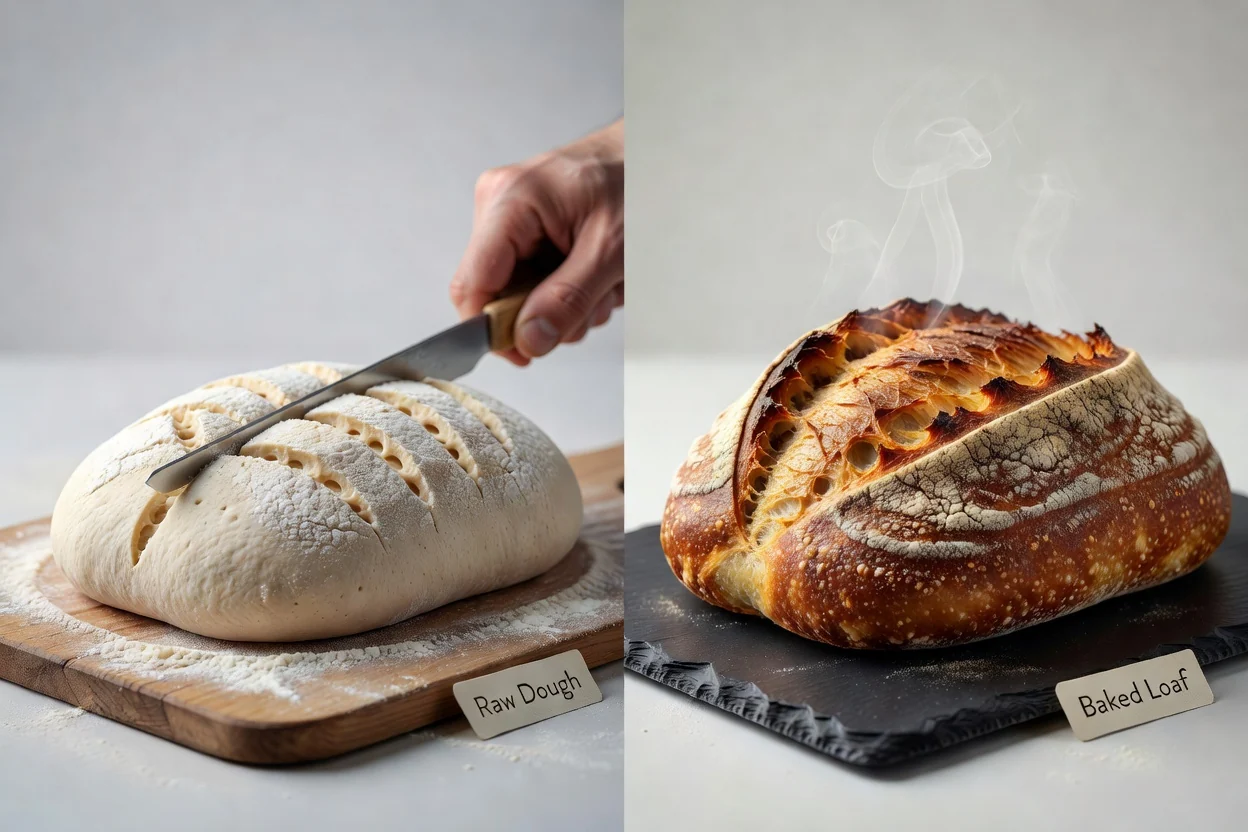
Place product, design, or campaign visuals side by side so viewers can compare differences in one combined image.
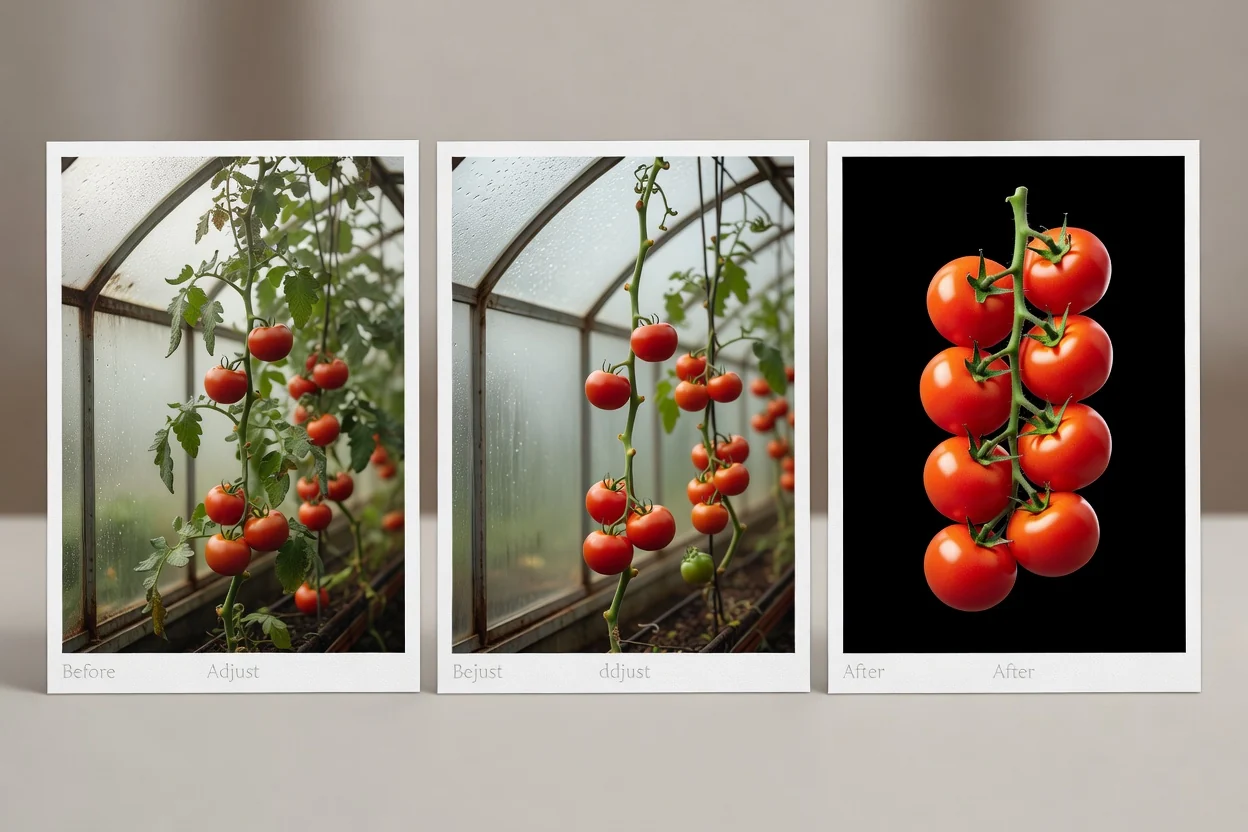
Stitch images together into a simple sequence for before-and-after views, step illustrations, or social content drafts.
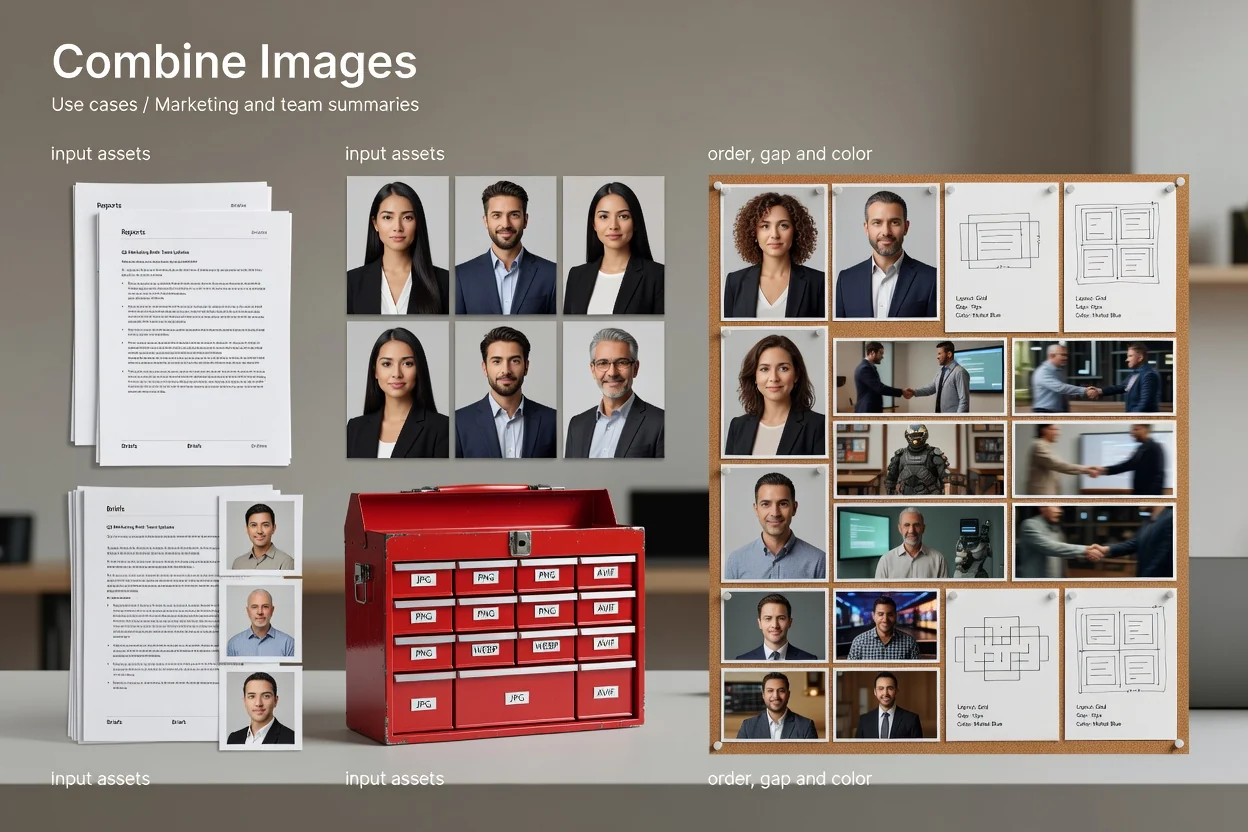
Use order, gap, and color controls to prepare a tidy image summary for reports, briefs, or team updates.
The utility is designed for a focused browser-based image-combining task, with limits that keep processing manageable.
A single run accepts up to 20 source images. If you need more, split the work into smaller batches.
Very large combined canvases are blocked before they exceed the browser pixel limit, so extremely large source files or many high-resolution images may need to be resized first.
The tool combines files into one visual output; it does not provide advanced design editing, layer effects, or manual retouching controls.
Common questions about how to combine images with this utility.
Other utilities that help prepare images before or after combining them.
Add your supported image files, choose a layout, adjust the spacing and background, and process the result.