
Upload an image
Choose a JPG, PNG, WEBP, or AVIF image from your device.
Use the circle crop image tool to turn a supported photo or graphic into a clean circular crop in your browser. Upload a JPG, PNG, WEBP, or AVIF image, adjust the framing, and review the result before saving the processed file.
Source image
Choose an image to see the source preview.
Result
A circle crop image tool cuts your selected image into a fixed circular shape. It is useful when you need a round profile picture, avatar, icon, or visual element without manually building a mask in a design app.
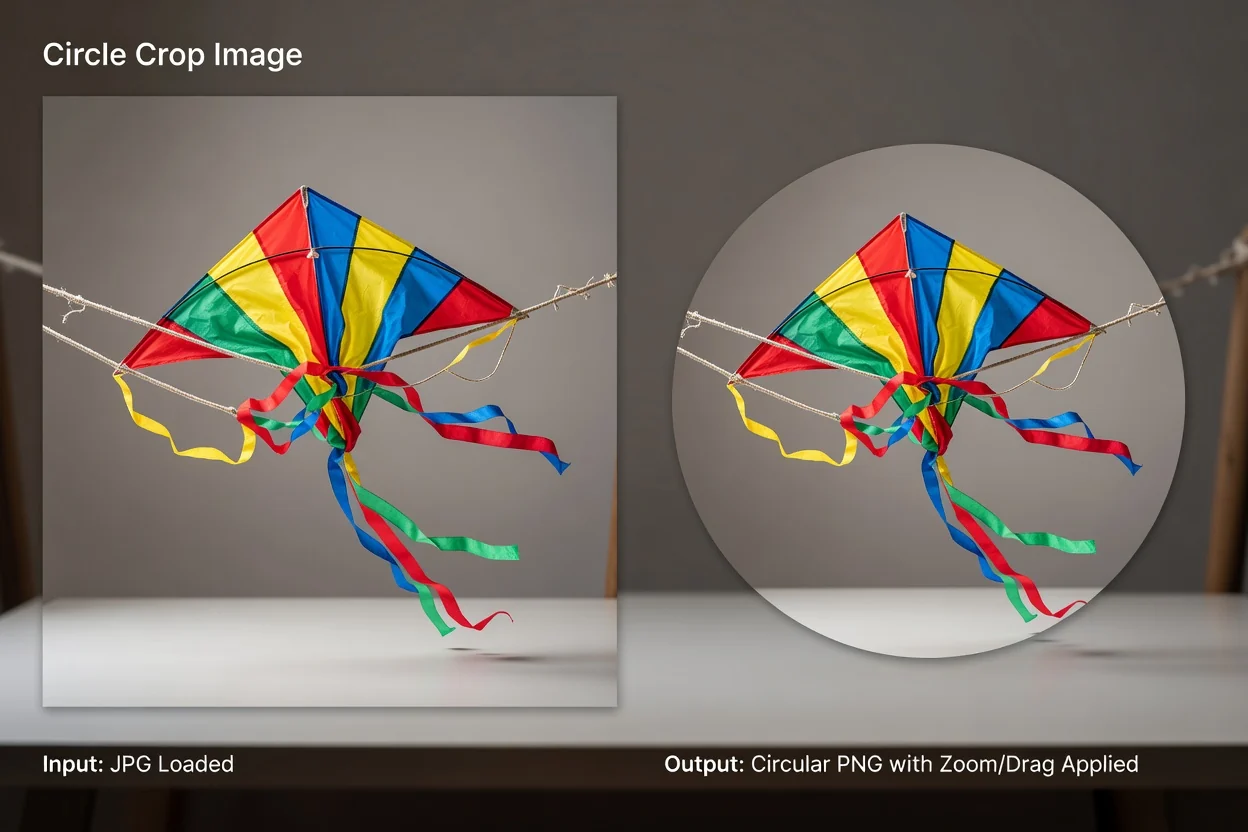
A simple circle crop image online workflow helps you upload, frame, inspect, and save the processed image.
Choose a JPG, PNG, WEBP, or AVIF image from your device.
Use 100%–400% zoom to set how much of the image appears inside the circle.
Drag the image or use keyboard positioning to place the subject exactly where you want it.
The processor accepts common web image formats and creates a circular output for review and saving.
Supported input formats are JPG, PNG, WEBP, and AVIF.
The output is a processed circular result that you can review before saving it as a downloadable output file.
Available controls include 100%–400% zoom, drag positioning, keyboard positioning, and transparent PNG output.
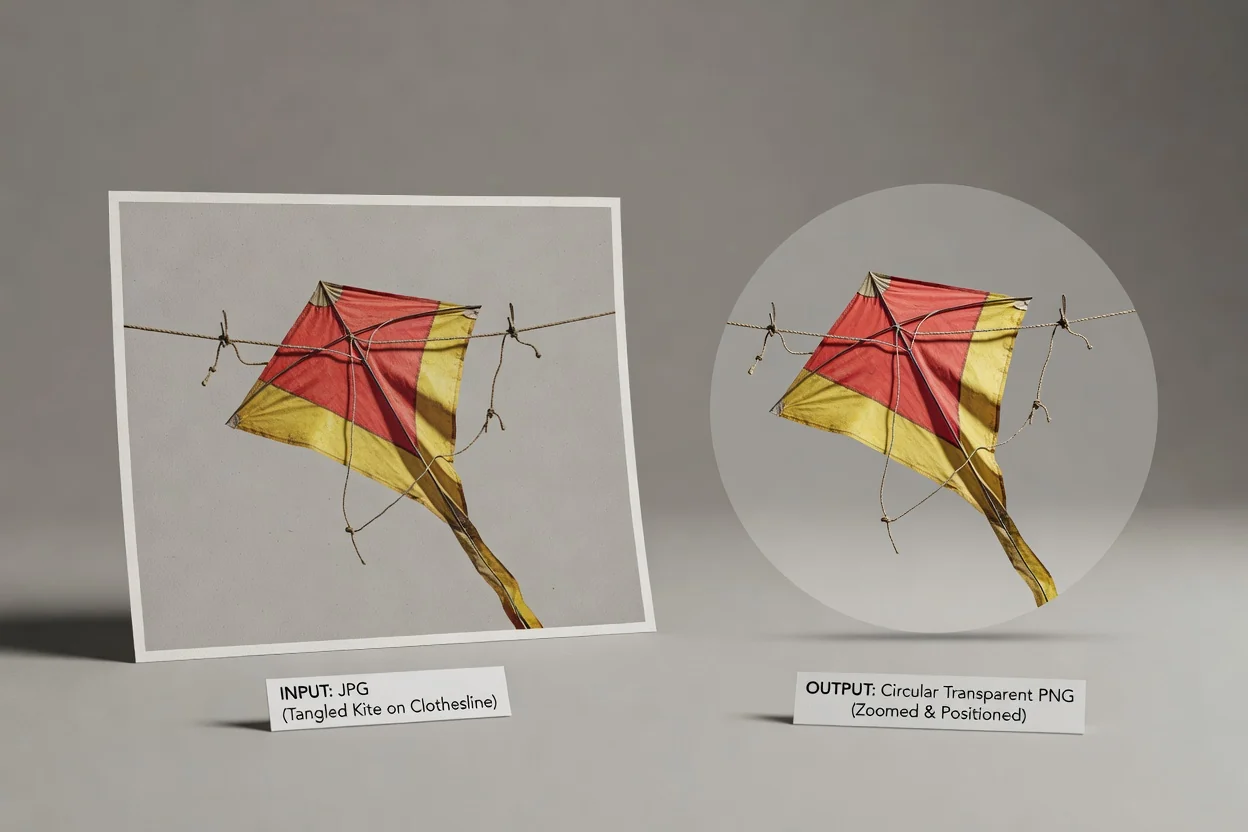
The tool focuses on the controls needed to frame a circular result clearly before saving it.
Zoom from 100% to 400% to bring the subject closer or leave more surrounding space inside the circle.
Move the image by dragging, or use keyboard positioning for smaller framing adjustments.
Create a transparent PNG circle crop when you need a circular asset with transparent corners for profiles, layouts, or design comps.
Review the processed result so you can confirm the framing before keeping the final file.
Use the tool when you need an image framed cleanly inside a circle for a specific visual job.

Create a round profile image by zooming between 100% and 400% until the face or subject is centered.

Use drag and keyboard positioning to align a product, logo, or person consistently inside a circular frame.
Create a transparent PNG circle crop for layouts where the circular image needs to sit cleanly over different backgrounds.
The tool is designed for straightforward circular cropping, so the source image and selected framing determine what appears in the final file.
The output shape is a fixed circle. Custom ellipses, borders, and freeform masks are not available.
The tool does not selectively remove a background inside the circle. Every pixel within the circular crop is kept from the source.
If the source file is low resolution, heavily compressed, or poorly framed, zooming cannot add missing detail to the output.
Answers to common questions about using the circle crop image tool and understanding its output.
Use related image utilities when your task needs a different crop shape, resize step, or format conversion.
Upload a supported image, frame the subject inside the circle, and process an image into a clean circular output.