
Upload one image
Choose a supported raster image and review the source dimensions.
Upload one image, choose a 1:1, 4:5, or 16:9 preset or enter exact pixels, position the area to keep, and download the cropped result.
Source image
Choose an image to see the source preview.
Result
An image cropper removes pixels outside a selected frame and creates a new image with the requested ratio or dimensions. This page uses output size plus horizontal and vertical position controls to choose which source area remains.
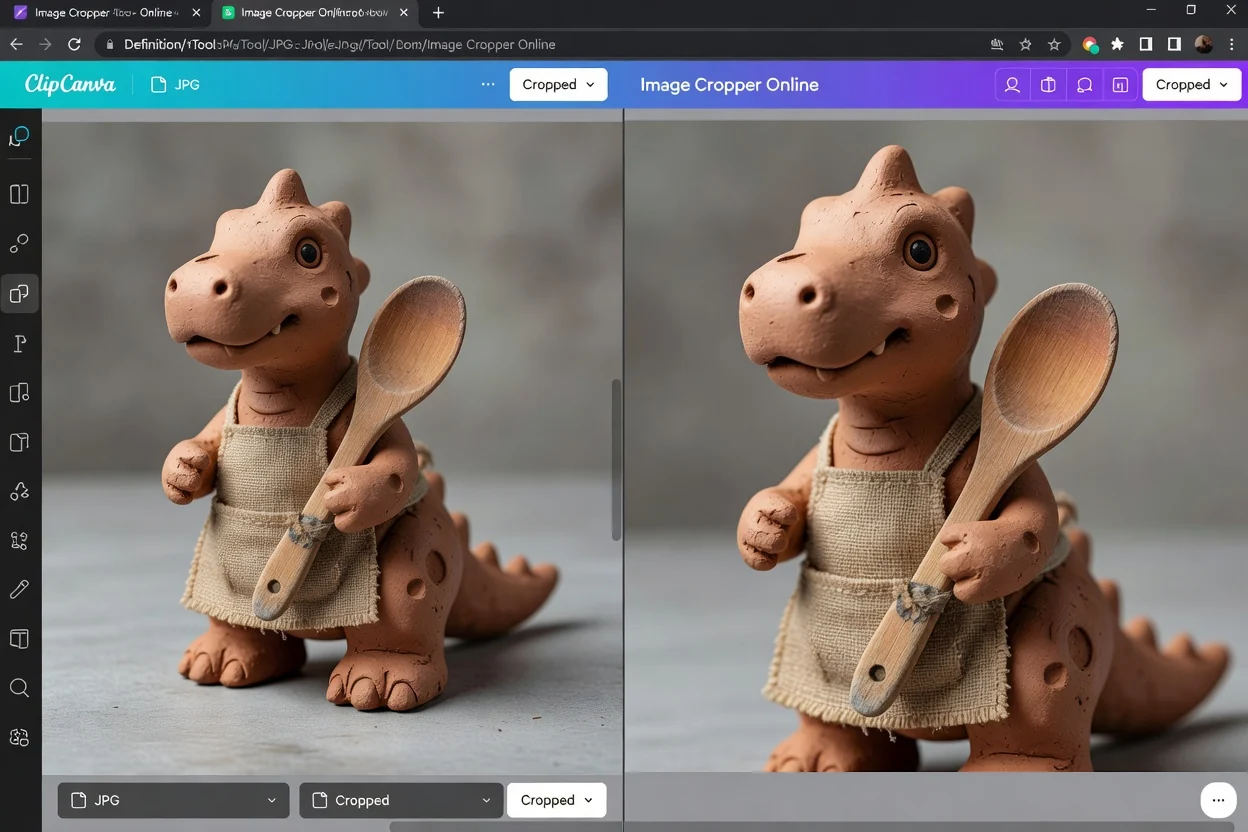
Set the destination frame first, then position the source inside it.
Choose a supported raster image and review the source dimensions.
Choose a preset or exact pixels, then move the horizontal and vertical position controls.
Create the crop, confirm the kept subject and output dimensions, and download the result.
The frame dimensions and position controls define the result.
Choose the JPG, JPEG, JFIF, PNG, WebP, or AVIF you want to reframe. The browser accepts one file up to 24 MB and 40 megapixels.
JPG remains JPG, WebP remains WebP, and other supported sources use PNG output at the selected dimensions.
Use 1:1, 4:5, 16:9, exact width and height, plus horizontal and vertical position sliders.
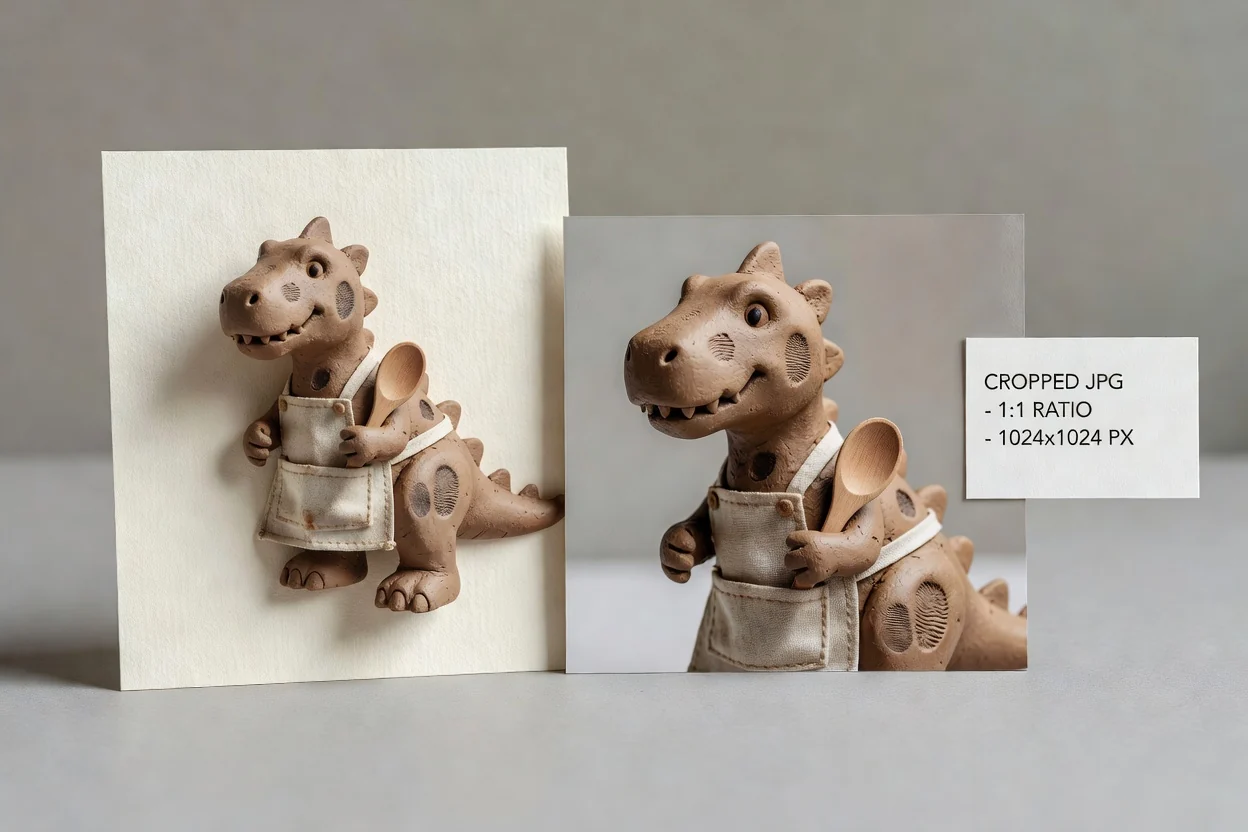
The controls make the final frame explicit before processing.
Start from square, portrait, or widescreen dimensions without calculating the ratio manually.
Enter the width and height required by a placement, template, or delivery specification.
Move the source horizontally and vertically to control which area remains in the frame.
The current crop operation uses the selected image and browser canvas on your device.
Choose the frame from the destination rather than cropping without a target.
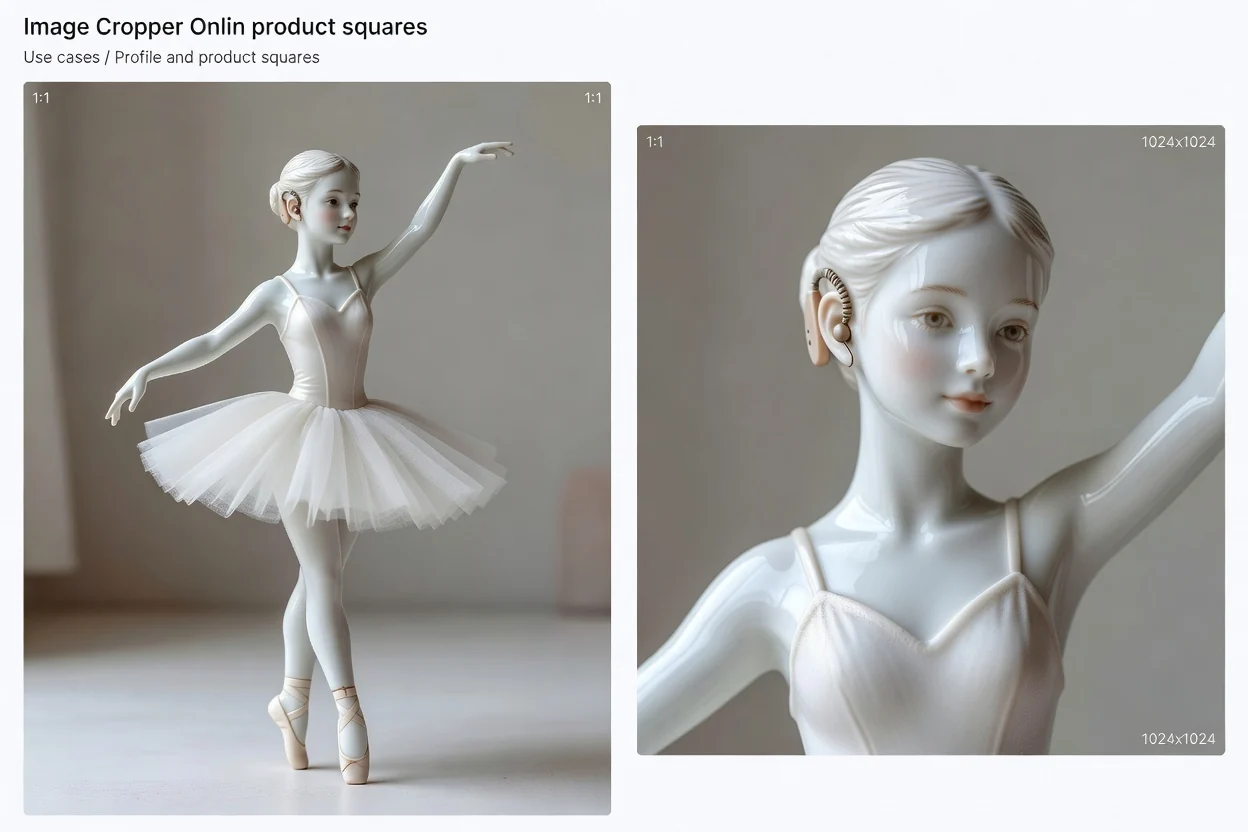
Create a 1:1 frame for an avatar, product tile, catalog thumbnail, or square post.
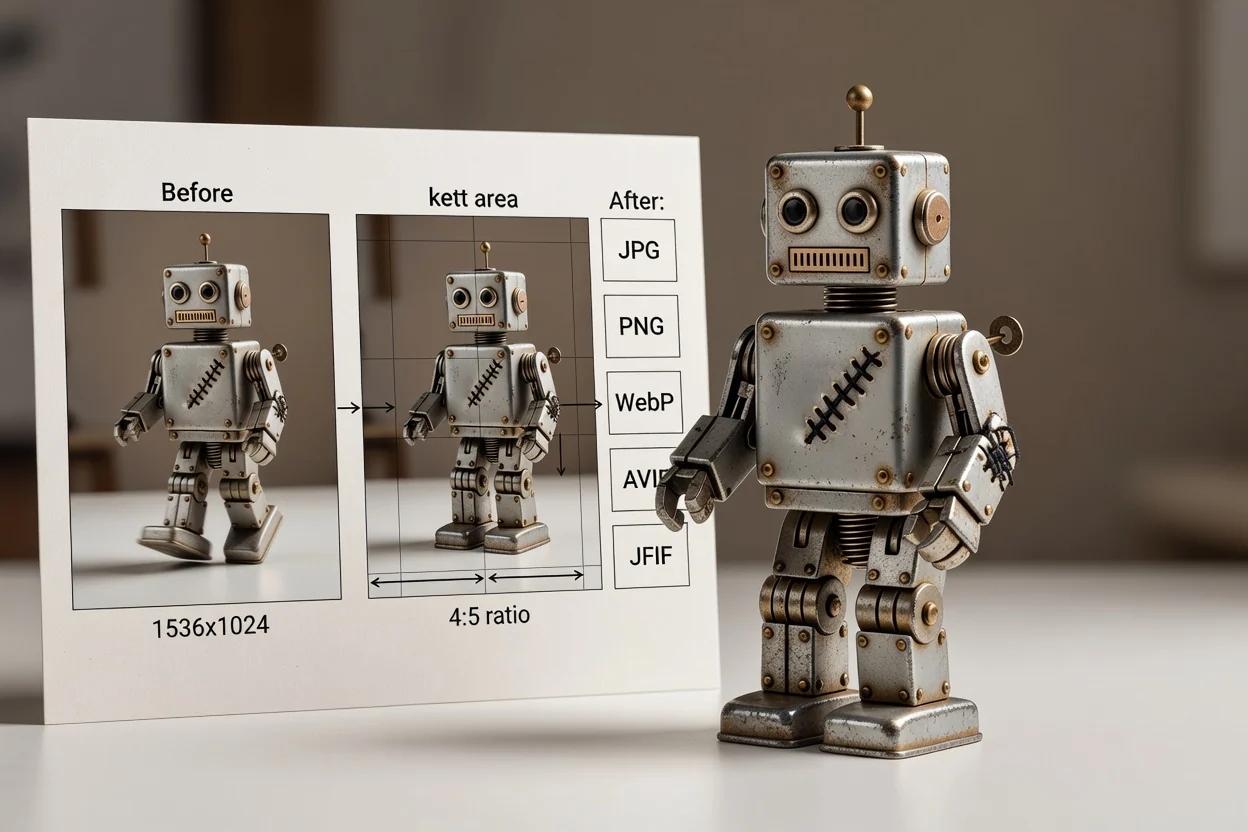
Use the 4:5 preset for a portrait-oriented feed image or campaign placement.
Use 16:9 or exact pixels for a video thumbnail, presentation frame, or wide page graphic.
Cropping removes source pixels and cannot recreate detail outside the chosen frame.
This page uses output dimensions and position sliders instead of draggable corner handles.
Keep the original source file because the downloaded crop contains only the selected frame.
An output larger than the selected source area can look soft because cropping does not invent missing pixels.
Answers about positioning, presets, output format, dimensions, and image quality.
Continue with the operation the cropped file needs next.
Upload one source, choose the output dimensions, and position the area you want to keep.