
Choose a WebP image
Add one .webp file from your device and check the source preview and dimensions.
Choose one WebP image, set the JPG quality, convert it locally in your browser, and download a JPG copy for a destination that does not accept WebP.
Input format
WebP
.webp
Output format
JPG
.jpg
JPG quality
Balance clarity and file size
Source
JPG result
A WebP to JPG converter decodes a WebP image and re-encodes the visible result as a JPEG file. The conversion is useful when an upload form, editing app, document workflow, or delivery requirement accepts JPG but not WebP.
Keep the destination in mind when choosing the JPG quality.
Add one .webp file from your device and check the source preview and dimensions.
Use the quality control to balance visible detail against the size of the converted JPG.
Create the JPG, compare its details with the WebP source, and download the result.
The fixed converter keeps the format change and its main tradeoff visible.
The converter accepts a .webp image up to the current 24 MB browser file limit.
The result keeps the source pixel dimensions and replaces transparent areas with a white background.
Adjust the JPEG encoding quality before conversion; the starting value is 92.
Each feature supports the same format-compatibility decision.
The input selector accepts WebP files instead of treating every image as a valid source.
Conversion changes the file format without resizing the source width or height.
Compare the WebP source with the converted JPG before downloading it.
The current converter decodes and re-encodes the image in your browser.
Convert only when the receiving destination needs a JPG file.
Create a JPG copy for a listing, portal, or form that rejects WebP uploads.
Prepare a broadly accepted JPG for software or document workflows with limited WebP support.
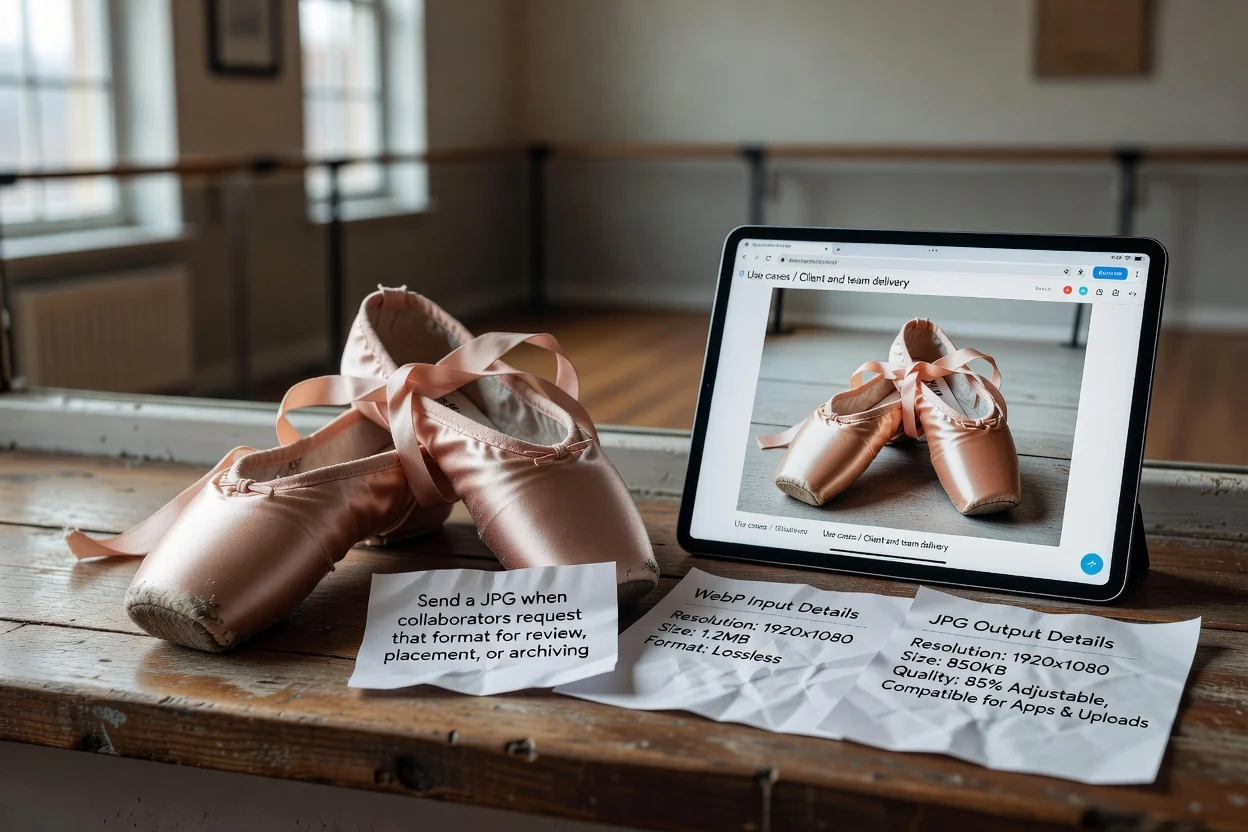
Send a JPG when collaborators request that format for review, placement, or archiving.
JPG compatibility comes with format-specific tradeoffs.
JPG does not preserve transparency, so transparent WebP areas are filled with a white background.
Lower quality settings can create smaller files but may soften edges, text, or fine texture.
This page converts one WebP image at a time and does not provide a batch queue.
Answers about transparency, dimensions, quality, and browser conversion.
Choose the next tool by the change the image actually needs.
Choose one WebP file, set the JPG quality, and inspect the converted result before downloading.