
Upload ét billede
Vælg et understøttet rasterbillede, og gennemgå kildedimensionerne.
Upload ét billede, vælg en 1:1-, 4:5- eller 16:9-forudindstilling, eller indtast præcise pixels, placér det område, der skal bevares, og download det beskårne resultat.
Kildebillede
Vælg et billede for at se kildevisningen.
Resultat
Et billedbeskæringsværktøj fjerner pixels uden for en valgt ramme og opretter et nyt billede med det ønskede forhold eller de ønskede dimensioner. Denne side bruger outputstørrelse samt vandrette og lodrette placeringsindstillinger til at vælge, hvilket kildeområde der bevares.
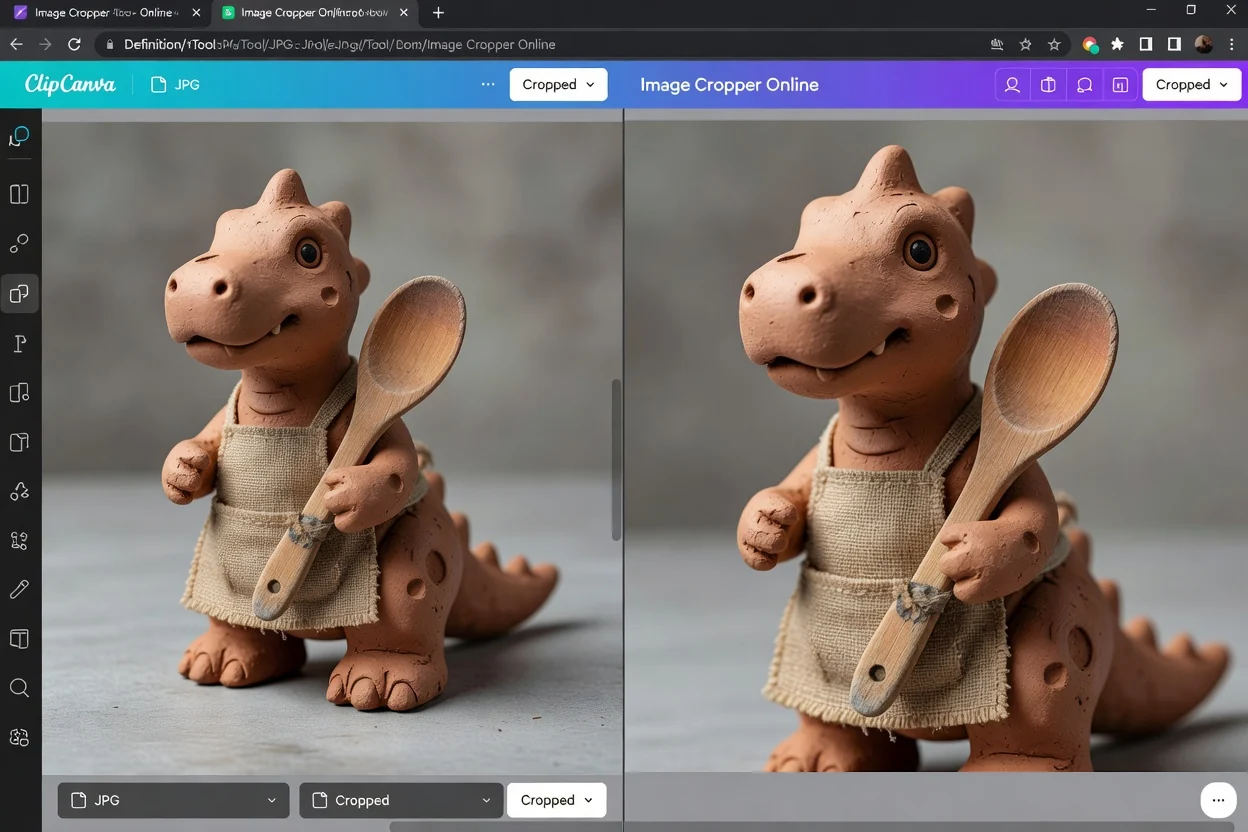
Indstil destinationsrammen først, og placér derefter kilden i den.
Vælg et understøttet rasterbillede, og gennemgå kildedimensionerne.
Vælg en forudindstilling eller præcise pixels, og flyt derefter de vandrette og lodrette placeringsindstillinger.
Opret beskæringen, bekræft det bevarede motiv og outputdimensionerne, og download resultatet.
Rammedimensionerne og placeringsindstillingerne definerer resultatet.
Vælg den JPG, JPEG, JFIF, PNG, WebP eller AVIF, du vil indramme på ny. Browseren accepterer én fil på op til 24 MB og 40 megapixels.
JPG forbliver JPG, WebP forbliver WebP, og andre understøttede kilder bruger PNG-output i de valgte dimensioner.
Brug 1:1, 4:5, 16:9, præcis bredde og højde samt vandrette og lodrette placeringsskydere.
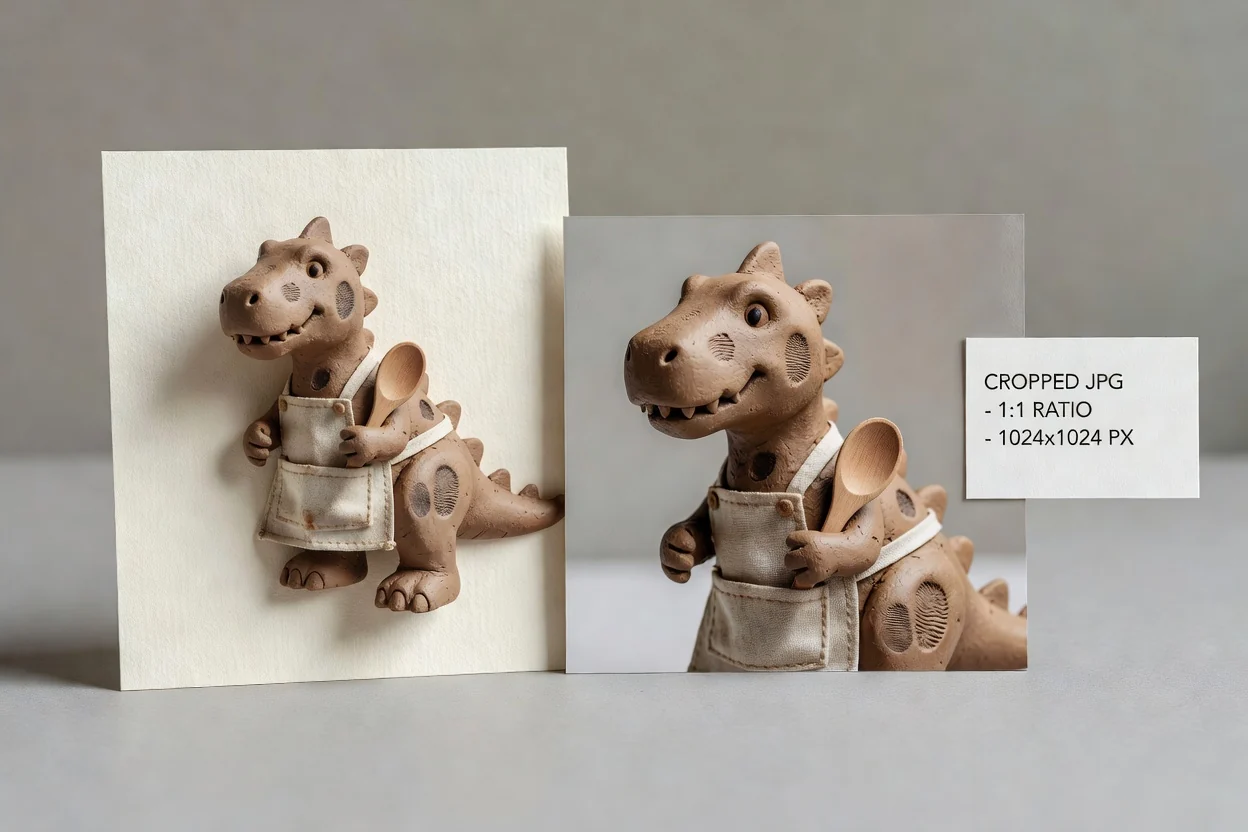
Indstillingerne gør den endelige ramme tydelig før behandlingen.
Start med kvadratiske, stående eller brede dimensioner uden selv at beregne forholdet.
Indtast den bredde og højde, som kræves af en placering, skabelon eller leveringsspecifikation.
Flyt kilden vandret og lodret for at styre, hvilket område der bliver i rammen.
Den aktuelle beskæring bruger det valgte billede og browserens canvas på din enhed.
Vælg rammen ud fra destinationen i stedet for at beskære uden et mål.
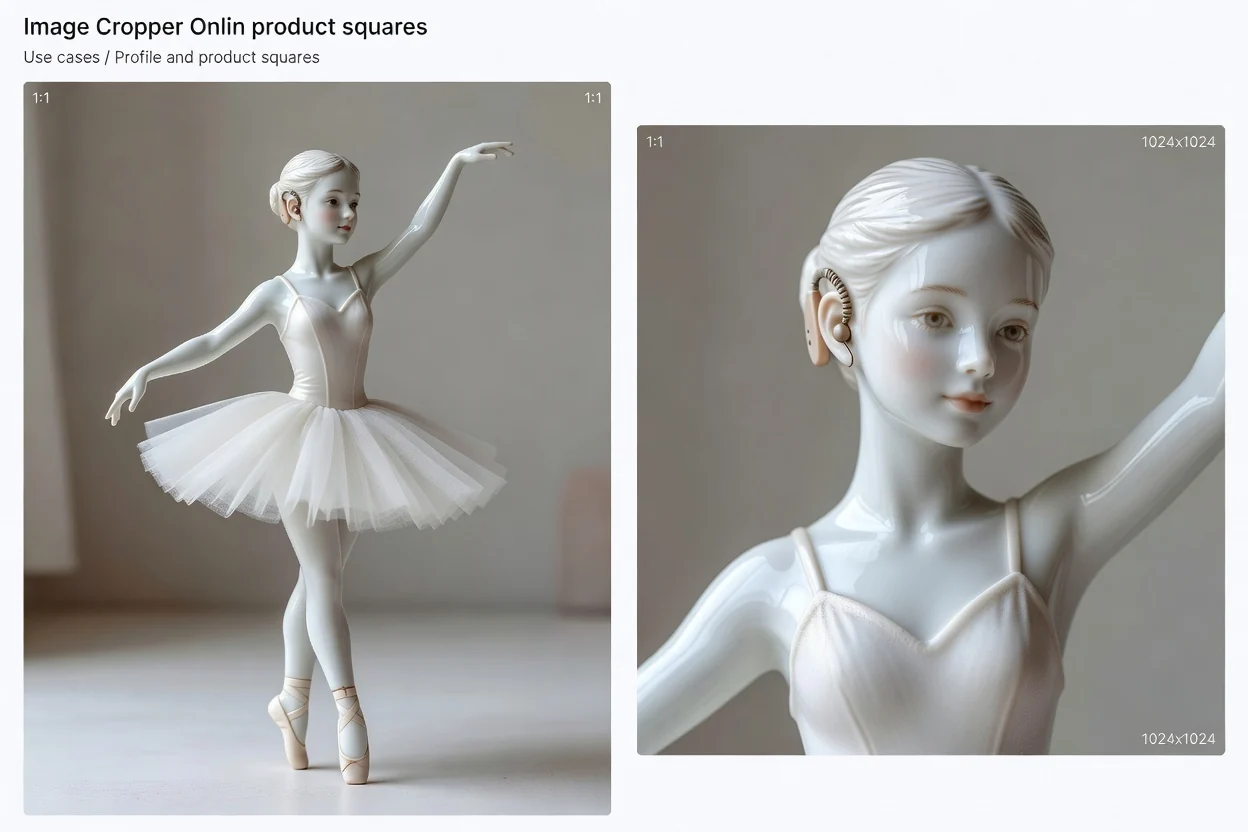
Opret en 1:1-ramme til en avatar, produktflise, katalogminiature eller et kvadratisk opslag.
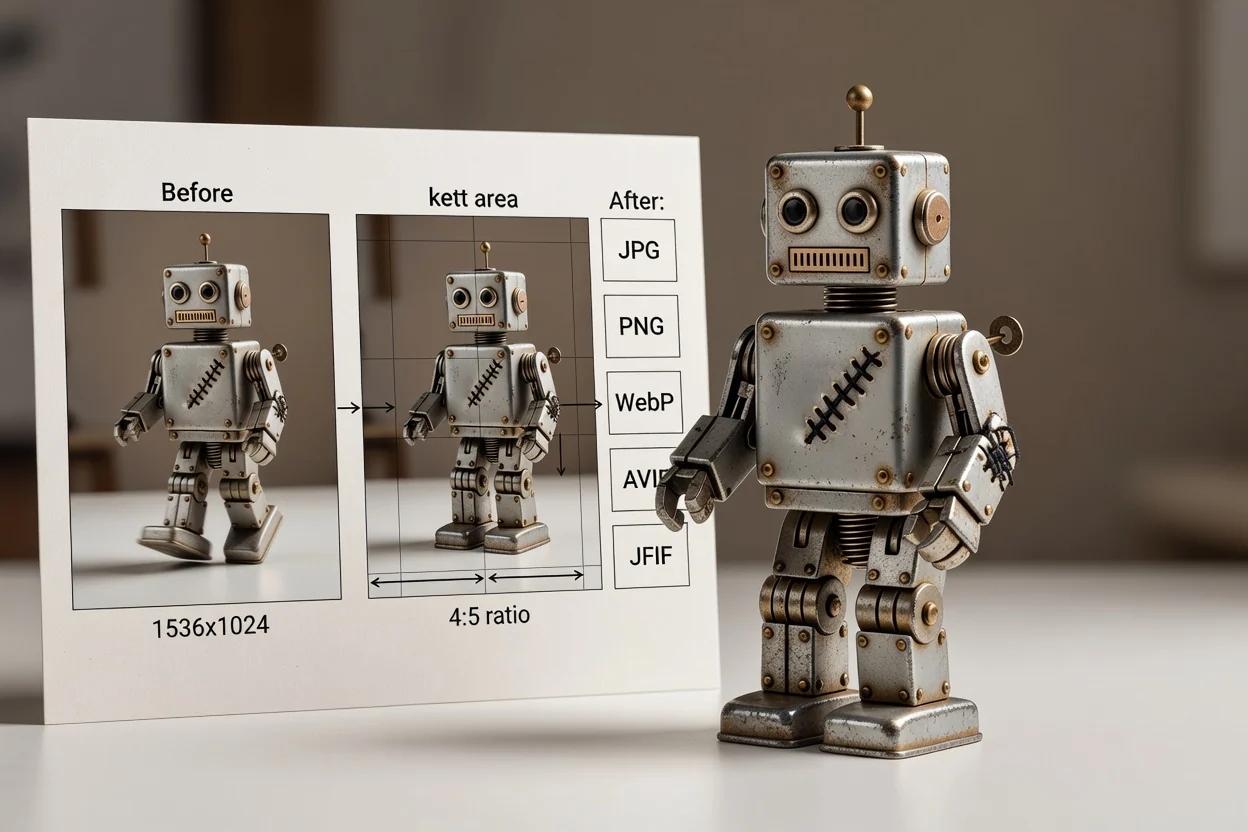
Brug forudindstillingen 4:5 til et lodret feedbillede eller en kampagneplacering.
Brug 16:9 eller præcise pixels til en videominiature, præsentationsramme eller bred sidegrafik.
Beskæring fjerner kildepixels og kan ikke genskabe detaljer uden for den valgte ramme.
Denne side bruger outputdimensioner og placeringsskydere i stedet for trækbare hjørnehåndtag.
Behold den oprindelige kildefil, fordi den downloadede beskæring kun indeholder den valgte ramme.
Et output, der er større end det valgte kildeområde, kan se blødt ud, fordi beskæring ikke opfinder manglende pixels.
Svar om placering, forudindstillinger, outputformat, dimensioner og billedkvalitet.
Fortsæt med den handling, den beskårne fil har brug for som næste trin.
Upload én kilde, vælg outputdimensionerne, og placér det område, du vil bevare.