01
Upload an authorized source image
Choose one image you own or have permission to edit, with the main subject clearly visible.
Remove backgrounds from product photos, portraits and logo images with AI. Upload JPG, PNG, WebP, HEIC files, review hair detail and transparent edges, then download a transparent PNG cutout.
Default
Ready for upload
Preview, compare, then download the finished file.
Remove backgrounds from product photos, portraits and logo images with AI. Upload JPG, PNG, WebP, HEIC files, review hair detail and transparent edges, then download a transparent PNG cutout.
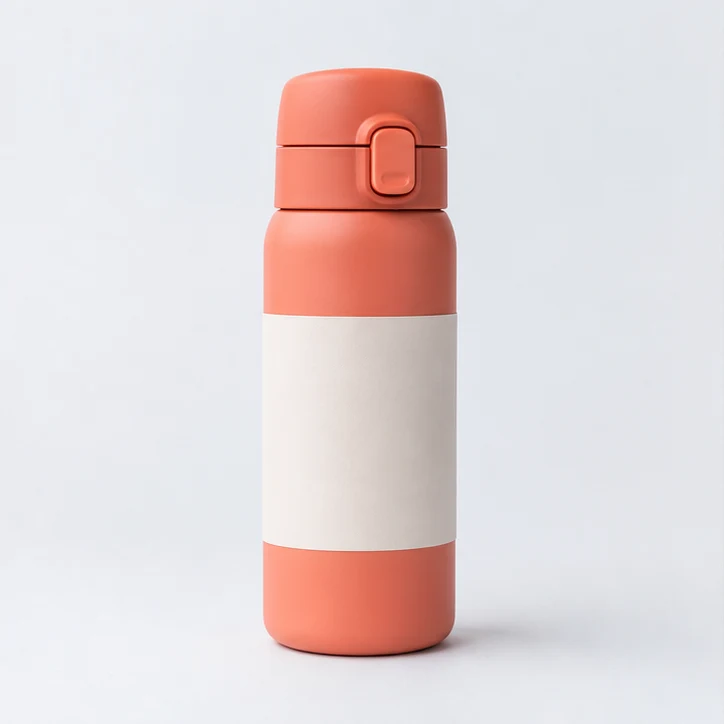


Remove backgrounds from product photos, portraits and logo images with AI. Review transparent edges before downloading the cutout.
Choose one image you own or have permission to edit, with the main subject clearly visible.
The default run creates a background-removed image with transparent areas. Inspect the subject edges before downloading.
Inspect the subject boundary and transparent areas before publishing, and compare the result with the original. Source contrast and resolution affect fine details.
Use a clear, well-lit image whose main subject is visually distinct from the background. Higher resolution helps with thin edges.
The default run creates a background-removed image with transparent areas. Inspect the subject edges before downloading.
Use a clear, high-resolution logo source and compare the generated transparent edge with the original before publishing.
Inspect the subject boundary and transparent areas before publishing, and compare the result with the original. Source contrast and resolution affect fine details.
Explore more ClipCanva tools for image creation and editing
Free images include a watermark. Upgrade for clean outputs, faster generation, and commercial use.
Starter Pack
A one-time credit pack for trying image, music, and short video generation.
Creator
Monthly plan · 1,500 credits renew each month
GPT Image 2 Unlimited
Use code FOUNDING6 at Stripe Checkout: $19/month for your first 6 months, then $29/month.
Pro
Monthly plan · 4,000 credits renew each month
Studio
Monthly plan · 12,000 credits renew each month
Secure checkout · Subscriptions renew automatically · See refund eligibility
Team
For agencies, production teams, and custom volume needs.
Remove backgrounds from product photos, portraits and logo images with AI. Review transparent edges before downloading the cutout.
Remove backgrounds from product photos, portraits and logo images with AI. Review transparent edges before downloading the cutout.