
Carga una imagen
Añade una imagen JPG, PNG, WEBP o AVIF al espacio de trabajo.
Usa el selector de color de imágenes para tomar una muestra de un píxel renderizado de una imagen compatible y consultar sus valores de color antes de guardar el resultado procesado.
Mueve el puntero sobre la imagen o arrastra en una pantalla táctil para inspeccionar un píxel. Usa las flechas para moverte con precisión y después pulsa Enter o Espacio para bloquearlo.
Un selector de color de imágenes es una herramienta de procesamiento de imágenes diseñada para seleccionar un píxel específico de una imagen cargada y leer sus valores de color. Resulta útil cuando necesitas una muestra de color exacta de un diseño, una foto de producto, una captura de pantalla o un recurso de marca, en lugar de una paleta generada automáticamente.
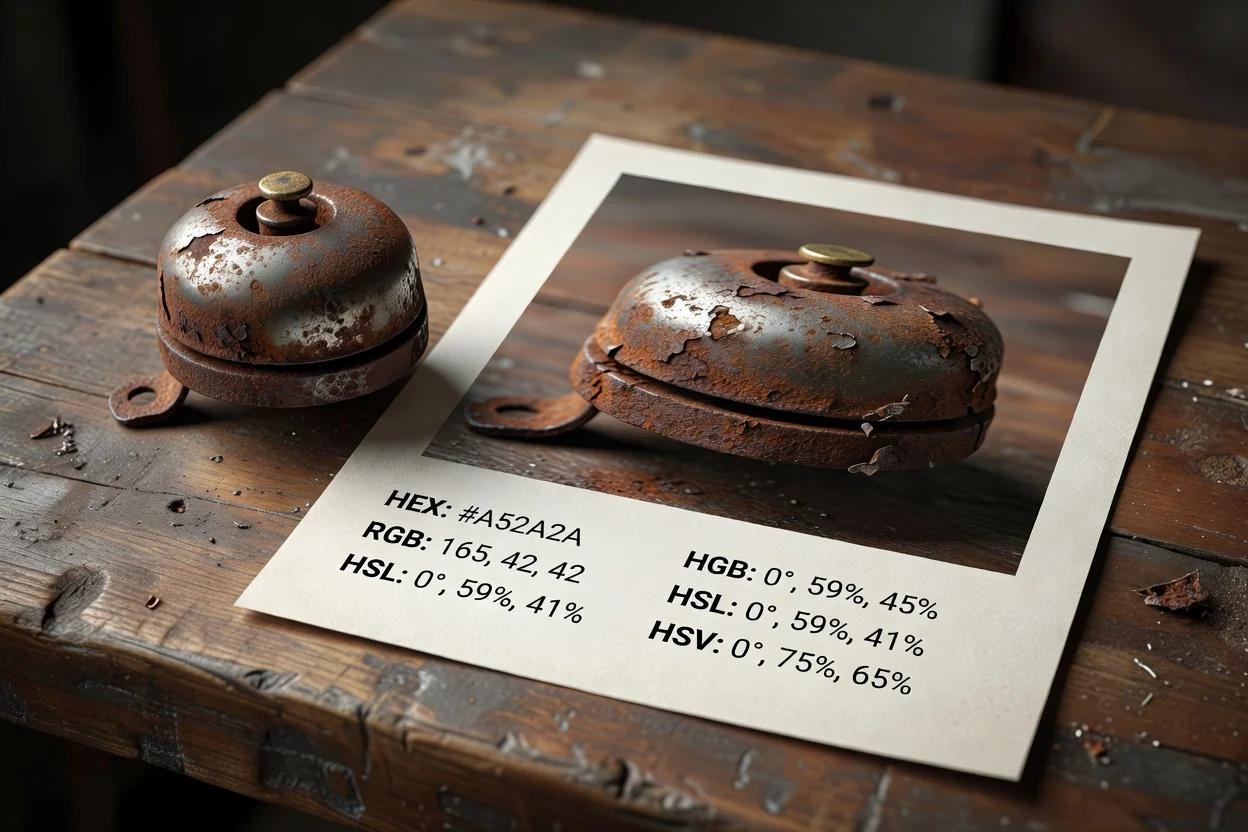
Un flujo de trabajo sencillo te ayuda a elegir colores de archivos de imagen y confirmar el valor antes de guardar el resultado.
Añade una imagen JPG, PNG, WEBP o AVIF al espacio de trabajo.
Desplázate sobre la imagen para previsualizar muestras de color en vivo y, después, fija el píxel que quieres conservar.
Revisa los valores HEX, RGB, HSL y HSV, incluido el resultado compatible con alfa cuando esté disponible.
La utilidad acepta formatos de imagen web habituales, procesa la muestra seleccionada y proporciona un resultado que puede revisarse antes de guardar el archivo final.
Carga una imagen JPG, PNG, WEBP o AVIF como archivo de origen para tomar muestras de color.
La salida es un resultado procesado para revisar, con un archivo de salida descargable que refleja la información del color seleccionado.
Los controles incluyen muestras en vivo y fijadas, lecturas HEX, RGB, HSL y HSV, y gestión de resultados compatibles con alfa cuando hay información de transparencia.
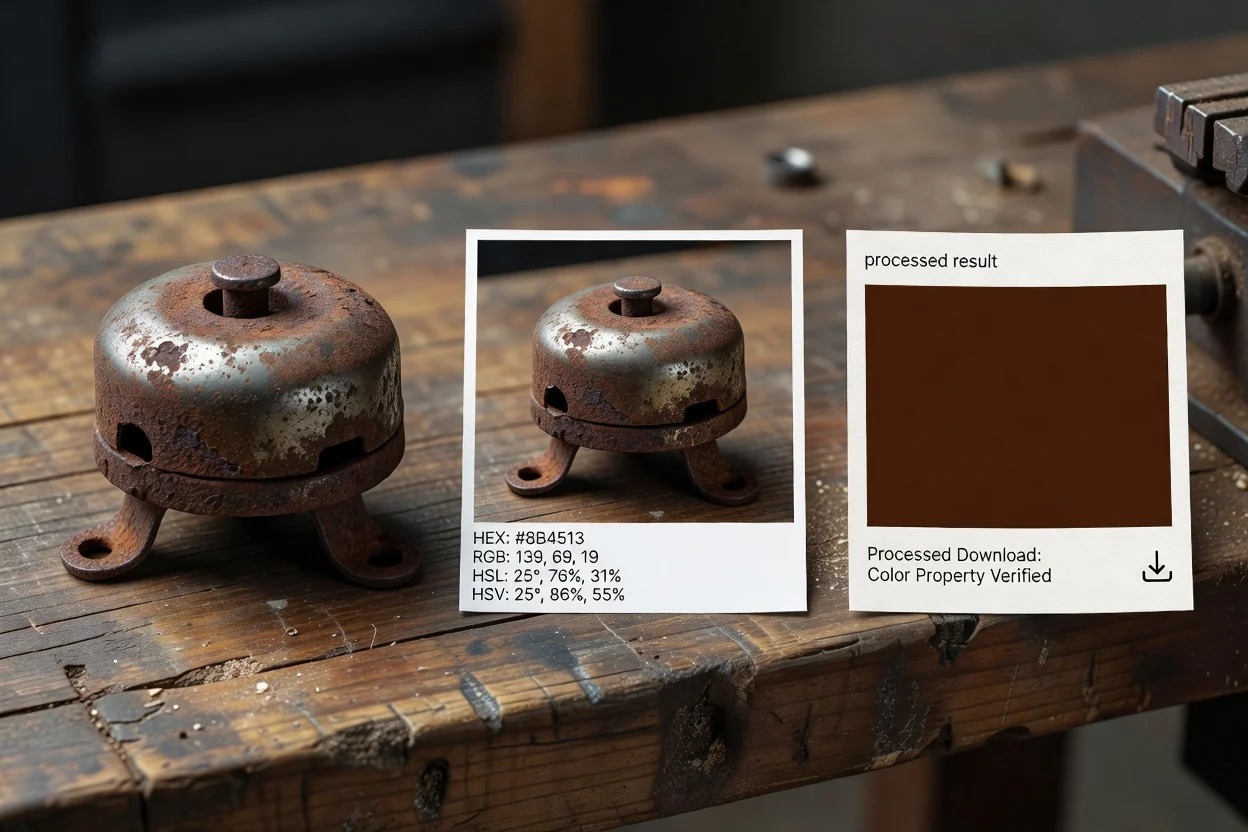
Diseñado para realizar muestras precisas y revisables de una sola imagen, con formatos de color fáciles de copiar en trabajos de diseño y producción.
Desplázate por la imagen para previsualizar una muestra en vivo y fija el color cuando encuentres el píxel que quieres conservar.
Usa la lectura HEX del selector de color de imágenes o consulta valores RGB, HSL y HSV cuando tu flujo de trabajo necesite otro formato.
El resultado compatible con alfa ayuda a conservar información relacionada con la transparencia cuando la imagen de origen incluye datos alfa.
Después del procesamiento, revisa la información del color seleccionado y el archivo de salida generado antes de usarlo en tu siguiente paso.
Usa la herramienta cuando un proyecto necesite una muestra de color fiable de una imagen, en lugar de una paleta generada.

Elige el color de recursos de imagen, como gráficos de campaña, publicaciones en redes sociales o capturas de pantalla, para mantener la coherencia de los elementos visuales complementarios.
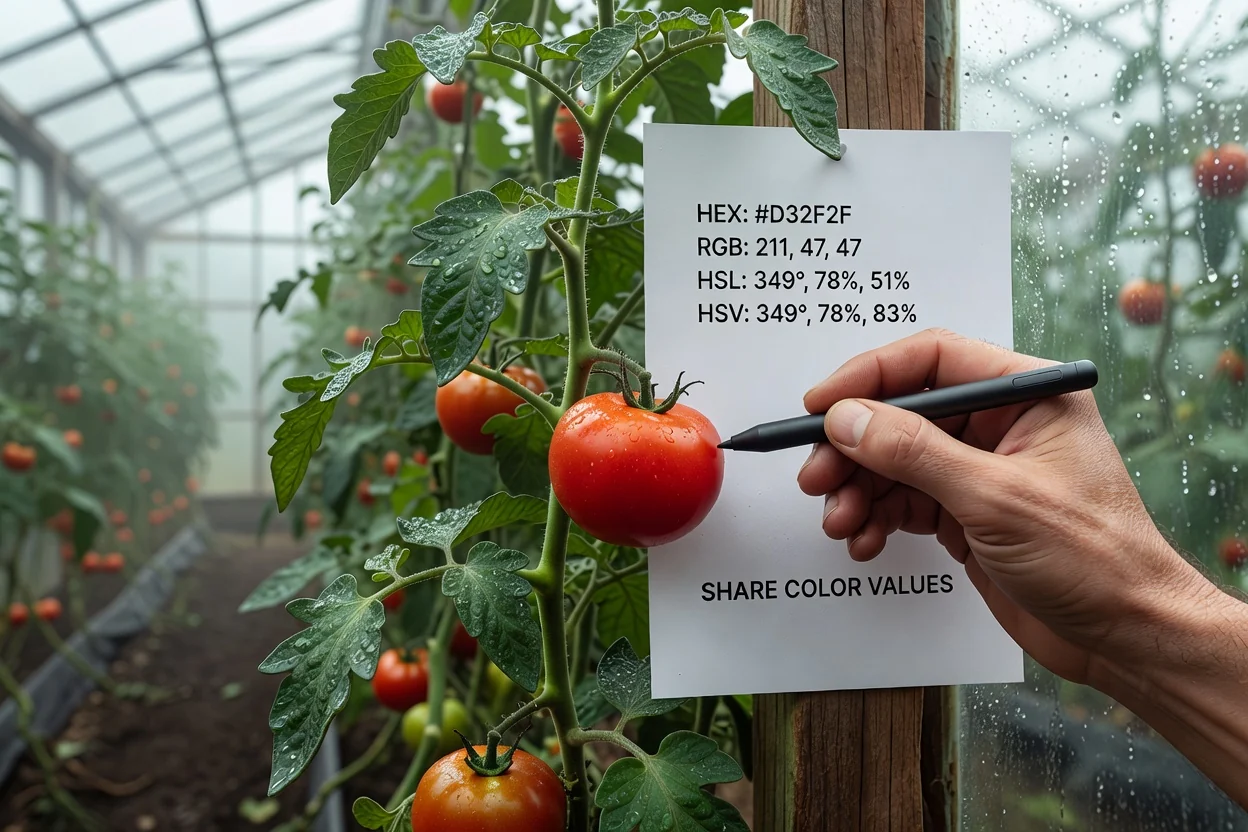
Consulta valores HEX, RGB, HSL o HSV de una imagen al entregar un color seleccionado a compañeros de diseño, desarrollo o marketing.
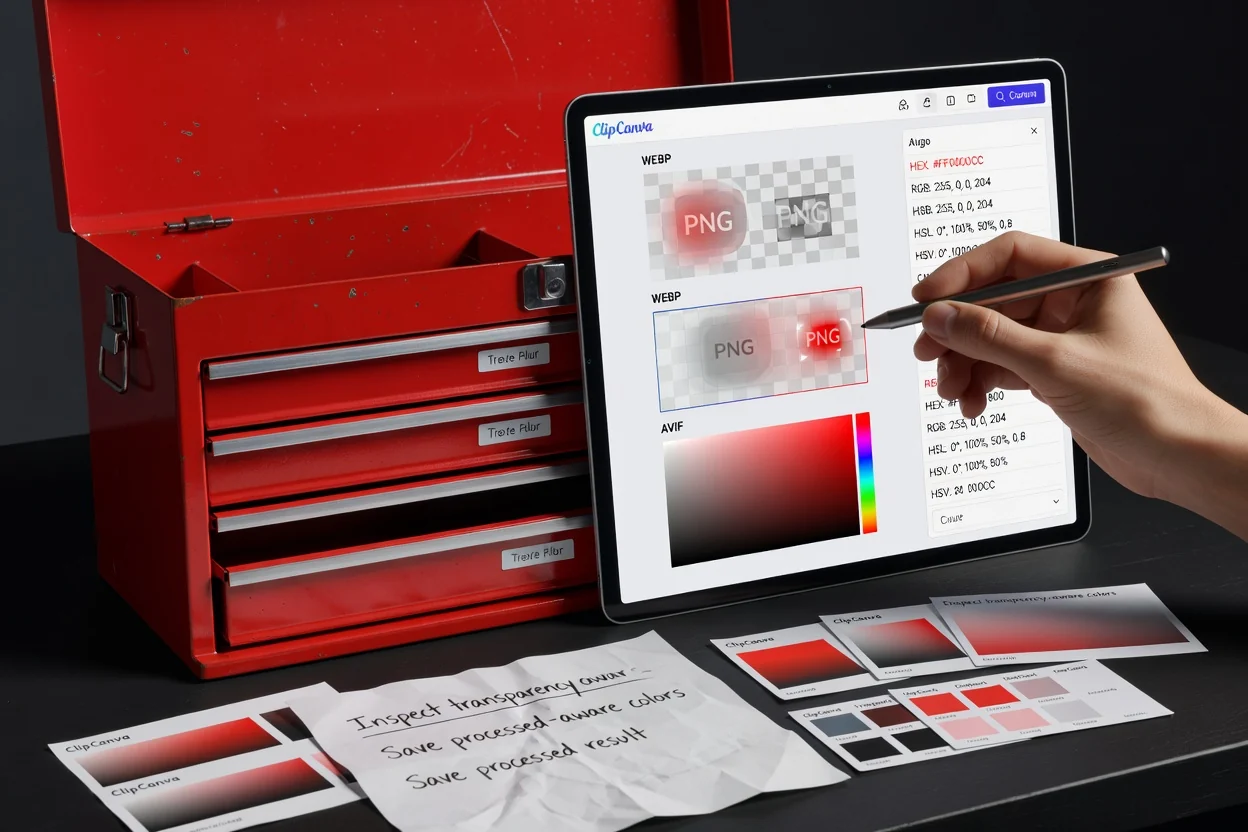
Comprueba el resultado compatible con alfa al tomar muestras de logotipos transparentes, superposiciones o capturas de interfaz que puedan incluir información de opacidad.
La herramienta está diseñada para tomar muestras directas de píxeles de la imagen de origen, por lo que tiene límites claros.
Cada selección toma una muestra de un píxel renderizado de la imagen de origen; no promedia los píxeles vecinos ni identifica colores por objeto.
La herramienta no genera una paleta automática ni exporta una colección de muestras de color del archivo de origen.
Pueden producirse diferencias visuales si el origen presenta artefactos de compresión, escalado, transparencia o diferencias de gestión del color en la vista renderizada.
Preguntas habituales sobre el uso del selector de color de imágenes y la interpretación del resultado de la muestra.
Otras utilidades de ClipCanva pueden ayudarte a preparar o inspeccionar una imagen antes o después de tomar una muestra de color.
Carga una imagen compatible, toma la muestra del píxel que necesitas, revisa los valores de color y guarda el resultado procesado.