Photo to Emoji Maker for Custom Sticker-Ready Icons

Photo to Emoji Maker for Custom Sticker-Ready Icons

Upload a clear face, pet, or object photo and turn it into a clean custom emoji with rounded shapes, bold expression, and sticker-ready clarity.

custom emoji from photo hero image
0 / 2000
Template prompt

Photo to Emoji Maker for Custom Sticker-Ready Icons

Apply the Photo to Emoji effect to the uploaded face, pet, or object photo. Preserve the subject identity or object shape, key expression, silhouette, colors, and distinctive details. Rebuild it as a clean custom emoji with simplified rounded forms, bold readable expression, icon-friendly contrast, sticker-ready edges, minimal background, and small-size clarity. Simplify details without changing the core subject.

custom emoji from photo hero image

What Is the Photo to Emoji Maker?

The Photo to Emoji Maker helps transform a source image into a simplified emoji-style version of the same subject. It is designed for faces, pets, objects, mascots, and small visual ideas that need a readable expression, clear silhouette, and compact icon look.

How Your Photo Becomes an Emoji

The template focuses on making the subject feel like a compact Emoji while keeping the original image recognizable.

What changes

  • Turns a face, pet, or object photo into a clean custom emoji with bold expression, simplified details, and a sticker-ready look.
  • Simplifies the subject into rounded forms, clean contrast, and icon-friendly shapes that remain readable at small sizes.
  • Reduces distracting background detail so the main subject stays visually clear.
  • Creates a preview you can compare before refining the source photo or description.

What stays recognizable

  • The subject identity or object shape, including its key expression, silhouette, colors, and distinctive details.
  • The core subject, even as small details are simplified for clarity.
  • The recognizable pose, outline, and important visual features from the source image.
  • Coherent defining colors and details that help the emoji connect back to the original photo.

How to Create Emoji from Photo

Follow a simple process to create emoji from photo while keeping the subject recognizable and easy to read.

1

Upload a clear source photo

Pick a sharp image where the face, pet, or object is clearly visible, with the most important details unobstructed.

2

Set the emoji direction

Use the Photo to Emoji Maker template and describe the expression, colors, silhouette, and details you want preserved.

3

Check the preview

Review the result for identity, expression, edge quality, and small-size clarity before deciding whether to refine it.

4

Refine and download

If needed, use a clearer source photo, tighter crop, or more specific wording to create another version.

Photo to Emoji Style Ideas

Explore different emoji-style directions depending on the subject, expression, and level of simplification you want.

custom emoji from photo 1

Expressive Face Emoji

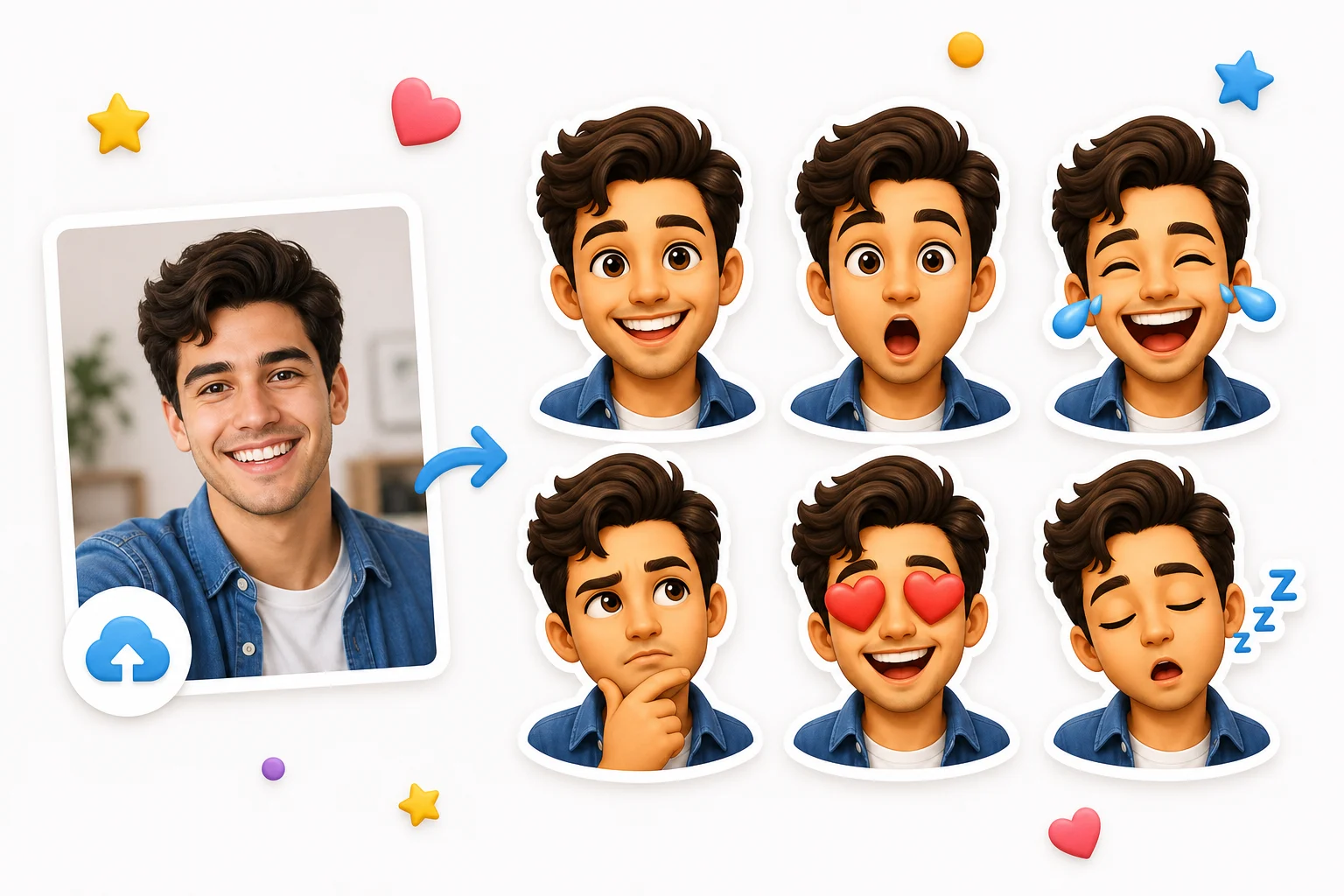
A bright, expressive emoji version that emphasizes facial features, clean outlines, and a friendly sticker-like finish.

custom emoji from photo 2

Pet Emoji Sticker

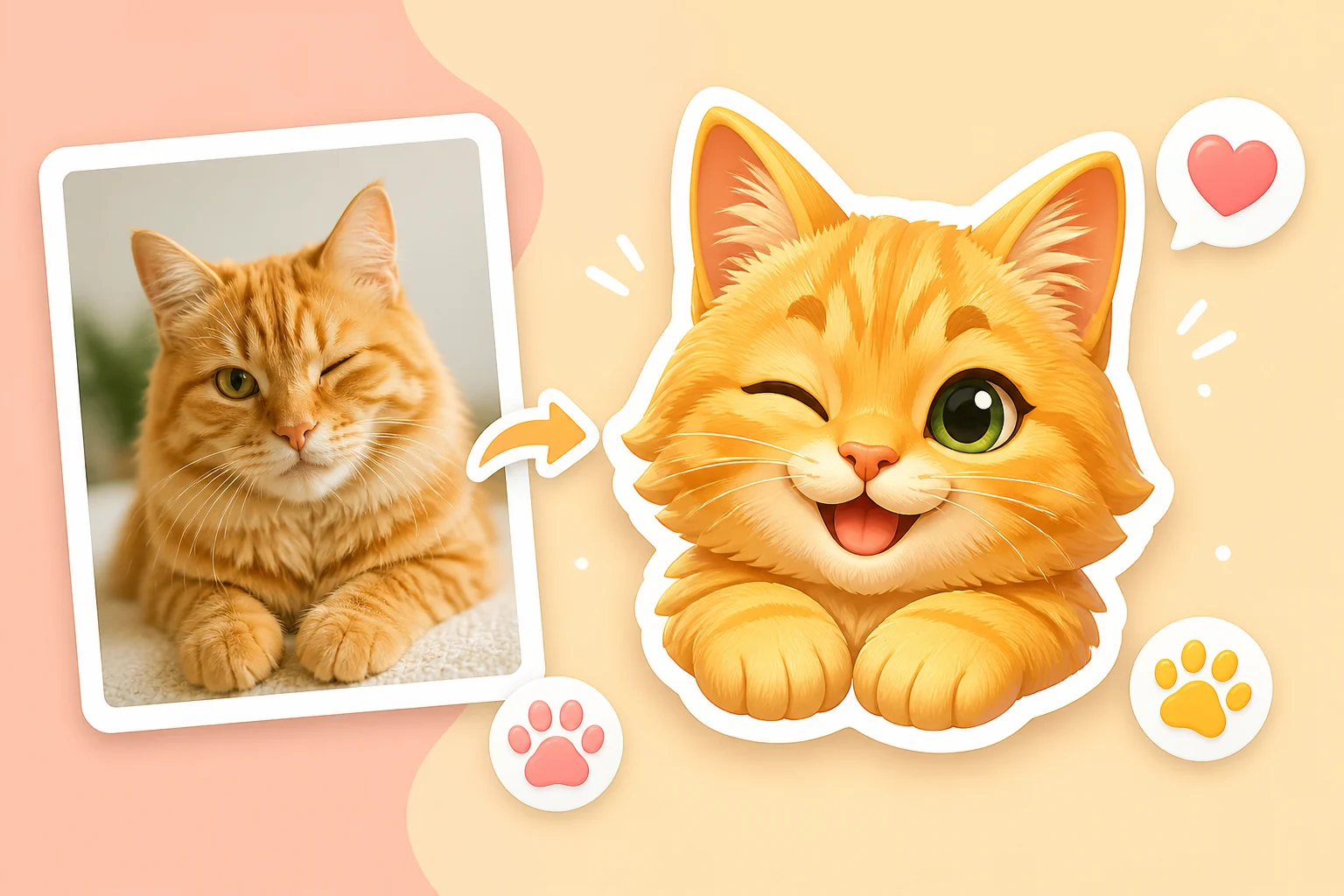
A cute pet-focused result with rounded shapes, readable fur colors, and a playful expression that stays recognizable.

custom emoji from photo 3

Object Emoji Icon

A simplified object or mascot style with bold silhouette, clear colors, and minimal background distractions.

custom emoji from photo 4

Small-Size Emoji Look

A clean, high-contrast version designed to stay readable when used as a small visual element.

Ways to Use a Custom Emoji from Photo

Use the Photo to Emoji Maker when you need a quick visual direction or a polished emoji-style version of a subject for a personal or creative project.

Create a first version fast

Upload a clear image and create an initial emoji-style version to see how the subject reads as a small icon.

Adapt the style to your project

Adjust the source, crop, or prompt to make the emoji feel more playful, expressive, cute, bold, or minimal.

Create another version

Try another photo or expression when you want a different mood, pose, or sticker-like personality.

Build a focused emoji preview

Turn a pet, portrait, object, or mascot into a focused custom Emoji preview for messages, mockups, or creative concepts.

Compare before refining

Compare the visual direction before refining, sharing, or presenting the result in your project workflow.

How to Get a Better Photo to Emoji Result

A strong source image gives the template enough visual information to keep the subject recognizable while simplifying it into a compact emoji style.

Source photo checklist

  • Use a sharp source image with the main subject clearly visible.
  • Avoid heavy blur, blocked details, extreme crops, or confusing overlaps.
  • Choose a source whose pose and framing support the intended Photo to Emoji Maker result.

Prompt tips for clearer emoji results

Describe the subject, expression, important colors, and any defining details to preserve. For example: “Turn this smiling corgi into a rounded custom Emoji with big cheerful eyes, orange-and-white fur, clean outline, and minimal background.”

Review the Custom Emoji Before You Use It

Generated visual details can vary, so review the custom emoji before downloading or sharing it. A clearer source image or tighter description can help if the first version feels too vague.

Compare identity and silhouette

Make sure the result still resembles the original face, pet, or object through its expression, outline, pose, and key visual traits.

Check the emoji treatment

Look for rounded forms, strong contrast, readable expression, clean edges, and small-size clarity across the emoji.

Review fine details

Inspect faces, hands, text, edges, small objects, and background transitions for distortions or distracting artifacts before using the image.

Photo to Emoji Maker FAQ

Common questions about preparing photos, reviewing results, and creating a clearer custom Emoji from your image.

What is the Photo to Emoji Maker?
The Photo to Emoji Maker turns a face, pet, or object photo into an emoji-style image with simplified details, bold expression, rounded forms, and a clean sticker-ready look.
Is the Photo to Emoji Maker free?
Availability and access options can change, so check the current page experience for the latest details before starting your edit.
How do I use the Photo to Emoji Maker?
Upload a sharp photo, choose the Photo to Emoji Maker template, and review the result. If the subject is unclear, try a better crop, a sharper image, or a more specific description of the expression and details you want to keep.
What image formats does the Photo to Emoji Maker support?
Use a common image file with the subject clearly visible. A clean portrait, pet image, product photo, or object shot usually works best when the outline and key details are easy to see.
Can I use custom emoji commercially?
Usage depends on the source image, the subject, and any rights or permissions connected to it. Review your own source material and intended use before sharing or publishing the custom emoji.
What details should I include for Photo to Emoji Maker?
Include the subject type, the expression, important colors, distinctive markings, pose, and any details that should remain recognizable after simplification.
What makes Photo to Emoji Maker useful?
It is useful when you want a small, expressive visual that still resembles the original photo. The effect removes unnecessary complexity while keeping the identity, silhouette, and key expression readable.
What Photo to Emoji Maker changes should I expect?
It typically simplifies the subject into rounded emoji forms, strengthens contrast, reduces distracting background detail, and emphasizes the expression, silhouette, and colors that make the subject recognizable.

Create Your Custom Emoji from a Photo

Choose a clear source image, keep the subject easy to recognize, and create an emoji-style version ready to review, refine, and use in your project.