ClipCanva
ClipCanva

Nano Banana Inpaint

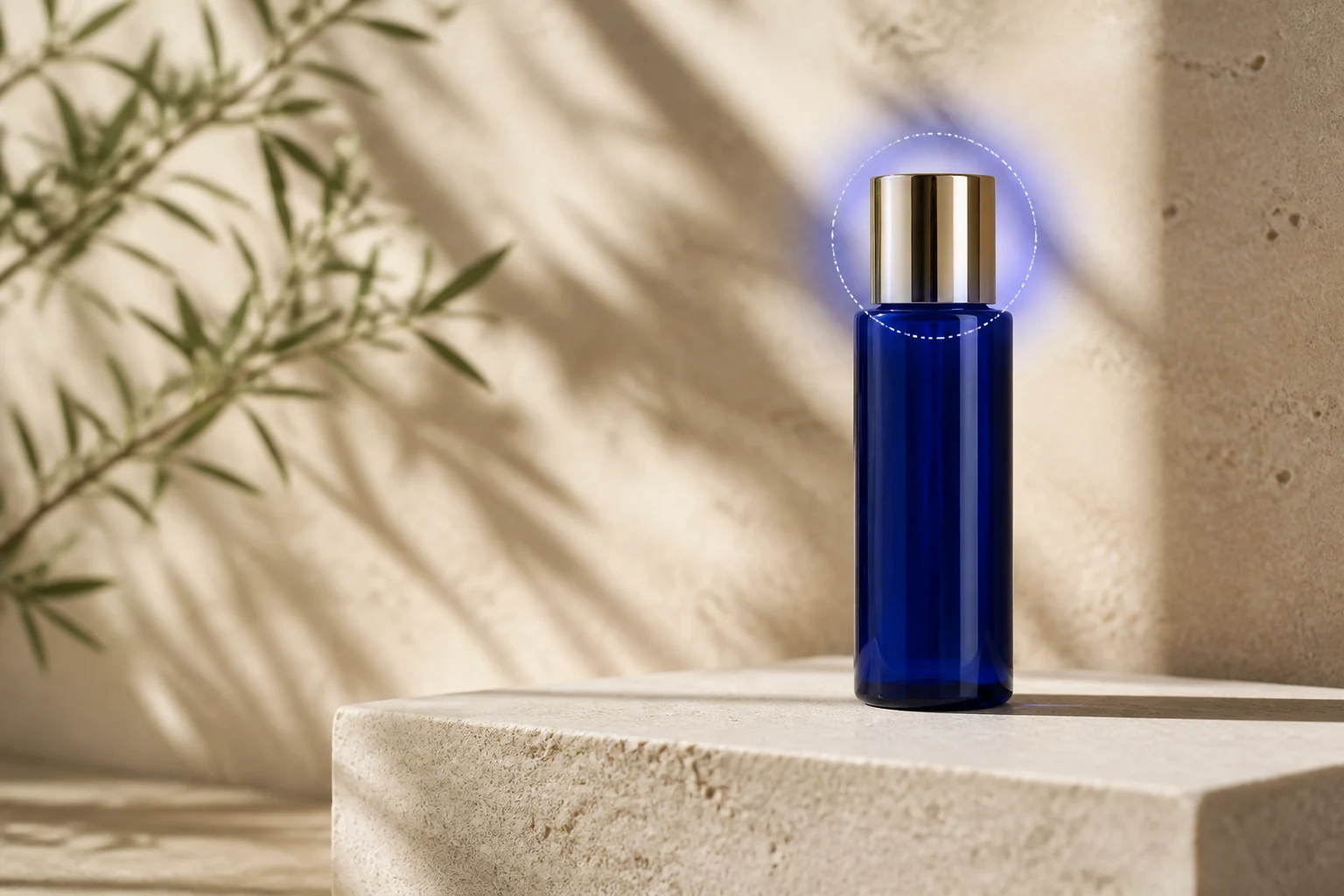
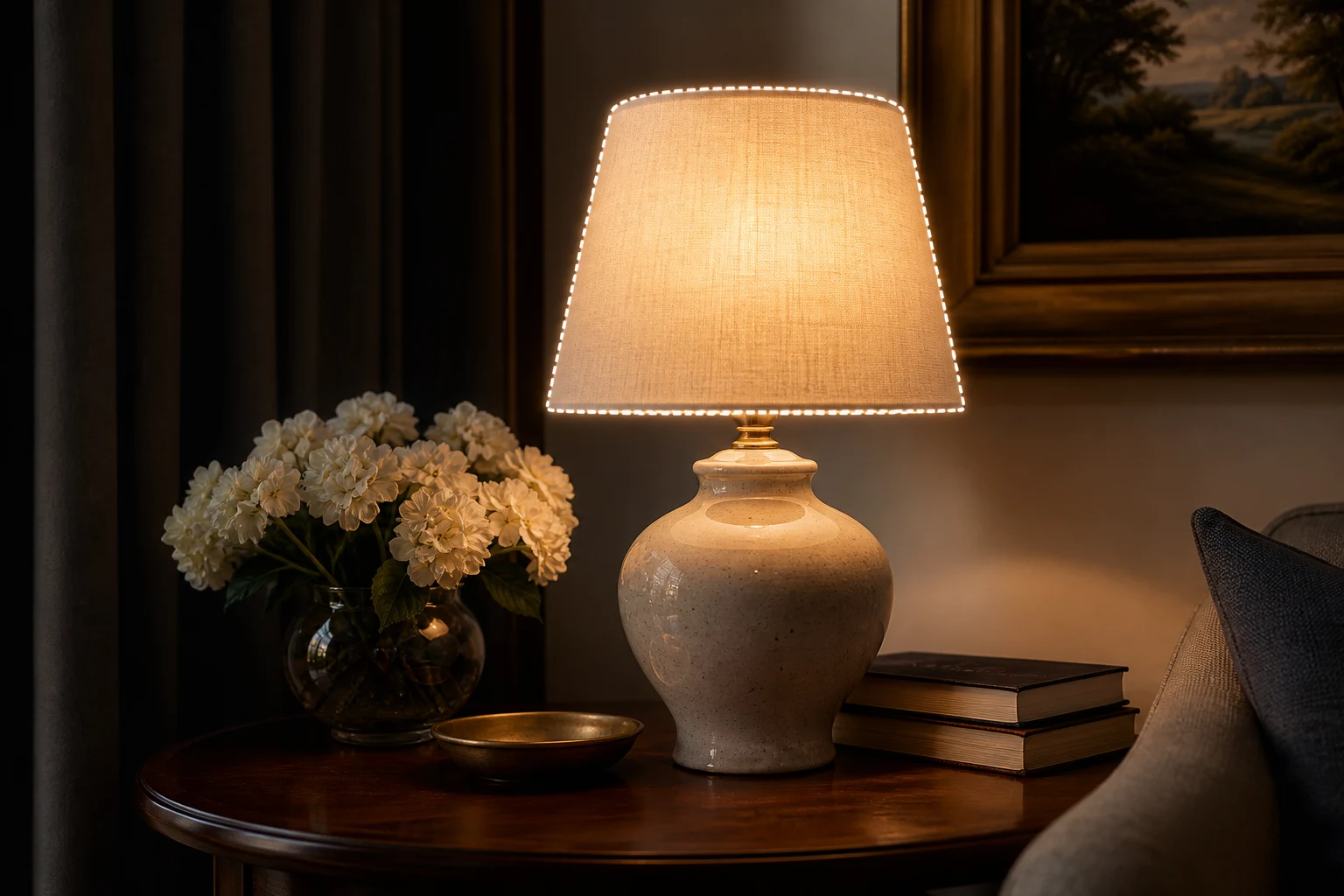
Edit selected parts of an image with Nano Banana-style workflows for object removal, area replacement, detail fixes, background changes, and polished product or social visuals.

Nano Banana Inpaint Features

Precise AI image editing workflows for creators, marketers, ecommerce teams, and social content teams.

Remove Objects

Clean up unwanted props, distractions, background clutter, and small visual mistakes while keeping the main subject clear.

Replace Selected Areas

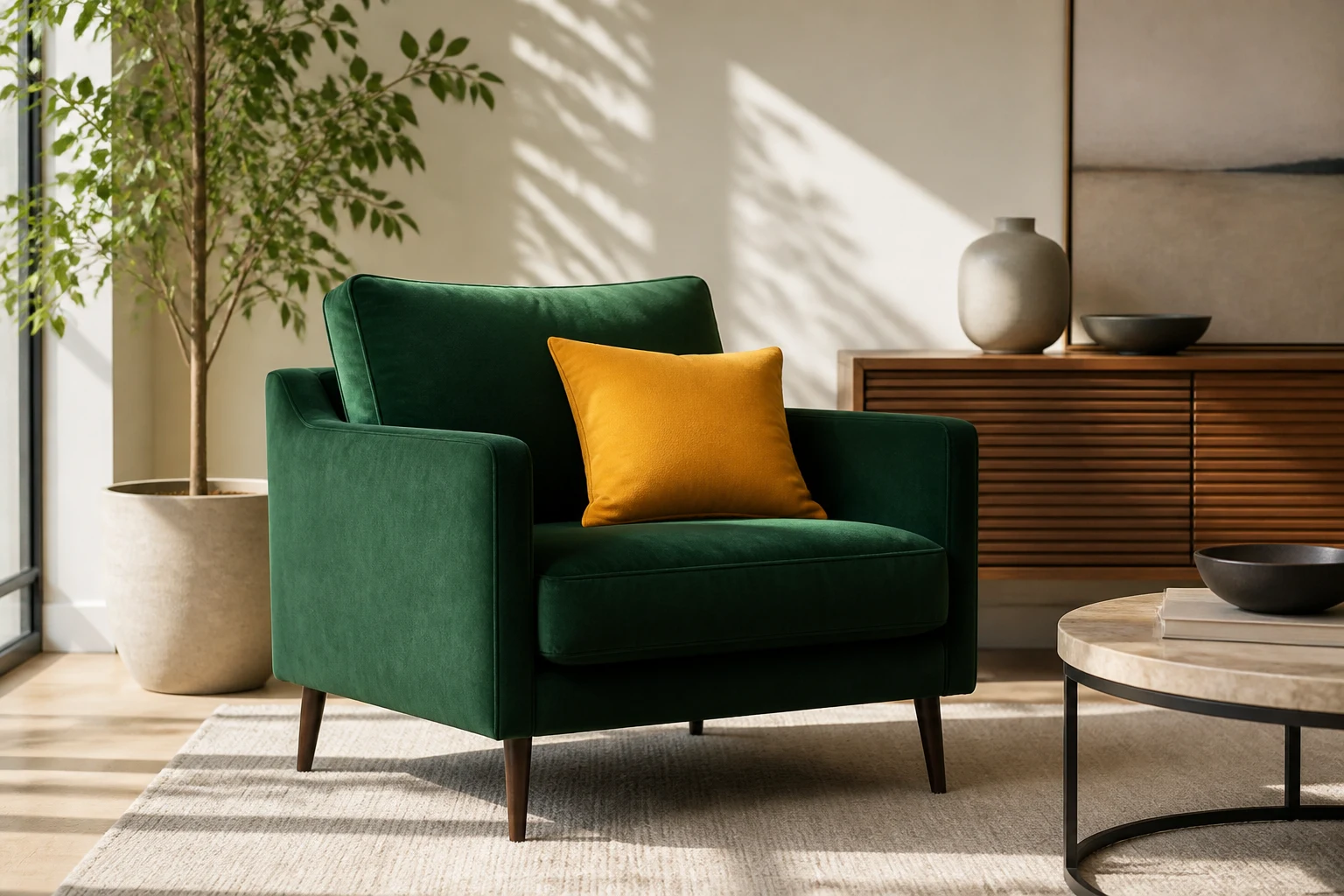
Change a product detail, outfit, prop, surface, or design element without rebuilding the full image from scratch.

Fix Image Details

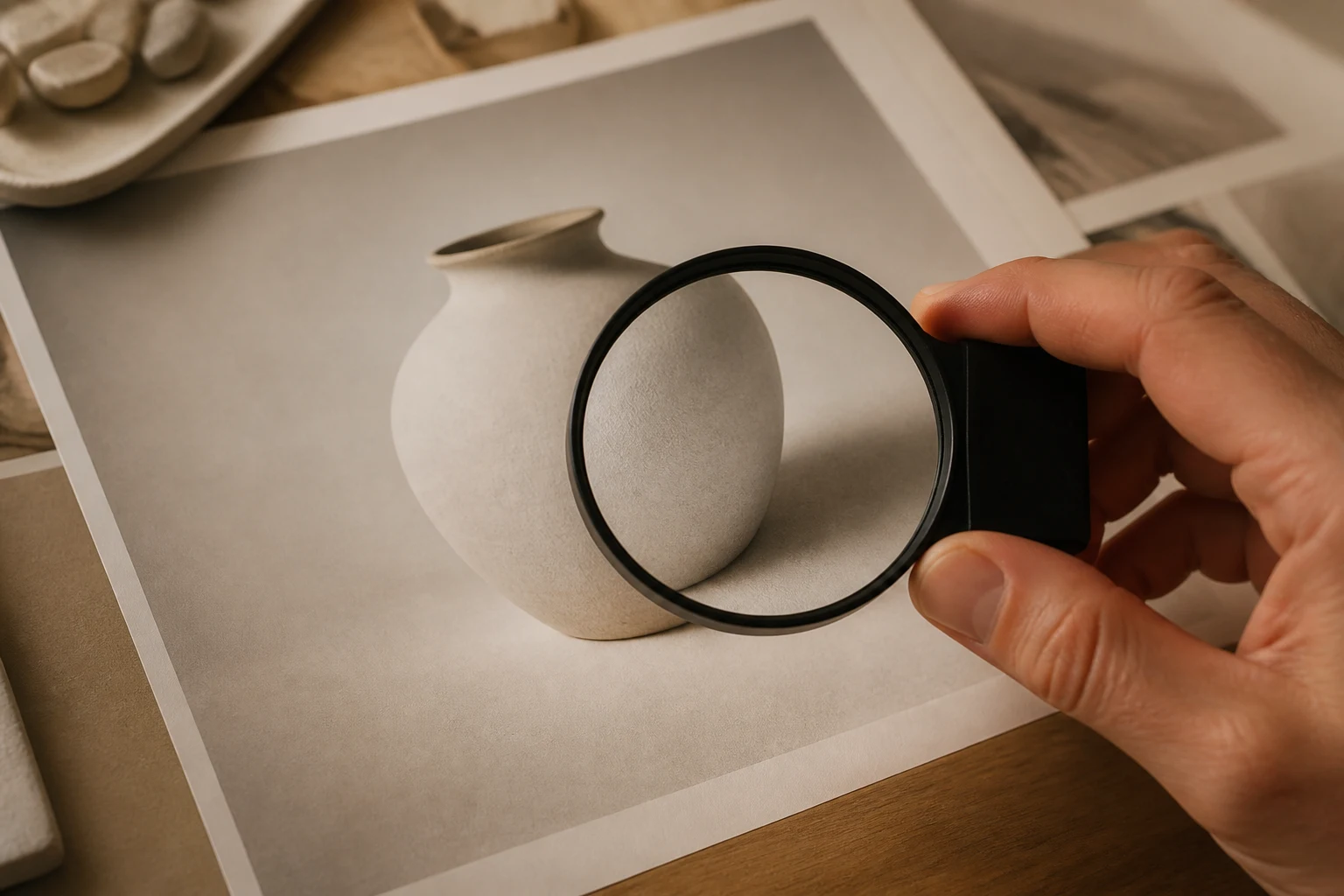
Refine imperfect hands, edges, textures, logos, lighting, and local composition issues with focused prompt direction.

Change Backgrounds

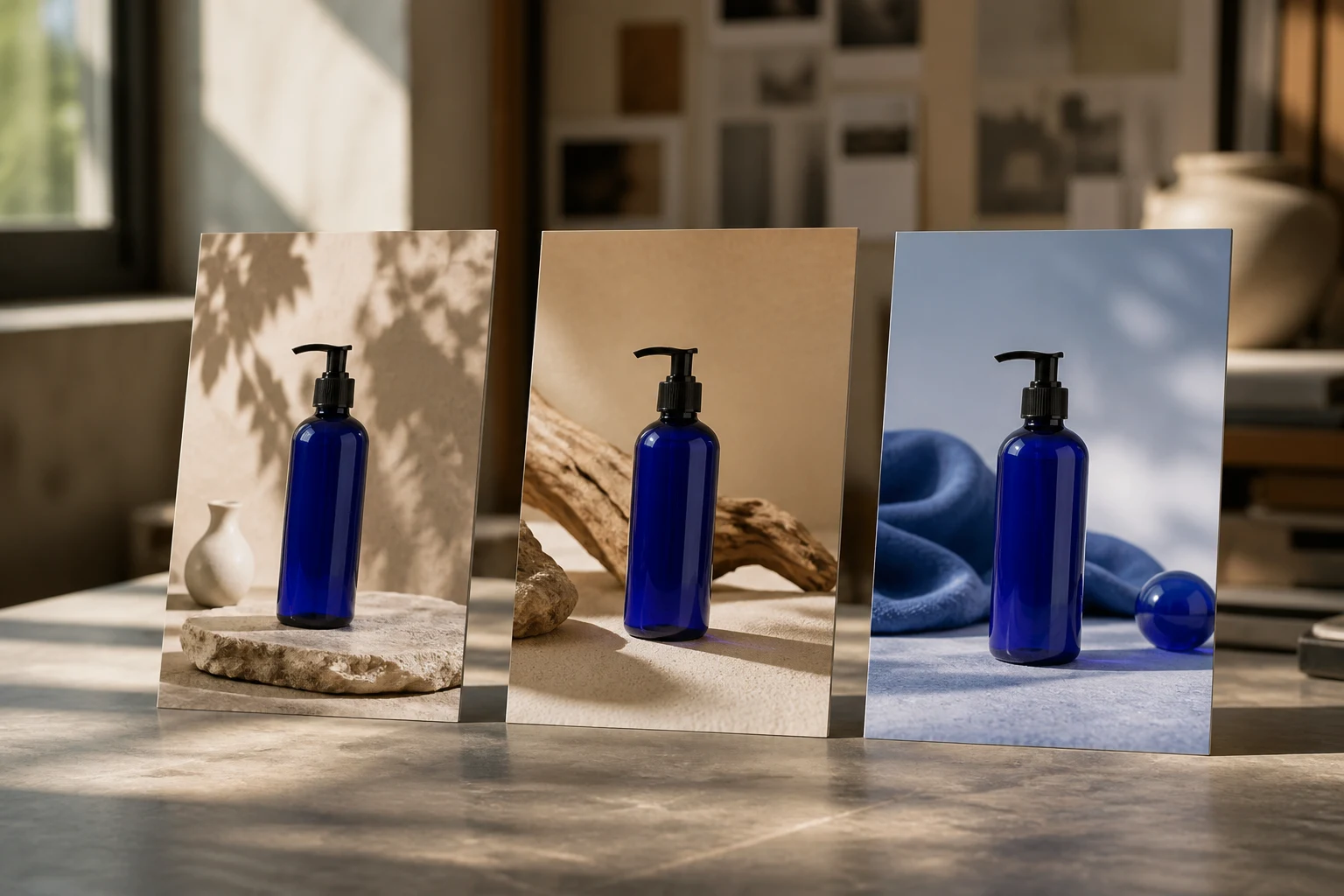
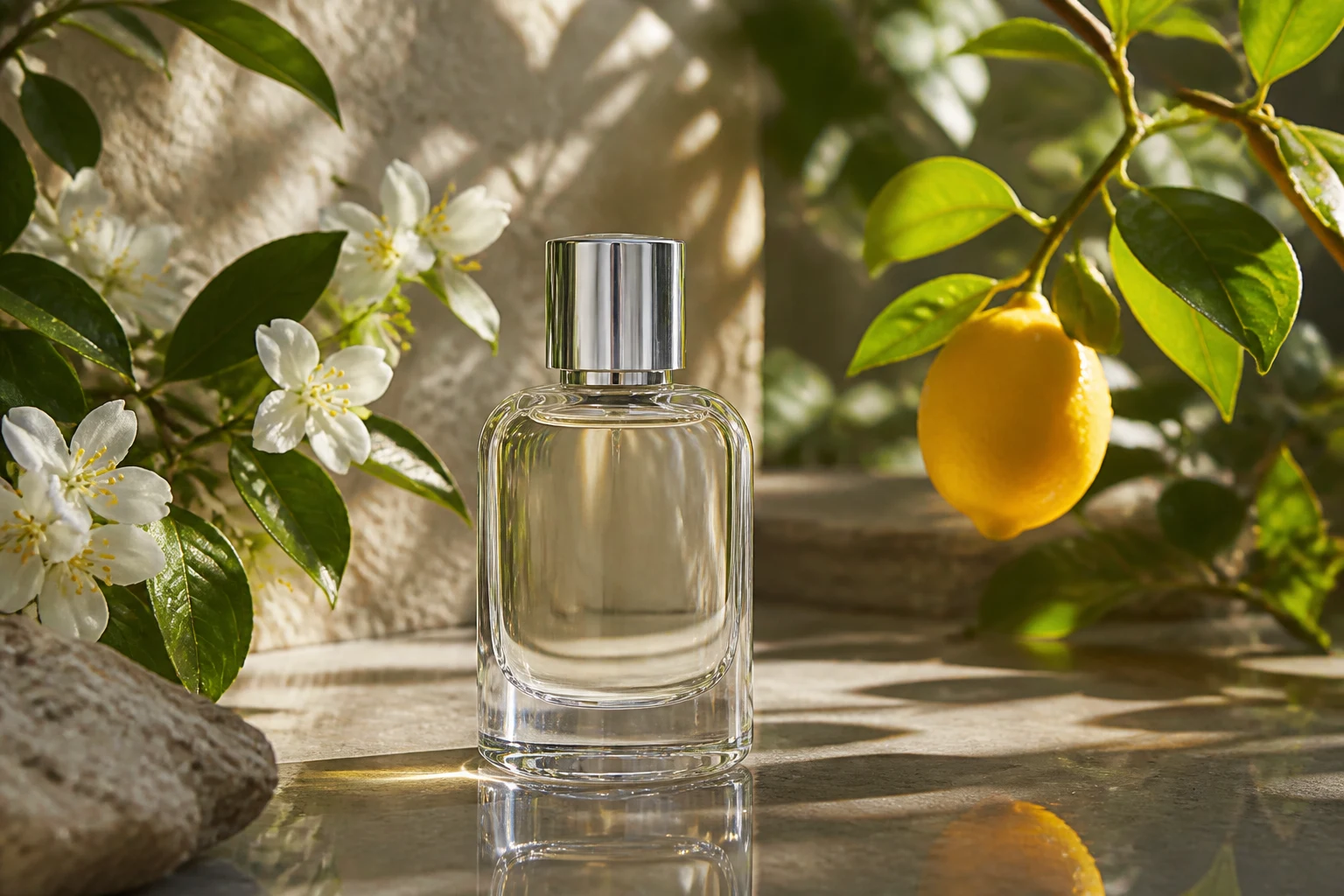
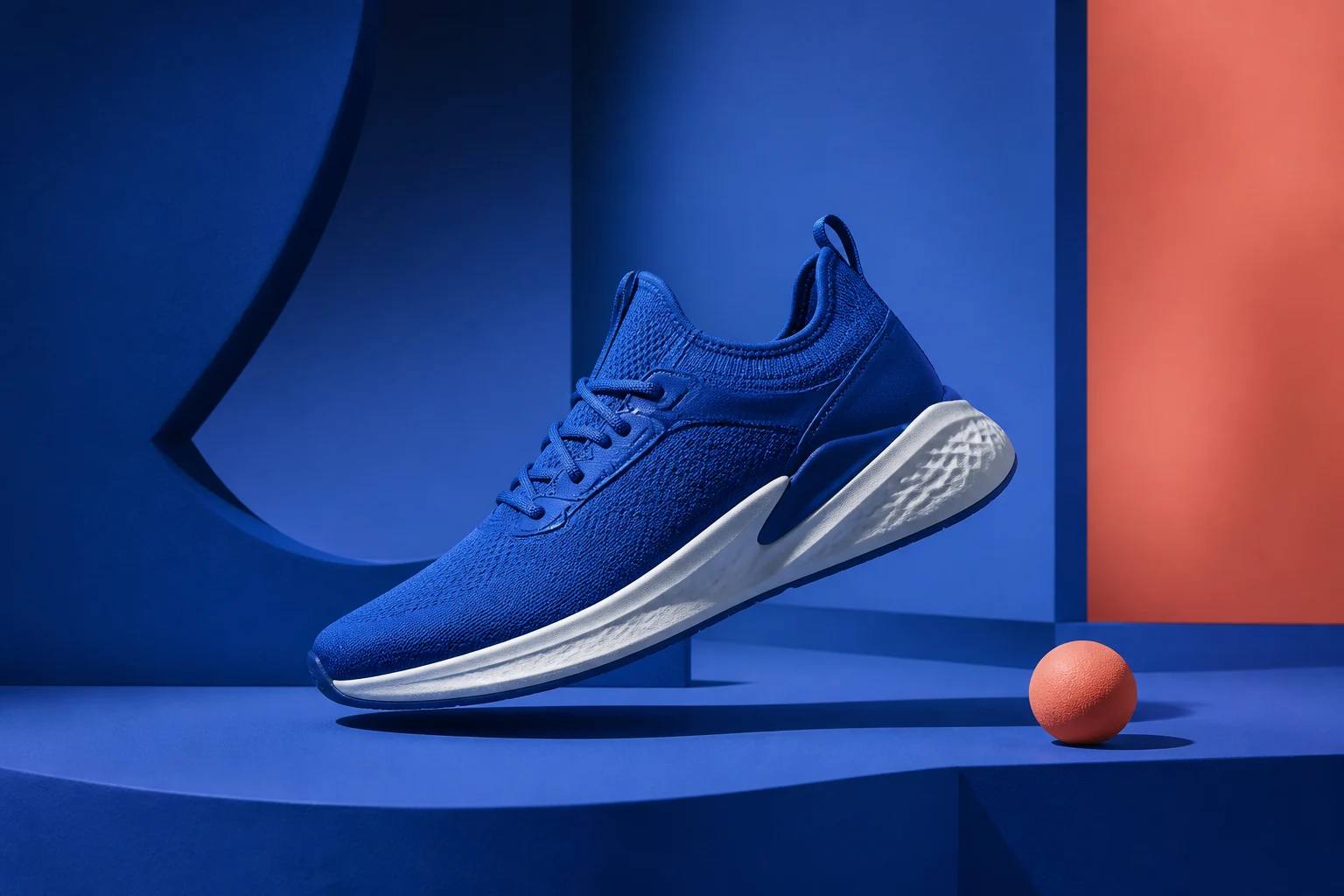
Move products or portraits into cleaner studio scenes, lifestyle environments, seasonal settings, or social-ready layouts.

Product Visual Refinement

Improve ecommerce photos, ad concepts, hero images, and listing visuals before publishing or sending them to review.

Social Content Edits

Adapt images for posts, thumbnails, banners, and campaign variants with controlled local edits instead of full regeneration.

AI Image Editing

Why Use Nano Banana Inpaint on ClipCanva

Nano Banana-style inpainting helps you keep the parts of an image that already work and edit only the region that needs a cleaner result.

Edit Around the Real Asset

Start from an existing product, portrait, or campaign visual, then describe exactly what should change in the selected area.

Keep Creative Control

Guide the edit with instructions for lighting, material, background, camera angle, color, and brand constraints.

Avoid Full Regeneration

Use localized edits when the composition is already strong and only one object, detail, or background section needs work.

Prepare Publishable Variants

Create clean options for product pages, ads, landing pages, social posts, and client review rounds.

How to Use Nano Banana Inpaint

Upload an image, define the local edit, and refine the result for your target channel.

Choose the Image and Region

Start with the visual you want to improve and focus the request on the object, area, background, or detail that needs editing.

Describe the Desired Change

Write a direct prompt such as remove this object, replace the surface, repair the detail, or change the background style.

Review and Refine

Check edges, lighting, subject consistency, and channel fit, then adjust the prompt for a cleaner version if needed.

Nano Banana Inpaint FAQ

Common questions about Nano Banana-style inpainting workflows on ClipCanva.

What is Nano Banana Inpaint?
Nano Banana Inpaint is a ClipCanva workflow page for localized AI image editing, including object removal, area replacement, detail repair, background changes, and visual refinement.
Can I remove unwanted objects from an image?
Yes. Use the AI image workflow to describe the object or distraction you want removed, then review the result for clean edges and consistent background detail.
Can I replace only one part of a product photo?
Yes. Inpainting is useful when you want to change a label, prop, surface, color, background area, or small visual element while preserving the rest of the image.
Is this useful for ecommerce and social visuals?
Yes. Nano Banana-style edits can help refine product photos, ad images, thumbnails, posts, banners, and campaign variants before publishing.
Is Nano Banana Inpaint unlimited free?
No. ClipCanva may include a limited free tier for trying image workflows. Usage limits, credits, and paid plans are listed on the pricing page.
Where should I start?
Open the AI Image Generator, upload or describe the image context, specify the local edit you need, and use pricing when your project needs more credits or production volume.

Edit Images with Nano Banana Inpaint

Use ClipCanva to remove objects, replace selected areas, fix details, change backgrounds, and refine visuals for product and social channels.