
একটি ছবি আপলোড করুন
আপনার ডিভাইস থেকে একটি JPG, PNG, WEBP বা AVIF ছবি নির্বাচন করুন।
আপনার ব্রাউজারে সমর্থিত ছবি বা গ্রাফিককে পরিচ্ছন্ন বৃত্তাকার ক্রপে রূপান্তর করতে বৃত্তাকার ছবি ক্রপ টুল ব্যবহার করুন। একটি JPG, PNG, WEBP বা AVIF ছবি আপলোড করুন, ফ্রেমিং সামঞ্জস্য করুন এবং প্রক্রিয়াজাত ফাইল সংরক্ষণের আগে ফলাফল দেখুন।
মূল ছবি
মূল ছবির প্রিভিউ দেখতে একটি ছবি বেছে নিন।
ফলাফল
বৃত্তাকার ছবি ক্রপ টুল আপনার নির্বাচিত ছবিকে একটি নির্দিষ্ট বৃত্তাকার আকারে কাটে। ডিজাইন অ্যাপে হাতে করে মাস্ক তৈরি না করেই গোল প্রোফাইল ছবি, অবতার, আইকন বা ভিজ্যুয়াল উপাদান প্রয়োজন হলে এটি উপযোগী।
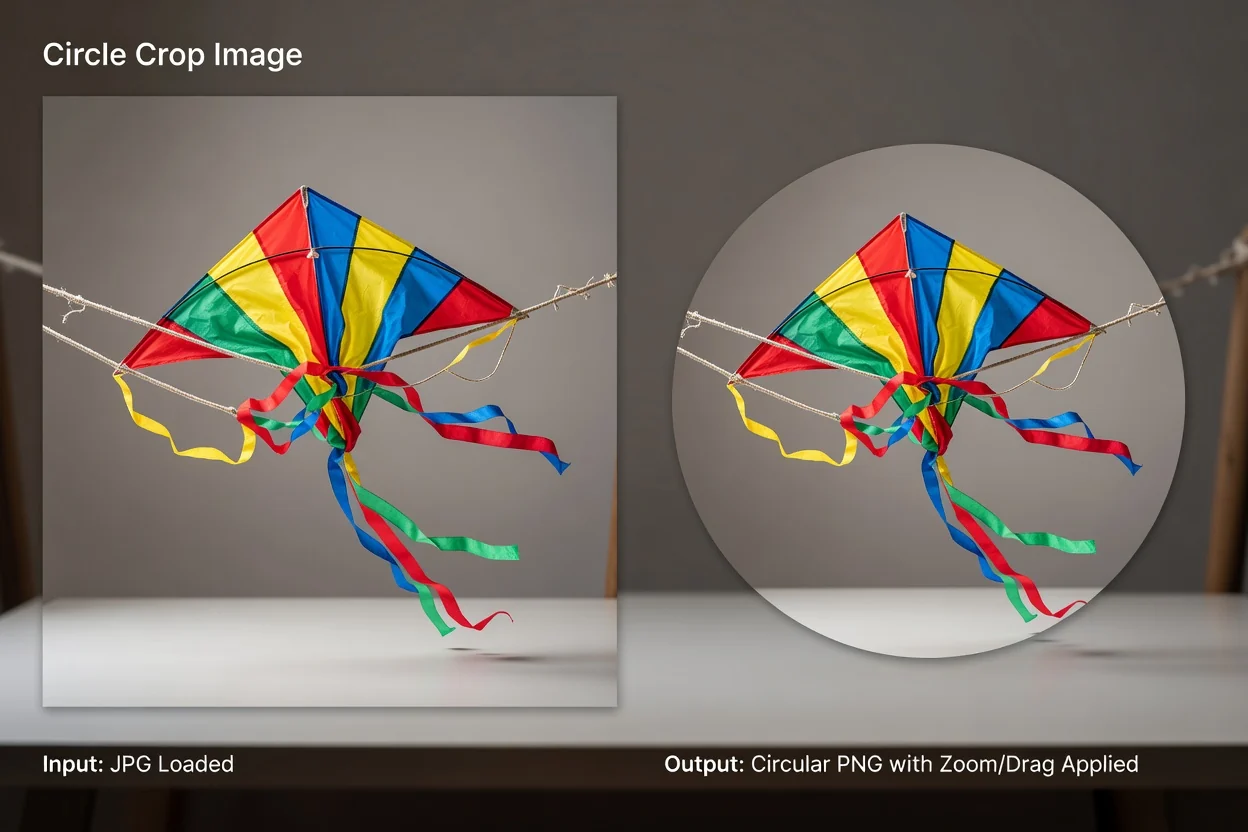
সহজ অনলাইন বৃত্তাকার ছবি ক্রপ কর্মপ্রবাহ আপনাকে প্রক্রিয়াজাত ছবি আপলোড, ফ্রেম, পরীক্ষা ও সংরক্ষণে সহায়তা করে।
আপনার ডিভাইস থেকে একটি JPG, PNG, WEBP বা AVIF ছবি নির্বাচন করুন।
ছবির কতটা অংশ বৃত্তের ভেতরে দেখা যাবে, তা নির্ধারণে 100%–400% জুম ব্যবহার করুন।
বিষয়টি ঠিক যেখানে চান সেখানে রাখতে ছবি টানুন বা কিবোর্ড দিয়ে অবস্থান নির্ধারণ ব্যবহার করুন।
প্রসেসরটি প্রচলিত ওয়েব ছবি ফরম্যাট গ্রহণ করে এবং পর্যালোচনা ও সংরক্ষণের জন্য বৃত্তাকার আউটপুট তৈরি করে।
সমর্থিত ইনপুট ফরম্যাট হলো JPG, PNG, WEBP ও AVIF।
আউটপুটটি একটি প্রক্রিয়াজাত বৃত্তাকার ফলাফল, যা ডাউনলোডযোগ্য আউটপুট ফাইল হিসেবে সংরক্ষণের আগে পর্যালোচনা করতে পারেন।
উপলব্ধ নিয়ন্ত্রণের মধ্যে আছে 100%–400% জুম, টেনে অবস্থান নির্ধারণ, কিবোর্ড দিয়ে অবস্থান নির্ধারণ এবং স্বচ্ছ PNG আউটপুট।
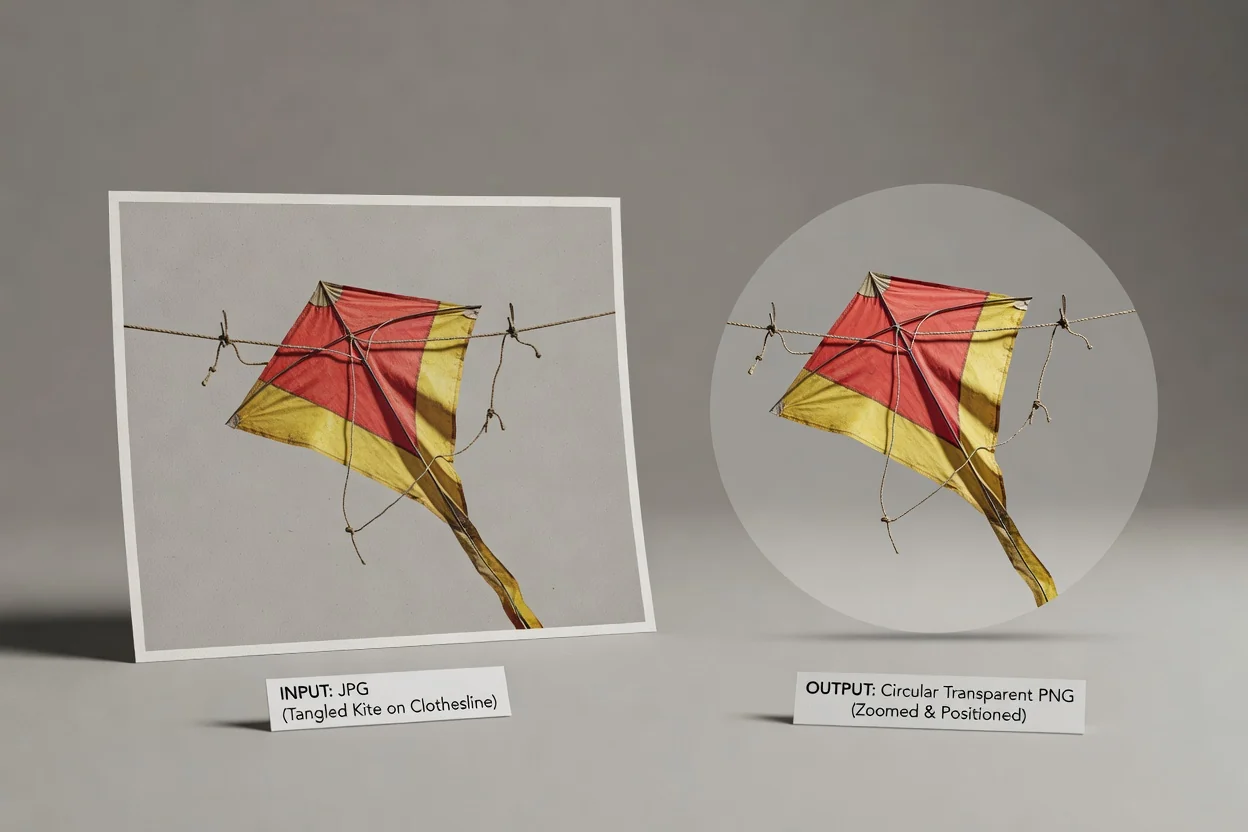
টুলটি সংরক্ষণের আগে একটি বৃত্তাকার ফলাফল স্পষ্টভাবে ফ্রেম করার জন্য প্রয়োজনীয় নিয়ন্ত্রণগুলোর ওপর গুরুত্ব দেয়।
বিষয়কে কাছে আনতে বা বৃত্তের ভেতরে চারপাশে বেশি জায়গা রাখতে 100% থেকে 400% পর্যন্ত জুম করুন।
টেনে ছবি সরান, অথবা ছোট ফ্রেমিং সমন্বয়ের জন্য কিবোর্ড দিয়ে অবস্থান নির্ধারণ ব্যবহার করুন।
প্রোফাইল, লেআউট বা ডিজাইন কম্পের জন্য স্বচ্ছ কোণসহ বৃত্তাকার অ্যাসেট দরকার হলে স্বচ্ছ PNG বৃত্তাকার ক্রপ তৈরি করুন।
চূড়ান্ত ফাইল রাখার আগে ফ্রেমিং নিশ্চিত করতে প্রক্রিয়াজাত ফলাফল পর্যালোচনা করুন।
নির্দিষ্ট ভিজ্যুয়াল কাজের জন্য ছবি একটি বৃত্তের ভেতরে পরিচ্ছন্নভাবে ফ্রেম করতে হলে টুলটি ব্যবহার করুন।
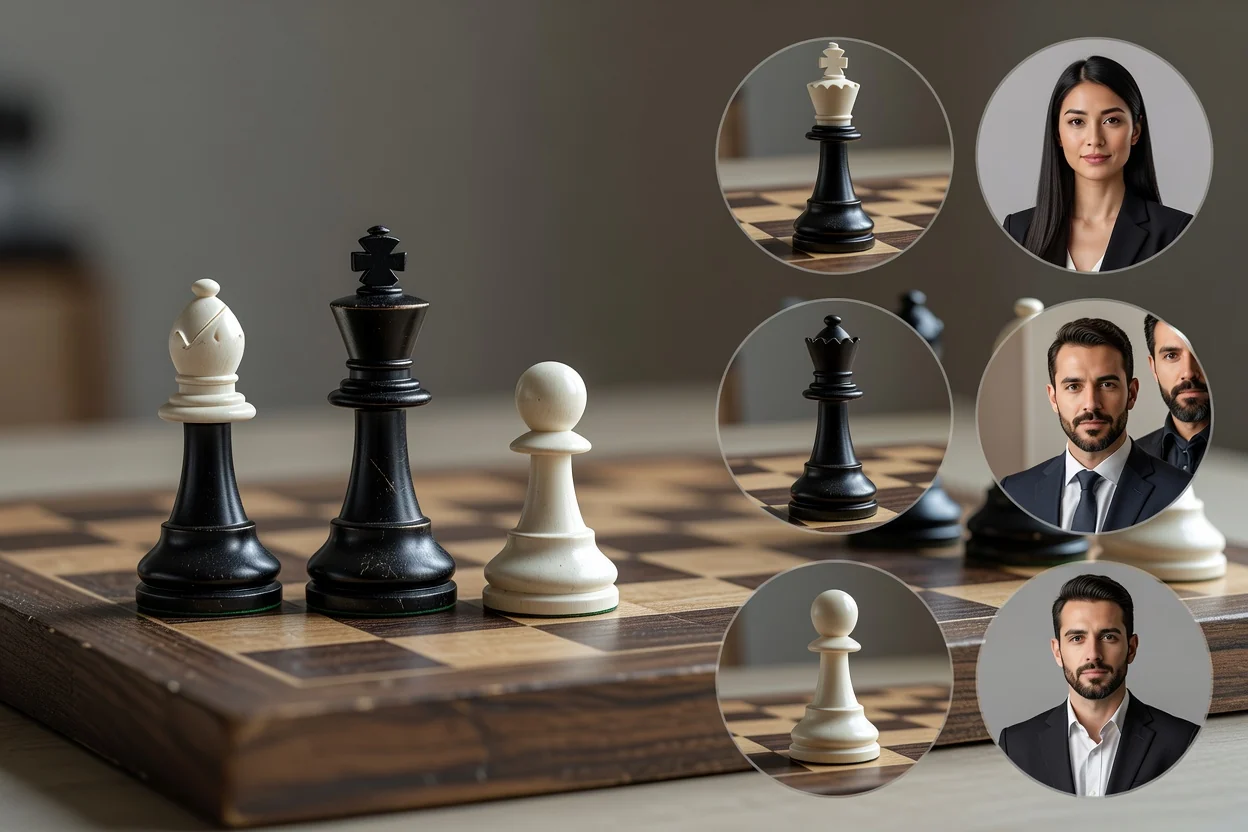
মুখ বা বিষয়টি কেন্দ্রে না আসা পর্যন্ত 100% থেকে 400% জুম করে গোল প্রোফাইল ছবি তৈরি করুন।
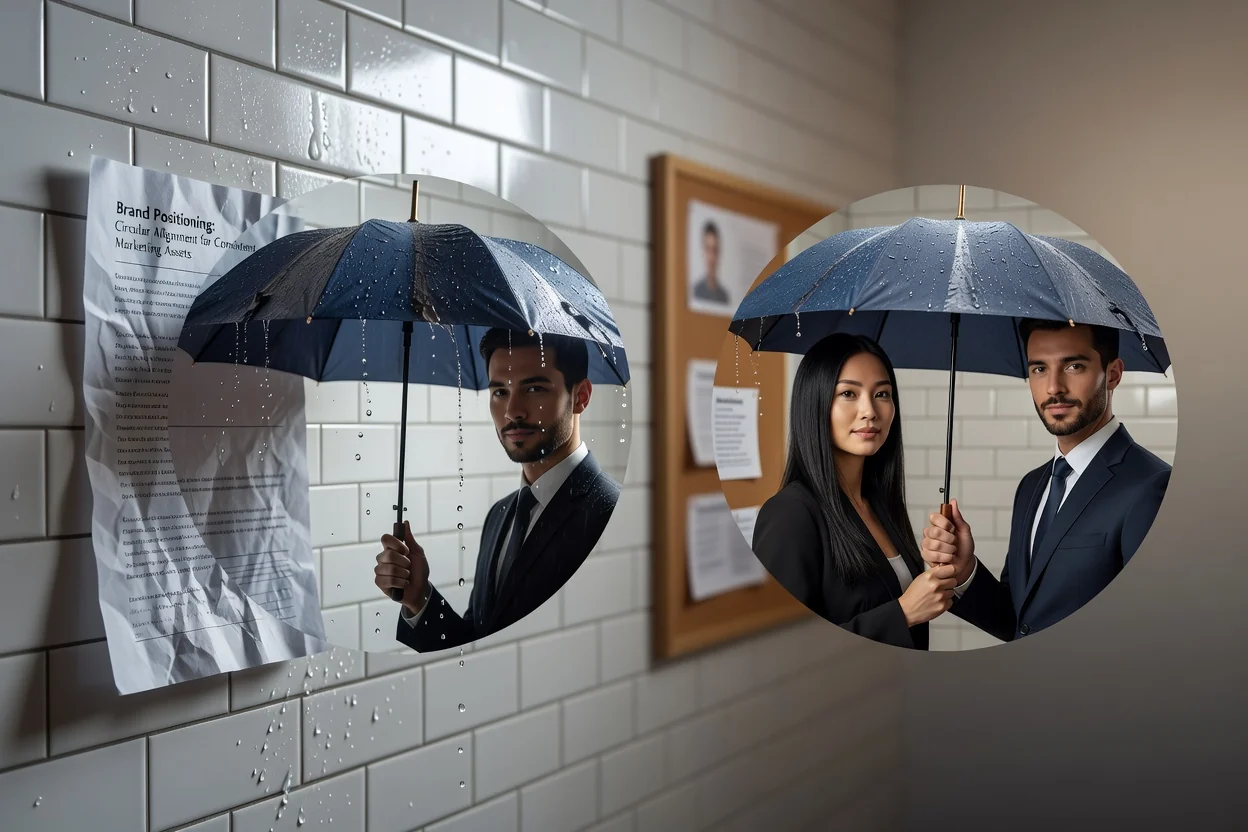
বৃত্তাকার ফ্রেমে পণ্য, লোগো বা ব্যক্তিকে ধারাবাহিকভাবে সারিবদ্ধ করতে টেনে ও কিবোর্ড দিয়ে অবস্থান নির্ধারণ ব্যবহার করুন।
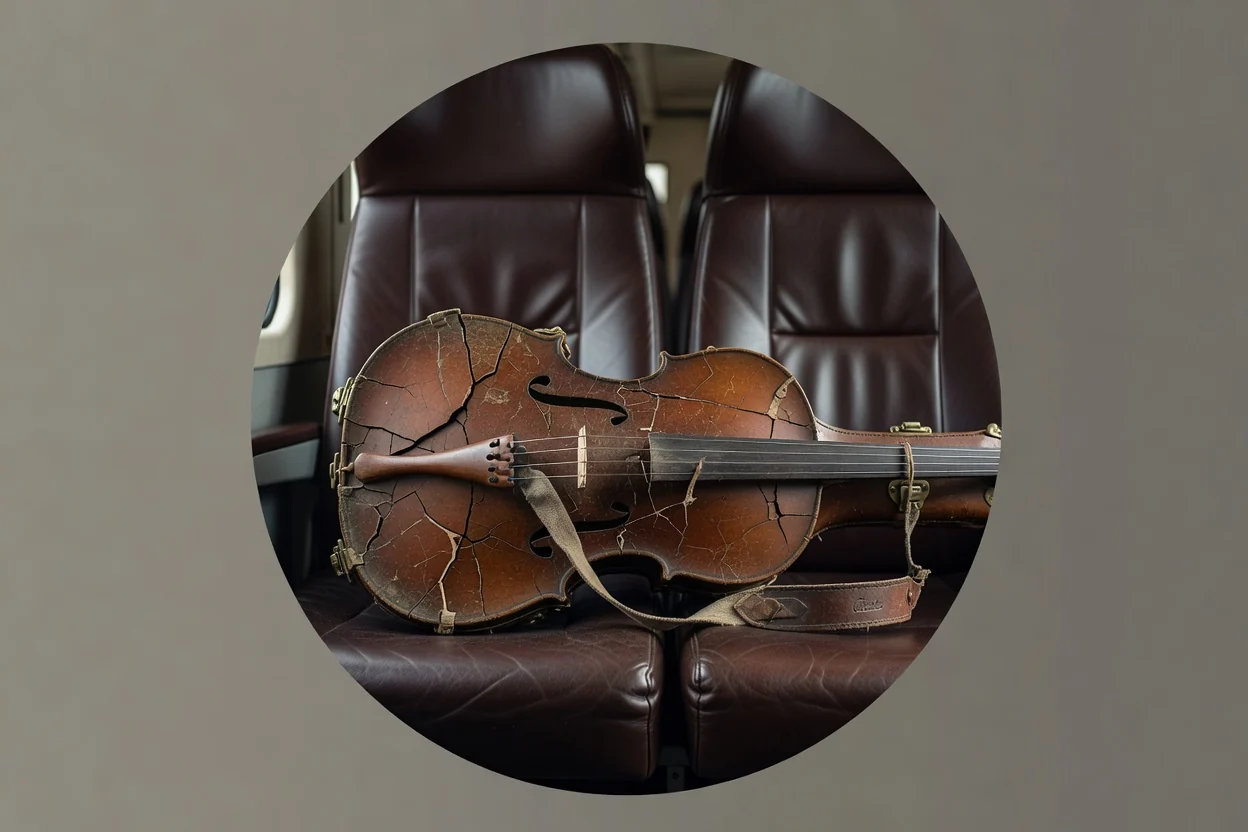
বিভিন্ন পটভূমির ওপর বৃত্তাকার ছবিটি পরিচ্ছন্নভাবে বসাতে হলে স্বচ্ছ PNG বৃত্তাকার ক্রপ তৈরি করুন।
টুলটি সহজ বৃত্তাকার ক্রপের জন্য তৈরি, তাই উৎস ছবি ও নির্বাচিত ফ্রেমিংই চূড়ান্ত ফাইলে কী দেখা যাবে তা নির্ধারণ করে।
আউটপুট আকারটি নির্দিষ্ট বৃত্ত। কাস্টম উপবৃত্ত, বর্ডার ও মুক্ত আকারের মাস্ক উপলব্ধ নয়।
টুলটি বৃত্তের ভেতরে পটভূমি বাছাই করে সরায় না। বৃত্তাকার ক্রপের ভেতরের প্রতিটি পিক্সেল উৎস থেকে রাখা হয়।
উৎস ফাইলের রেজোলিউশন কম, অতিরিক্ত কমপ্রেস করা বা ফ্রেমিং খারাপ হলে জুম আউটপুটে অনুপস্থিত বিস্তারিত যোগ করতে পারে না।
বৃত্তাকার ছবি ক্রপ টুল ব্যবহার এবং এর আউটপুট বোঝা নিয়ে সাধারণ প্রশ্নের উত্তর।
কাজে ভিন্ন ক্রপ আকার, আকার পরিবর্তনের ধাপ বা ফরম্যাট রূপান্তর প্রয়োজন হলে সম্পর্কিত ছবি ইউটিলিটি ব্যবহার করুন।
একটি সমর্থিত ছবি আপলোড করুন, বৃত্তের ভেতরে বিষয়টি ফ্রেম করুন এবং ছবিকে পরিচ্ছন্ন বৃত্তাকার আউটপুটে প্রক্রিয়াজাত করুন।