AI hair color changer for realistic shade previews

AI hair color changer for realistic shade previews

Try a new shade before you commit. Upload a clear portrait and create a realistic hair color preview that keeps your face, haircut, pose, lighting, and background consistent.

AI hair color changer realistic hair color preview
0 / 2000
Template prompt

AI hair color changer for realistic shade previews

Apply the AI Hair Color Changer effect to the uploaded portrait. Preserve the same person, face shape, expression, hairstyle shape, pose, clothing, lighting, camera angle, and background. Change only the hair color to the requested or visually coherent shade with realistic roots, highlights, strand texture, shadows, and color blending. Keep all non-hair details unchanged.
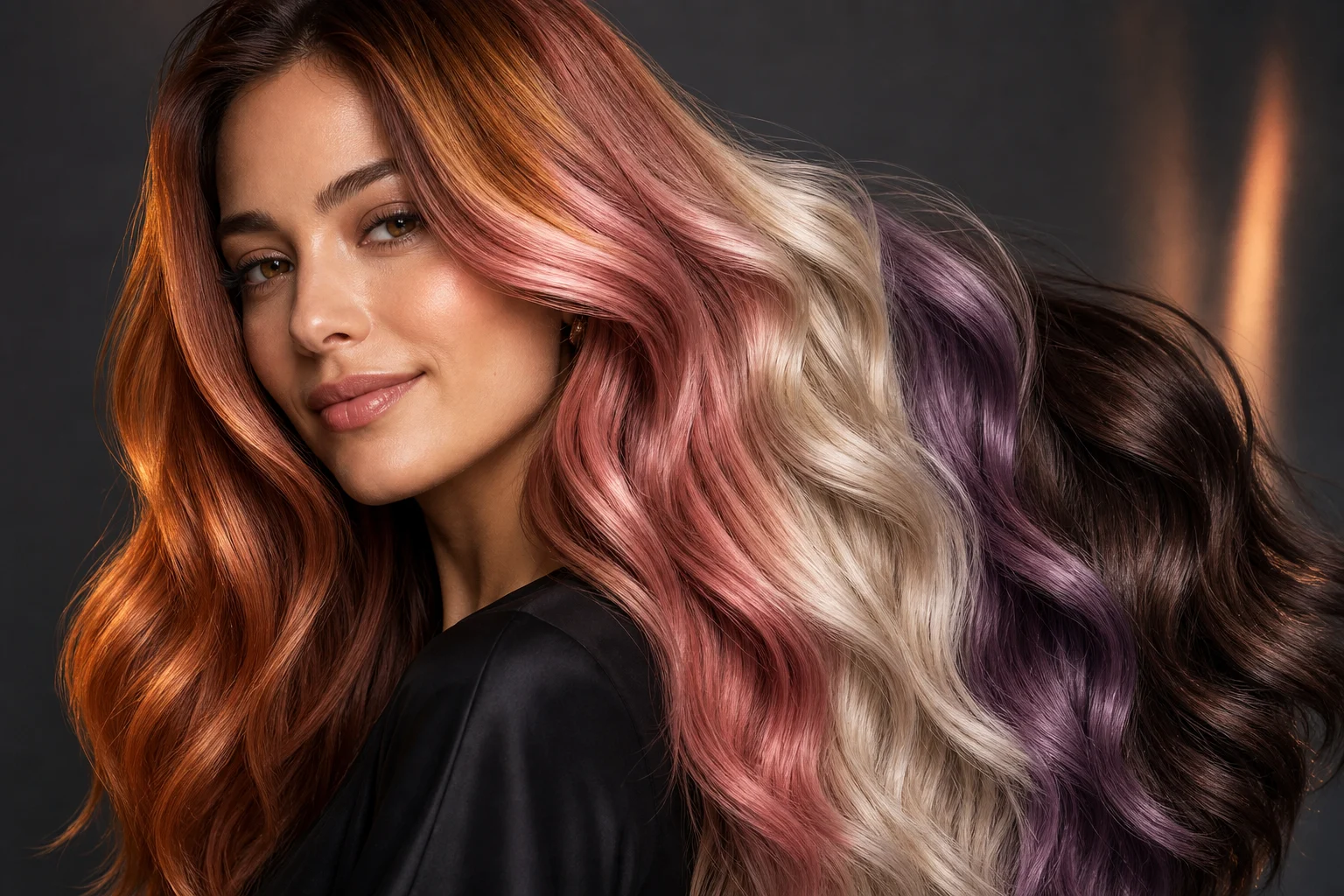
AI hair color changer realistic hair color preview

What is the AI hair color changer?

The AI hair color changer helps you preview a different hair color on an existing portrait while preserving the same person, expression, hairstyle shape, camera angle, clothing, and background. It is designed for natural-looking color changes with blended roots, visible shine, strand texture, and lighting that fits the original photo.

Change the shade, not the portrait

This template focuses the edit on hair color while keeping the portrait structure intact, so you can compare visual directions without altering the overall identity of the image.

What changes

  • Try different hair colors without changing your face or haircut, using natural shine, root blending, and lighting that matches the original photo.
  • Generate realistic hair color preview outputs with clean detail and a polished finish.
  • Preview the AI hair color changer result before downloading, then rerun with a clearer photo or tighter prompt when needed.
  • Upload a clear image to AI hair color changer, review the preview, and keep the version that fits your use case.

What stays the same

  • Preserve the same person, face shape, expression, hairstyle shape, pose, clothing, lighting, camera angle, and background.
  • Keep all non-hair details unchanged.
  • The main subject remains recognizable from the source image.
  • Defining colors, pose, silhouette, and important subject details stay coherent.

How to use the hair color changer online

Start with a clear portrait, choose the color direction, then review the preview for realism and consistency.

1

Upload a clear photo

Choose a sharp portrait where the hair outline, face, and lighting are visible. Avoid heavy blur, blocked hair, or confusing overlaps.

2

Describe the color

Name the shade and finish you want, such as ash blonde with natural roots, glossy black, copper red, or pastel pink with soft highlights.

3

Review the preview

Check the preview for identity, root blending, hair edges, highlights, shadows, and unchanged non-hair details.

4

Refine and save your choice

If needed, try a clearer source image or add a tighter prompt, then keep the version that best fits your use case.

Hair color changer ideas

Explore different color directions, from natural dye previews to bold creative shades, while keeping the same portrait foundation.

AI hair color changer background preview

Natural color refresh

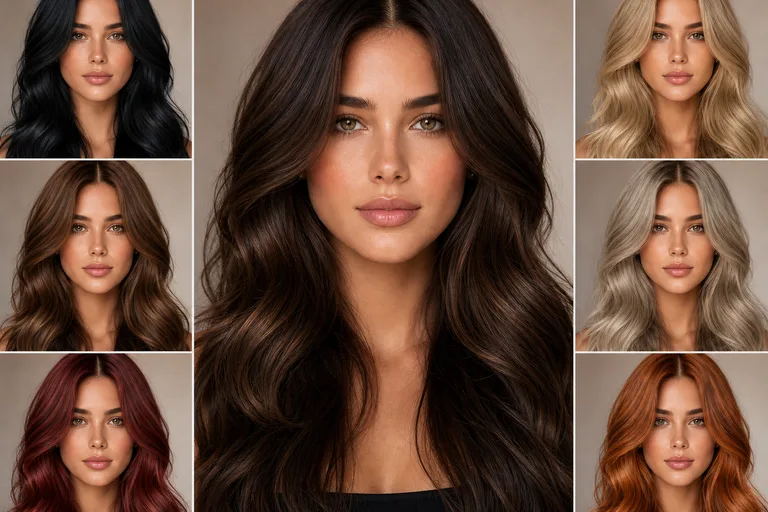
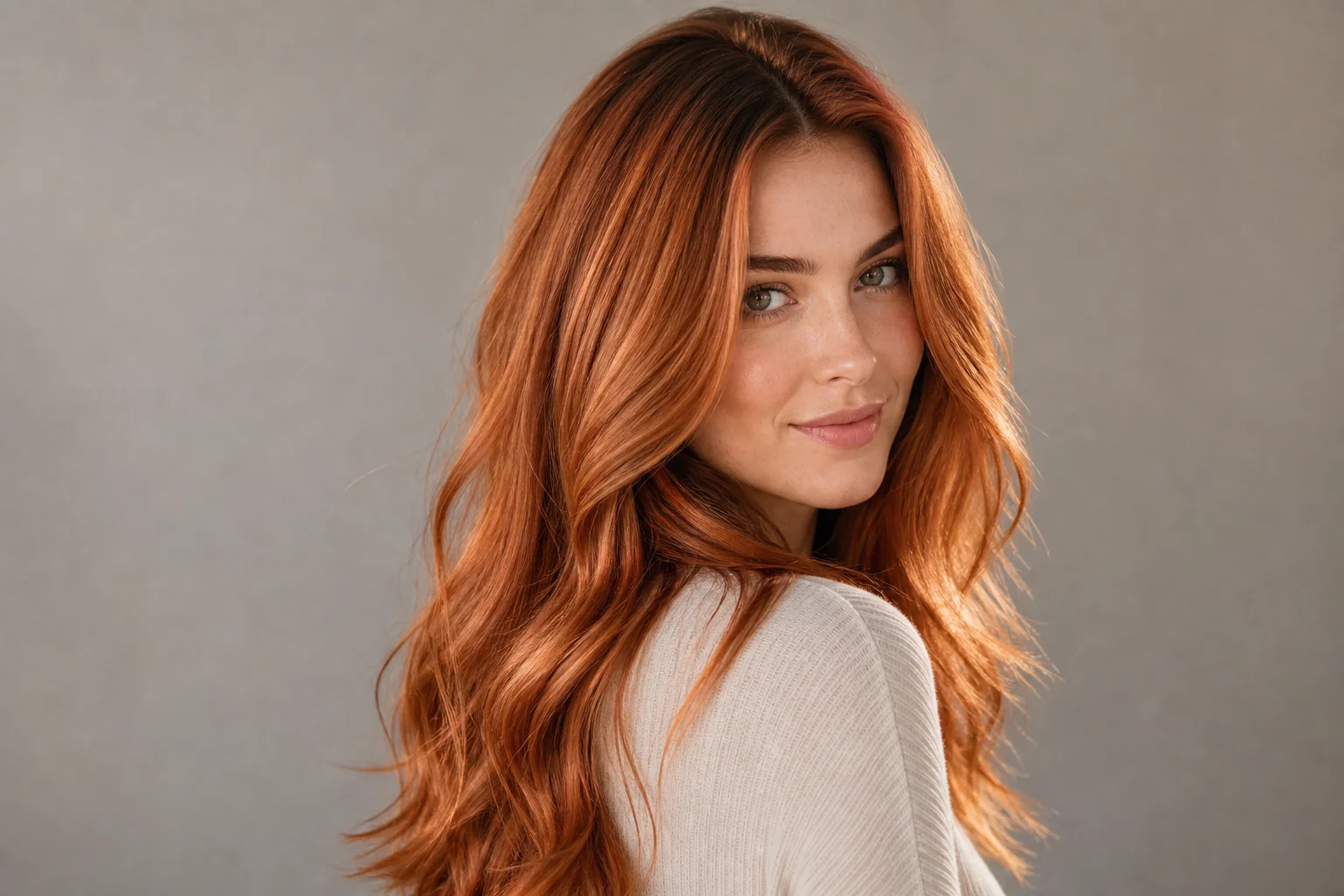
Preview a believable warm brunette, copper, auburn, or blonde shade with soft roots and natural shine.

AI hair color changer example 1

Soft highlighted look

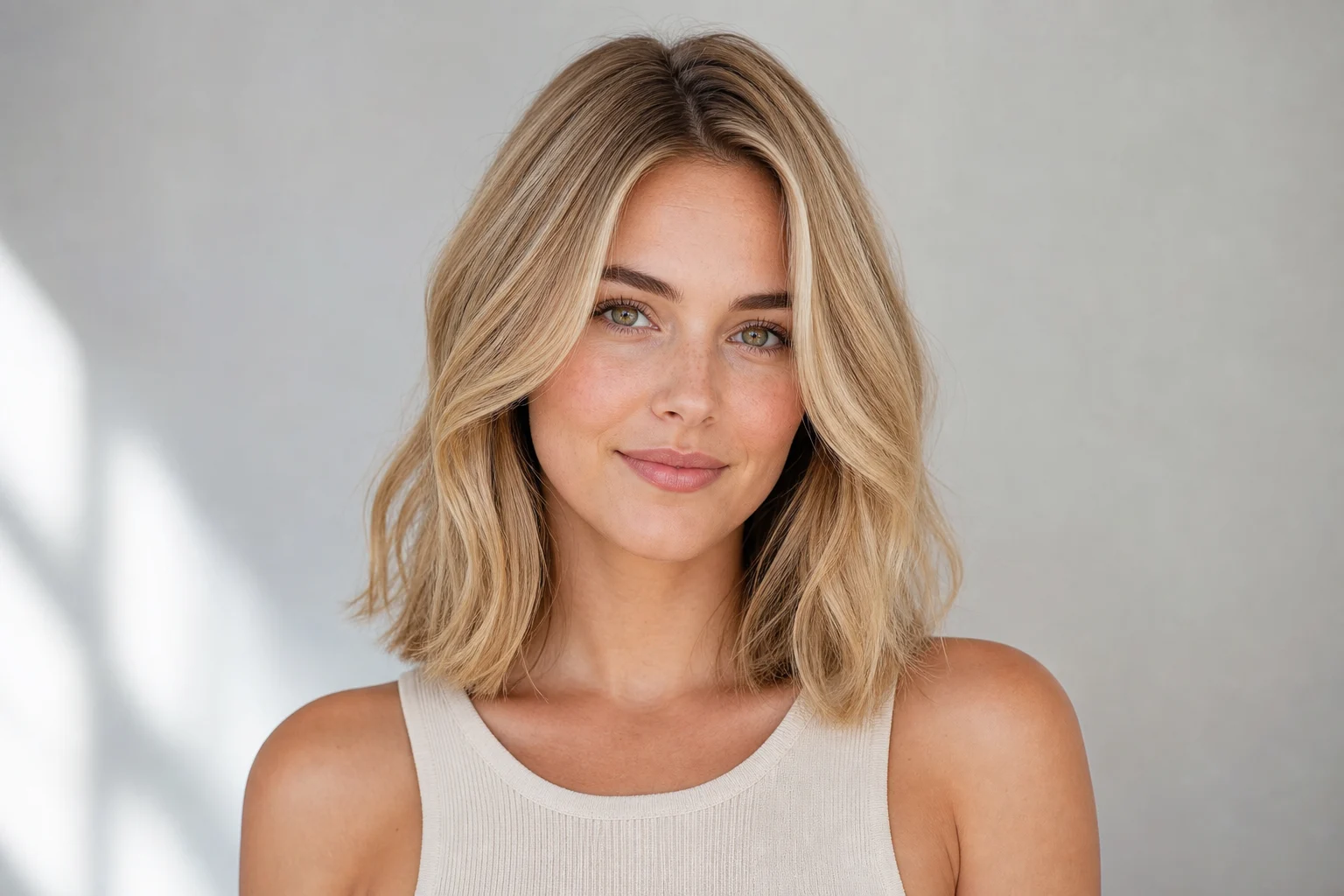
Test a salon-inspired color direction with blended roots, subtle highlights, and a polished finish.

AI hair color changer example 2

Creative color preview

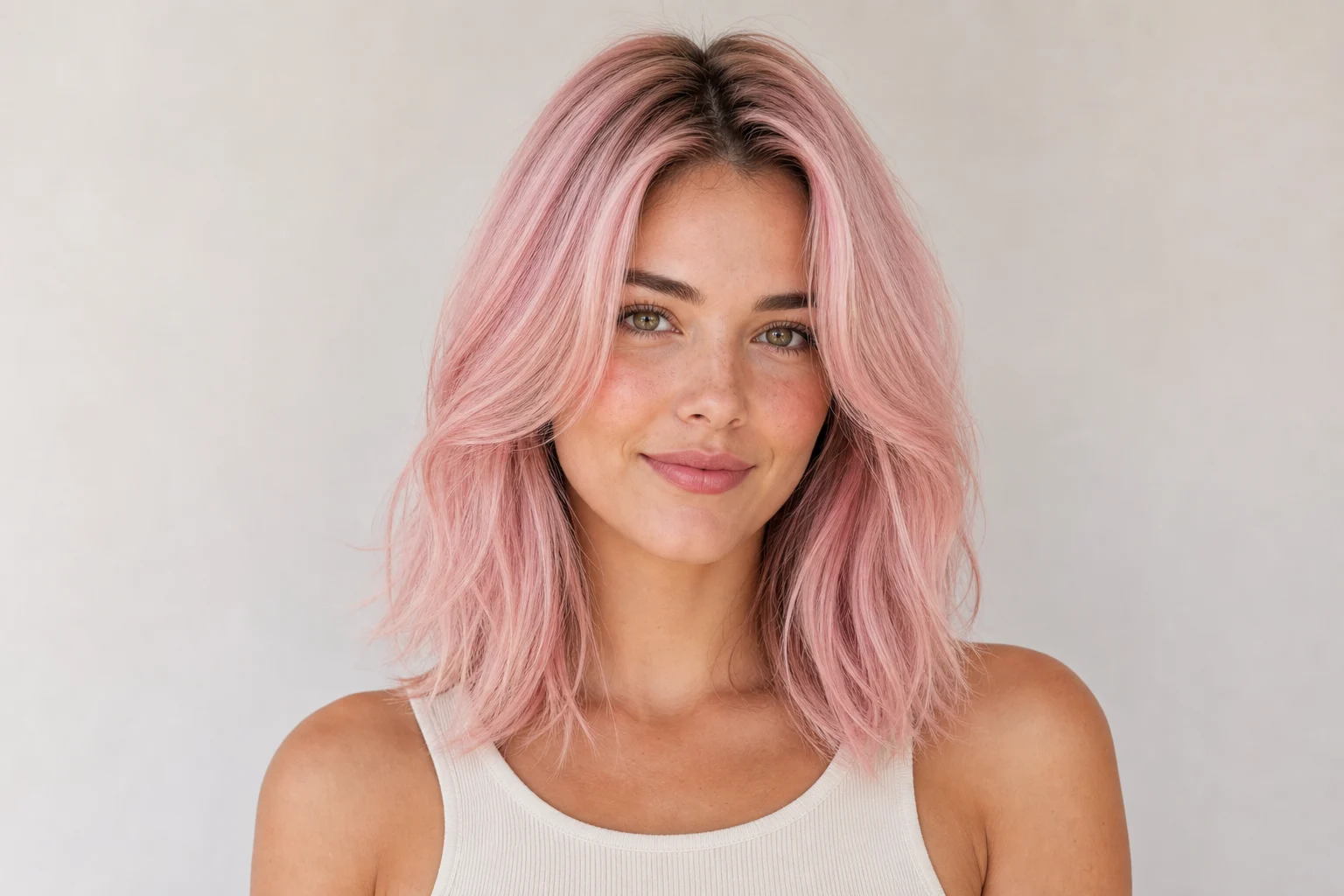
Try a bolder color such as red, pink, blue, silver, or purple while keeping the face and haircut shape unchanged.

AI hair color changer example 3

Light or dark comparison

Create a darker or lighter version of the same hairstyle to compare how the shade works with the portrait lighting.

Ways to use the AI hair color changer

Use the hair color changer online when you need a quick, focused preview for a personal decision, creative concept, or visual comparison.

Create a first version fast

Create a quick first look at a new shade before spending time on more detailed variations.

Adapt the style to your project

Match the color direction to a mood board, character idea, profile concept, or planned salon reference.

Create another version

Run another version with a different tone, highlight pattern, or intensity to compare options side by side.

Preview a personal or creative idea

Build a focused preview that changes the hair color while keeping the portrait recognizable and easy to evaluate.

Compare before you decide

Compare the overall direction before refining, sharing, or presenting the result to someone else.

Tips for better hair color previews

A strong source image and a specific color request help the preview look more natural, especially around roots, hair edges, shadows, and highlights.

Choose the right source photo

  • Use a sharp source image with the main subject clearly visible.
  • Avoid heavy blur, blocked details, extreme crops, or confusing overlaps.
  • Choose a source whose pose and framing support the intended AI hair color changer result.

How to describe the hair color

Describe the exact color direction, such as copper red, ash blonde, dark espresso brown, pastel pink, silver gray, or deep burgundy. Add details like natural roots, subtle highlights, glossy finish, soft balayage, or even all-over color. Ask to keep the same face, haircut shape, pose, clothing, lighting, and background.

Review the result before you use it

Generated details can vary between attempts, so review the preview closely before using it. A clearer source image or a more specific prompt may improve the next version.

Check identity and shape

Make sure the same person remains recognizable, including face shape, expression, pose, and hairstyle silhouette.

Inspect the hair color effect

Look for believable roots, highlights, strand texture, shadows, and color blending that match the original lighting.

Scan the full image

Review faces, hands, text, edges, small objects, and background transitions for artifacts or unwanted changes.

AI hair color changer FAQ

Common questions about preparing a portrait, describing a shade, and reviewing the finished hair color changer result.

What is the AI hair color changer?
The AI hair color changer is a photo editing template for previewing a new hair color on a portrait. It changes the hair color while aiming to keep the face, haircut shape, pose, clothing, lighting, and background consistent with the source image.
Is the AI hair color changer free?
Access and availability can vary by product settings or account status. Check the current options shown in the editor before you start.
How do I use the AI hair color changer?
Upload a clear portrait, describe the color you want, then review the preview. If the result needs improvement, use a sharper image or add more detail about the shade, roots, highlights, or overall finish.
What image formats does the AI hair color changer support?
Use a common image file that the editor accepts, such as a clear portrait from your device. For best results, choose a sharp image where the hair outline and facial details are easy to see.
Can I use AI hair color changer results commercially?
Usage rights can depend on the source image, the platform terms, and your intended project. Review the applicable terms and make sure you have permission to use the original portrait.
What details should I include for AI hair color changer?
Include the target hair color, whether you want warm or cool tones, how bold the change should be, and any root blending or highlight preferences. You can also mention keeping the original haircut and lighting unchanged.
What makes AI hair color changer useful?
It is useful for comparing shades before a salon visit, testing a creative direction, preparing a profile image concept, or visualizing a character look without changing the person’s face or haircut.
What does the AI hair color changer change?
It changes the visible hair color and can adjust related color details such as roots, highlights, strand tone, shadows, and shine. Non-hair details should be reviewed to confirm they remain consistent with the original photo.

Try a new hair color on your portrait

Upload a sharp portrait, describe the shade you want, and review a realistic hair color changer result before refining or saving your favorite version.