
تصویر اپ لوڈ کریں
اپنے آلے سے JPG، PNG، یا WebP تصویر منتخب کریں۔
اپنے براؤزر میں JPG، PNG، یا WebP کو بہتر بنانے کے لیے امیج برائٹنس اور کانٹراسٹ ایڈیٹر استعمال کریں۔ برائٹنس اور کانٹراسٹ کے کنٹرولز کو الگ الگ حرکت دیں، پروسیس شدہ نتیجے کا پیش منظر دیکھیں، اور درست دکھائی دینے پر مکمل فائل محفوظ کریں۔
اصل تصویر
اصل تصویر کا پیش منظر دیکھنے کے لیے فائل منتخب کریں۔
نتیجہ
امیج برائٹنس اور کانٹراسٹ ایڈیٹر تصویر کے ہلکے یا گہرے نظر آنے کے انداز اور ٹونز کے باہمی فرق کو تبدیل کرتا ہے۔ برائٹنس مجموعی روشنی کی سطح بدلتی ہے، جبکہ کانٹراسٹ سائے، درمیانے ٹونز، اور روشن حصوں کے درمیان فرق بڑھاتا یا کم کرتا ہے۔
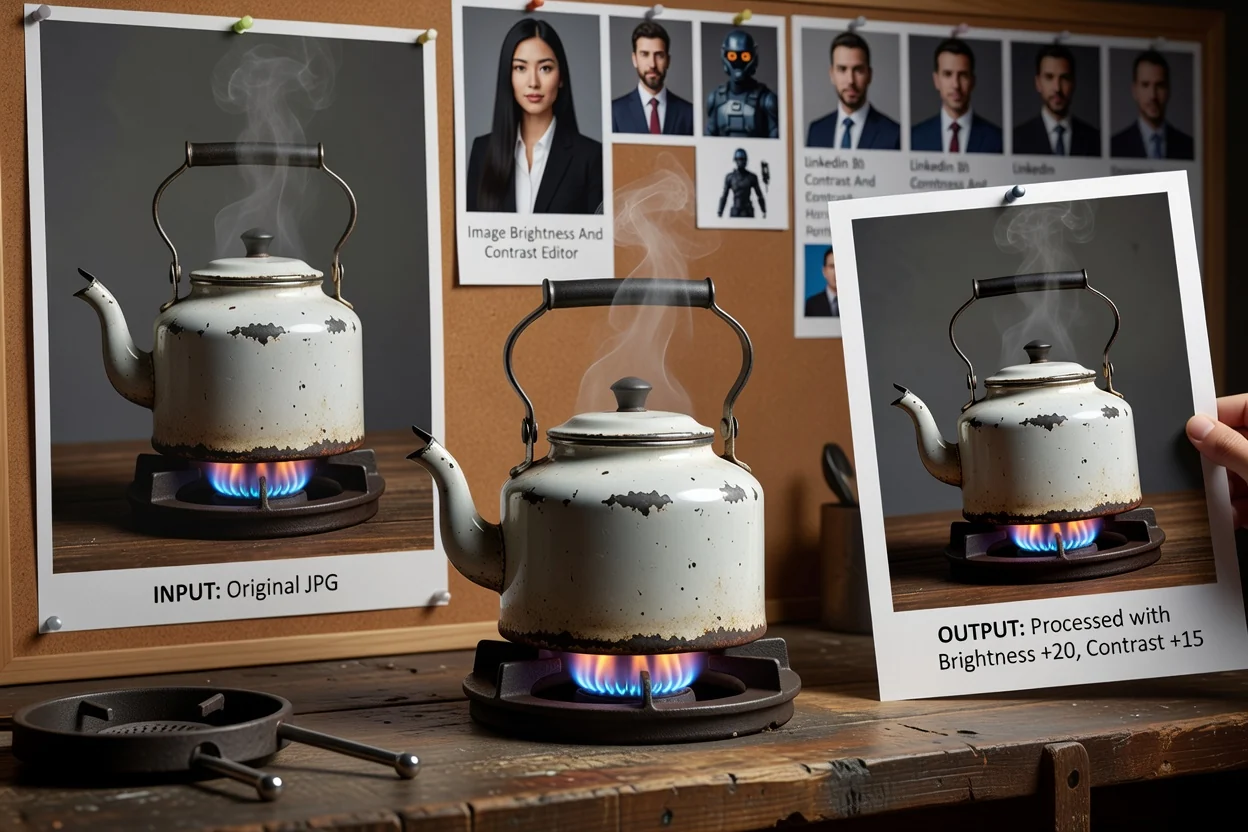
تصویر کو مختصر اور قابلِ جائزہ ترتیب میں پروسیس کریں۔
اپنے آلے سے JPG، PNG، یا WebP تصویر منتخب کریں۔
امیج برائٹنس ایڈجسٹ کرنے کے لیے برائٹنس سلائیڈر استعمال کریں، پھر ضرورت کے مطابق امیج کانٹراسٹ بدلنے کے لیے کانٹراسٹ سلائیڈر استعمال کریں۔
پروسیس شدہ پیش منظر دیکھیں اور سیٹنگز کو اس وقت تک بہتر بنائیں جب تک تصویر کا نتیجہ درست نہ لگے۔
یہ ٹول تعاون یافتہ تصویری فارمیٹس اور قابلِ جائزہ آؤٹ پٹ کے ساتھ سیدھے برائٹنس اور کانٹراسٹ تصحیح ورک فلو کے لیے بنایا گیا ہے۔
JPG، PNG، یا WebP تصویر اپ لوڈ کریں۔
آؤٹ پٹ ایک پروسیس شدہ نتیجہ ہے جسے ڈاؤن لوڈ کے قابل فائل کے طور پر محفوظ کرنے سے پہلے دیکھا جا سکتا ہے۔
آزاد برائٹنس اور کانٹراسٹ کنٹرولز استعمال کریں۔ ہر کنٹرول پکسلز میں حقیقی ترمیم لاگو کرتا ہے، اس لیے پیش منظر میں دکھائی گئی تبدیلی پروسیس شدہ فائل کا حصہ بن جاتی ہے۔
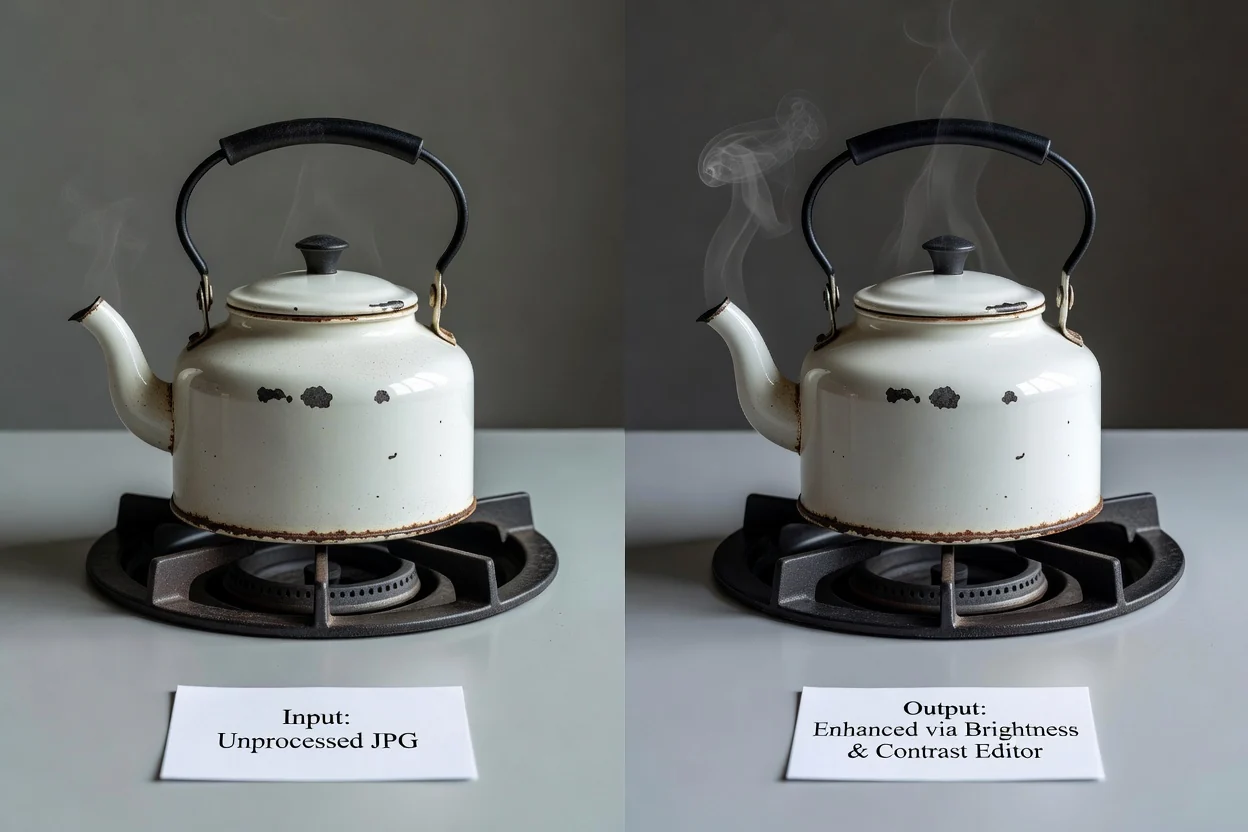
مرکوز کنٹرولز آپ کو متعدد ٹولز کے درمیان بدلے بغیر نتیجہ درست بنانے میں مدد دیتے ہیں۔
برائٹنس اور کانٹراسٹ کو الگ الگ حرکت دیں تاکہ ایک تصحیح دوسری کو لازمی طور پر نہ بدلے۔ آپ پہلے امیج برائٹنس ایڈجسٹ کر کے پھر حتمی انداز کے لیے کانٹراسٹ باریک بینی سے درست کر سکتے ہیں۔
ترمیمات تصویر کے اصل پکسلز پر لاگو ہوتی ہیں، جس سے پیش منظر محض بصری فلٹر کے مقابلے میں پروسیس شدہ نتیجے سے زیادہ قریب ہوتا ہے۔
ایک ہی تصویر کی ایڈجسٹمنٹ کے کام کے لیے بنائے گئے مقامی براؤزر ورک فلو میں فائل پروسیس کریں۔
محفوظ کرنے سے پہلے موجودہ انداز کا موازنہ کرنے کے لیے پیش منظر استعمال کریں، خاص طور پر ان تصاویر میں امیج کانٹراسٹ بدلنے کے بعد جن میں گہرے سائے یا روشن حصے نمایاں ہوں۔
جب تصویر کو فوری ٹون تصحیح درکار ہو تو ٹول کے عام استعمال۔
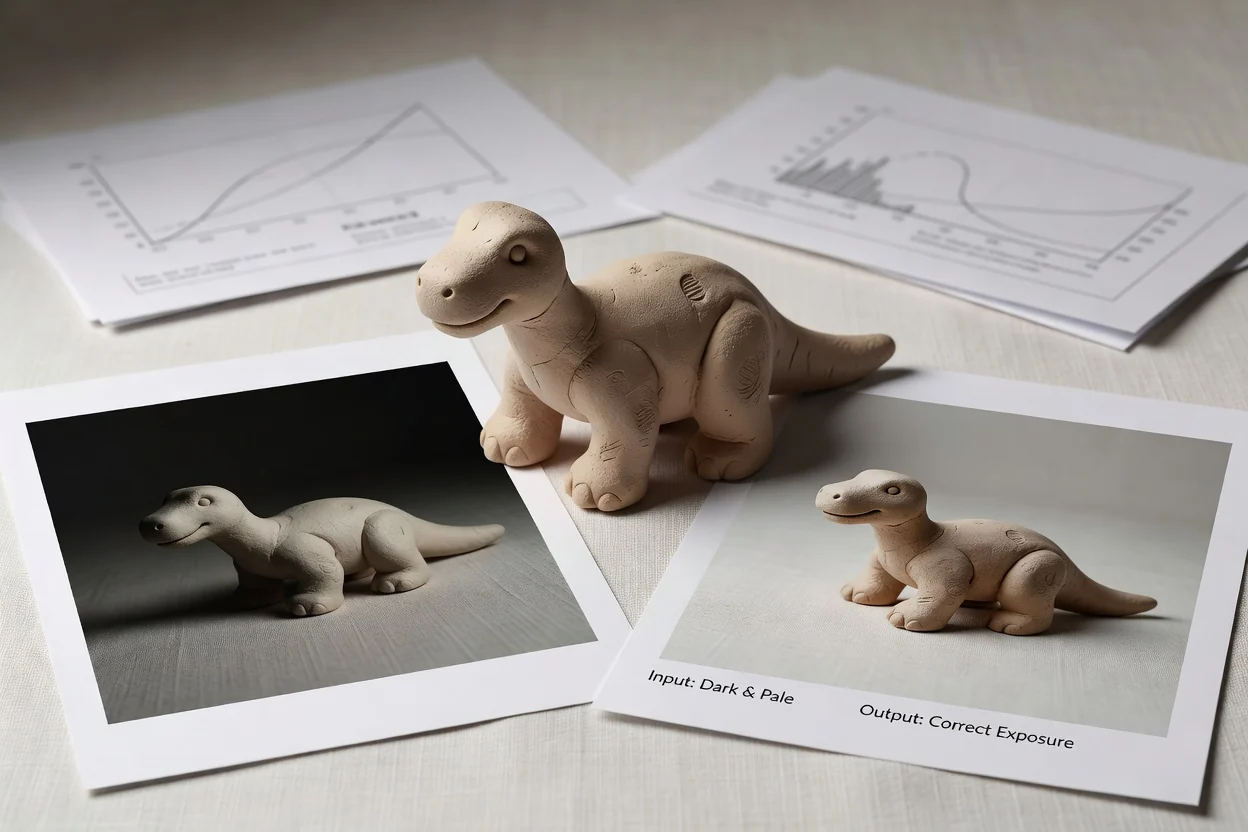
جب پروڈکٹ، پروفائل فوٹو، یا سوشل پوسٹ بہت گہری یا بہت پھیکی لگے تو امیج برائٹنس ایڈجسٹ کریں۔
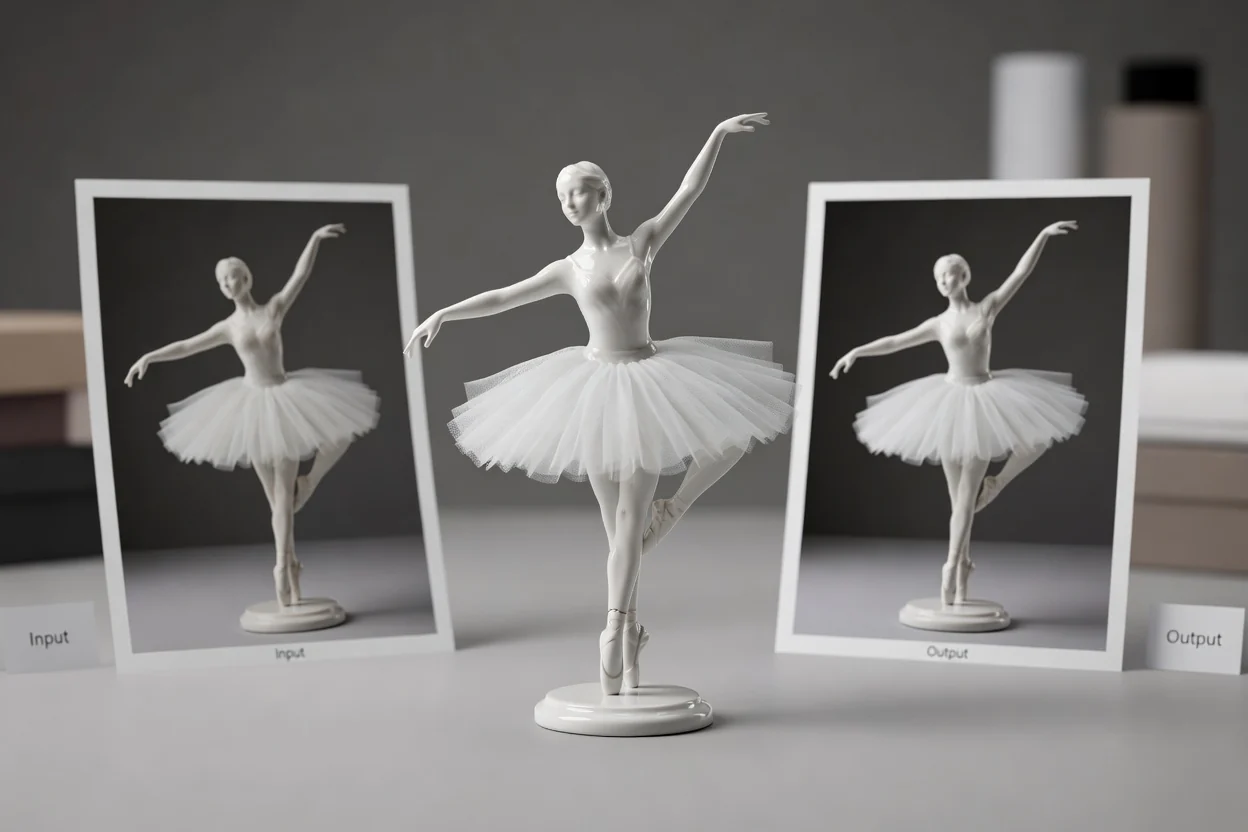
پریزینٹیشنز، لسٹنگز، تھمب نیلز، یا ادارتی تصاویر کے لیے ٹونز کو زیادہ واضح دکھانے کو امیج کانٹراسٹ تبدیل کریں۔
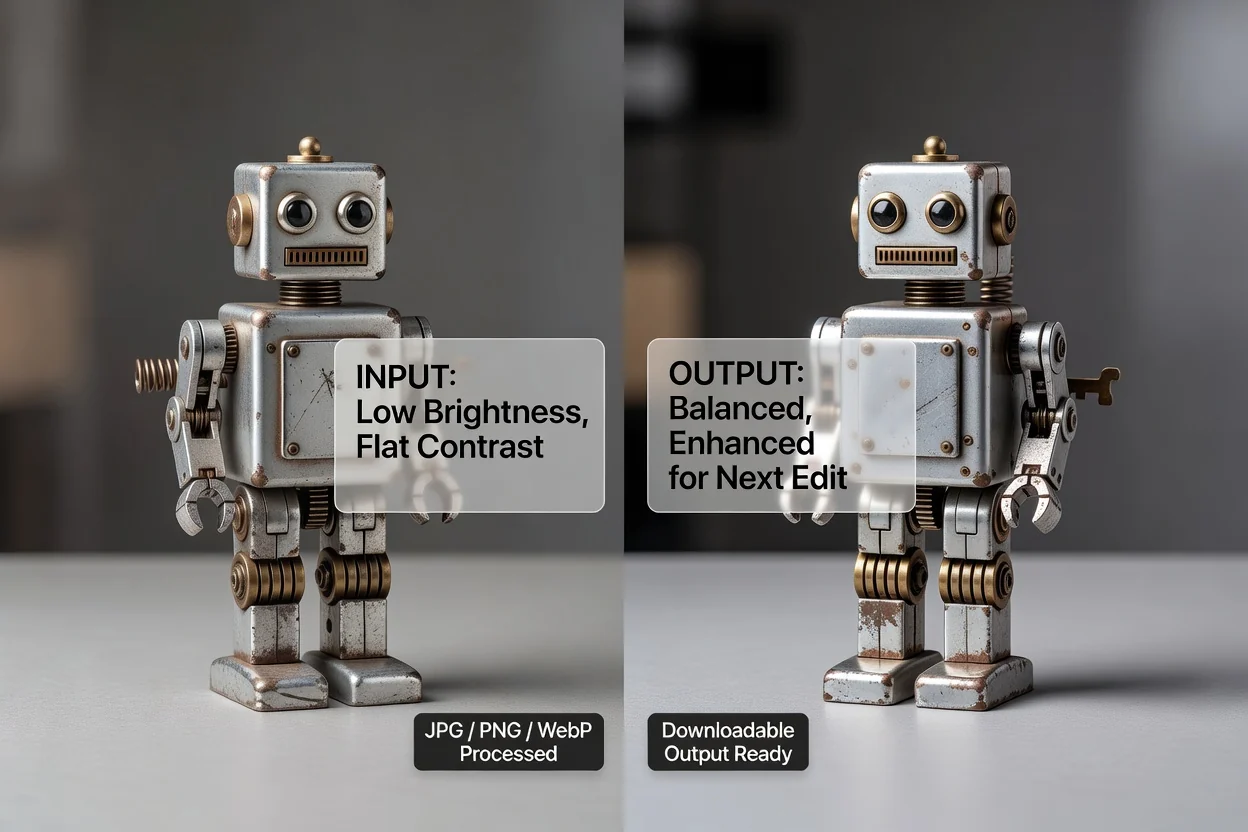
ری سائز، کراپ، یا کنورٹ کرنے سے پہلے زیادہ متوازن تصویر تیار کرنے کے لیے آزاد کنٹرولز استعمال کریں۔
برائٹنس اور کانٹراسٹ کی ترمیمات وسیع ٹون تصحیح کے لیے مفید ہیں، مگر یہ ماخذ کے ہر مسئلے کو حل نہیں کر سکتیں۔
ایڈجسٹمنٹ منتخب خطے، موضوع، یا پس منظر کے حصے کے بجائے پوری تصویر کو متاثر کرتی ہے۔
اگر ماخذ میں تفصیل مکمل طور پر ختم ہو چکی ہو تو ایڈیٹر وہ معلومات دوبارہ تخلیق نہیں کر سکتا جو اب موجود نہیں ہیں۔
بہت مضبوط سیٹنگز تصویر کو پھیکا، حد سے زیادہ گہرا، یا سخت دکھا سکتی ہیں۔ محفوظ کرنے سے پہلے نتیجے کا جائزہ لیں۔
امیج برائٹنس اور کانٹراسٹ ایڈیٹر استعمال کرنے سے متعلق عام سوالات کے جواب۔
برائٹنس اور کانٹراسٹ کا کام مکمل ہونے پر دیگر تصویری یوٹیلیٹیز کے ساتھ آگے بڑھیں۔
تعاون یافتہ تصویر اپ لوڈ کریں، برائٹنس اور کانٹراسٹ مقرر کریں، نتیجے کا جائزہ لیں، اور پروسیس شدہ آؤٹ پٹ محفوظ کریں۔