01
Загрузите разрешённый исходник
Выберите своё изображение или файл, на редактирование которого у вас есть разрешение, с чётко видимым главным объектом.
Удаляйте с помощью ИИ фон с фото товаров, портретов и логотипов. Проверяйте прозрачные края перед скачиванием.
Режим по умолчанию
Готово к загрузке
Предпросмотр, сравнение и скачивание
Удаляйте с помощью ИИ фон с фото товаров, портретов и логотипов. Проверяйте прозрачные края перед скачиванием.
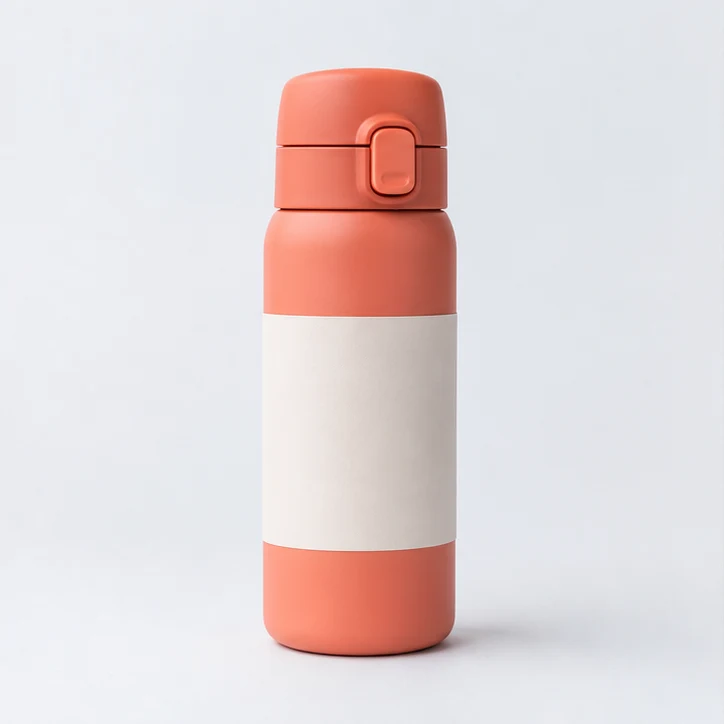
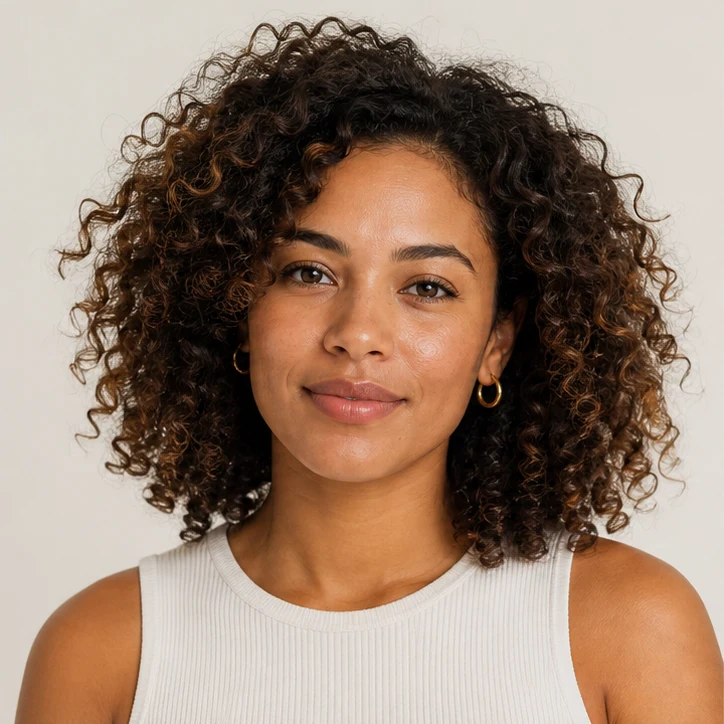

Удаляйте с помощью ИИ фон с фото товаров, портретов и логотипов. Проверяйте прозрачные края перед скачиванием.
Выберите своё изображение или файл, на редактирование которого у вас есть разрешение, с чётко видимым главным объектом.
Стандартная обработка создаёт изображение без фона с прозрачными областями. Перед скачиванием проверьте края объекта.
Перед публикацией проверьте границу объекта и прозрачные области и сравните результат с оригиналом. На мелкие детали влияют контраст и разрешение исходника.
Используйте чёткое, хорошо освещённое изображение, где главный объект заметно отделён от фона. Высокое разрешение помогает сохранить тонкие края.
Стандартная обработка создаёт изображение без фона с прозрачными областями. Перед скачиванием проверьте края объекта.
Используйте чёткий логотип высокого разрешения и перед публикацией сравнивайте полученный прозрачный край с оригиналом.
Перед публикацией проверьте границу объекта и прозрачные области и сравните результат с оригиналом. На мелкие детали влияют контраст и разрешение исходника.
ClipCanva помогает создавать изображения и визуальные материалы для реальных задач: от первых идей до материалов, которые удобно показать, обсудить и опубликовать.
Бесплатные изображения содержат водяной знак. Перейдите на платный план для чистых результатов, более быстрой генерации и коммерческого использования.
Стартовый пакет
Разовый пакет кредитов, чтобы попробовать генерацию изображений, музыки и коротких видео.
Создатель
Ежемесячный план · 1 500 кредитов обновляются каждый месяц
GPT Image 2 Unlimited
Введите код FOUNDING6 в Stripe Checkout: $19 в месяц первые 6 месяцев, затем $29 в месяц.
Про
Ежемесячный план · 4 000 кредитов обновляются каждый месяц
Студия
Ежемесячный план · 12 000 кредитов обновляются каждый месяц
Безопасная оплата · Подписки продлеваются автоматически · Условия возврата
Команда
Для агентств, продакшн-команд и индивидуальных объемов.
Удаляйте с помощью ИИ фон с фото товаров, портретов и логотипов. Проверяйте прозрачные края перед скачиванием.
Удаляйте с помощью ИИ фон с фото товаров, портретов и логотипов. Проверяйте прозрачные края перед скачиванием.