Keychain Generator for custom charm previews

Keychain Generator for custom charm previews

Turn a portrait, pet, or object photo into a polished custom Keychain concept with rounded acrylic edges, glossy highlights, and a small metal ring detail.

Keychain Generator example result
0 / 2000
Template prompt

Keychain Generator for custom charm previews

Apply the Keychain Generator effect to the uploaded image. Preserve the main subject identity or object shape, pose silhouette, key colors, and distinctive details. Rebuild the subject as a cute custom keychain charm with rounded acrylic or rubber material, small metal ring or chain, glossy edge highlights, product mockup lighting, and clean display composition. Keep the charm clearly based on the uploaded subject.

Keychain Generator example result

What is the Keychain Generator?

The Keychain Generator creates a product-style charm preview from your uploaded image. It keeps the main subject recognizable while restyling it as a cute acrylic or rubber keychain with rounded edges, printed detail, glossy material, and charm hardware.

How the Keychain transformation works

This template transforms your source into a custom Keychain charm mockup while keeping the original subject as the visual foundation.

What changes

  • Creates a keychain concept from a portrait, pet, or object photo with acrylic thickness, metal ring detail, and a ready-to-preview product style.
  • Adds rounded acrylic edges, charm hardware, glossy material, printed detail, and product-photo lighting.
  • Rebuilds the subject as a cute custom charm with rounded acrylic or rubber material, small metal ring or chain, glossy edge highlights, and a clean display composition.
  • Applies the Keychain Generator effect while keeping the image focused on the charm preview.

What stays recognizable

  • The main subject identity or object shape, pose silhouette, key colors, and distinctive details.
  • A clear connection between the uploaded subject and the finished charm.
  • Recognizable facial features, pet markings, object contours, accessories, or other defining traits when they are visible in the source.
  • Coherent colors, pose, silhouette, and important subject details.

Keychain Generator workflow

Follow a simple workflow to create a stronger Keychain preview from your uploaded image.

1

Upload a clear source

Choose a clear portrait, pet, or object photo where the full subject shape and important details are easy to see.

2

Apply the Keychain look

Create the Keychain concept with rounded acrylic or rubber material, glossy edge highlights, printed details, and a small metal ring or chain.

3

Review and refine

Check the result for recognizable subject details, clean edges, believable hardware, and coherent product-photo lighting.

Keychain style examples

These examples show how the Keychain Generator can present different subjects as glossy charm-style product previews.

Keychain Generator example result

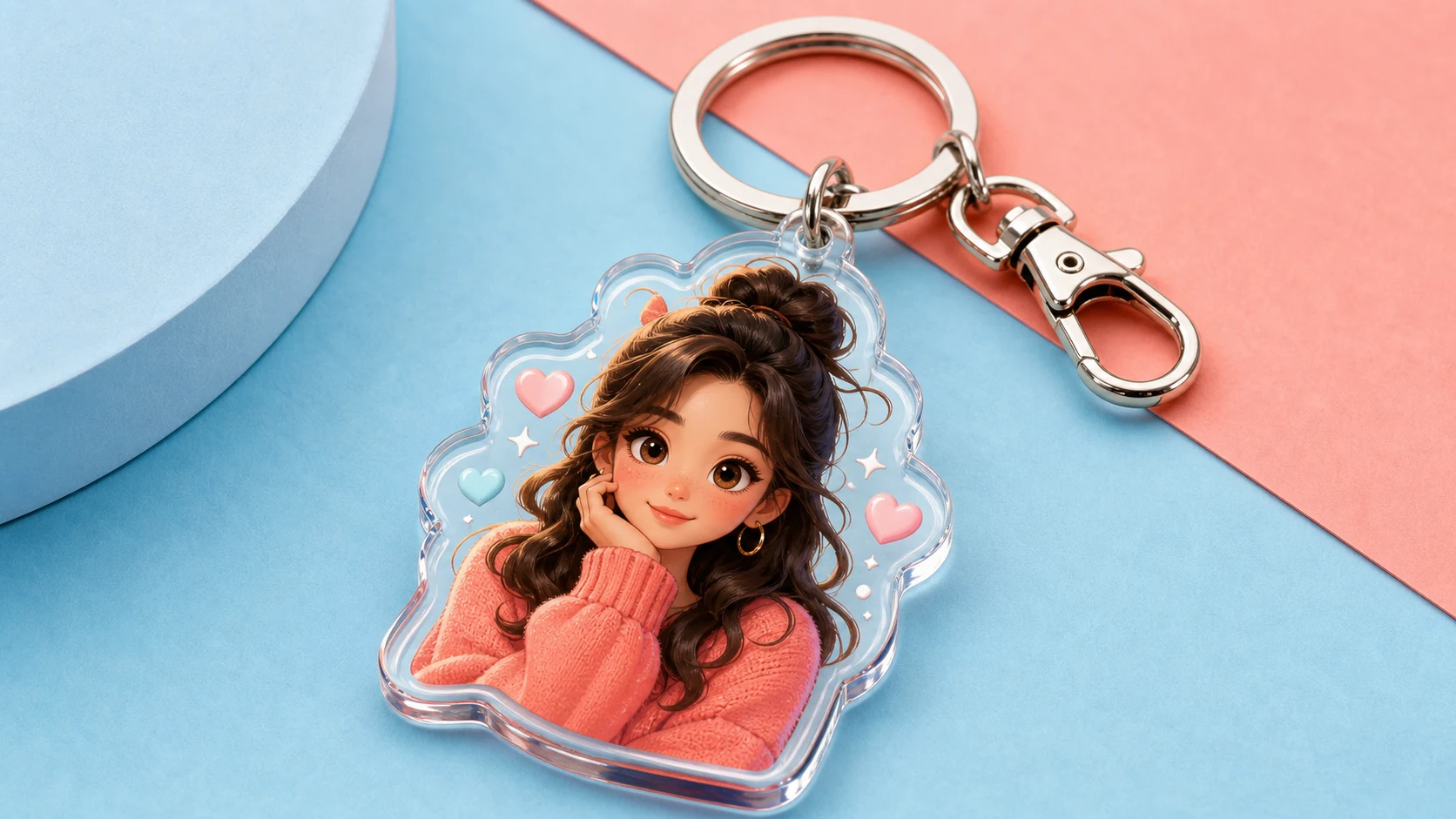
Glossy acrylic Keychain preview

A polished acrylic-style Keychain mockup with rounded edges, a clear subject silhouette, and product lighting for a clean preview look.

Keychain Generator Example 2

Cute custom charm variation

A second Keychain concept showing the subject rebuilt as a cute charm with visible hardware and a ready-to-preview display style.

Ways to use this Keychain Generator

Use this Keychain Generator when you want a quick visual direction for a charm-style product concept based on a real subject.

Create a custom charm concept

Turn a portrait, pet, mascot, toy, logo-like object, or keepsake photo into a focused Keychain preview for a personal or creative project.

Preview a visual direction

Compare the acrylic look, shape treatment, ring placement, and overall product style before refining, sharing, or presenting the result.

How to get a better Keychain result

A good source image helps the Keychain Generator preserve the subject while applying the acrylic charm treatment cleanly.

Source image checklist

  • Use a sharp source image with the main subject clearly visible.
  • Avoid heavy blur, blocked details, extreme crops, or confusing overlaps.
  • Choose a source whose pose and framing support the intended Keychain Generator result.

Prompt guidance

Use a prompt that asks for a cute custom keychain charm, rounded acrylic or rubber material, a small metal ring or chain, glossy edge highlights, product mockup lighting, and a clean display composition. Mention any details that must stay recognizable, such as colors, markings, accessories, or object shape.

What to check in the result

Generated details can vary, so review the Keychain preview before sharing, refining, or using it as a visual draft.

Subject recognition

Compare the finished charm with the source image and make sure the identity, object shape, pose, silhouette, key colors, and distinctive details still match.

Keychain styling

Look for rounded acrylic or rubber edges, glossy highlights, printed detail, product-photo lighting, and a believable metal ring or chain.

Detail quality

Inspect faces, hands, text, tiny markings, object edges, and background transitions for distortions or unclear details.

Keychain Generator FAQ

Helpful answers for preparing your image and reviewing the finished Keychain preview.

What is Keychain Generator?
Keychain Generator is a template for turning a portrait, pet, or object photo into a custom keychain charm concept with acrylic thickness, glossy edges, and metal ring detail.
Is Keychain Generator free?
You can open the Keychain Generator online and create a preview from your image. Any usage limits or account options depend on the current ClipCanva experience shown when you use it.
How do I use Keychain Generator?
Upload a clear image, check that the main subject is visible, then create the Keychain preview. Review the result for subject likeness, edge quality, hardware placement, and product-photo styling.
What image formats does Keychain Generator support?
Use common image formats supported by the upload tool, such as typical photo files from a phone, camera, or design app. A sharp, well-framed image usually works best.
Can I use Keychain Generator results commercially?
Commercial use can depend on the source image, likeness rights, brand elements, and your intended use. Review the result and make sure you have the rights you need before using it in a project.
What Keychain Generator changes should I expect?
It changes the uploaded subject into a cute custom charm with rounded acrylic or rubber material, glossy edge highlights, product lighting, printed details, and a small metal ring or chain.
Which source image works best?
A sharp image with the subject clearly visible works best. Avoid heavy blur, blocked details, extreme crops, confusing overlaps, or backgrounds that make the subject hard to separate.
How do I keep the subject recognizable?
Choose a source with a clear pose, strong silhouette, key colors, and distinctive features. After creating the preview, compare the face, object shape, markings, accessories, and other identifying details with the original.

Create a custom Keychain concept

Upload a clear portrait, pet, or object photo and create a ready-to-preview Keychain concept with glossy acrylic styling and charm hardware.