ClipCanva
Prompt-based photo editing

AI Photo Editor

Use AI Photo Editor to turn a source photo and clear edit prompt into edited photo variants for a specific project. Describe the change, guide the visual direction, and choose the destination format before you start creating.

0 / 2000
  • Start from a source photo, not a blank canvas
  • Guide the edit with prompt detail, subject, setting, and format
  • Create edited photo variants you can inspect for fit and details
Definition

What Is an AI Photo Editor?

AI Photo Editor is a prompt-guided tool for editing an existing photo. Upload or provide the source, describe the change you want, and generate variants that reflect your prompt and selected direction.

Input
Photo and prompt
Output
Edited photo variants
Best for
Focused visual edits
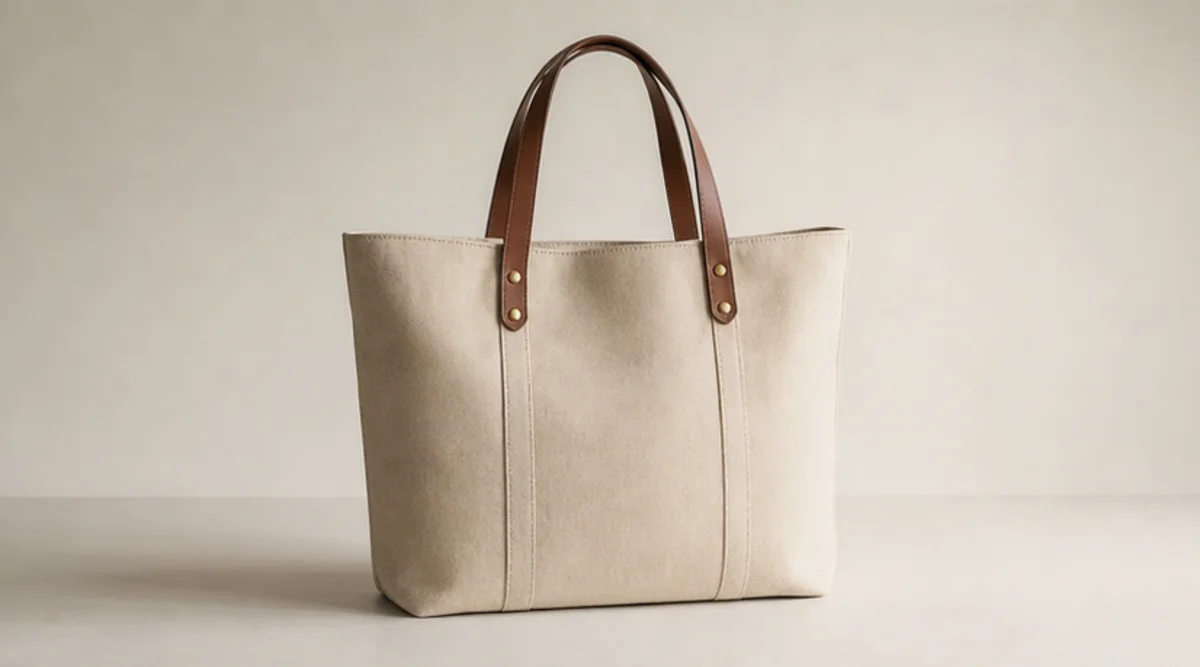
Planned ai photo editor definition example
Example output

How to Use AI Photo Editor

Follow a simple prompt-first process to edit a photo with a prompt and create variants that are easier to compare.

1

Add the source photo

Begin with the source photo you want to adjust so the edit has a clear subject, composition, and starting point.

2

Describe the edit

Write one focused instruction that explains what should change, what should remain, and the visual direction you want.

3

Generate and check

Choose the destination format, generate a draft, then inspect the variants for fit, details, and crop before selecting one.

AI Photo Editor Controls

Shape an image edit by telling the tool what should change, what should stay recognizable, and how the finished direction should feel.

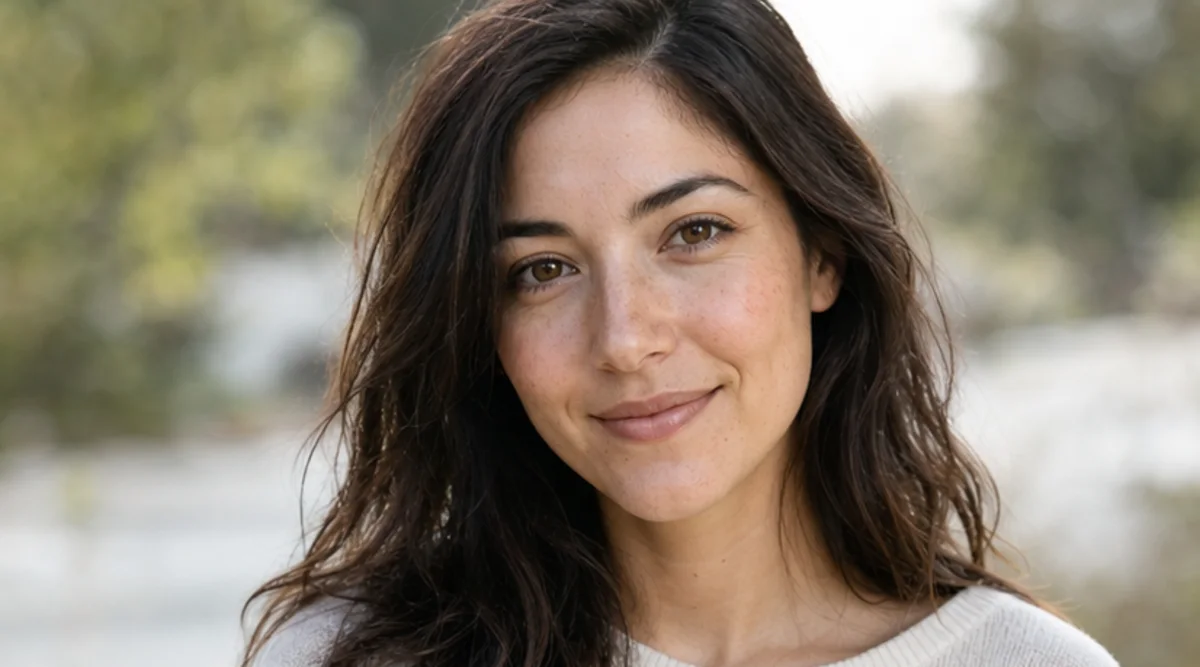
Planned ai photo editor capability input example

Prompt-led image changes

Use a text-guided photo edit to request a focused change such as a cleaner background, different setting, adjusted style, or refined subject presentation.

Planned ai photo editor capability direction example

Creative direction controls

Add visual direction for mood, lighting, composition, and setting so the generated variants are closer to the project brief.

Planned ai photo editor capability result example

Format-aware outputs

Set the destination format to prepare variants for the place you plan to use them, such as a social post, campaign visual, or presentation asset.

What You Can Create with AI Photo Editor

Create a result for practical visual tasks when you already have a source photo and need a specific change rather than a brand-new scene.

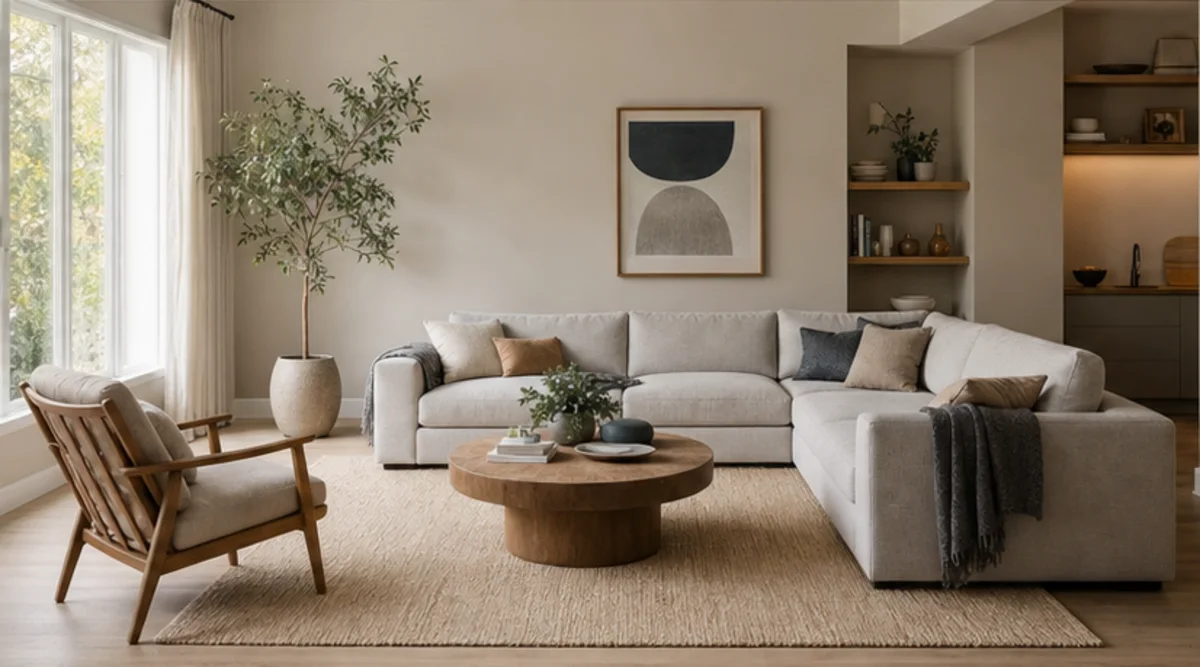
Planned ai photo editor use case one example

Refresh an existing photo

Start with the source and request a cleaner, more suitable setting for a campaign, profile, product, or editorial visual.

Planned ai photo editor use case two example

Explore a directed variation

Use a text-guided photo edit to describe one clear change, such as mood, background, subject emphasis, or setting.

Planned ai photo editor use case three example

Prepare project options

Generate a draft result that helps a team compare directions before committing to a final visual treatment.

Review AI Photo Editor Results Before Use

Before selecting a final version, check whether the edit matches the brief, preserves important details, and fits the destination format.

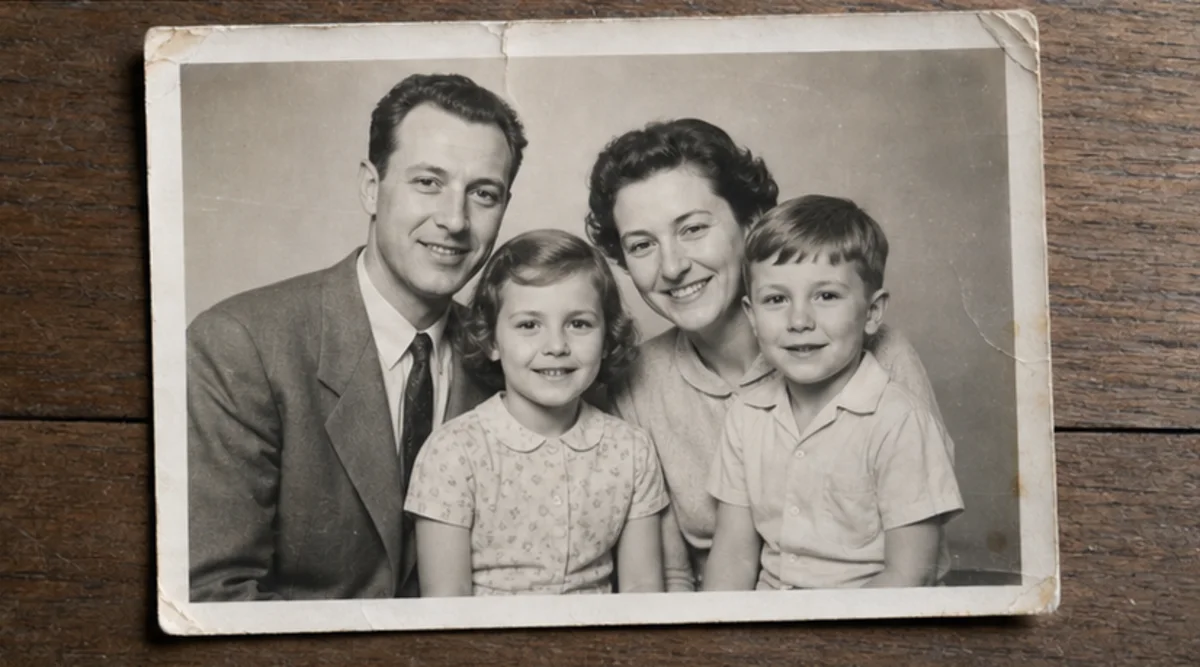
Planned ai photo editor review example

Brief fit

Compare the edited variant with the original goal, campaign need, or content brief before moving forward.

Important details

Inspect details such as subject identity, product features, background elements, edges, and any areas that must remain accurate.

Crop and format

Check whether the destination crop and format still keep the key subject, message, and composition intact.

AI Photo Editor Limitations

Generated results can vary, and important details may need careful inspection before you choose a final variant.

Result variation

Small wording changes can lead to different results, especially when the request changes subject, setting, or visual direction at the same time.

Detail sensitivity limits limiting final use?

Faces, hands, text, logos, product details, and other precise areas should be checked closely before a variant is treated as final.

AI Photo Editor FAQ

Answers to common questions about AI Photo Editor inputs, prompts, outputs, and practical editing expectations.

What do I need to use AI Photo Editor?
AI Photo Editor is designed for a source photo plus an edit prompt. It works best when your prompt names the subject, the change you want, and any important setting or style direction.
Can I edit photo with a prompt?
Yes. You can edit photo with a prompt by describing one clear change at a time, such as replacing a background, adjusting a setting, or refining the visual mood.
Is AI Photo Editor free to use?
The page may include a free entry point or trial-style access if shown in the live product experience, but no broad free-use promise should be assumed from this description.
What does the tool create?
A text-guided photo edit can produce edited photo variants. Generated results can vary, so inspect important details before using a variant in a final project.

Create with AI Photo Editor

Bring a source photo and a clear edit prompt, then create with AI Photo Editor for a focused visual result.