Photo to Digital Art Converter

Photo to Digital Art Converter

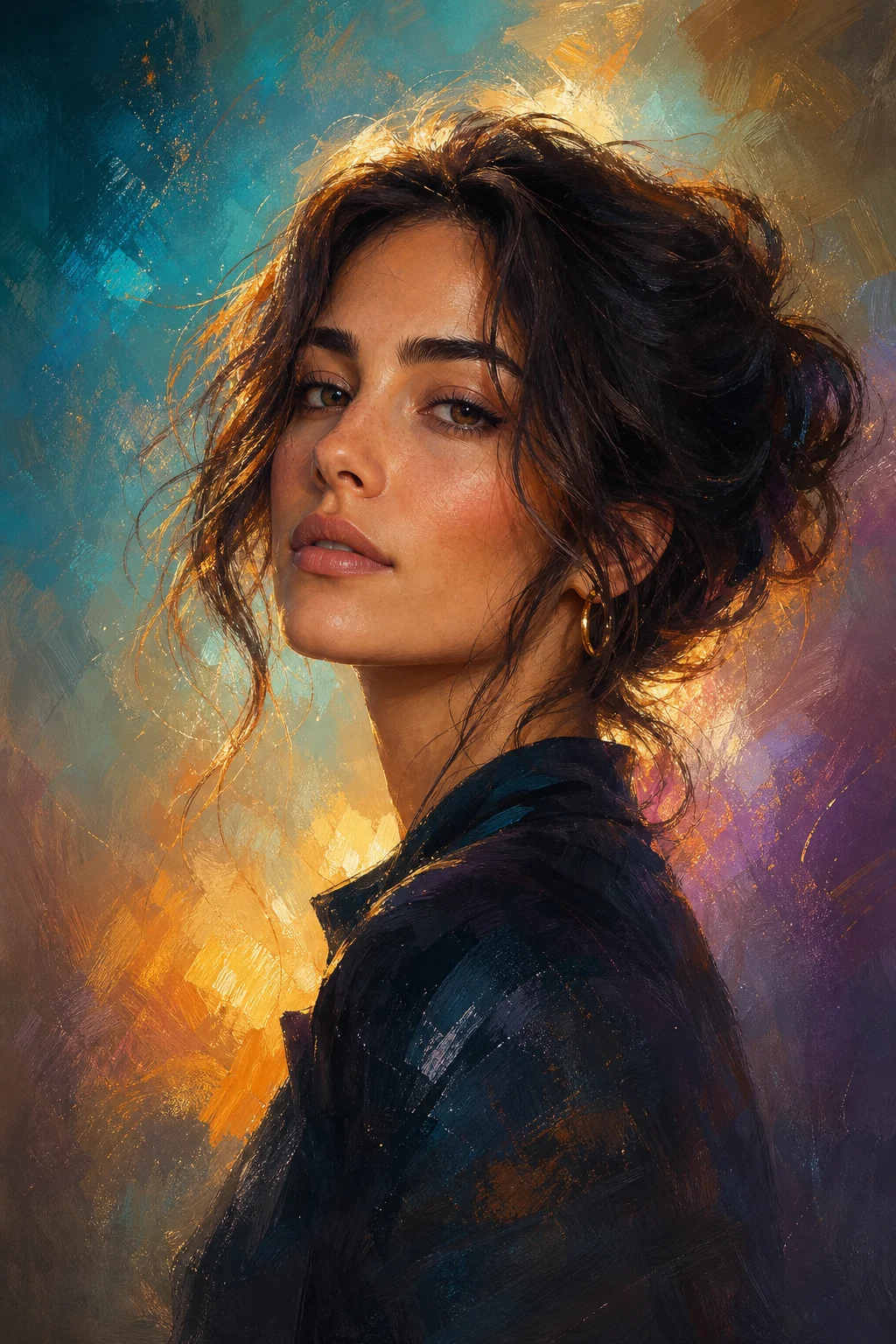
Upload a clear photo and turn it into polished digital artwork with painterly color, refined texture, controlled lighting, and a recognizable subject.

AI digital art portrait hero image
0 / 2000
Template prompt

Photo to Digital Art Converter

Apply the Photo to Digital Art effect to the uploaded image. Preserve the main subject identity or object shape, pose/layout, key colors, and important details. Convert the image into polished digital artwork with painterly color, refined texture, controlled lighting, crisp focal detail, tasteful stylization, and clean finished composition. Keep the uploaded subject recognizable while improving artistic presentation.

AI digital art portrait hero image

What is the Photo to Digital Art Converter?

The Photo to Digital Art Converter helps transform a source image into a finished digital art look while preserving the subject’s identity, pose, silhouette, key colors, and important details. It is suited for portraits, objects, creative references, social posts, mockups, and early visual drafts that need a more expressive artistic finish.

From photo to finished digital art

This template stylizes your photo into a more expressive digital art image while keeping the main subject visually connected to the original source.

What changes

  • Transforms a photo into polished digital artwork with painterly color, texture, and lighting.
  • Adds layered brush texture, vivid color, controlled illumination, and a cleaner finished composition around the original subject.
  • Creates a focused digital art preview that can be used for posts, mockups, references, or creative drafts.

What stays recognizable

  • Preserves the main subject identity or object shape, pose or layout, key colors, and important details.
  • Keeps the uploaded subject recognizable while improving the artistic presentation.
  • Maintains defining colors, silhouette, facial structure, clothing cues, object form, and other important subject details where visible.

How to use the Photo to Digital Art Converter

Follow a simple process to convert photo to digital art and check that the finished image still reflects the original subject.

1

Upload a clear photo

Choose a sharp image where the face, object, pose, colors, and key details are visible. Avoid heavy blur, extreme cropping, or blocked areas.

2

Apply the digital art effect

Use the Photo to Digital Art Converter effect to apply painterly color, refined texture, controlled lighting, and a clean digital art composition.

3

Review and refine

Check the subject identity, silhouette, pose, facial details, edges, and background transitions. If needed, try a clearer source or more specific direction.

4

Download your selected result

Save the version that best matches your visual direction for a post, mockup, reference, presentation, or creative draft.

Digital art style examples

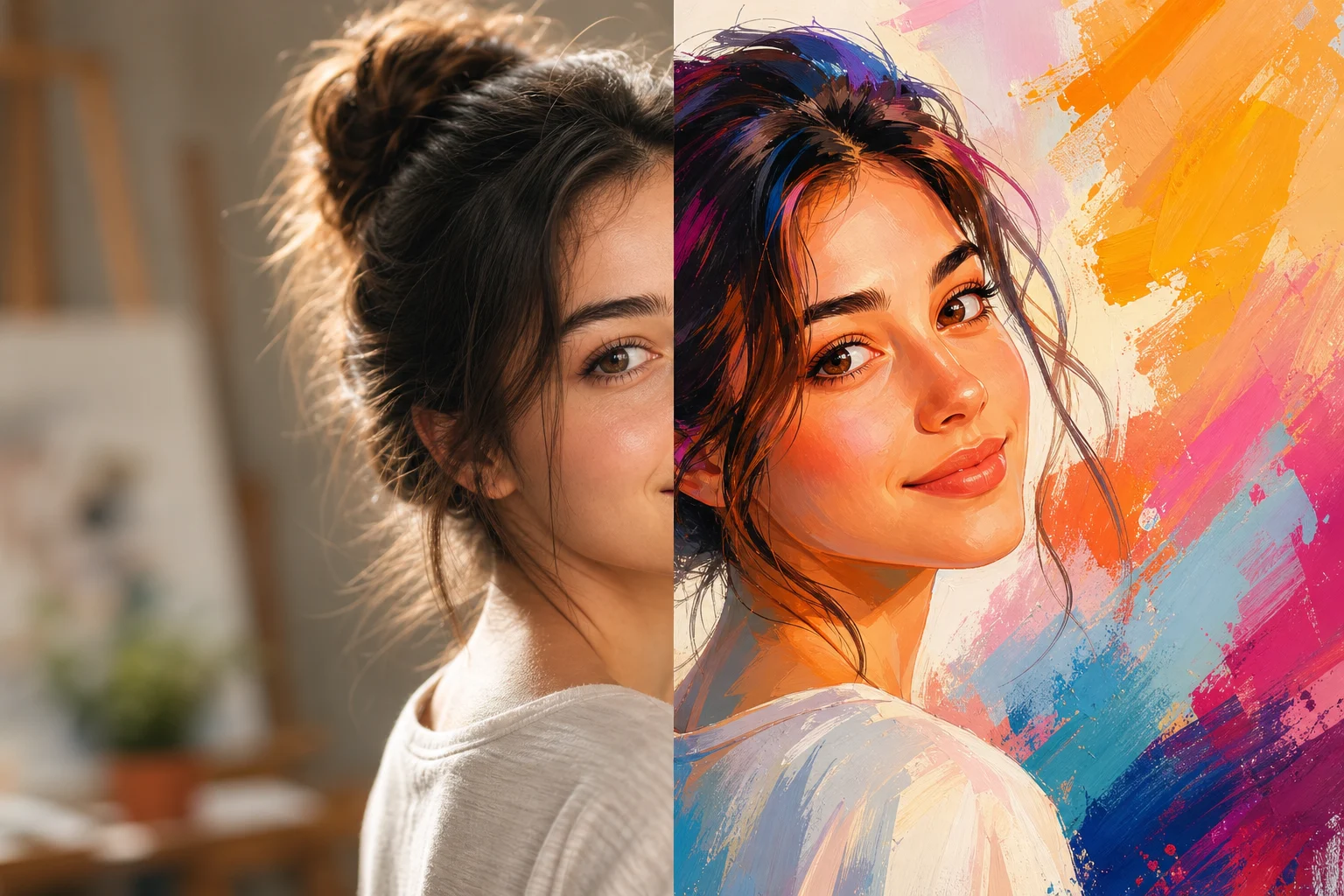
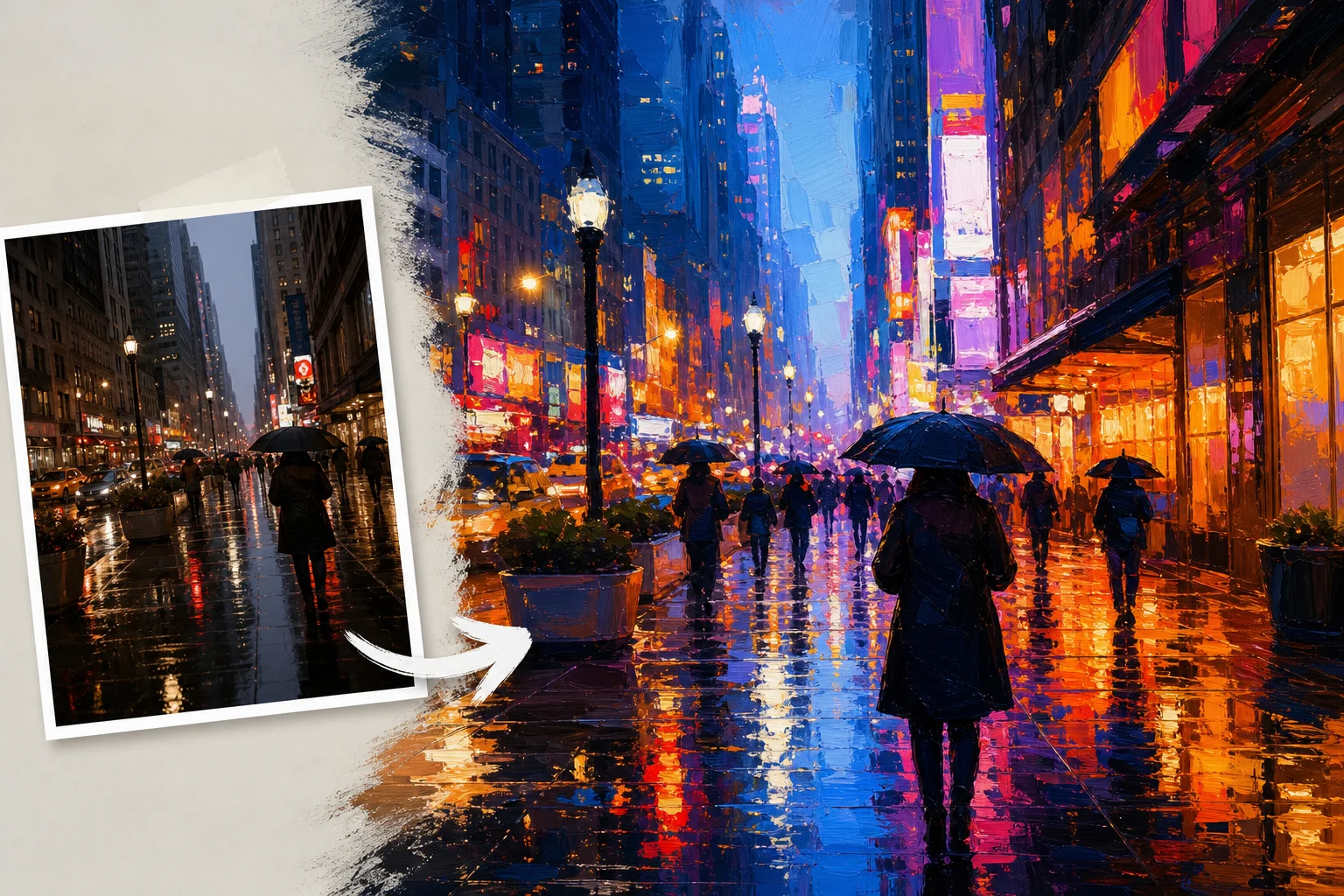
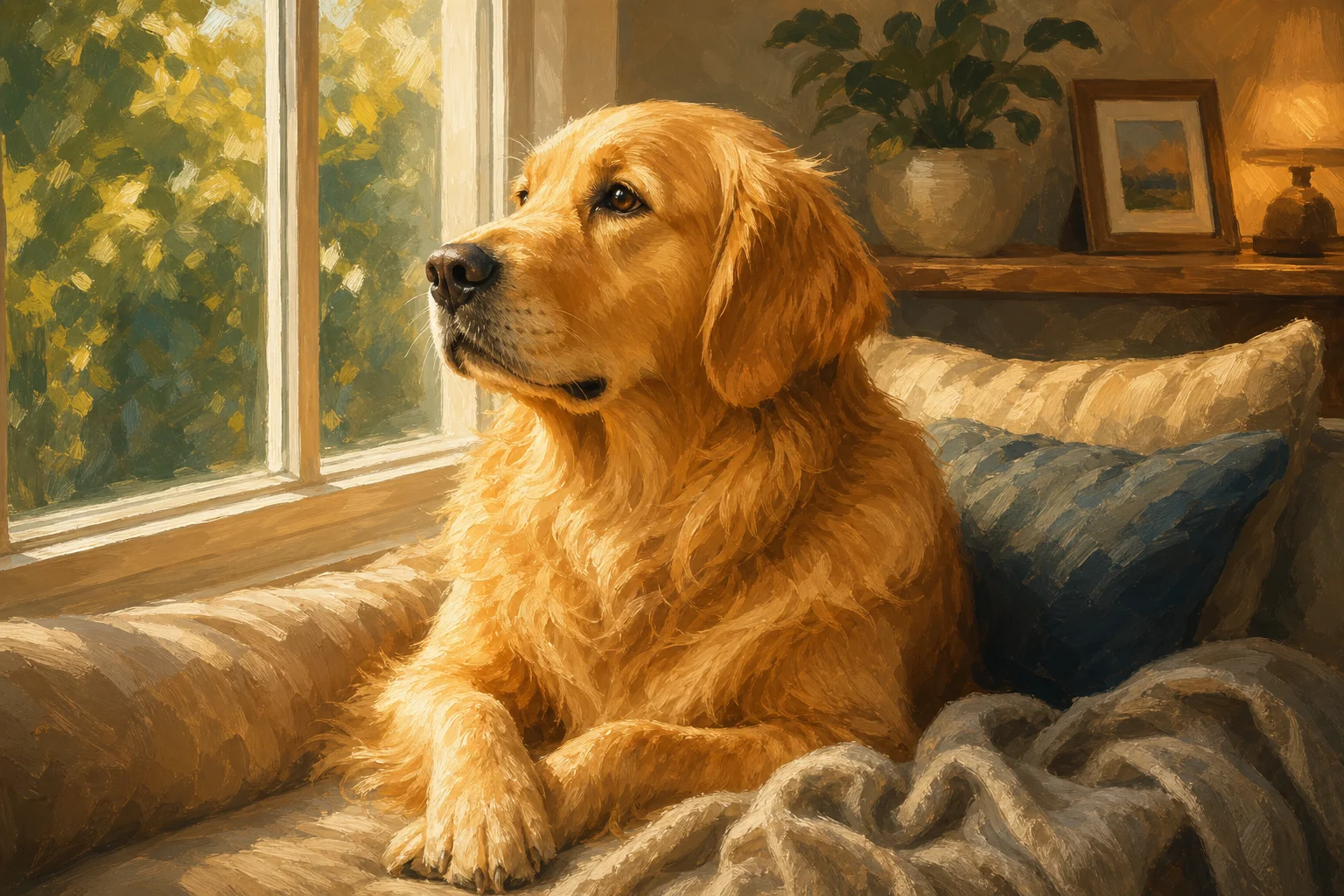
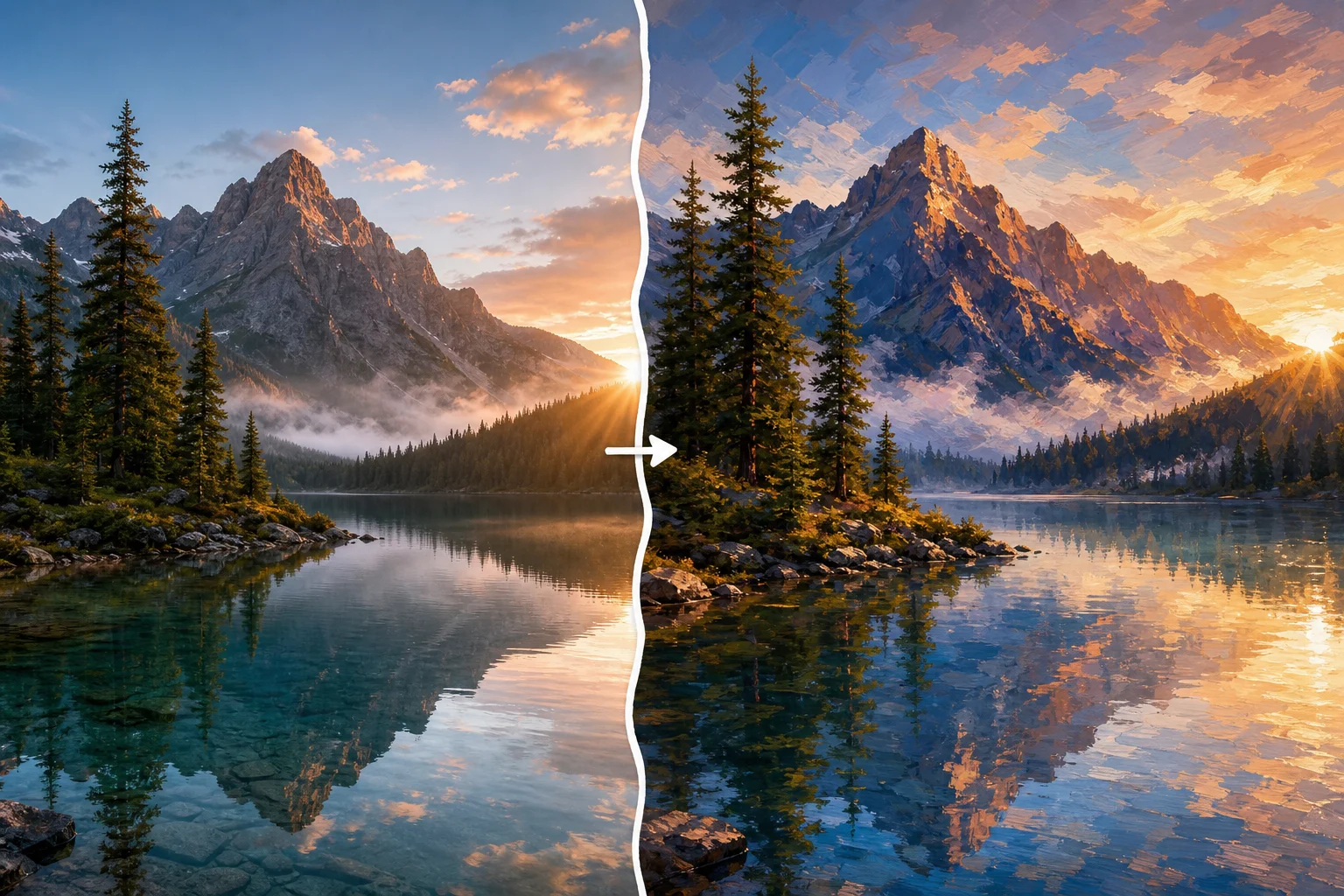
Explore different digital art directions while keeping the portrait structure, expression, and focal subject recognizable.

AI digital art portrait 1

Painterly portrait finish

A polished portrait with painterly color, soft lighting, and detailed facial focus for a refined digital art look.

AI digital art portrait 2

Vivid digital art style

A vivid stylized version with stronger contrast, expressive color, and clean composition around the subject.

AI digital art portrait 3

Soft artistic lighting

A softer creative treatment with refined texture, controlled highlights, and a balanced art-inspired atmosphere.

AI digital art portrait 4

Detailed illustrative look

A crisp digital portrait direction with clear subject detail, layered brush texture, and a finished illustrative feel.

Ways to use this template

Use the Photo to Digital Art Converter when you need a polished visual direction based on an existing image, without losing the subject that makes the photo useful.

Create a first version fast

Turn a clear photo into an initial digital art version for quick review, inspiration, or creative planning.

Adapt the style to your project

Adjust the mood, color, lighting, or painterly finish so the artwork fits a personal project, presentation, post, or design mockup.

Create another version

Create another variation when you want to compare texture, lighting, color intensity, or overall artistic direction.

Preview a creative direction

Make a focused Photo to Digital Art Converter preview for a portrait, character idea, product reference, or visual concept.

Evaluate before moving forward

Compare the result with the original photo before refining, sharing, or presenting the artwork.

How to get a better digital art result

A stronger source photo and a clear style direction help the result keep the original subject recognizable while improving the artistic finish.

Source image checklist

  • Use a sharp source image with the main subject clearly visible.
  • Avoid heavy blur, blocked details, extreme crops, or confusing overlaps.
  • Choose a source whose pose and framing support the intended Photo to Digital Art Converter result.

Prompt guidance

Describe the subject, mood, color palette, lighting, and finish you want. Mention any features that must stay accurate, such as the face, pose, clothing, object shape, key colors, or background relationship.

Review before you use the result

Generated details can vary, so review the artwork carefully before sharing, presenting, or refining it further.

Subject recognition

Compare the result with the source image to make sure the subject identity, silhouette, pose, and defining details still match.

Art style coherence

Look for consistent painterly texture, vivid color, controlled lighting, and a clean digital art finish across the full image.

Detail quality

Inspect faces, hands, text, edges, small objects, and background transitions for distortions or distracting artifacts.

Photo to Digital Art Converter FAQ

Common questions about preparing a photo, choosing the effect, and reviewing the finished digital artwork.

What is the Photo to Digital Art Converter?
It is a template for converting a photo into polished digital artwork. The effect adds painterly color, layered texture, refined lighting, and a clean composition while keeping the original subject recognizable.
Is the Photo to Digital Art Converter free?
Availability can vary by platform access and account settings. Check the current options shown when you open the template.
How do I use the Photo to Digital Art Converter?
Upload a clear source image, choose the Photo to Digital Art Converter effect, then review the result for subject accuracy, lighting, texture, and small-detail consistency before downloading or refining it.
What image formats does the Photo to Digital Art Converter support?
Use a common image format supported by the upload tool, such as a standard photo file from your device. For best results, choose a sharp image with the subject clearly visible.
Can I use digital artwork commercially?
Usage depends on the rights you have to the source photo and the terms that apply to your project. Review those requirements before using the artwork in public, client, or sales-related materials.
What details should I include for Photo to Digital Art Converter?
Include the subject type, desired mood, color direction, lighting style, and any details that must remain accurate, such as clothing, accessories, pose, facial features, or object shape.
What makes Photo to Digital Art Converter useful?
It is useful when you want a fast visual direction that feels more artistic than the original photo while still keeping the person, object, or scene easy to recognize.
What Photo to Digital Art Converter changes?
It changes the photo into digital artwork with layered brush texture, more vivid color, controlled lighting, crisp focal detail, tasteful stylization, and a cleaner finished composition.

Convert your photo to Digital Art

Create a polished digital art version of your photo, then review the subject, texture, lighting, and composition before using the result in your project.