AI Baby Filter for Playful Baby Face Portraits

AI Baby Filter for Playful Baby Face Portraits

Turn a clear portrait into a playful Baby version with softer cheeks, rounder proportions, youthful texture, and enough familiar detail to still feel like the same person.

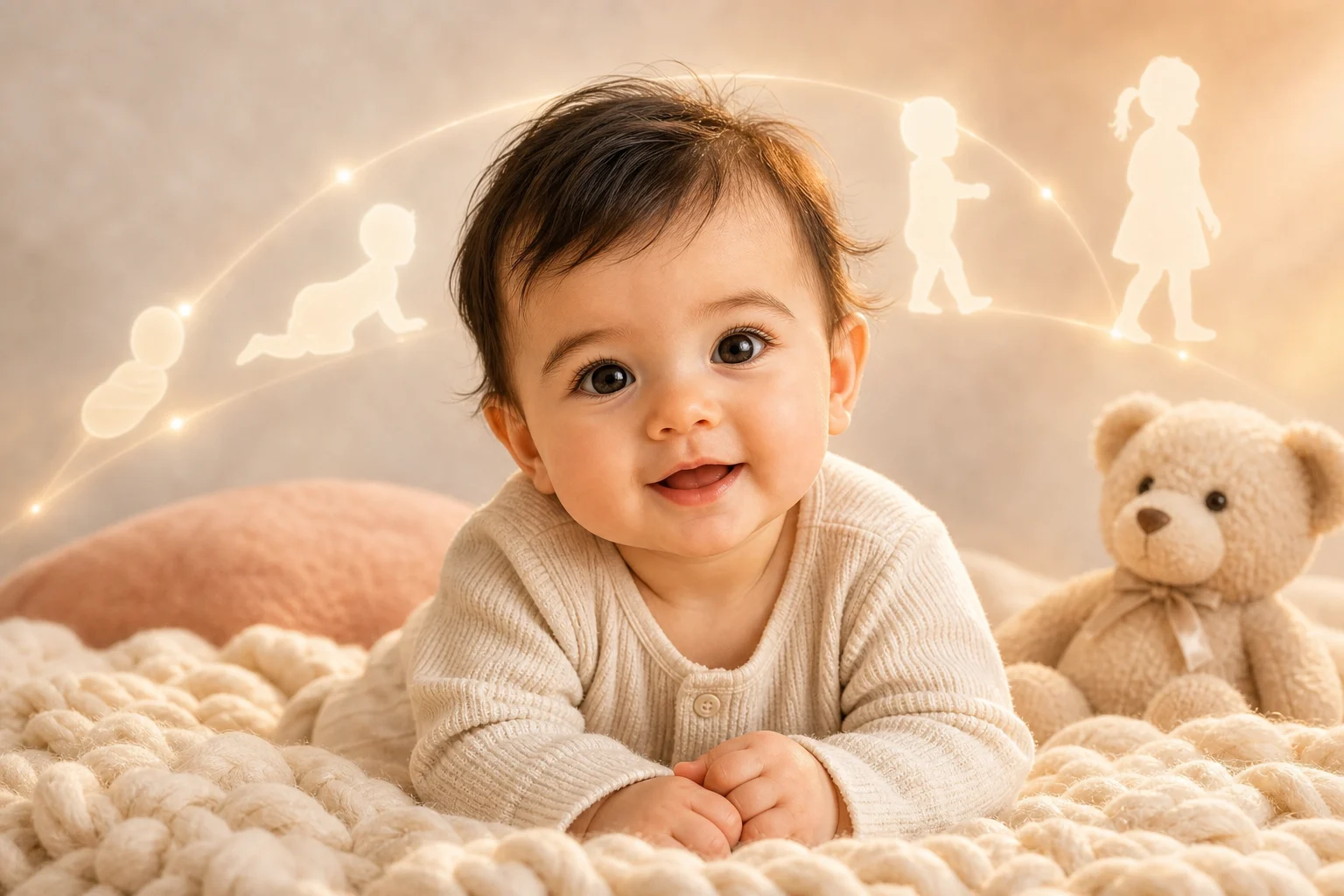
AI baby filter portrait main result
0 / 2000
Template prompt

AI Baby Filter for Playful Baby Face Portraits

Apply the AI Baby Filter effect to the uploaded portrait. Preserve the person's core identity markers, eye shape, face structure, skin tone family, expression direction, and recognizable traits. Rebuild the face as a believable baby or toddler version with soft cheeks, smaller facial proportions, youthful skin texture, rounder features, gentle lighting, and natural photo realism. Do not change the subject into a different person.

AI baby filter portrait main result

What is the AI Baby Filter?

The AI Baby Filter transforms a portrait into a believable baby or toddler-inspired version of the subject. It focuses on soft cheeks, rounder facial features, youthful proportions, gentle lighting, and a natural photo look while keeping key identity cues visible.

What the AI Baby Filter changes and preserves

This template is designed for a soft, recognizable Baby face transformation rather than a full identity change.

What changes

  • Creates a playful Baby-version portrait with rounder features, soft cheeks, youthful proportions, and enough facial detail to still feel like the original person.
  • Generates baby-face portraits with composition, lighting, and details tuned for this specific look.
  • Lets you preview the AI Baby Filter result before downloading, then rerun with a clearer photo or tighter prompt when needed.
  • Helps you upload a clear image, review the preview, and keep the version that fits your personal or creative use case.

What stays recognizable

  • Preserves the person's core identity markers, eye shape, face structure, skin tone family, expression direction, and recognizable traits.
  • Keeps the main subject recognizable from the source image.
  • Maintains defining colors, pose, silhouette, and important subject details in a coherent way.

How to use the Baby Filter online

Follow a simple edit flow to create and evaluate your Baby-style portrait.

1

Upload a clear image

Choose a sharp portrait where the face, expression, pose, and defining details are easy to see.

2

Describe the Baby look

Ask for a believable Baby or toddler version with soft cheeks, rounder features, youthful texture, and preserved identity cues.

3

Review and refine

Compare the preview with the source image, then adjust with a clearer photo or more specific wording if the result needs refinement.

AI Baby Filter examples

Explore different Baby portrait examples to see how softer cheeks, rounder features, lighting, and recognizable details can work together.

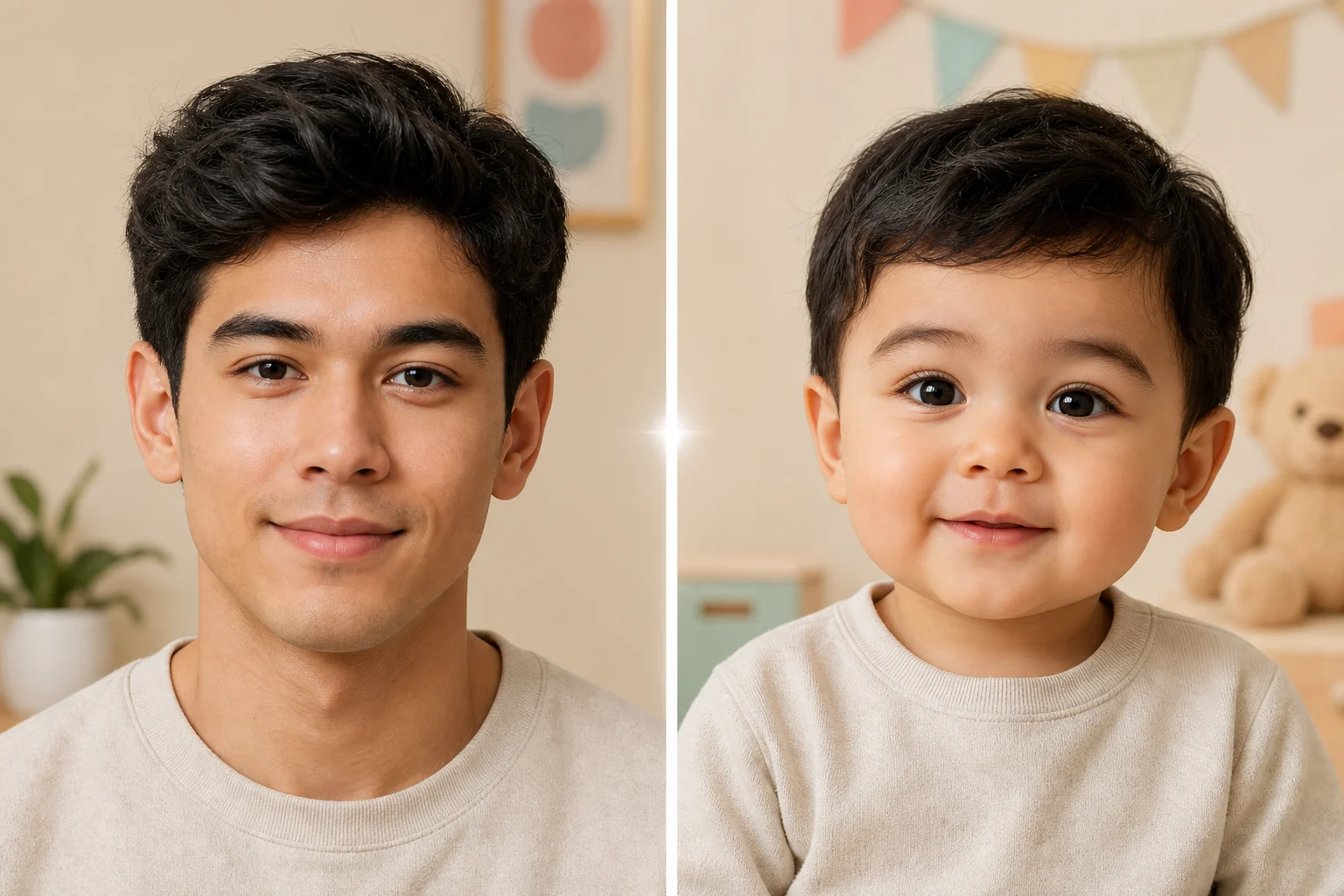
AI baby filter portrait example 1

Soft cheek Baby portrait

A soft Baby face portrait with rounded cheeks, gentle lighting, and a familiar expression direction.

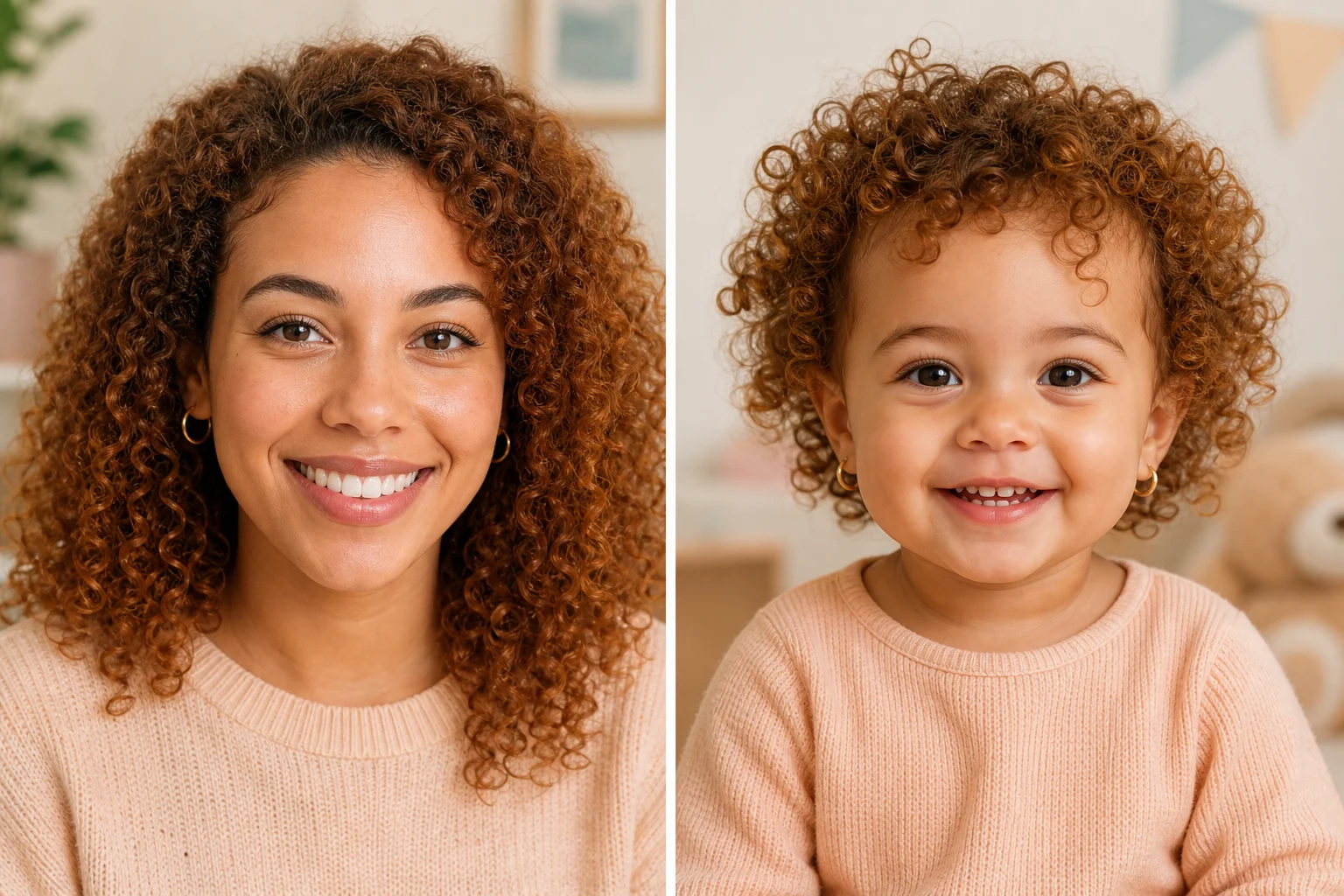
AI baby filter portrait example 2

Playful toddler-style look

A playful younger-face result that keeps the subject centered while emphasizing youthful facial proportions.

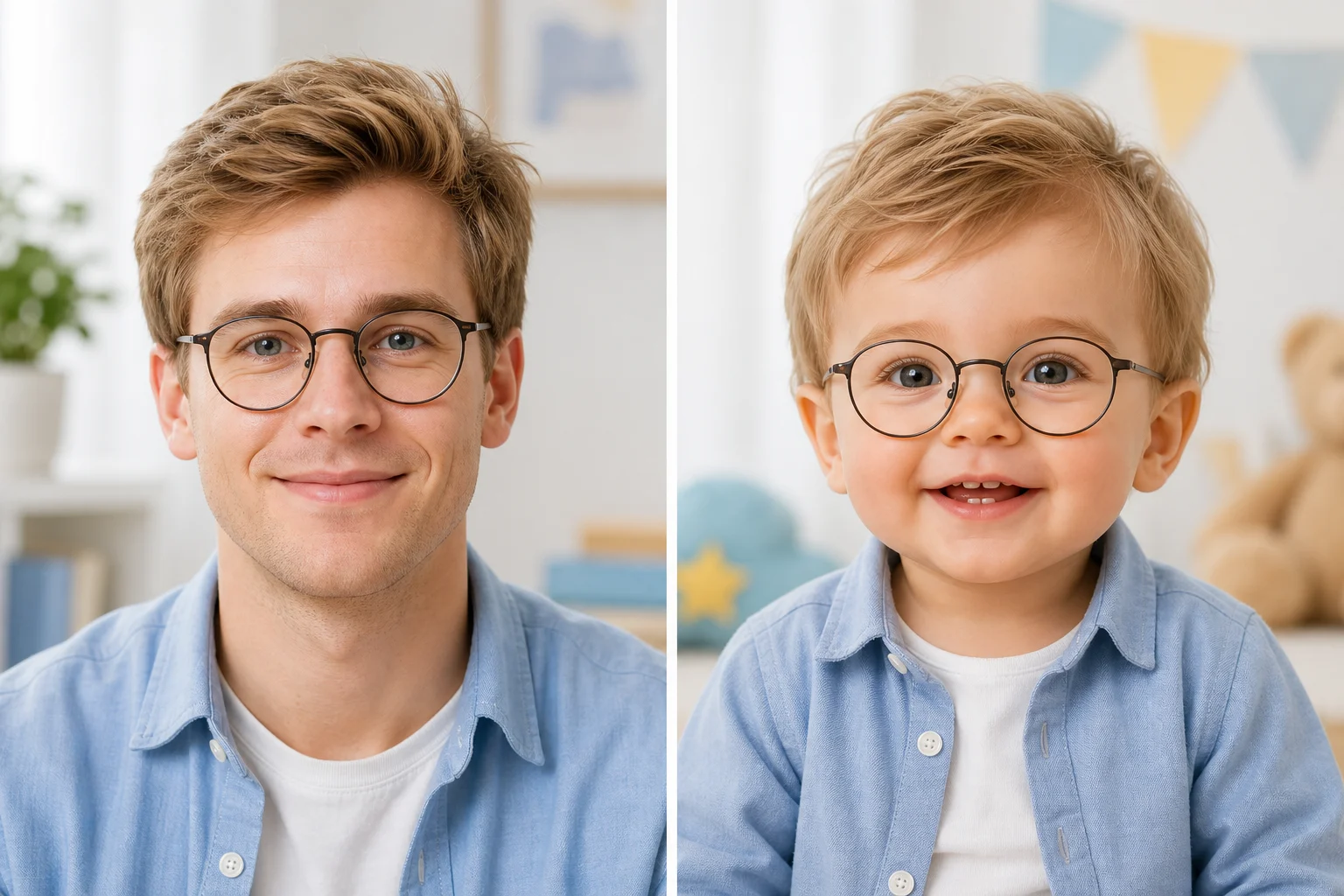
AI baby filter portrait example 3

Natural baby face finish

A natural Baby Filter example with coherent skin tone, pose, and portrait lighting for a believable finish.

Ways to use the AI Baby Filter

Use the Baby Filter when you want a lighthearted younger portrait that still connects clearly to the original person.

Personal portrait experiments

Create a focused AI Baby Filter preview for a personal image, profile concept, family-themed edit, or creative portrait idea.

Creative direction checks

Compare the Baby face direction before refining, sharing, or presenting the result as part of a visual concept.

How to get a better Baby Filter result

A strong result starts with a clear source photo and a prompt that asks for a Baby version without turning the subject into someone else.

Source image checklist

  • Use a sharp source image with the main subject clearly visible.
  • Avoid heavy blur, blocked details, extreme crops, or confusing overlaps.
  • Choose a source whose pose and framing support the intended AI Baby Filter result.

Prompt guidance

Describe the exact Baby face direction you want: soft cheeks, rounder features, youthful skin texture, natural lighting, and recognizable identity. If the first preview drifts too far, tighten the prompt around the person’s eye shape, expression, pose, and defining traits.

Review the AI Baby Filter preview

Generated details can vary between runs, so review the preview carefully and rerun with a clearer photo or more specific prompt when needed.

Identity and expression

Compare the Baby version with the source photo and make sure the subject still feels like the same person.

Baby face treatment

Check that soft cheeks, rounder proportions, youthful texture, and gentle lighting appear coherent across the whole portrait.

Detail quality

Inspect faces, hands, text, edges, small objects, and background transitions for artifacts before saving or sharing.

AI Baby Filter FAQ

Common questions about preparing photos, reviewing results, and keeping the Baby face effect recognizable.

What is the AI Baby Filter?
The AI Baby Filter is a portrait effect that creates a younger Baby-style version of a person, with softer cheeks, rounder features, youthful skin texture, and recognizable facial details from the original image.
Is the AI Baby Filter free?
Availability and access can change, so check the current page experience for the latest options before starting your edit.
How do I use the AI Baby Filter?
Upload a clear portrait, use the Baby Filter prompt to describe the look you want, preview the result, and keep the version that best matches your source and intended style.
What photos work best for baby face generation?
Sharp, well-lit portraits work best. Choose an image where the face is visible, not heavily blurred, not blocked by objects, and not cropped so tightly that important features are missing.
Can I use AI Baby Filter results commercially?
Usage permissions can depend on the image, platform terms, and project context. Review the current terms and make sure you have the rights you need for your intended use.
What AI Baby Filter changes should I expect?
It reshapes the portrait toward a Baby face look by softening cheeks, rounding features, adjusting youthful proportions, and keeping the pose, expression direction, and major identity markers coherent.
Which source image works best?
Use a source image with one clear main subject, visible eyes and facial structure, natural framing, and enough detail for the effect to preserve recognizable traits.
How do I keep the subject recognizable?
Start with a clear portrait and review the preview closely. Compare eye shape, expression, skin tone family, face structure, pose, and other defining details against the original photo.

Create your Baby-style portrait

Upload a clear portrait and create a playful Baby face version with soft cheeks, youthful proportions, and familiar identity details.