
01
Lepaskan imej JPG
atau pilih daripada peranti anda. Fail ditukar secara setempat dalam pelayar.
Tukar kepada WebP atau pilih daripada peranti anda. Fail ditukar secara setempat dalam pelayar.
Format input
JPG
.jpg / .jpeg
Format output
WebP
.webp
Kualiti WebP
Imbangkan kejelasan dan saiz fail
Sumber
Hasil WebP
Pilih pasangan input dan output seterusnya tanpa kembali ke senarai alat.
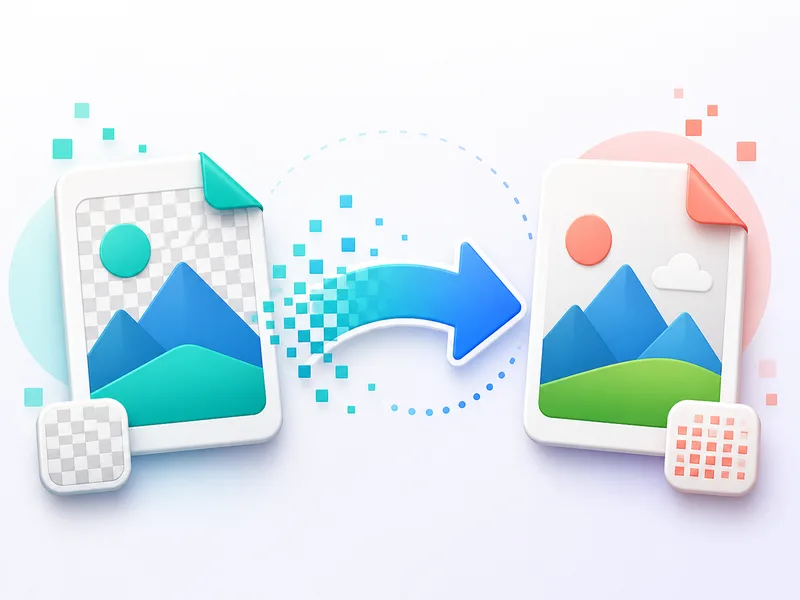
Isi bahagian lutsinar dengan warna putih terus dalam pelayar. Pilih imej PNG atau WebP, pratonton hasilnya dan muat turun sebagai JPG.
Tukar kepada JPGTukar kepada JPG atau pilih daripada peranti anda. Fail ditukar secara setempat dalam pelayar.
Tukar kepada JPGTukar kepada PNG atau pilih daripada peranti anda. Fail ditukar secara setempat dalam pelayar.
Tukar kepada PNGTukar kepada WebP atau pilih daripada peranti anda. Fail ditukar secara setempat dalam pelayar.
Tukar kepada WebPTukar kepada JPG atau pilih daripada peranti anda. Fail ditukar secara setempat dalam pelayar.
Tukar kepada JPGTukar kepada PNG atau pilih daripada peranti anda. Fail ditukar secara setempat dalam pelayar.
Tukar kepada PNGPilih pasangan input dan output seterusnya tanpa kembali ke senarai alat.
atau pilih daripada peranti anda. Fail ditukar secara setempat dalam pelayar.
Imbangkan kejelasan dan saiz fail
Kembali ke alat ClipCanva dan pilih penukaran WebP, PNG, JPG, AVIF atau JFIF seterusnya.
Hasil dipaparkan selepas penukaran
atau pilih daripada peranti anda. Fail ditukar secara setempat dalam pelayar.
Imbangkan kejelasan dan saiz fail
Muat turun WebP
Pilih pasangan input dan output seterusnya tanpa kembali ke senarai alat.
Kembali ke alat ClipCanva dan pilih penukaran WebP, PNG, JPG, AVIF atau JFIF seterusnya.