01
Pilih satu imej yang jelas
Muat naik imej tajam dengan subjek kelihatan dan ruang mencukupi di sekelilingnya. Halaman ini menerima satu rujukan; sediakan komposisi sebelum menjana.
Mulakan dengan satu foto produk, potret atau ilustrasi. Terangkan gerakan kecil subjek atau kamera, pilih tetapan video yang tersedia dan bandingkan klip dengan imej anda.
Penjana bermula dengan HappyHorse. Semak pemilih semasa untuk model, tetapan dan kos kredit yang tersedia. Panduan model tidak menjamin ketersediaan atau hasil tertentu.
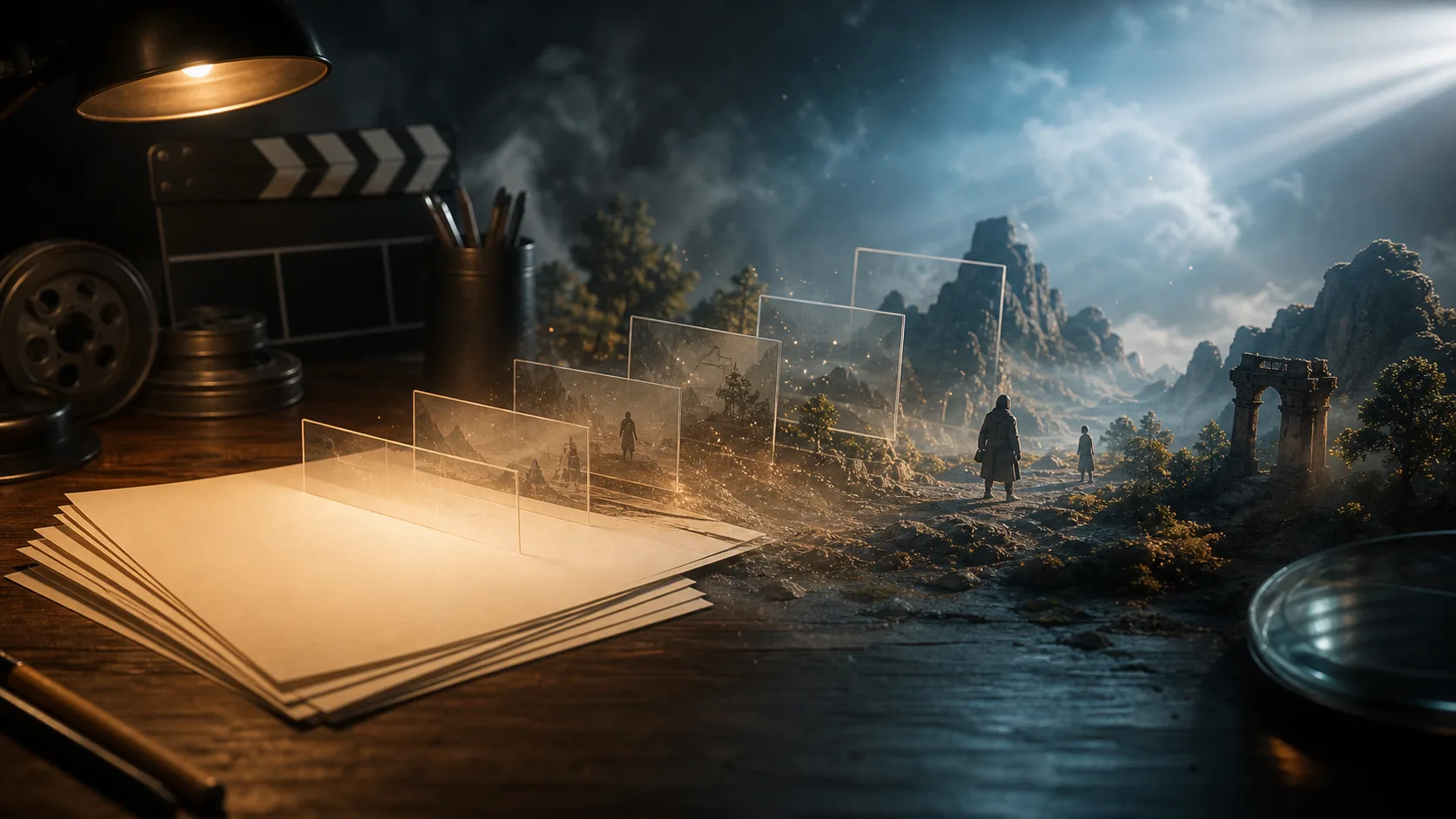
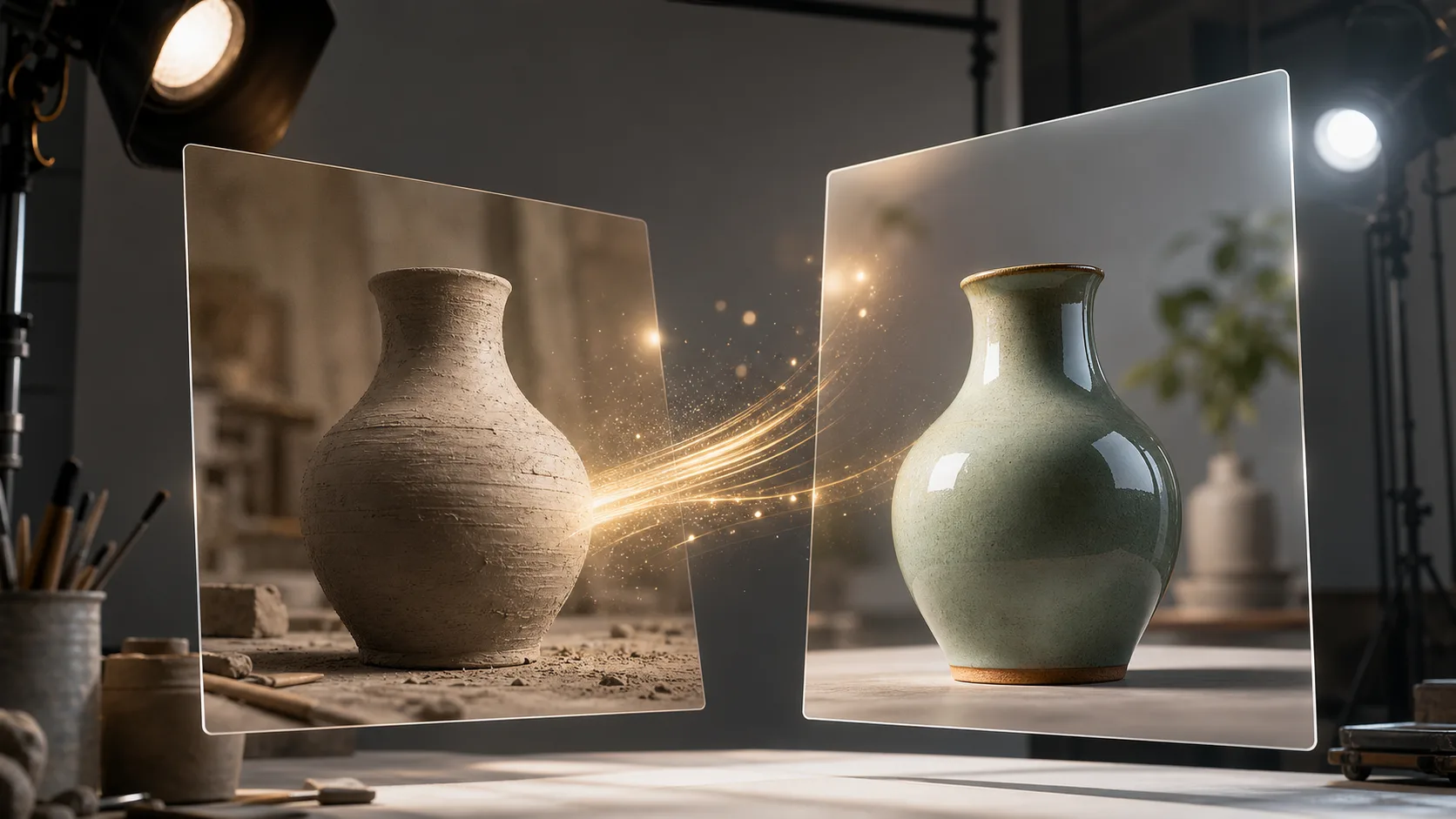
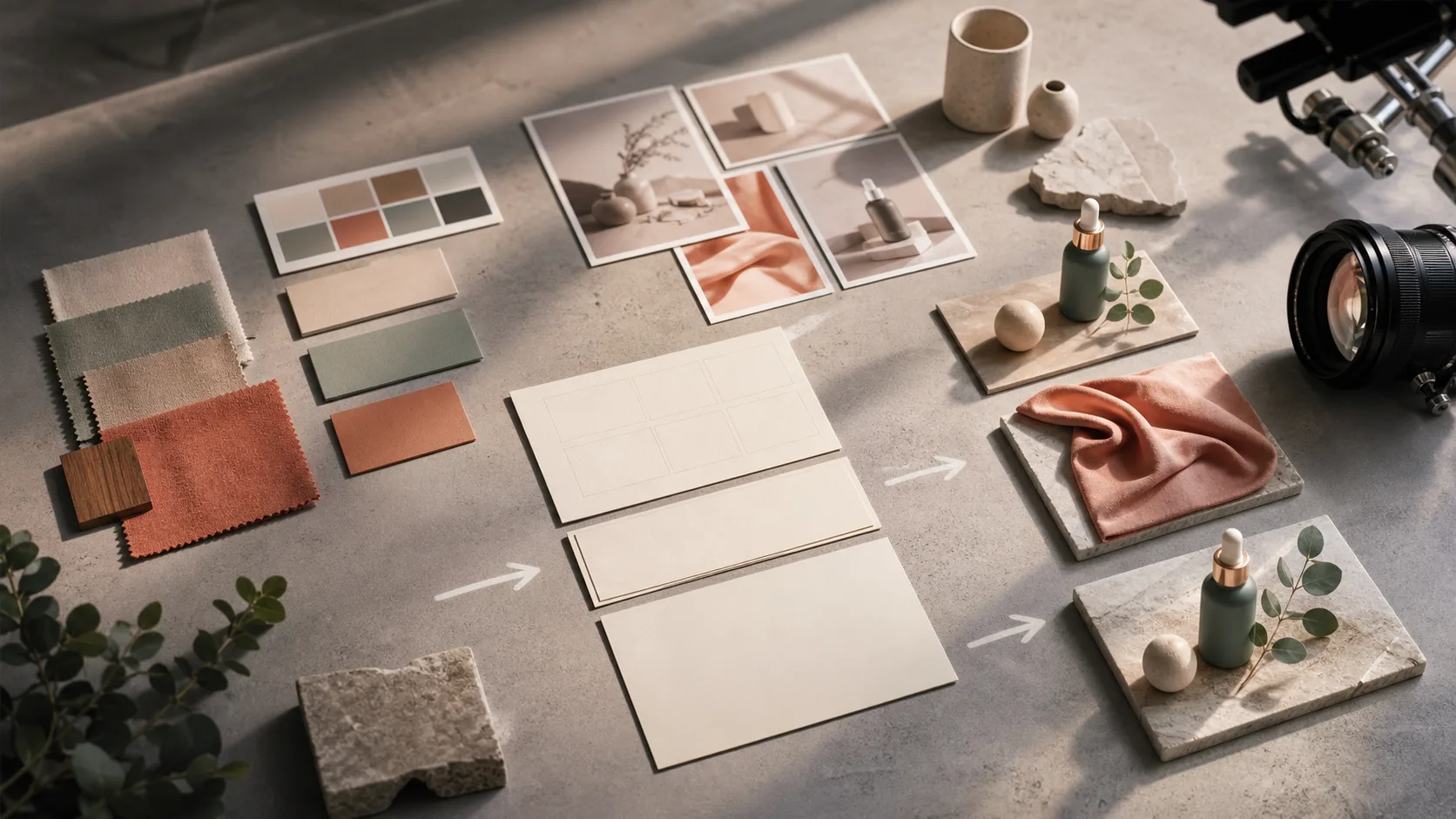
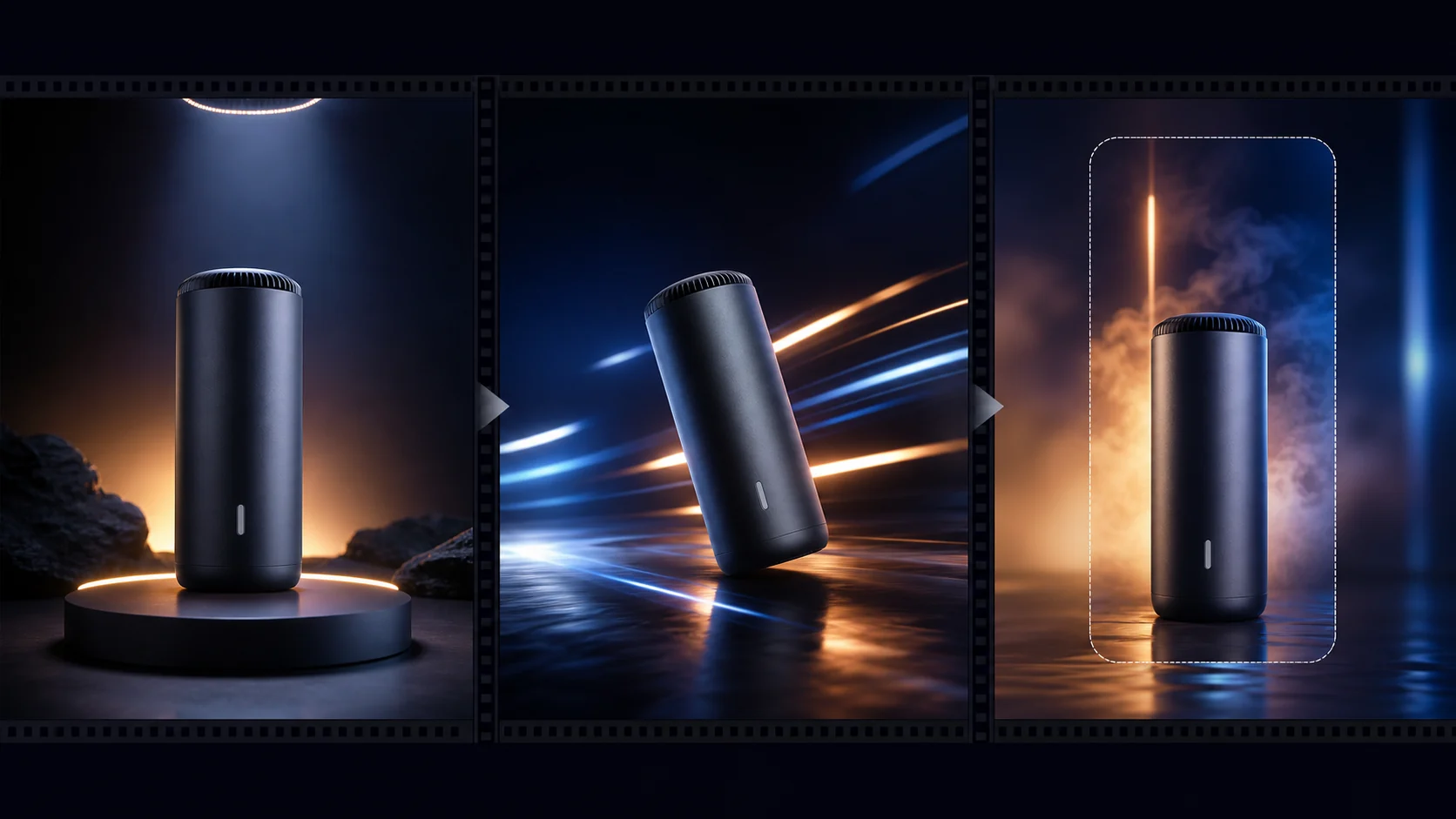
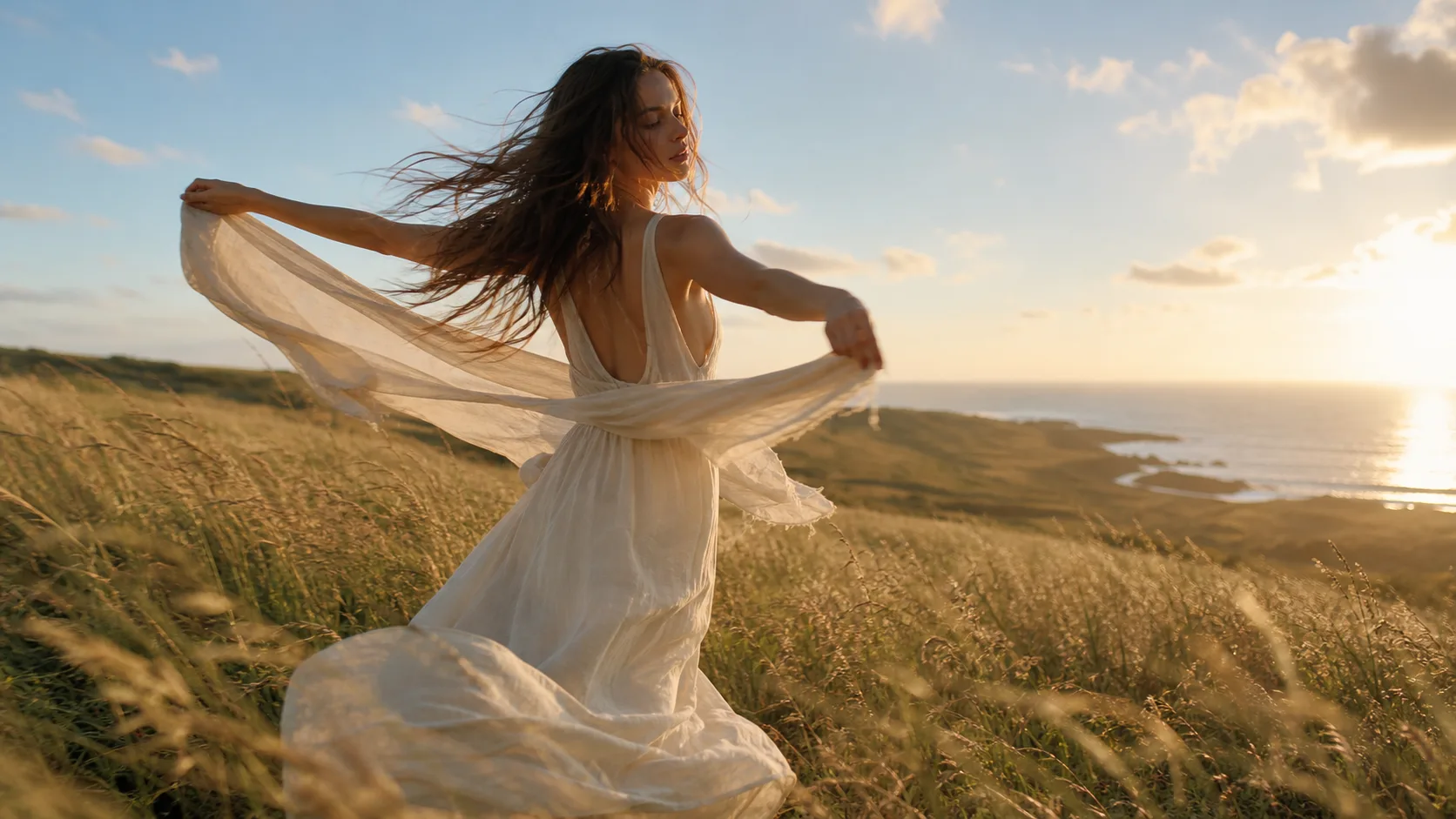
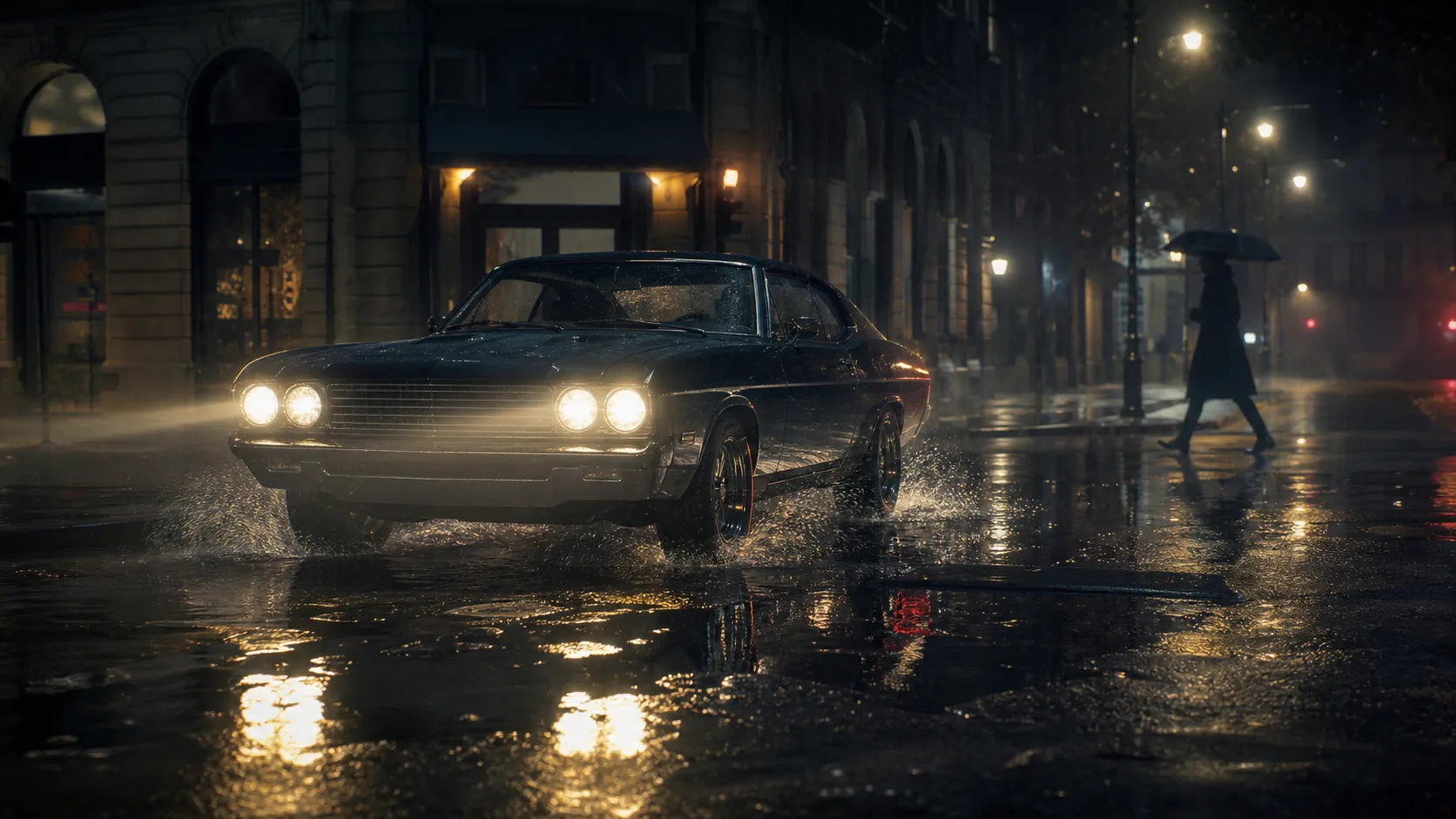
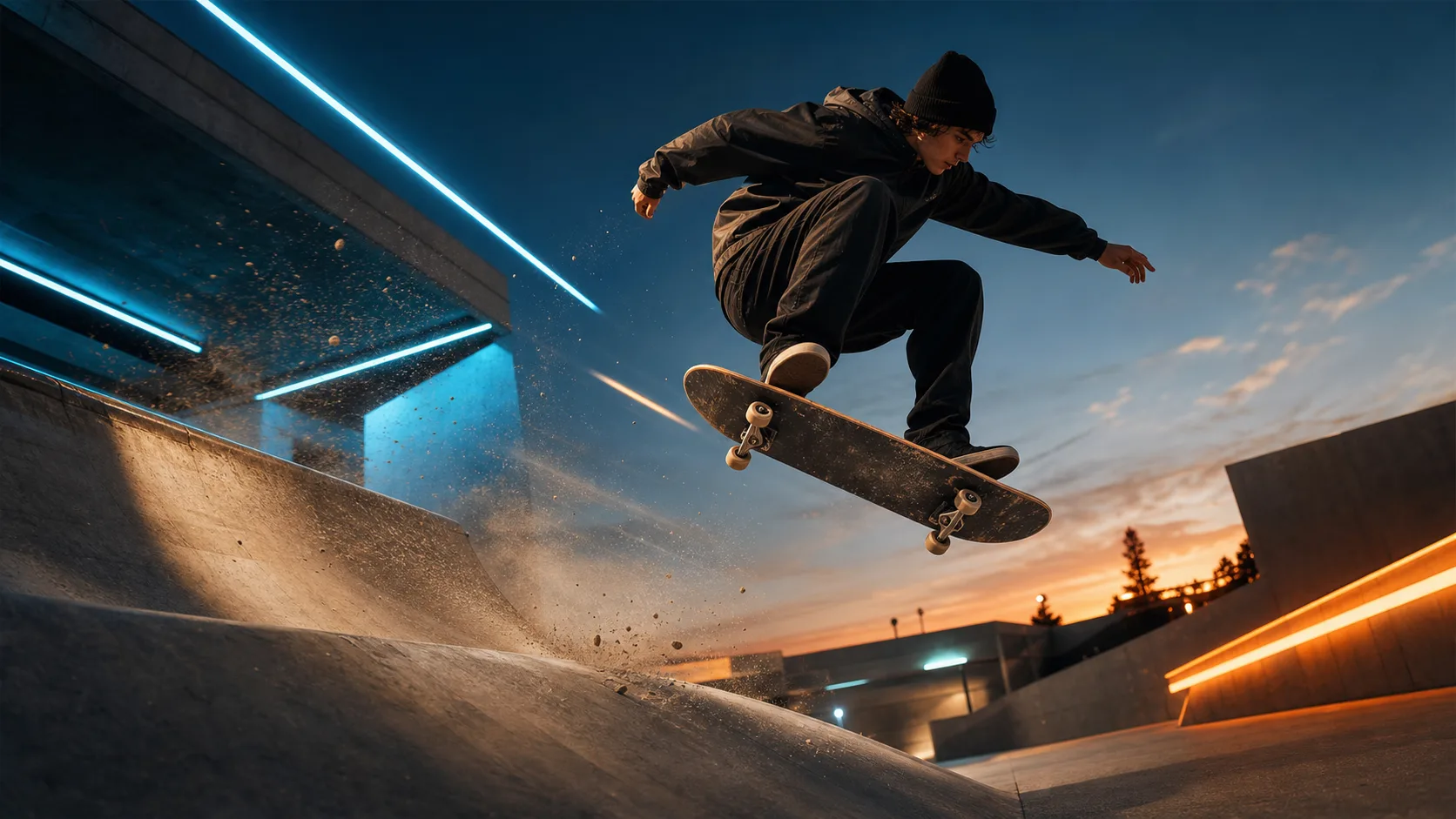
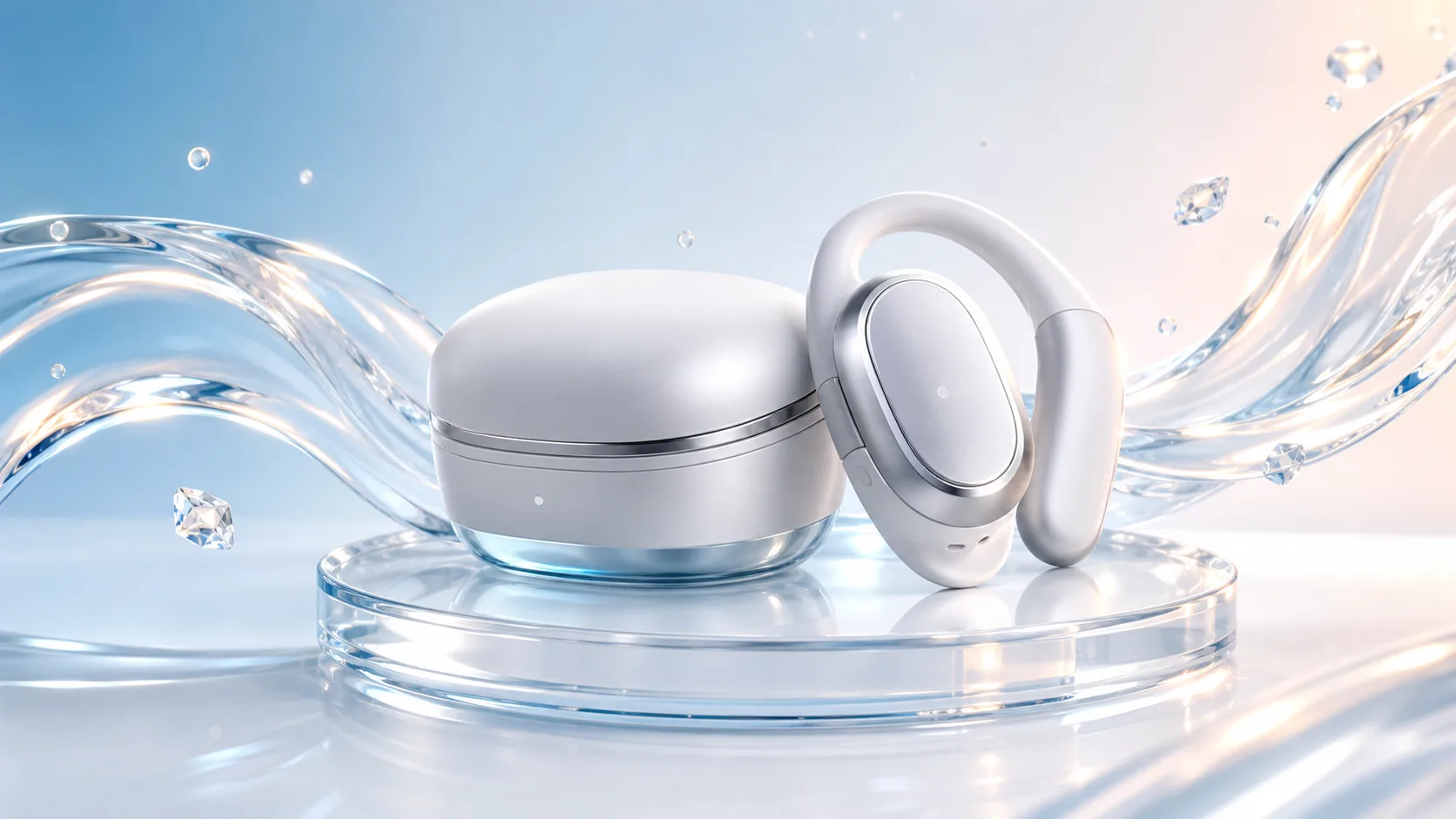
Imej pegun ini menggambarkan idea perancangan, bukan rakaman hasil penjanaan. Muat naik rujukan anda dahulu, gunakan satu arahan dan semak output.
Imej ialah titik mula visual dan arahan memberikan hala gerakan. Butiran yang diminta tidak dijamin kekal sama.
Muat naik imej tajam dengan subjek kelihatan dan ruang mencukupi di sekelilingnya. Halaman ini menerima satu rujukan; sediakan komposisi sebelum menjana.
Nyatakan tindakan kecil subjek atau satu gerakan kamera. Terangkan butiran produk, wajah atau latar yang penting; elakkan meminta beberapa pertukaran adegan.
HappyHorse ialah pilihan awal. Pilih model yang tersedia dan semak tempoh, nisbah bidang, resolusi serta kos kredit yang dipaparkan sebelum menjana.
Bandingkan hasil dengan imej anda bingkai demi bingkai. Jika label, wajah atau tepi berubah, ringkaskan gerakan atau gunakan imej lebih jelas sebelum mencuba lagi.
Gunakan foto produk, potret, ilustrasi atau adegan. Imej rujukan tambahan berada di luar proses satu imej halaman ini.
Terangkan tindakan dan gerakan kamera dalam arahan. Ini ialah panduan penjanaan, bukan kawalan penyuntingan yang tepat.
Gunakan pilihan yang kini dipaparkan untuk model pilihan anda. Tetapan yang disokong dan kos boleh berbeza mengikut model.
Jana syot tertumpu untuk butiran produk, hantaran sosial atau ujian kreatif. Susun cerita yang lebih panjang secara berasingan.
Semak wajah, bentuk produk, label, tangan dan tepi latar sebelum menggunakan klip. Imej rujukan tidak menjamin konsistensi sempurna.
Beralih antara penjanaan imej pegun, penyuntingan rujukan dan penciptaan video.
Imej percuma mempunyai tera air. Naik taraf untuk output bersih, penjanaan lebih pantas dan penggunaan komersial.
Pek Permulaan
Pek kredit sekali sahaja untuk mencuba penjanaan imej, muzik dan video pendek.
Pencipta
Pelan bulanan · 1,500 kredit diperbaharui setiap bulan
GPT Image 2 Unlimited
Masukkan kod FOUNDING6 di Stripe Checkout: $19/bulan untuk 6 bulan pertama, kemudian $29/bulan.
Pro
Pelan bulanan · 4,000 kredit diperbaharui setiap bulan
Studio
Pelan bulanan · 12,000 kredit diperbaharui setiap bulan
Pembayaran selamat · Langganan diperbaharui secara automatik · Lihat syarat bayaran balik
Pasukan
Untuk agensi, pasukan pengeluaran dan keperluan volum tersuai.
Soalan lazim sebelum menganimasikan imej pegun.
Muat naik satu imej, cuba gerakan tertumpu dan bandingkan klip sebelum digunakan.