AI image model

Create and Edit Images with GPT Image 2

Turn a detailed prompt or reference image into product visuals, text-forward graphics, and creative concepts from one focused image brief.

0 / 2000
  • Text prompts and reference images
  • Image generation and guided editing
  • Live controls show options before generation
Model definition

What Is GPT Image 2?

GPT Image 2 is an image generation and editing model for prompt-led creation, reference-guided changes, and visuals that combine subjects, composition, and short text.

Category
Image creation
Output
Generated images
Best for
Detailed visual briefs
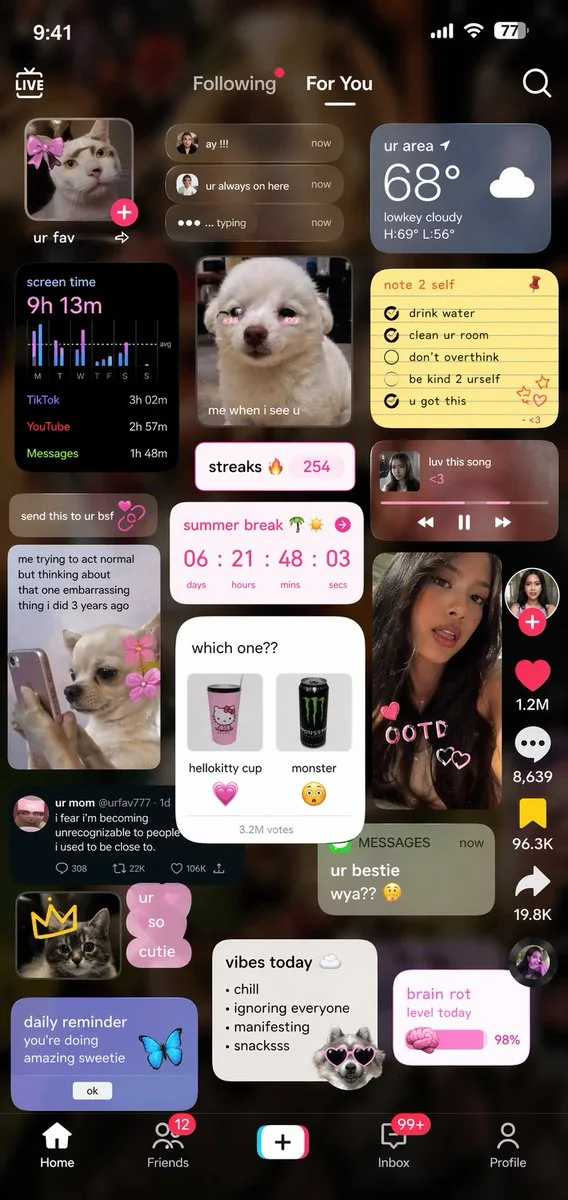
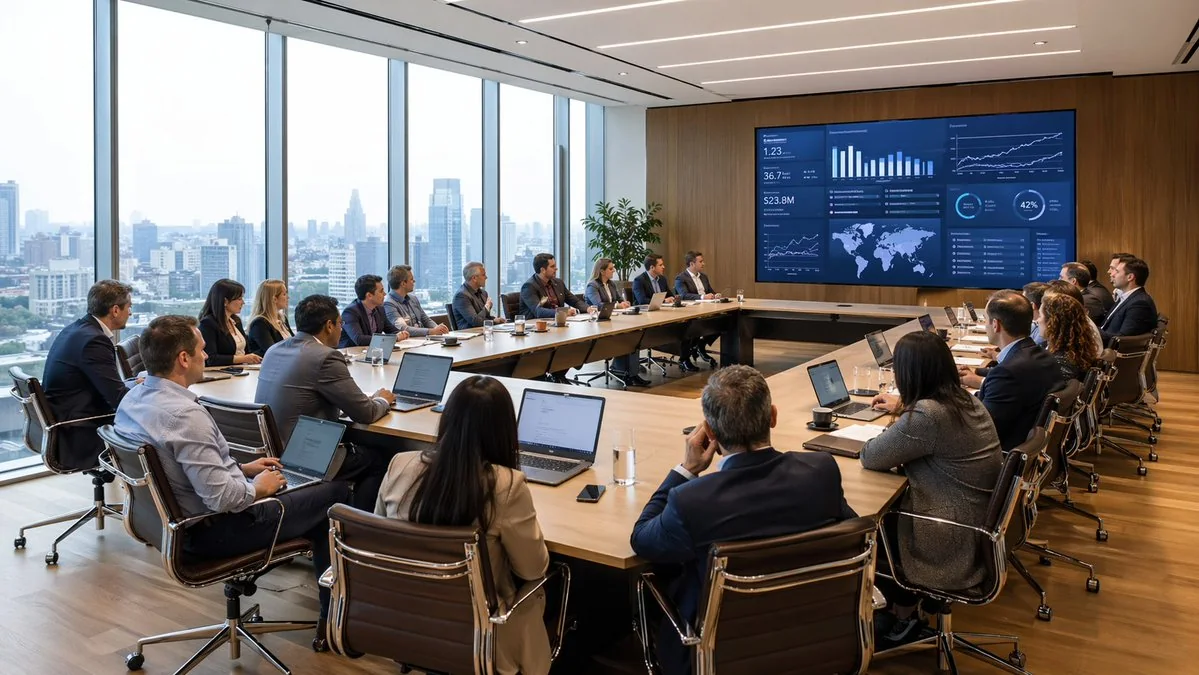
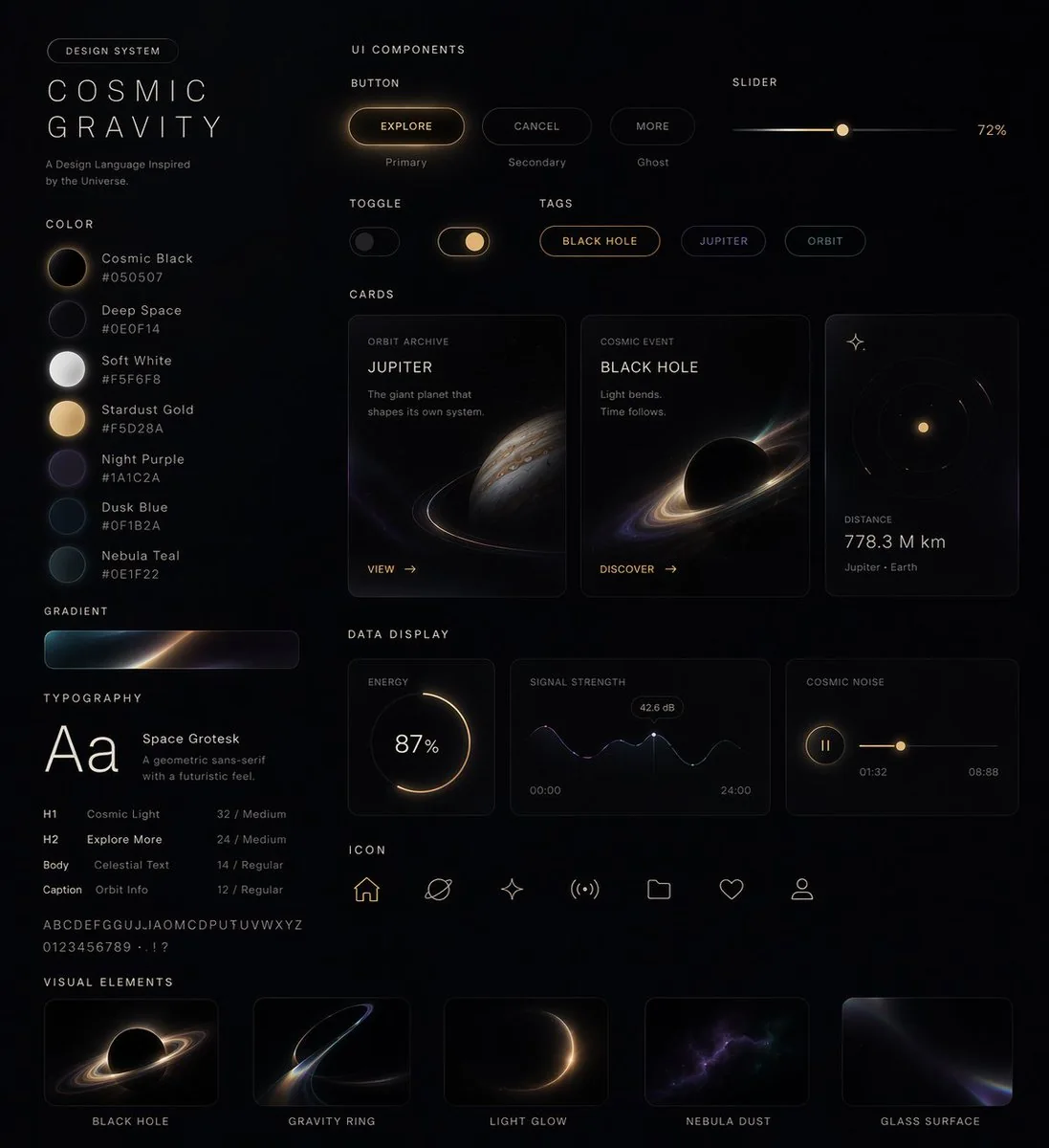
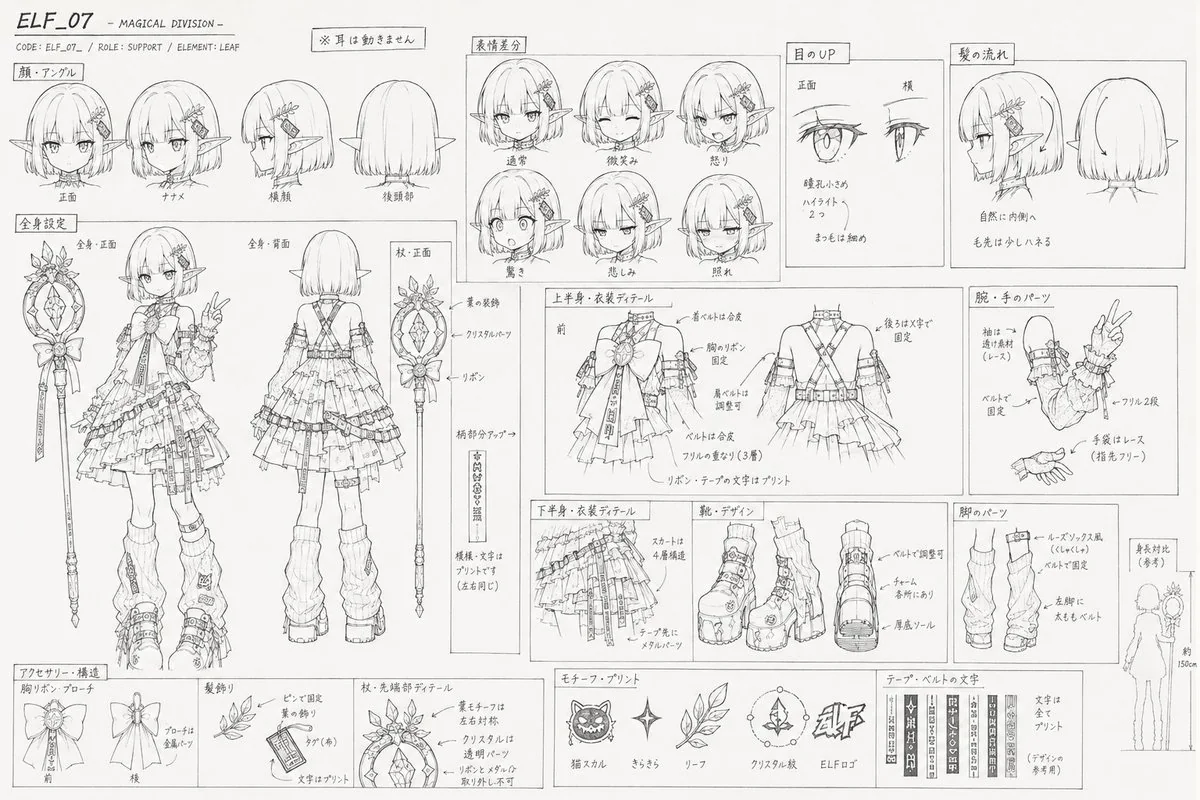
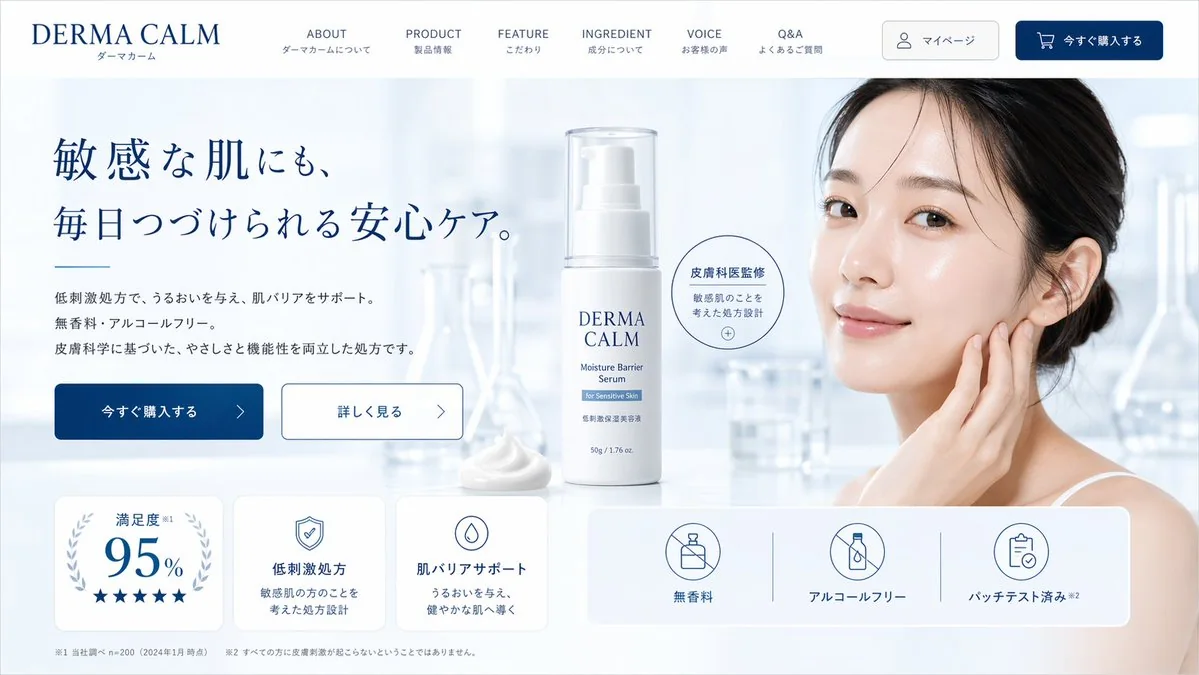
GPT Image 2 visual overview with generated image concepts and creative references

Capabilities for Detailed Image Creation

These capabilities support detailed briefs where instruction following, visible text, reference guidance, or visual continuity matters.

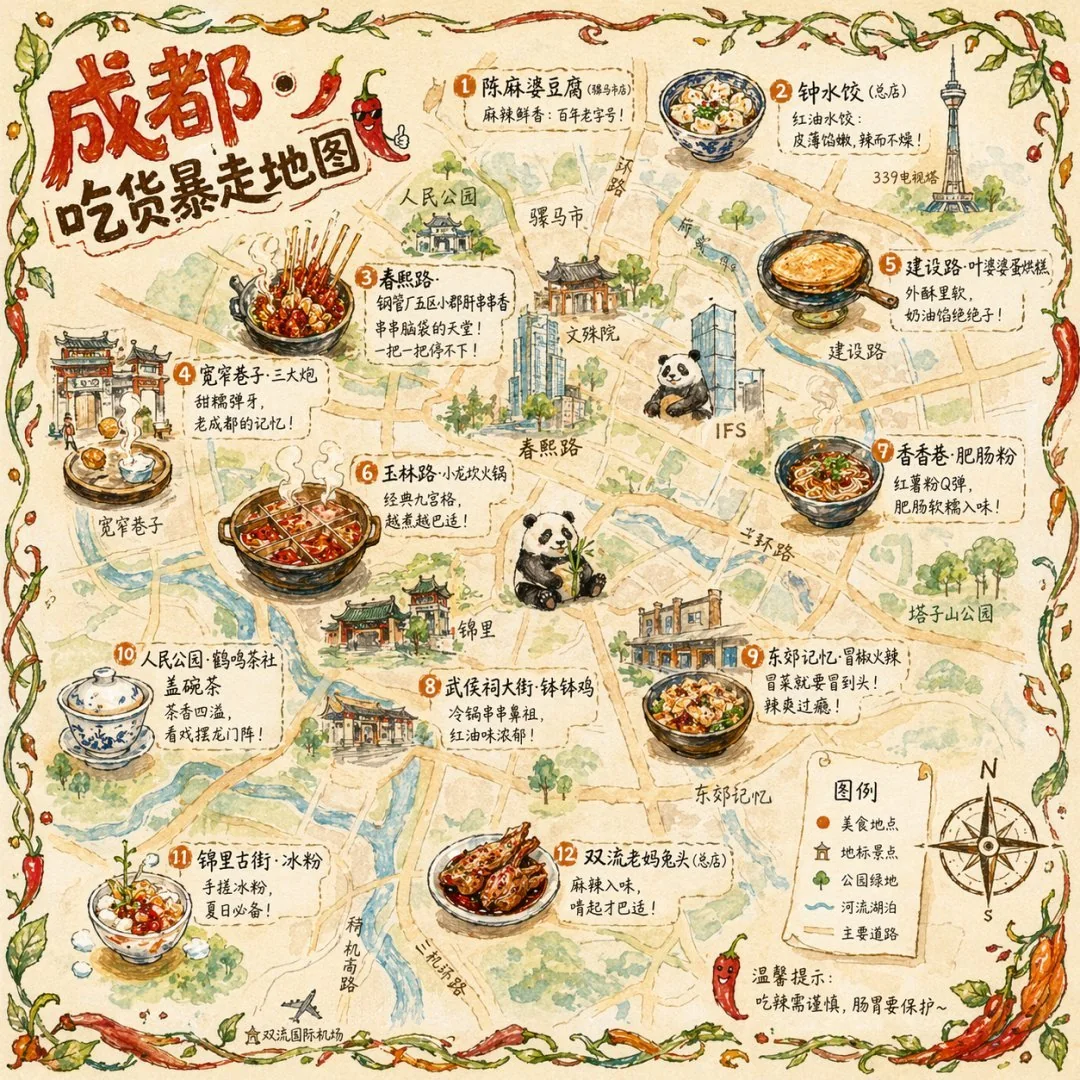
Detailed GPT Image 2 scene with maps, objects, sketches, and architectural context

Detailed Prompt-to-Image Scenes

Describe the subject, setting, camera, lighting, composition, and intended format to give a complex scene clear direction.

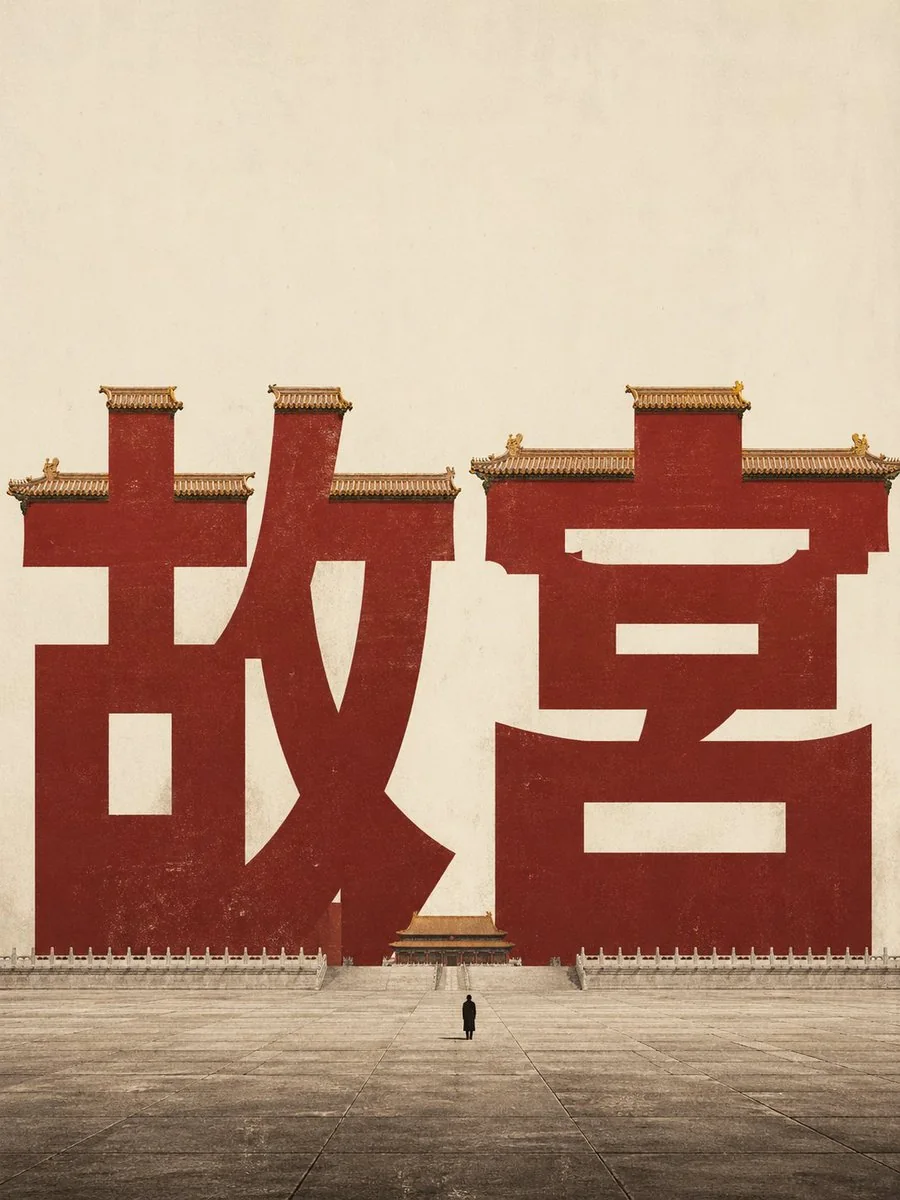
GPT Image 2 typography example with a readable headline in a designed scene

Typography-Led Visual Concepts

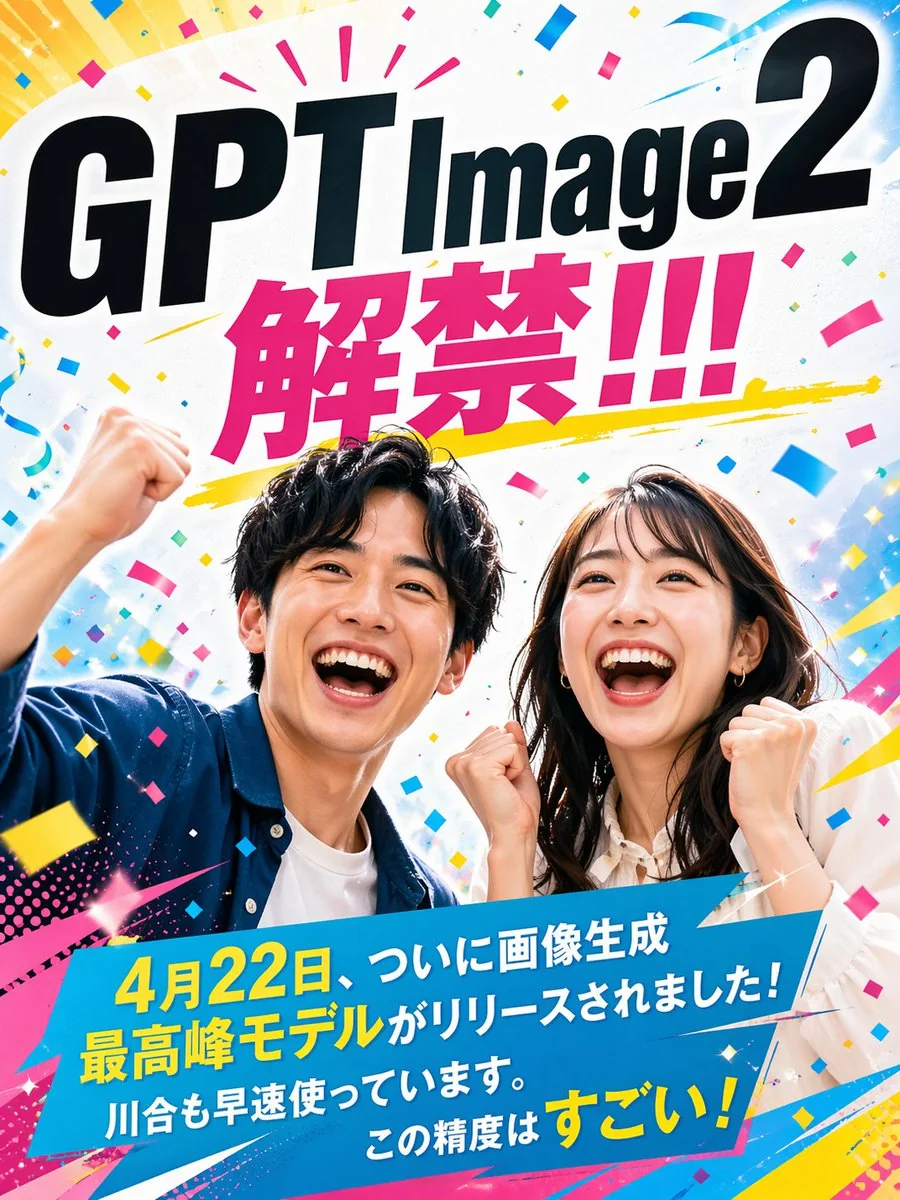
Draft posters, menus, labels, covers, and social graphics that include short text, then proofread every word before publishing.

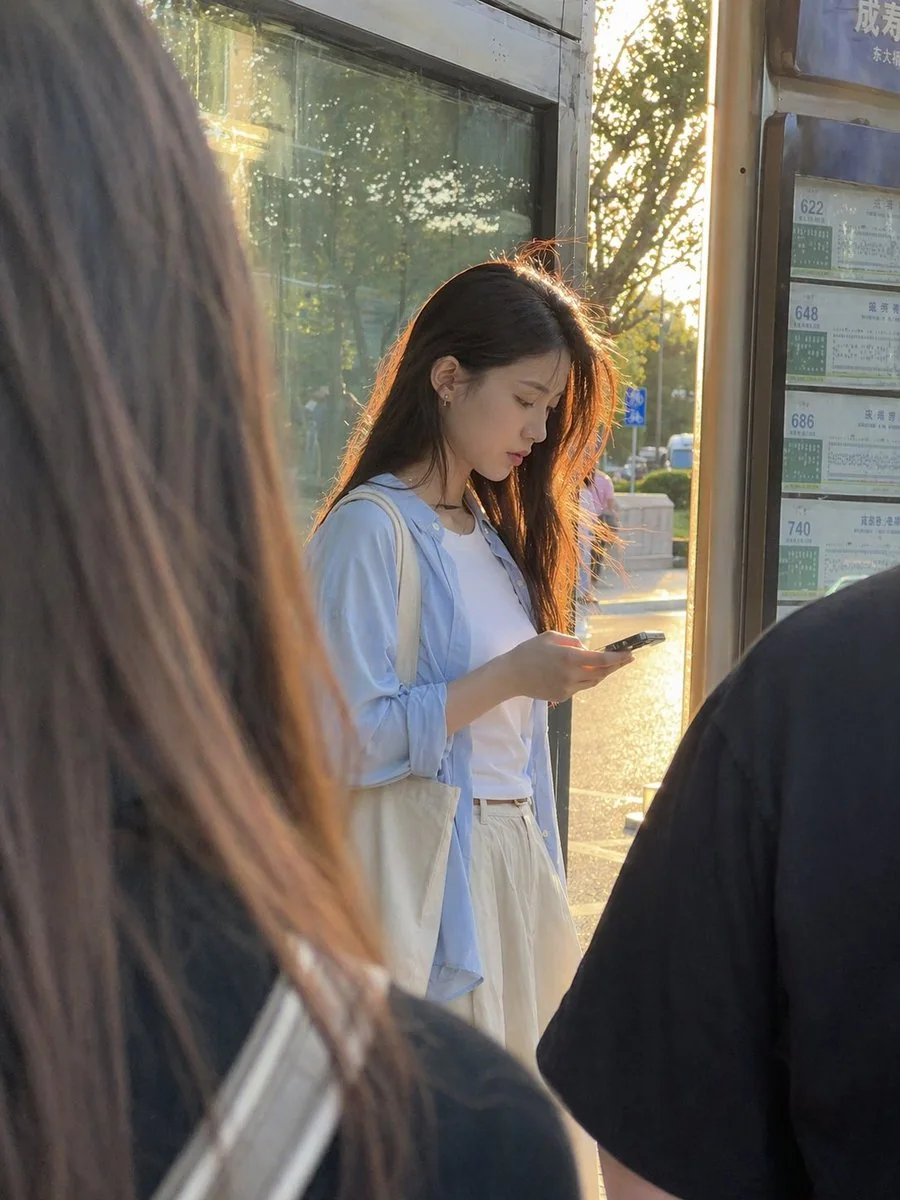
GPT Image 2 reference-guided editing example showing a focused interior change

Reference-Guided Image Editing

Upload an image to guide a localized change, restyle a scene, adjust product staging, or revise composition while preserving the brief.

GPT Image 2 visual series showing a consistent glass lamp across multiple scenes

Repeatable Style and Subject Direction

Reuse reference images and repeat defining subject or style details when creating a related set, then compare each result for drift.

Inputs and Controls for Prompted Image Work

Prepare your input first, then use visible controls to shape how to use GPT Image 2 for a focused generation or edit.

Input

Write a text prompt and add a reference image when the source subject, composition, or visual direction should guide the result.

Controls

Choose from the model, aspect ratio, output count, resolution, style, prompt enhancement, speed, and reference image options shown before generation.

Output

Review generated image variants in the results area and verify dimensions, text, subject details, and crop before using the result.

How to Use GPT Image 2 with Better Prompts

Use a deliberate prompt workflow so each pass shows which instruction changed the output and what still needs review.

1

Define the Visual Goal

State the subject, intended use, setting, composition, visual style, and any exact wording that must appear.

2

Add a Reference When It Matters

Upload a source image when identity, product form, framing, palette, or an existing layout should anchor the result.

3

Set the Generation Controls

Select the aspect ratio, resolution, output count, and other live controls that match the destination format.

4

Generate, Review, and Refine

Create a focused first pass, inspect prompt fit and details, then change one weak instruction before generating again.

Practical Image Use Cases

Start with a real deliverable and write the prompt around its audience, format, and review requirements.

Product Campaign Concepts

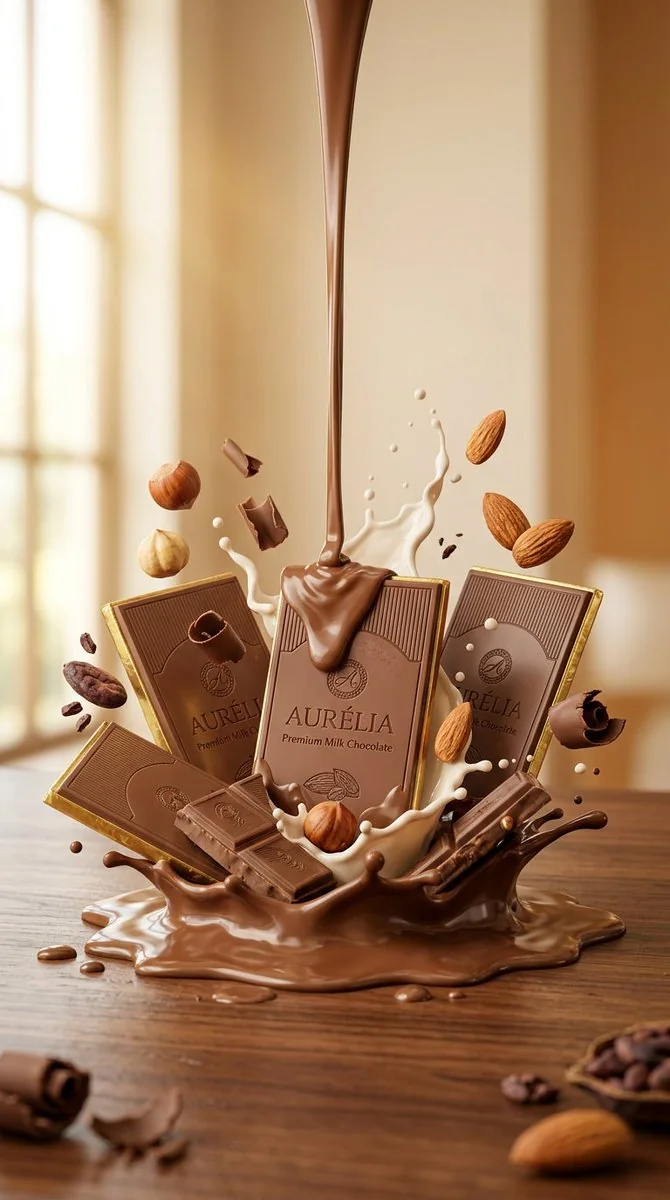
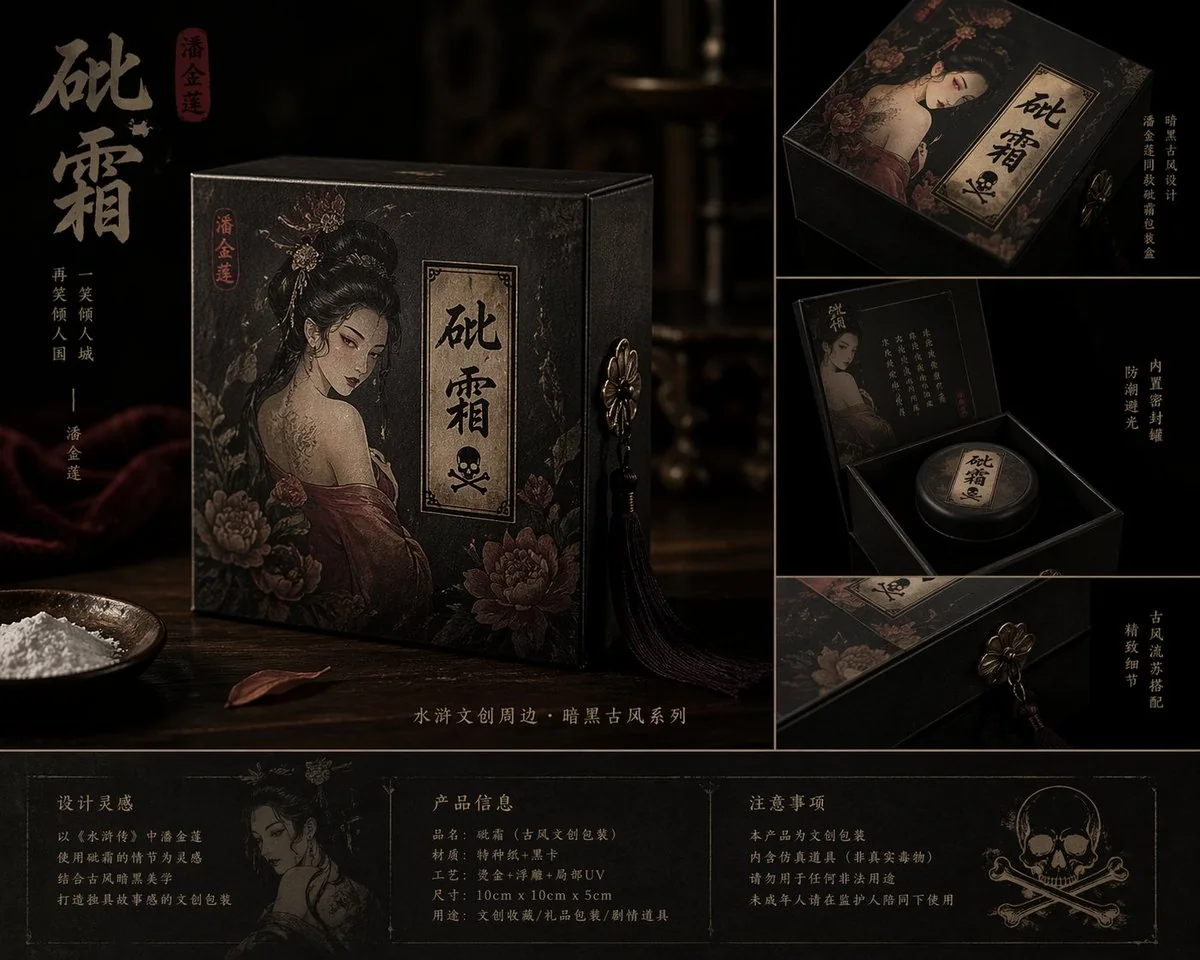
Draft ecommerce hero images, product staging, ad concepts, and packaging directions from a clear product and brand brief.

Posters and Social Graphics

Explore headline-led posters, event graphics, announcements, and social concepts with planned text-safe regions.

Website and Layout Mockups

Visualize landing pages, dashboards, menus, and presentation directions before rebuilding the approved layout in a design tool.

Reference-Based Creative Variations

Create alternate backgrounds, styling, product scenes, or campaign treatments while keeping the source image as visual guidance.

Review Every Image Result

Treat every generated image as a draft until the details required by the final channel have been checked.

Prompt and Reference Fit

Confirm the main subject, action, composition, and reference details match the original brief.

Spelling and Small Text

Read every headline, label, sign, interface element, and small word at full size.

Product and Brand Accuracy

Check logos, packaging, colors, product form, materials, and claims against approved source material.

Dimensions and Crop

Verify resolution, aspect ratio, safe areas, and crop against the destination before export.

Availability and Important Limits

Use the live controls on this page for the current configuration, while keeping availability, model variability, and publishing checks visible.

Currently Connected on ClipCanva

GPT Image 2 is connected on this page, and the controls shown before submission are the current source of truth for each generation.

Results Can Vary Between Runs

The same prompt or reference can produce different composition, typography, and fine details, so compare outputs before choosing one.

Generated Assets Still Need Review

Do not treat model output as verified brand copy, factual information, or final artwork without human review.

Facts verified

GPT Image 2 FAQ

Find answers about GPT Image 2 prompts, reference images, typography, controls, release timing, and review steps.

What is GPT Image 2 best for?
It is useful for detailed prompt-to-image briefs, reference-guided edits, product concepts, posters, social graphics, and layouts that include short text.
Can GPT Image 2 edit an existing image?
Yes. Add a reference image and describe the exact element to change, plus the subject, composition, or brand details that should remain stable.
Can GPT Image 2 generate readable text?
You can prompt for short headlines, labels, signs, and interface text. Spelling, glyphs, line breaks, and small type can still be wrong, so proofread the output.
Which controls are available for GPT Image 2?
Use the live controls as the source of truth for model, aspect ratio, output count, resolution, style, prompt enhancement, speed, and reference options.
What is the GPT Image 2 release date?
OpenAI announced ChatGPT Images 2.0 on its official site, and ClipCanva availability for this GPT Image 2 page was verified on 2026-08-15.
What makes awesome GPT Image 2 prompts work?
Awesome GPT Image 2 prompts usually name the subject, setting, composition, style, intended format, exact short text, and any reference details to preserve.

Create Your First GPT Image 2 Draft

Write a specific visual brief, set the destination format, and review a small first run before expanding the concept.