
01
स्रोतापासून सुरुवात करा
शक्य असल्यास स्क्रीनशॉट किंवा वारंवार कम्प्रेस केलेल्या प्रतीऐवजी सर्वोत्तम स्रोत फाइल अपलोड करा.
उत्पादन फोटो, पोर्ट्रेट, स्कॅन, थंबनेल आणि सोशल सामग्री मोठी व दिसायला स्पष्ट करण्यासाठी एक चित्र अपलोड करा. डाउनलोड किंवा प्रकाशनापूर्वी स्रोताशी तुलना करा.
डिफॉल्ट मोड
अपलोडसाठी तयार
पूर्वावलोकन, तुलना आणि डाउनलोड करा
उत्पादन फोटो, पोर्ट्रेट, स्कॅन, थंबनेल आणि सोशल सामग्री मोठी व दिसायला स्पष्ट करण्यासाठी एक चित्र अपलोड करा. डाउनलोड किंवा प्रकाशनापूर्वी स्रोताशी तुलना करा.
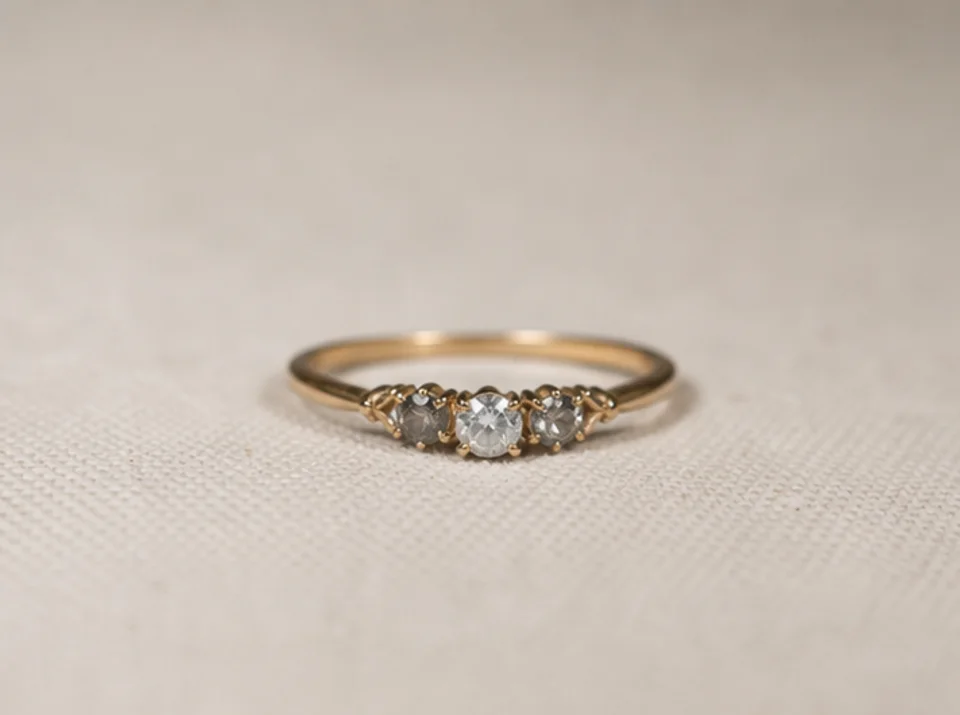
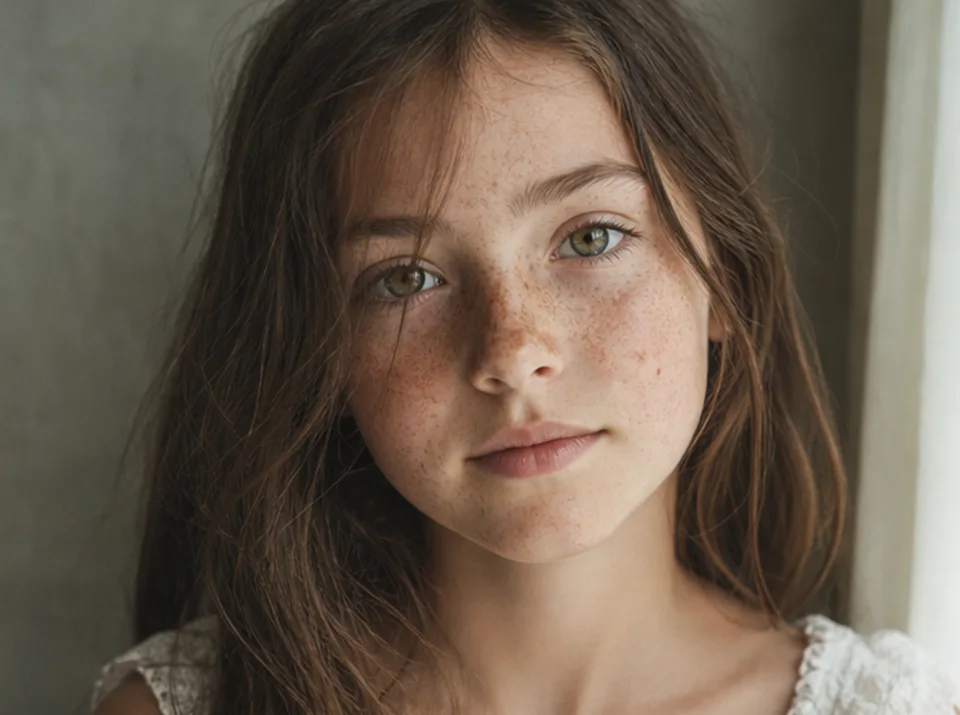
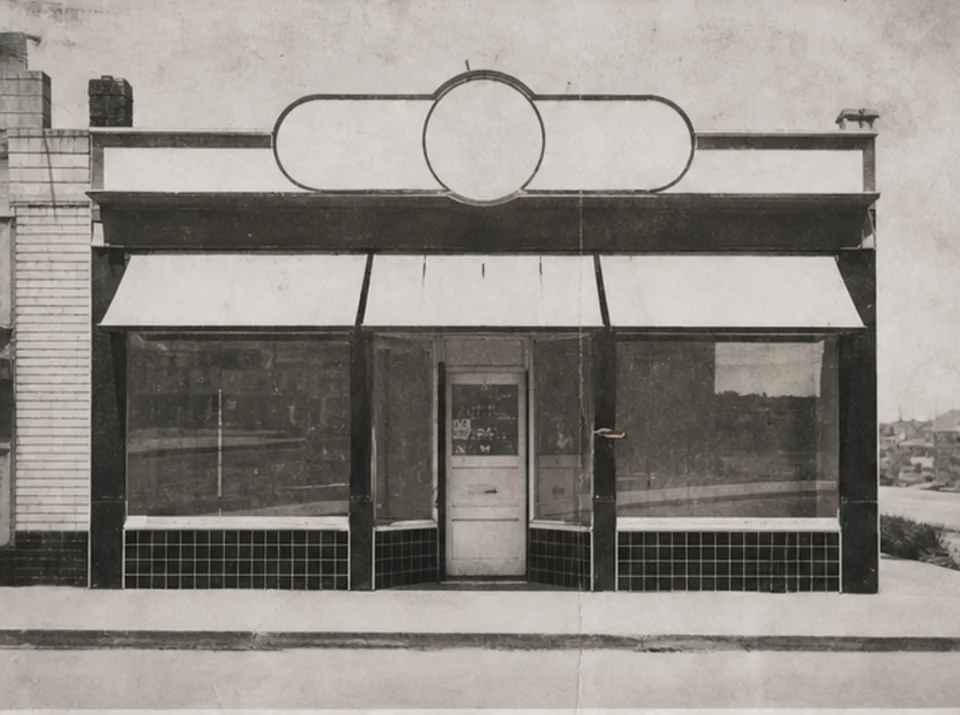
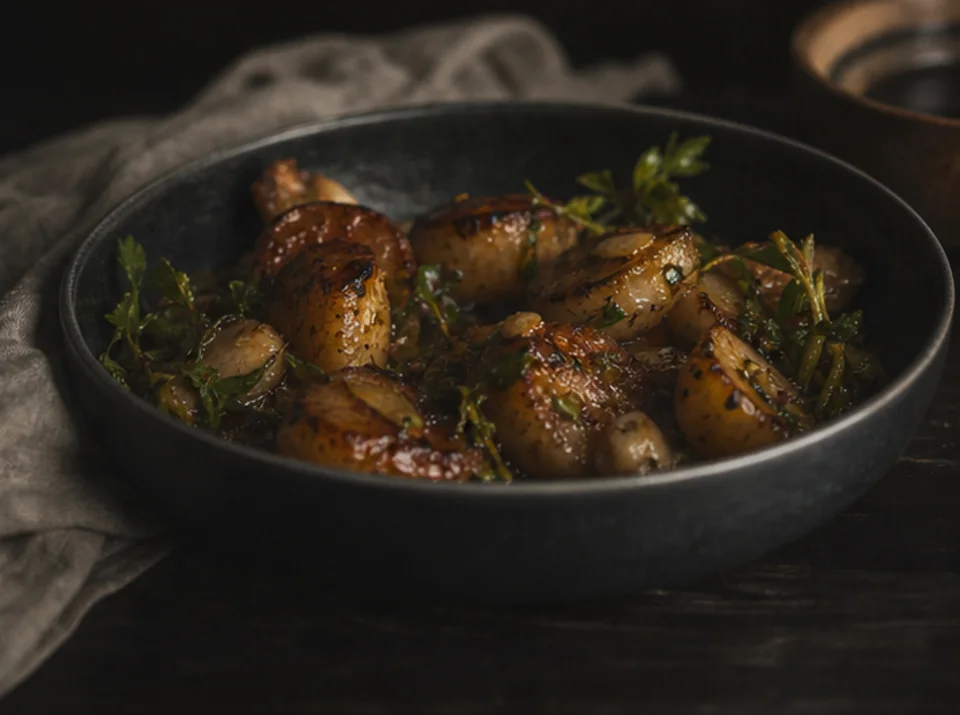
उत्पादन फोटो, पोर्ट्रेट, स्कॅन, थंबनेल आणि सोशल सामग्री मोठी व दिसायला स्पष्ट करण्यासाठी एक चित्र अपलोड करा. डाउनलोड किंवा प्रकाशनापूर्वी स्रोताशी तुलना करा.
शक्य असल्यास स्क्रीनशॉट किंवा वारंवार कम्प्रेस केलेल्या प्रतीऐवजी सर्वोत्तम स्रोत फाइल अपलोड करा.
अंतिम आकार आणि स्रोतामधील दिसणाऱ्या तपशीलानुसार योग्य 2× किंवा 4× लक्ष्य निवडा.
सुधारणा एकदा चालवून थेट तुलनेसाठी मूळ चित्र जतन करा.
दोन्ही चित्रे पूर्ण आकारात तुलना करून मजकूर, चेहरे, उत्पादन रचना, पुनरावृत्ती पोत, प्रभा व संग्रह तपशील पहा.
मोठे केल्याने कडा आणि पोत स्पष्ट दिसू शकतात, पण स्रोत चित्रात नसलेली माहिती परत मिळत नाही.
आधीच वाचता येणारा मजकूर स्पष्ट होऊ शकतो. हरवलेली किंवा न वाचता येणारी अक्षरे विश्वासार्हपणे तयार होत नाहीत आणि अधिकृत स्रोताशी तपासावी लागतात.
सुधारणेदरम्यान सूक्ष्म पोत व लहान आकारांचा अंदाज घेतला जाऊ शकतो. उत्पादने, चेहरे, कागदपत्रे व संग्रह तपशील स्रोताशी तुलना करा.
मोफत प्रतिमांमध्ये वॉटरमार्क असतो. स्वच्छ आउटपुट, जलद जनरेशन आणि व्यावसायिक वापरासाठी अपग्रेड करा.
सुरू कराer Pack
A one-time credit pack साठी trying प्रतिमा, संगीत, आणि shकिंवाt व्हिडिओ जनरेशन.
निर्माता
मासिक योजना · 1,500 क्रेडिट्स प्रत्येक महिन्याला नूतनीकरण करतात
GPT Image 2 Unlimited
Stripe Checkout मध्ये FOUNDING6 कोड टाका: पहिल्या 6 महिन्यांसाठी $19/महिना, त्यानंतर $29/महिना.
प्रो
मासिक योजना · 4,000 क्रेडिट्स प्रत्येक महिन्याला नूतनीकरण करतात
स्टुडिओ
मासिक योजना · 12,000 क्रेडिट्स प्रत्येक महिन्याला नूतनीकरण करतात
सुरक्षित पेमेंट · सदस्यत्वे आपोआप नूतनीकरण होतात · परताव्याची पात्रता पहा
Team योजना
एजन्सी, उत्पादन संघ आणि सानुकूल व्हॉल्यूम गरजांसाठी.
उत्पादन फोटो, पोर्ट्रेट, स्कॅन, थंबनेल आणि सोशल सामग्री मोठी व दिसायला स्पष्ट करण्यासाठी एक चित्र अपलोड करा. डाउनलोड किंवा प्रकाशनापूर्वी स्रोताशी तुलना करा.
उत्पादन फोटो, पोर्ट्रेट, स्कॅन, थंबनेल आणि सोशल सामग्री मोठी व दिसायला स्पष्ट करण्यासाठी एक चित्र अपलोड करा. डाउनलोड किंवा प्रकाशनापूर्वी स्रोताशी तुलना करा.