Select your file
Choose the image you want to process. The tool checks PNG input for this conversion path.
Use the PNG to JPG converter to process a supported image in your browser, apply a white fill for transparency, adjust quality, and inspect the JPG result before saving it.
Input format
PNG
.png
Output format
JPG
.jpg
JPG quality
Balance clarity and file size
Source
JPG result
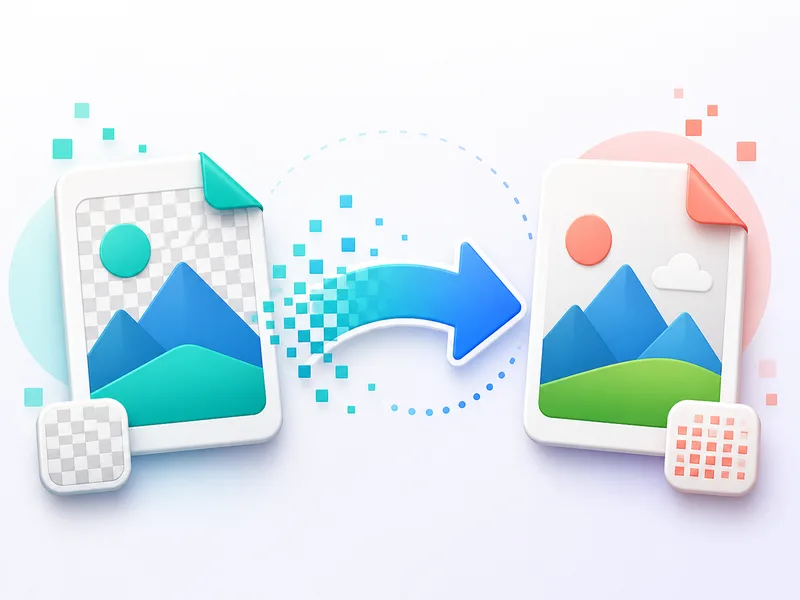
A PNG to JPG converter changes a PNG image into a JPEG-style file by removing transparency support and encoding the picture as JPG. This is useful when you need a widely accepted format for uploads, previews, campaigns, or documents that do not handle PNG transparency well.

The workflow is designed for one task: convert PNG to JPG with a clear preview of the processed image.
Choose the image you want to process. The tool checks PNG input for this conversion path.
Use white fill to handle transparency, then adjust quality to control how the JPG result is encoded.
Process the image and inspect the result before saving the output file.
The converter accepts supported image files and produces a JPG output you can inspect on the page.
Supported input formats are JPG, JPEG, and PNG, with PNG validation used for this conversion task.
The output is a processed JPG result that can be reviewed and saved as a downloadable file.
Available controls include a PNG input check, white fill for transparent pixels, and quality control for the JPG encoding.

Focused controls help you convert PNG to JPG while keeping the result easy to review.
The tool confirms that the selected file is a PNG before conversion, helping you avoid processing the wrong image type.
Transparent PNG areas are flattened onto a white background, which is important because JPG output cannot preserve transparency.
Adjust the JPG quality setting to shape the final balance between visual detail and compression before saving the result.
The page shows the processed result so you can inspect the converted image before using the output file.
Use this tool when an image needs JPG output and the available conversion controls match the job.

Check that the selected PNG image is valid before starting the conversion workflow.

Flatten PNG to JPEG when transparent areas need to appear on a white background for upload forms, previews, or documents.

Convert PNG to JPG and tune the quality setting when you need a practical balance between appearance and compression.
The final appearance depends on the source image, including its resolution, transparency, color detail, and existing compression.
Because JPG does not support transparency, transparent pixels must be flattened against the selected white fill behavior.
Changing quality can affect sharpness, gradients, and visible compression artifacts, especially in detailed images.
The output depends on the source image; low-resolution or already compressed files may not become clearer after conversion.
Common questions about using the PNG to JPG converter and its available controls.
Other image utilities can help with nearby format and optimization tasks.
Process an image with the available PNG check, white fill, and quality controls, then review the JPG result.