
01
Valitse yksi selkeä kuva
Lataa terävä kuva, jossa kohde näkyy ja sen ympärillä on tilaa. Sivu hyväksyy yhden viitekuvan; valmistele sommittelu ennen generointia.
Aloita yhdestä tuotekuvasta, muotokuvasta tai kuvituksesta. Kuvaile pieni kohteen tai kameran liike, valitse saatavilla olevat videoasetukset ja vertaa tulosta kuvaasi.
Generaattorin oletus on HappyHorse. Tarkista valitsimesta saatavilla olevat mallit, asetukset ja krediittikustannus; malliopas ei takaa saatavuutta tai tiettyä tulosta.
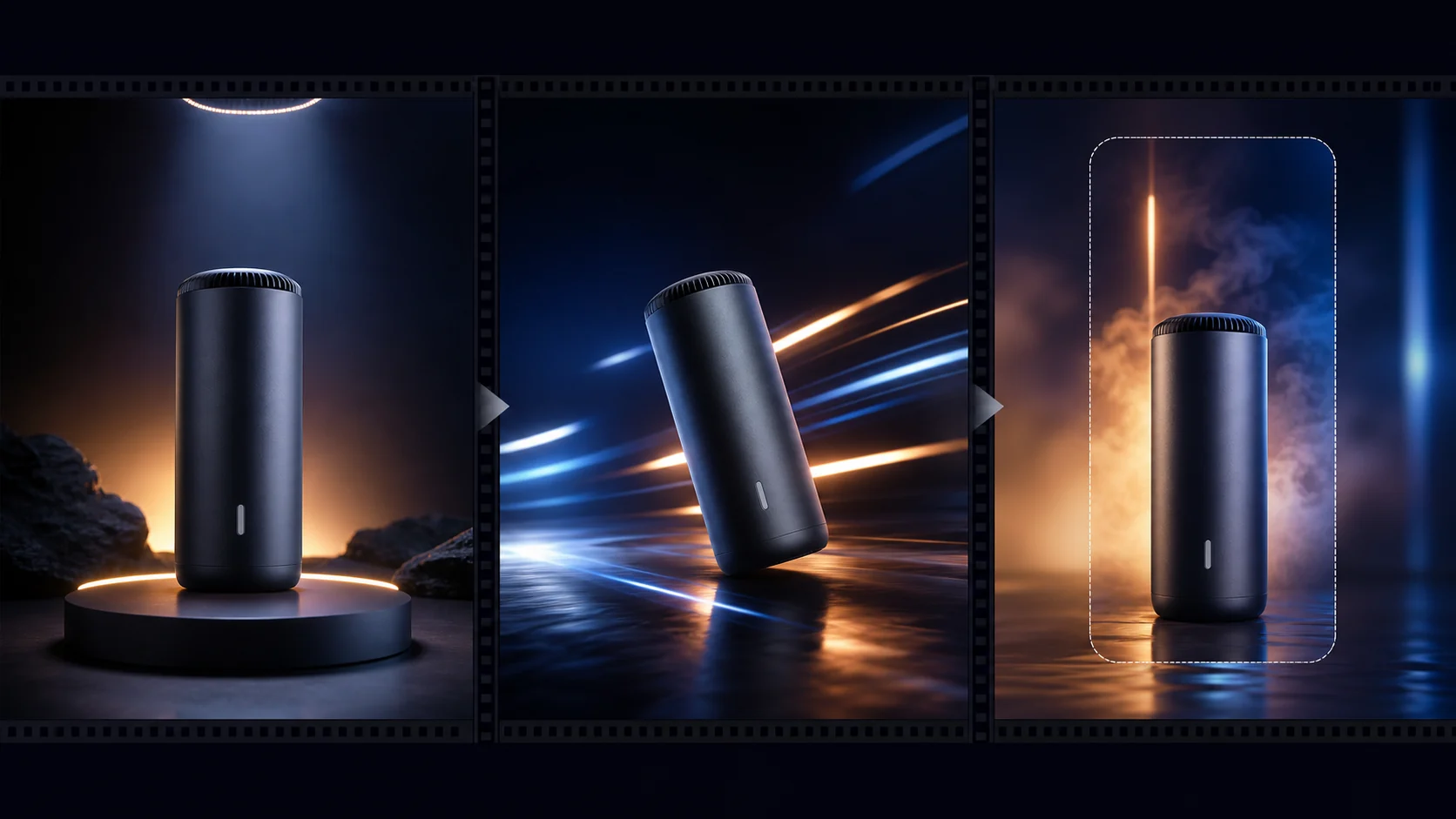
Nämä still-kuvat havainnollistavat suunnitteluideoita, eivät tallennettuja generointituloksia. Lataa ensin oma viitekuvasi, käytä yhtä kehotetta ja tarkista tulos.
Kuva on visuaalinen lähtökohta ja kehote liikkeen suunta. Pyydettyjen yksityiskohtien säilymistä muuttumattomina ei taata.
Lataa terävä kuva, jossa kohde näkyy ja sen ympärillä on tilaa. Sivu hyväksyy yhden viitekuvan; valmistele sommittelu ennen generointia.
Nimeä pieni kohteen toiminto tai yksi kameran liike. Kerro tärkeät tuote-, kasvo- ja taustatiedot; vältä useiden kohtausvaihdosten pyytämistä.
HappyHorse on alkuvalinta. Valitse tällä hetkellä saatavilla oleva malli ja tarkista näkyvät kesto, kuvasuhde, resoluutio ja krediittikustannus ennen generointia.
Vertaa tulosta kuvaasi ruutu ruudulta. Jos etiketit, kasvot tai reunat muuttuvat, yksinkertaista liikettä tai käytä selkeämpää kuvaa ennen uutta yritystä.
Käytä tuotekuvaa, muotokuvaa, kuvitusta tai maisemaa. Lisäviitekuvat eivät kuulu tämän sivun yhden kuvan työnkulkuun.
Kuvaile toiminto ja kameran liike kehotteessa. Se ohjaa generointia eikä ole tarkka editointisäädin.
Käytä valitun mallin tällä hetkellä näyttämiä vaihtoehtoja. Tuetut asetukset ja hinta voivat vaihdella malleittain.
Luo rajattu otos tuotteen yksityiskohtaa, somejulkaisua tai luovaa kokeilua varten. Kokoa pidempi tarina erikseen.
Tarkista kasvot, tuotemuodot, etiketit, kädet ja taustan reunat ennen käyttöä. Viitekuva ei takaa täydellistä yhdenmukaisuutta.
Siirry still-kuvien luomisesta viitekuvien editointiin ja videoiden tekoon.
Ilmaisissa kuvissa on vesileima. Päivitä puhtaisiin tuloksiin, nopeampaan luontiin ja kaupalliseen käyttöön.
Aloituspaketti
Kertaluonteinen krediittipaketti kuvien, musiikin ja lyhyiden videoiden generoinnin kokeiluun.
Luoja
Kuukausipaketti · 1 500 krediittiä uusiutuu joka kuukausi
GPT Image 2 Unlimited
Syötä koodi FOUNDING6 Stripe Checkoutissa: $19/kk ensimmäiset 6 kuukautta, sitten $29/kk.
Pro
For clean, faster outputs
Studio
Kuukausipaketti · 12 000 krediittiä uusiutuu joka kuukausi
Turvallinen maksu · Tilaukset uusiutuvat automaattisesti · Katso palautusehdot
Joukkue
Toimistoille, tuotantotiimeille ja räätälöityihin volyymitarpeisiin.
Tavallisia kysymyksiä ennen still-kuvan animointia.
Lataa yksi kuva, kokeile rajattua liikettä ja vertaa videota ennen käyttöä.