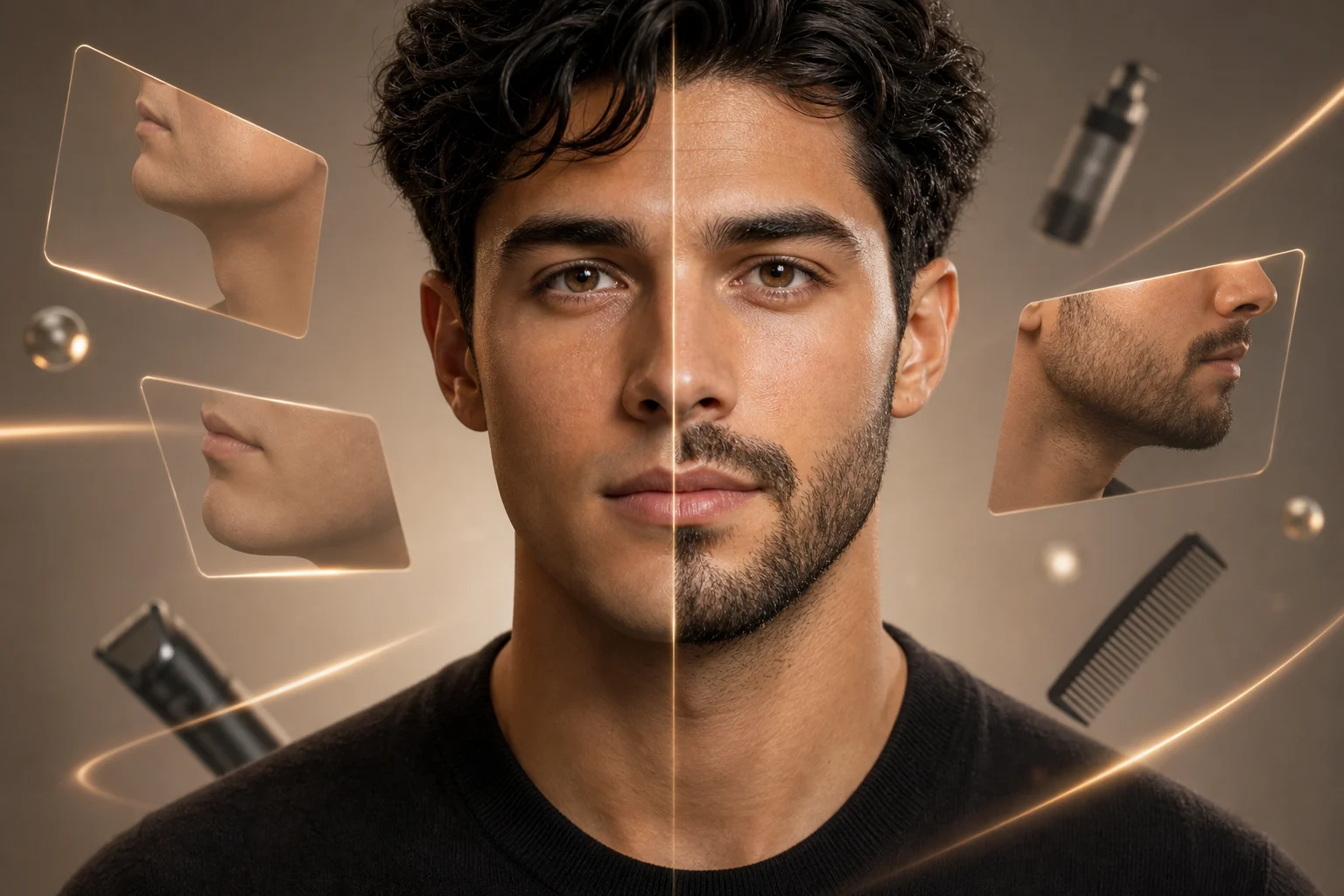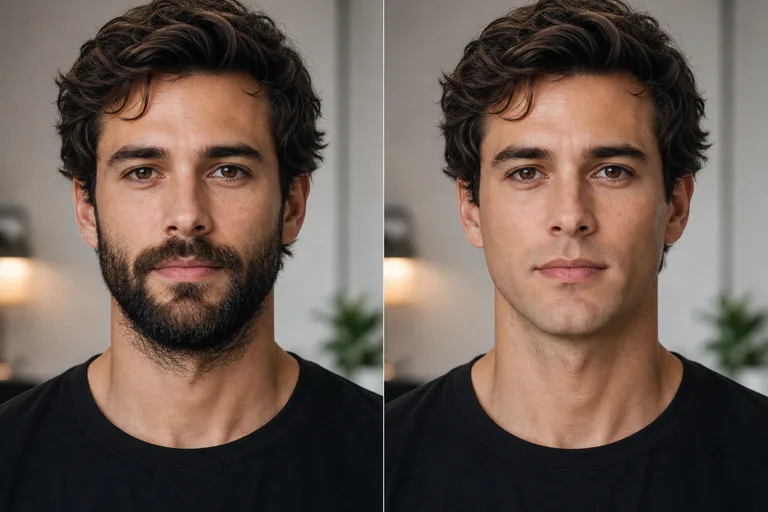
AI Beardless Filter for a natural clean-shaven preview

AI Beardless Filter for a natural clean-shaven preview

Upload a portrait and use the Beardless Filter to remove facial hair while keeping your face shape, expression, lighting, pose, and background consistent.

AI Beardless Filter clean-shaven preview background
0 / 2000
Template prompt

AI Beardless Filter for a natural clean-shaven preview

Apply the AI Beardless Filter effect to the uploaded portrait. Preserve the same person, face shape, expression, pose, clothing, lighting, camera angle, and background. Remove only beard or facial hair, reconstructing natural skin texture, jawline, chin, and mouth-area shadows realistically. Do not alter hairstyle, identity, clothing, or the rest of the photo.

AI Beardless Filter clean-shaven preview background

What is the AI Beardless Filter?

The AI Beardless Filter turns a bearded or mustached portrait into a clean-shaven preview. It focuses on removing facial hair and rebuilding the chin, jawline, mouth area, skin texture, and natural shadows so the subject still looks like the same person.

How the Beardless Filter transforms your photo

This template is made for facial hair removal, not a full portrait makeover. It aims to show how the same person could look clean-shaven while retaining the original photo’s visual structure.

What changes

  • Remove beard, mustache, or facial hair from a portrait with AI.
  • Create a natural clean-shaven face with skin texture, lighting, and facial proportions that match the original photo.
  • Reconstruct the jawline, chin, and mouth-area shadows for a realistic beardless preview.
  • Create a quick visual draft for profile photos, style planning, or social posts.

What stays consistent

  • Preserve the same person, face shape, expression, pose, clothing, lighting, camera angle, and background.
  • Keep the main subject recognizable from the source image.
  • Maintain defining colors, silhouette, and important subject details so the image stays coherent.

How to use the AI Beardless Filter online

Create a clean-shaven preview from a portrait in a few simple steps.

1

Upload your portrait

Choose a clear portrait where the beard, mustache, chin, jawline, and mouth area are visible enough to edit.

2

Apply the Beardless effect

Use the AI Beardless Filter to focus the change on facial hair removal while preserving the rest of the photo.

3

Review and refine

Check the face, jawline, skin texture, background, and small details. If needed, use a clearer source image or a more specific prompt.

AI Beardless Filter examples

Explore clean-shaven portrait examples that show how the Beardless Filter can preserve identity, lighting, and framing while changing the facial hair area.

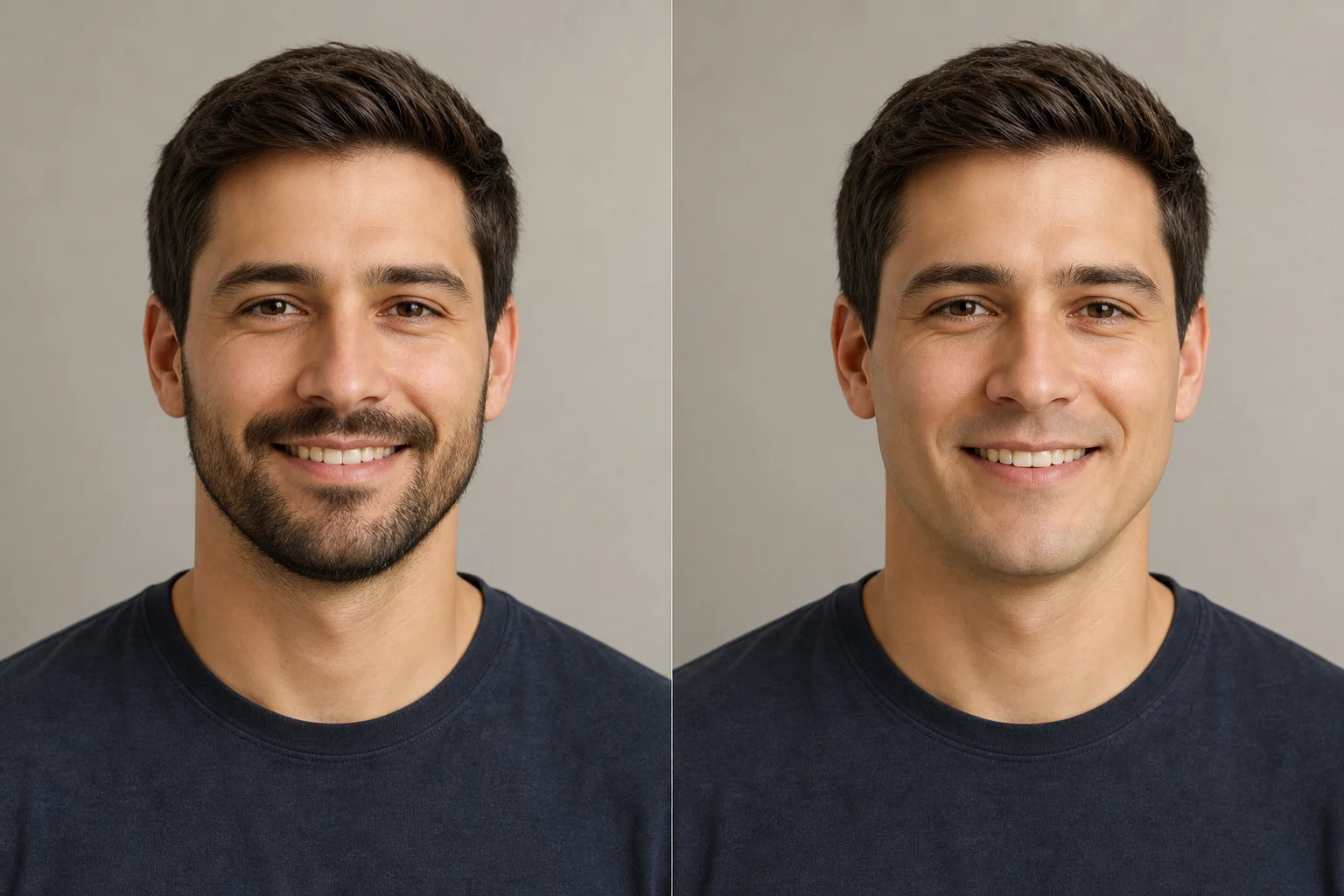
clean-shaven preview made with AI Beardless Filter

Natural beardless portrait

A natural clean-shaven preview that keeps the portrait’s original lighting and expression intact.

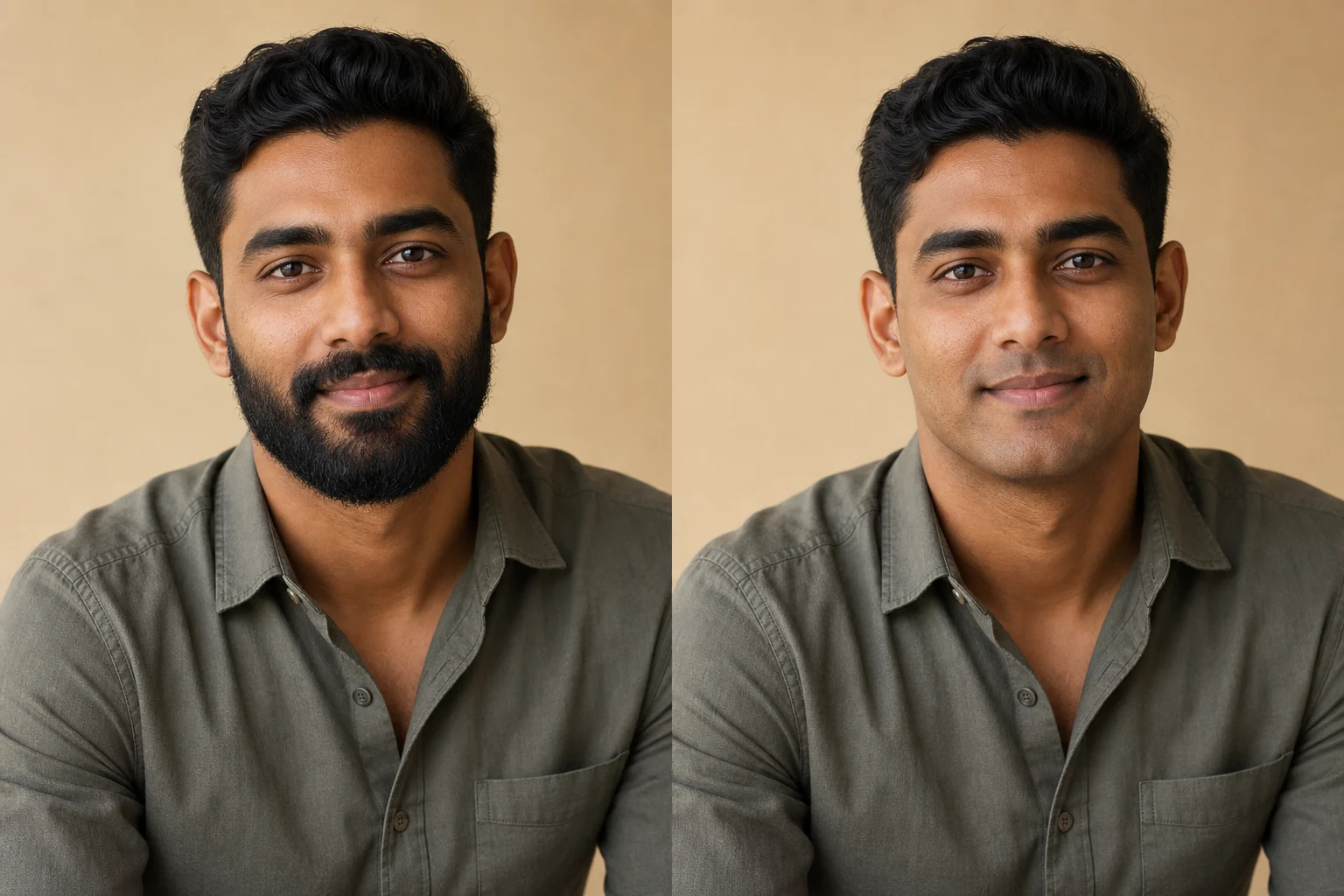
AI Beardless Filter clean-shaven preview example 1

Clean jawline preview

A close portrait edit focused on removing facial hair while keeping the same face shape and camera angle.

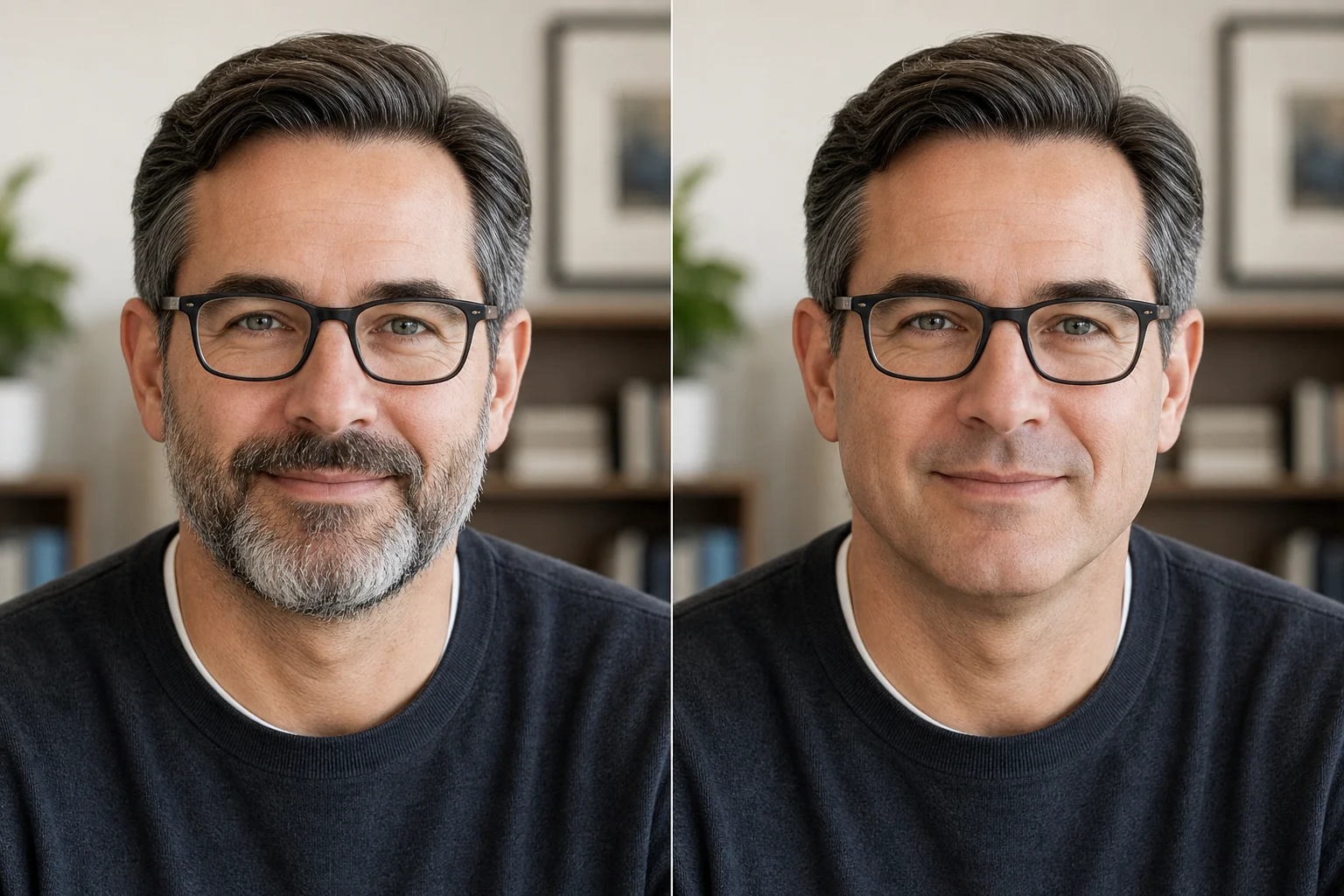
AI Beardless Filter clean-shaven preview example 2

Before-style comparison look

A beardless result designed for comparing a familiar portrait with a smoother lower face.

AI Beardless Filter clean-shaven preview example 3

Consistent portrait edit

A clean-shaven version that preserves background, clothing, pose, and the subject’s recognizable features.

Popular uses for the AI Beardless Filter

Use the AI Beardless Filter when you want a focused clean-shaven preview without restyling the whole image.

Personal style planning

Preview a clean-shaven look before changing your beard or mustache in real life.

Profile photo updates

Create a beardless version of a portrait for profile photos, avatars, or social posts.

Before-and-after comparisons

Compare the original and clean-shaven versions before refining, sharing, or presenting the result.

Creative portrait concepts

Explore a character, casting, or creative direction while keeping the same face, pose, and setting.

How to prepare your portrait

A strong source image and a clear prompt help the Beardless Filter focus on the lower face without changing the overall portrait.

Source image checklist

  • Use a sharp source image with the main subject clearly visible.
  • Avoid heavy blur, blocked details, extreme crops, or confusing overlaps.
  • Choose a source whose pose and framing support the intended AI Beardless Filter result.

Prompt guidance

Ask for a natural clean-shaven version of the same person. Mention that only beard, mustache, or facial hair should be removed, and that identity, hairstyle, clothing, lighting, pose, camera angle, and background should remain unchanged.

What to review before you use the result

Generated details can vary between runs, so review the clean-shaven preview before using it, sharing it, or making style decisions from it.

Check identity and pose

Compare the clean-shaven result with the original portrait to confirm the same person, face shape, expression, pose, and silhouette are still recognizable.

Inspect the edited face area

Look closely at the jawline, chin, mouth area, skin texture, and facial shadows to make sure the Beardless effect feels natural.

Review the whole image

Review hair, clothing, background edges, small objects, text, hands, and transitions around the face for artifacts or unexpected changes.

AI Beardless Filter FAQ

Answers to common questions about using a Beardless Filter online for clean-shaven portrait previews.

What is the AI Beardless Filter?
The AI Beardless Filter is a portrait editing template that removes beard, mustache, or visible facial hair from a photo and creates a clean-shaven version while preserving the rest of the image as much as possible.
Is the AI Beardless Filter free?
You can try the AI Beardless Filter with available daily credits. Credit availability may vary, so check your account before starting a new edit.
How do I get the best clean-shaven preview?
Use a sharp, front-facing or slightly angled portrait where the beard, mouth area, chin, and jawline are visible. Good lighting and a clear face outline help create a more natural clean-shaven preview.
Will it change the rest of my photo?
The edit is designed to focus on facial hair removal while keeping the same person, expression, pose, clothing, lighting, camera angle, and background consistent.
Can I use the result commercially?
Usage depends on the source image, your permissions, and the context where you plan to use the result. Review the final image carefully and make sure you have the rights you need before publishing or sharing it in a commercial setting.
What AI Beardless Filter changes should I expect?
It removes or reduces beard and mustache hair, reconstructs the visible lower face, and aims to match the original photo’s texture, lighting, facial proportions, and shadows.
Which source image works best?
A clear portrait with the main subject visible works best. Avoid heavy blur, blocked facial details, extreme crops, strong shadows over the lower face, or overlapping objects that hide the beard area.
How do I keep the subject recognizable?
Start with a photo where the face shape, eyes, expression, hairstyle, clothing, and background are easy to read. After editing, compare the result with the original to confirm the subject remains recognizable.

Ready to try the AI Beardless Filter?

Upload a clear portrait and preview a clean-shaven look while keeping the rest of the photo familiar and natural.