


Tekst-til-video-generering
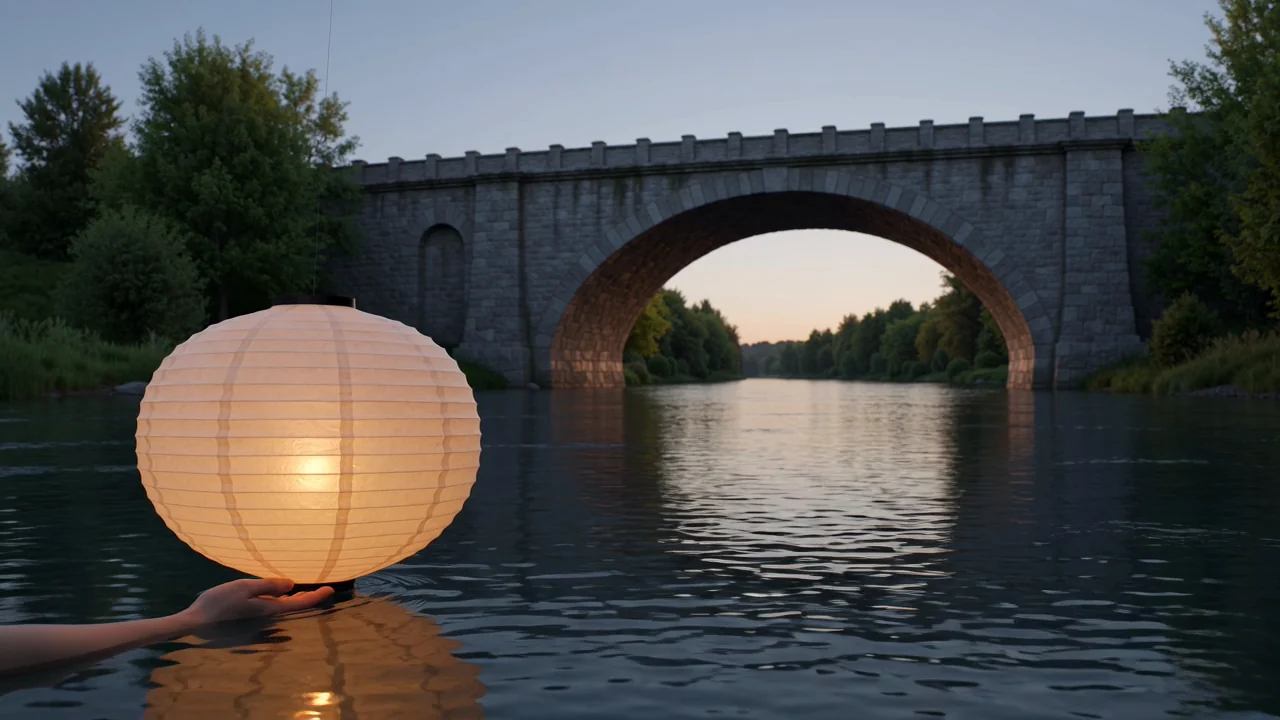
Generér videoer ud fra en skriftlig prompt, der definerer motiv, miljø, handling, stil og ønsket visuel retning.
Gennemgå MiniMax H3s funktioner, inddata, kontroller, resultater og tilgængelighed, før du planlægger en videogenereringsopgave.
MiniMax H3 er en multimodal AI-videomodel til at generere promptstyrede klip og videosekvenser med referencevejledning.
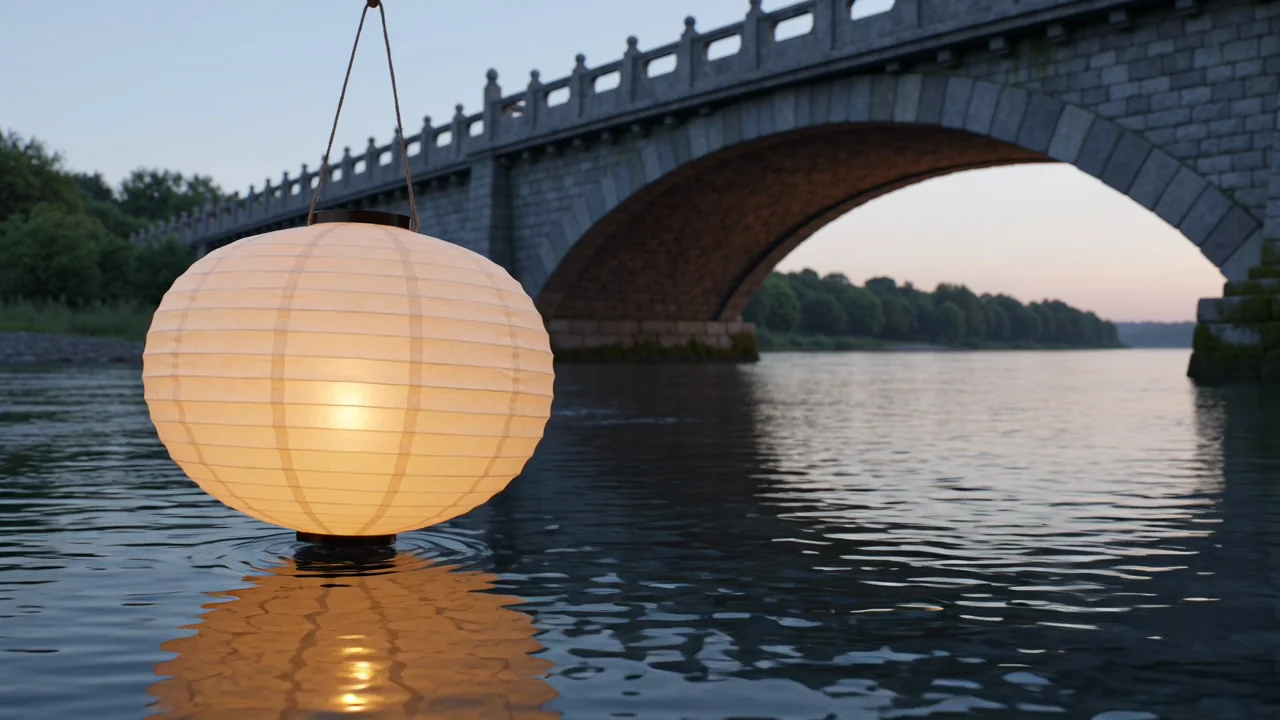
Forstå modellens funktioner ud fra bekræftede kilder, og vurder derefter hvert genereret klip op imod din produktionsbrief.
Generér videoer ud fra en skriftlig prompt, der definerer motiv, miljø, handling, stil og ønsket visuel retning.
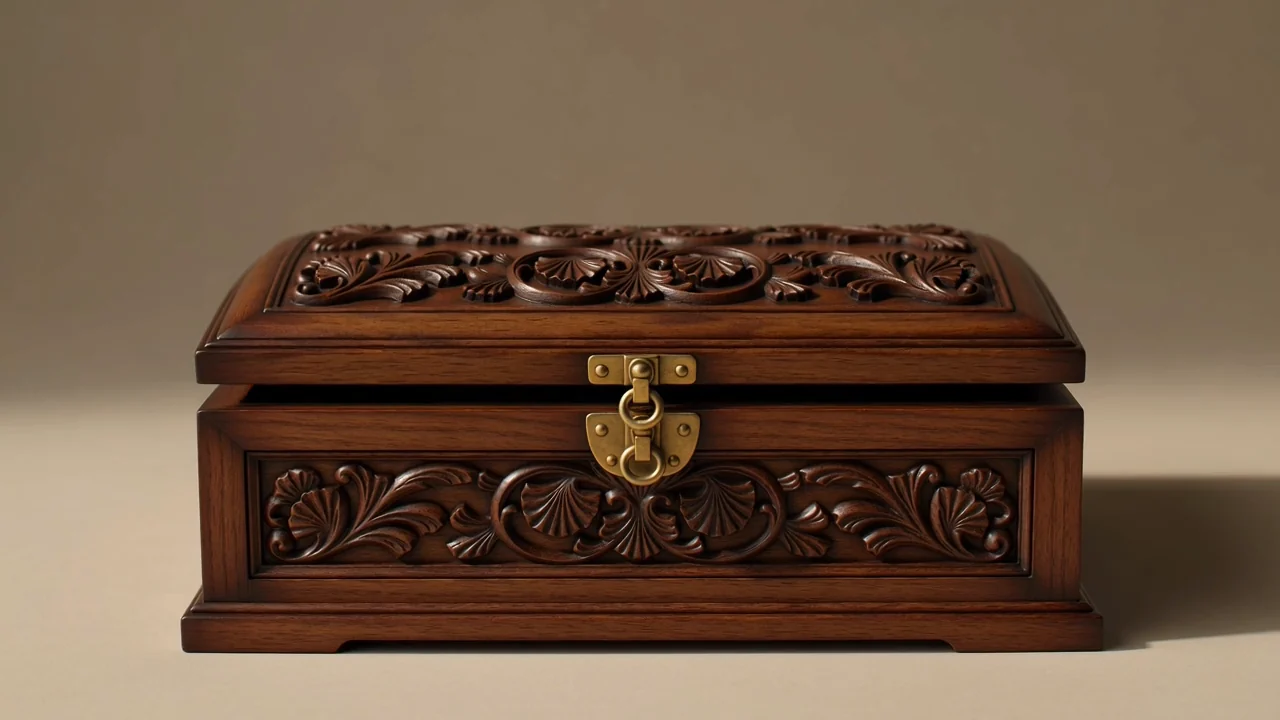
Brug vejledning med første og sidste frame, når opgaven kræver en planlagt overgang mellem start- og slutbilleder.
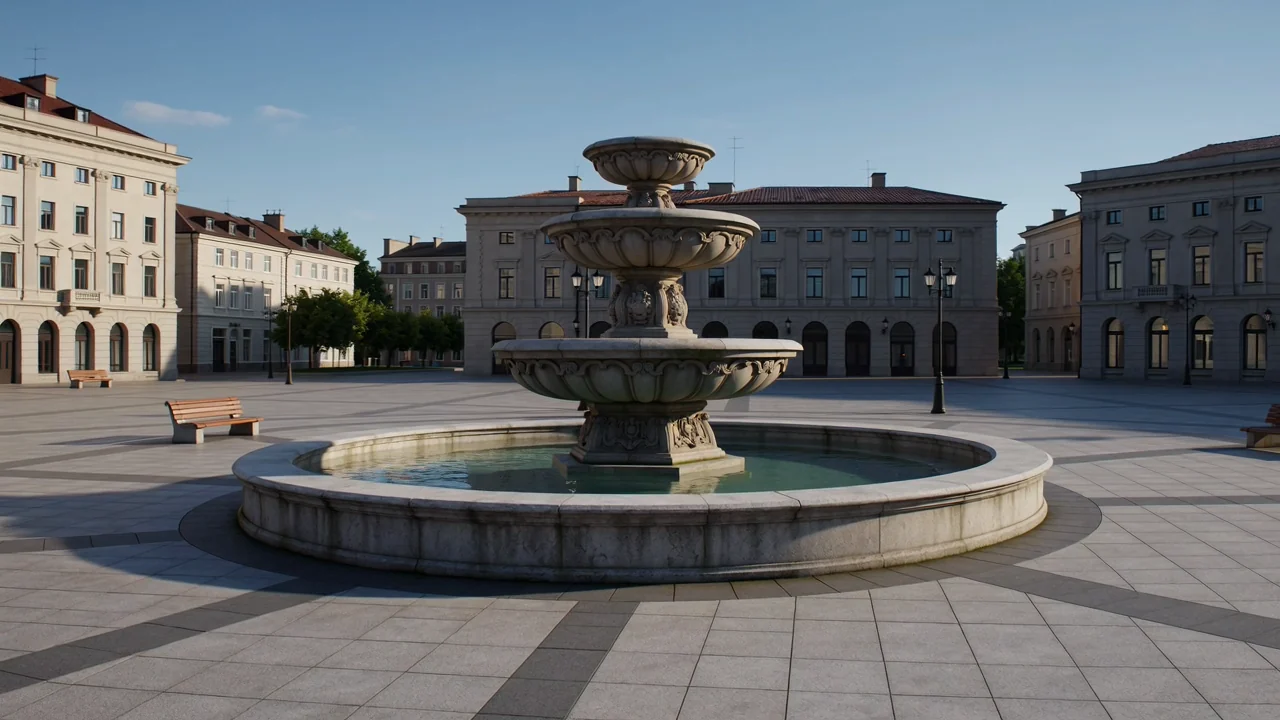
Kombinér promptens anvisninger med visuelle referencer for at styre scenens komposition, stemning, bevægelse og motivets adfærd.
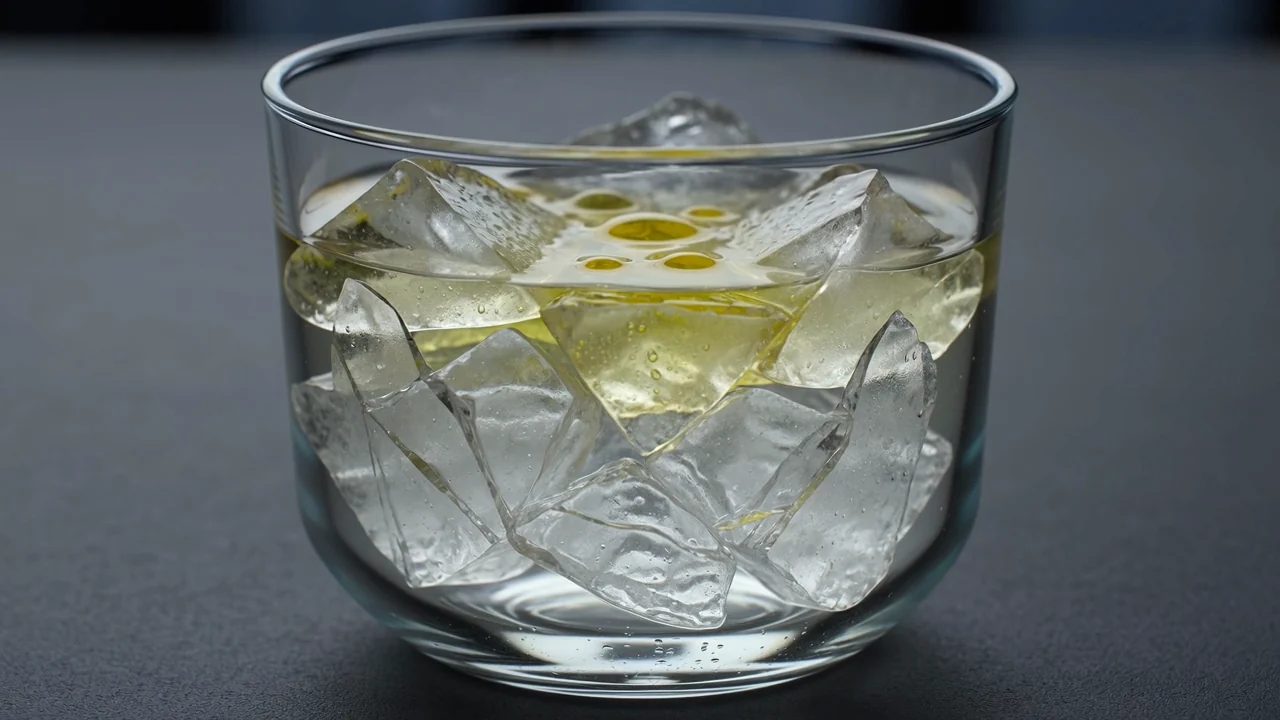
Vurder modellens adfærd ved video i oprindelig høj opløsning som en funktion, mens du kontrollerer outputindstillingerne før indsendelse.
Adskil de inddata, du leverer, fra de kontroller, der aktuelt er tilgængelige, fordi den aktive generator fastlægger den udførbare opsætning.
Start med en specifik prompt, og tilføj derefter referencebilleder, når optagelsen eller overgangen kræver visuel vejledning.
Brug kontrollerne for modelvælger, billedformat, varighed, opløsning og referencebillede, der vises før indsendelse.
Forvent genererede videoklip eller videoer med referencevejledning, og kontrollér dem derefter mod briefen før offentliggørelse.
Følg en praktisk, promptstyret arbejdsgang, der matcher de tilgængelige inddata og kontroller, før du gennemgår resultatet.
Definér videoens formål, målgruppe, motiv, miljø, bevægelse og endelige destination, før du åbner generatoren.
Skriv en kortfattet prompt, og indsaml kun referencebilleder, når opgaven har gavn af visuel vejledning.
Indstil de muligheder for modelvælger, billedformat, varighed, opløsning og referencebillede, som ClipCanva aktuelt viser.
Generér videoer med MiniMax H3, sammenlign alternativer, og revidér om nødvendigt den svageste instruktion eller reference.
Anvendelsesmuligheder fungerer bedst, når prompt, referencemateriale, målgruppe, format og gennemgangsstandard er defineret på forhånd.
Skab filmiske etableringsbilleder til kampagner, storyboards, præsentationer eller konceptfilm, der kræver stemning.
Planlæg overgange fra første til sidste frame, når en sekvens kræver en styret visuel ændring mellem to frame-tilstande.
Udarbejd klip med karakterpræstationer, der undersøger gestik, stemning, handling og kameraadfærd før det endelige valg.
Udvikl musik- og stemningskoncepter, hvor lys, rytme, miljø og følelse kræver tidlig visuel udforskning.
Behandl hver genereret video som et udkast, og gennemfør en gennemgang, før den indgår i produktion eller offentliggøres.
Bekræft, at prompt, motiv, bevægelse, billedbeskæring og sceneinstruktion stemmer overens med det ønskede resultat.
Undersøg, om karakterer, produkter, miljøer og overgange forbliver sammenhængende gennem det genererede klip.
Kontrollér brandelementer, produktdetaljer, påstande og faktuelle referencer mod godkendt kildemateriale.
Kontrollér varighed, billedformat, opløsning, beskæring og leveringskrav, før materialet sendes videre.
Hold tilgængelighed, tilgængelige kontroller, modeladfærd og ansvar for offentliggørelse adskilt, når du planlægger produktionsarbejde.
MiniMax H3 er tilsluttet i ClipCanva i dag, og de synlige indstillinger før indsendelse definerer den aktuelle tilgængelighed.
Resultaterne varierer mellem kørsler, så menneskelig gennemgang er påkrævet, før en genereret video bruges i en kampagne eller offentliggørelse.
Den tilsluttede arbejdsgang accepterer op til to framebilleder og viser kun sine aktuelle kontroller for varighed og output.
Fakta verificeret
Svarene forklarer MiniMax H3s identitet, inddata, kontroller, tilgængelighed, arbejdsgang, outputgennemgang og planlægningsbegrænsninger.
Sammenlign andre AI-videomodeller efter inddataformer, synlige kontroller, outputadfærd, behov for gennemgang og bekræftet tilgængelighed.
Start med en klart defineret prompt, bekræft de kontroller, der er tilgængelige i dag, og afsæt tid til at gennemgå hver genereret video omhyggeligt.