


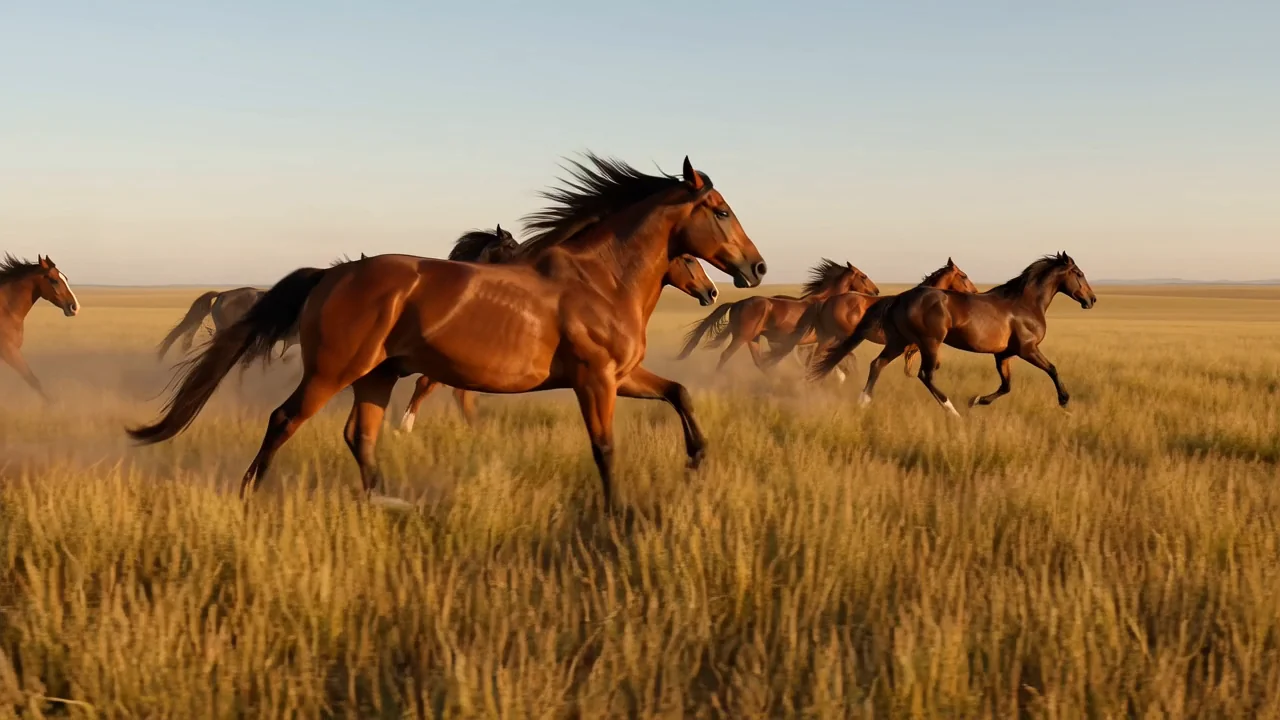
Tekst-til-video-generering
Omdan en skriftlig prompt til genererede videoklip, og kontrollér derefter resultatet for scenehensigt, visuelle detaljer og passende bevægelse.
Sammenlign AI-videomodellen HappyHorse 1.0 ud fra identitet, understøttede input, tilgængelige kontroller, output og tilgængelighed før produktion.
HappyHorse 1.0 er en multimodal AI-videomodel til tekst-til-video- og billede-til-video-opgaver, vurderet som en generator til udkast.
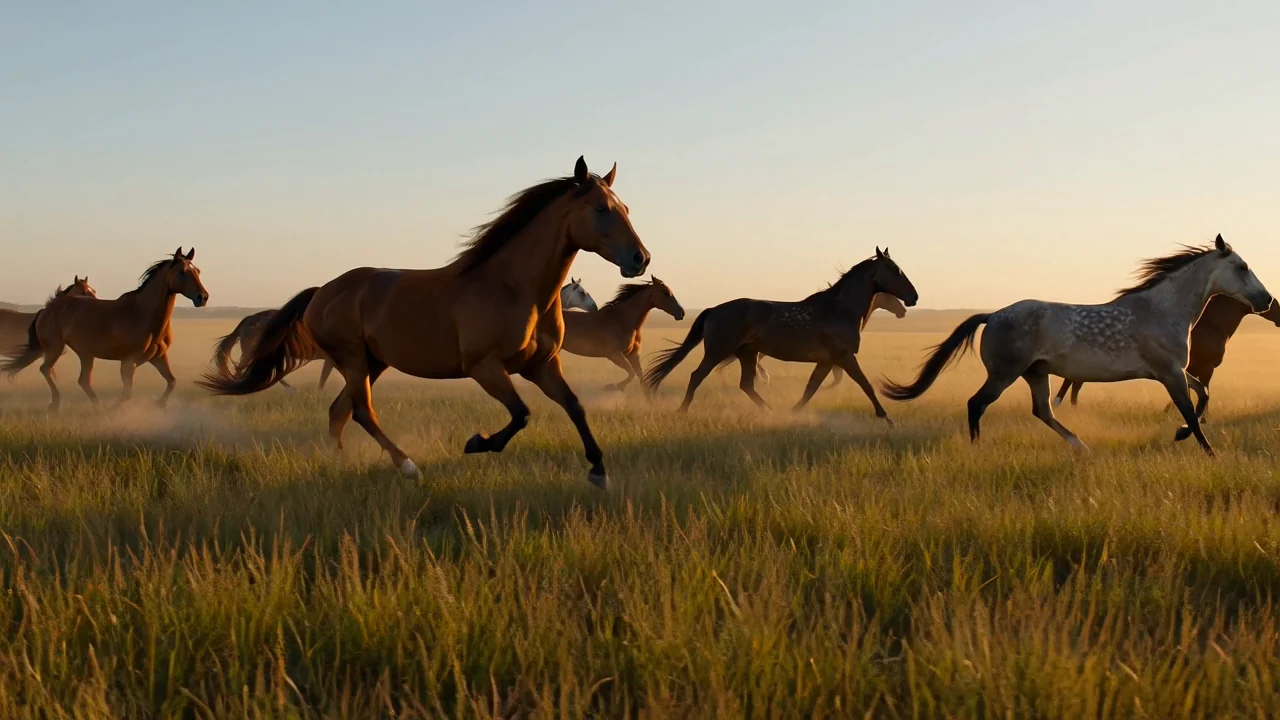
Gennemgå AI-videomodellen HappyHorse 1.0's funktioner til tekstprompter, referencebilleder, bevægelse og kontinuitet før brug.
Omdan en skriftlig prompt til genererede videoklip, og kontrollér derefter resultatet for scenehensigt, visuelle detaljer og passende bevægelse.
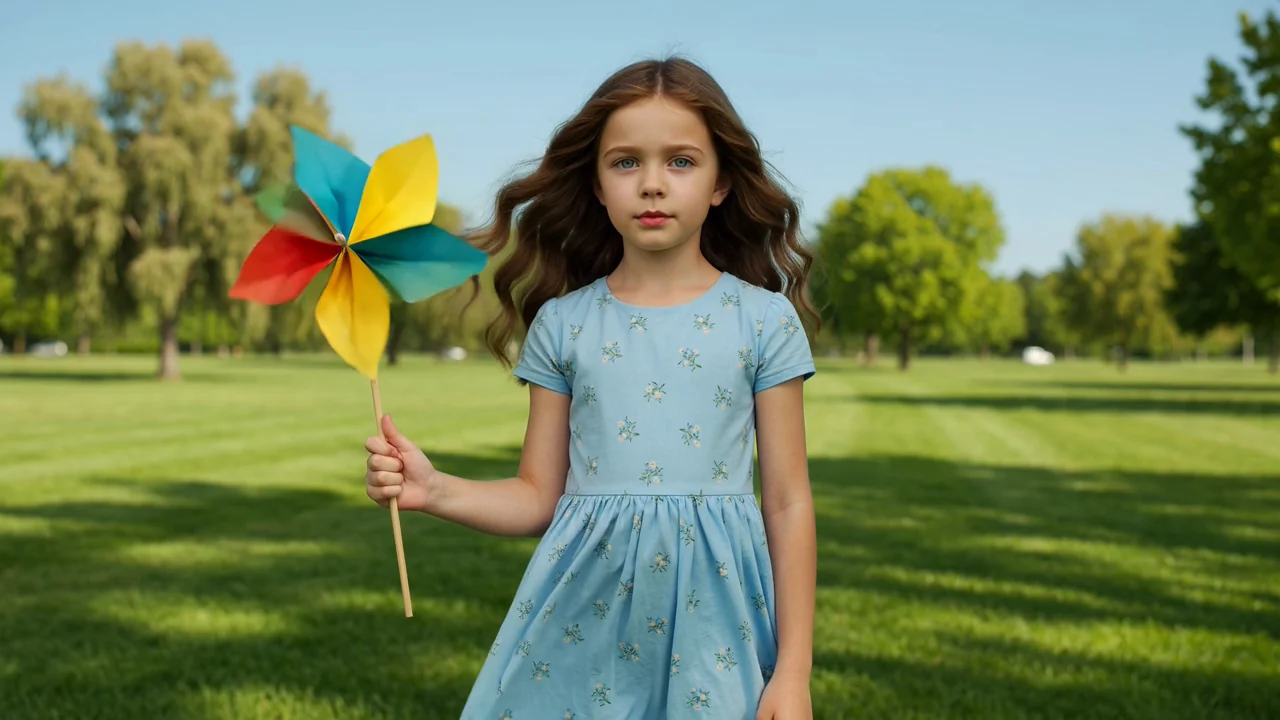
Brug et referencebillede til at styre motivets udseende eller scenens retning, og vurder derefter, hvor godt bevægelsen bevarer kilden.
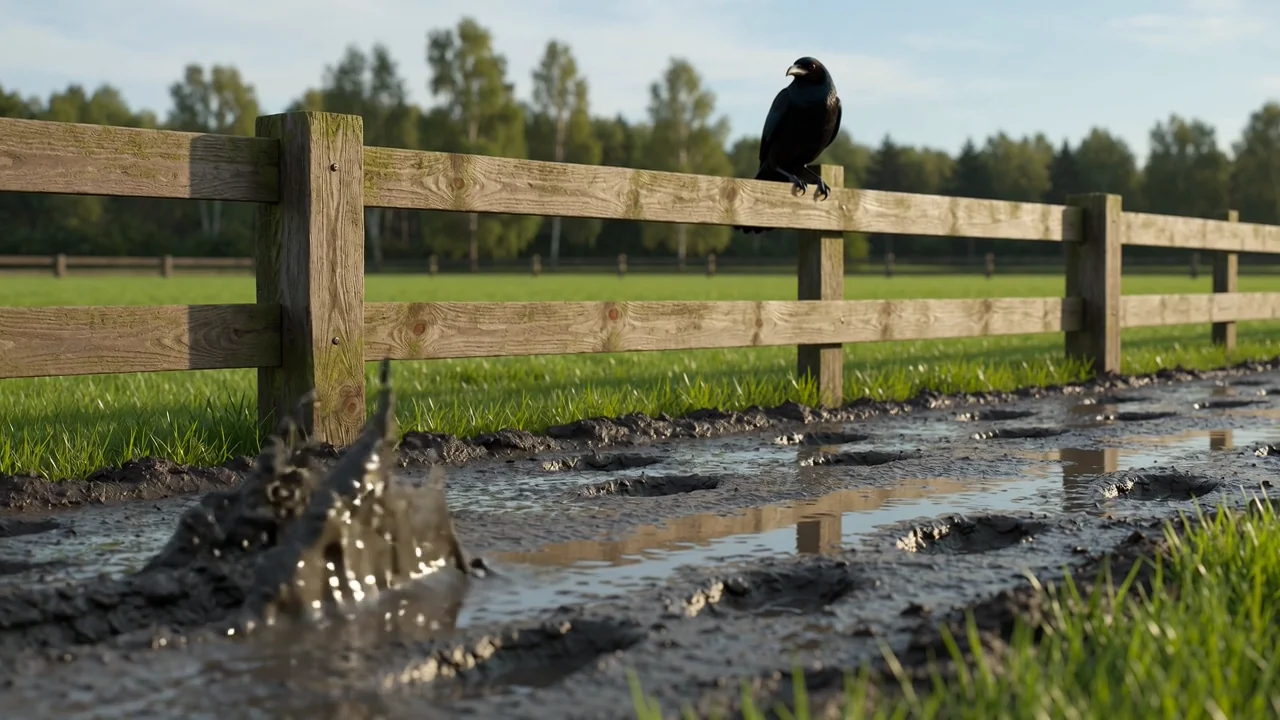
Betragt det fælles audio-video-modeldesign som en funktion beskrevet i modelkortet, mens du kun bruger de kontroller, der er tilgængelige i ClipCanva.
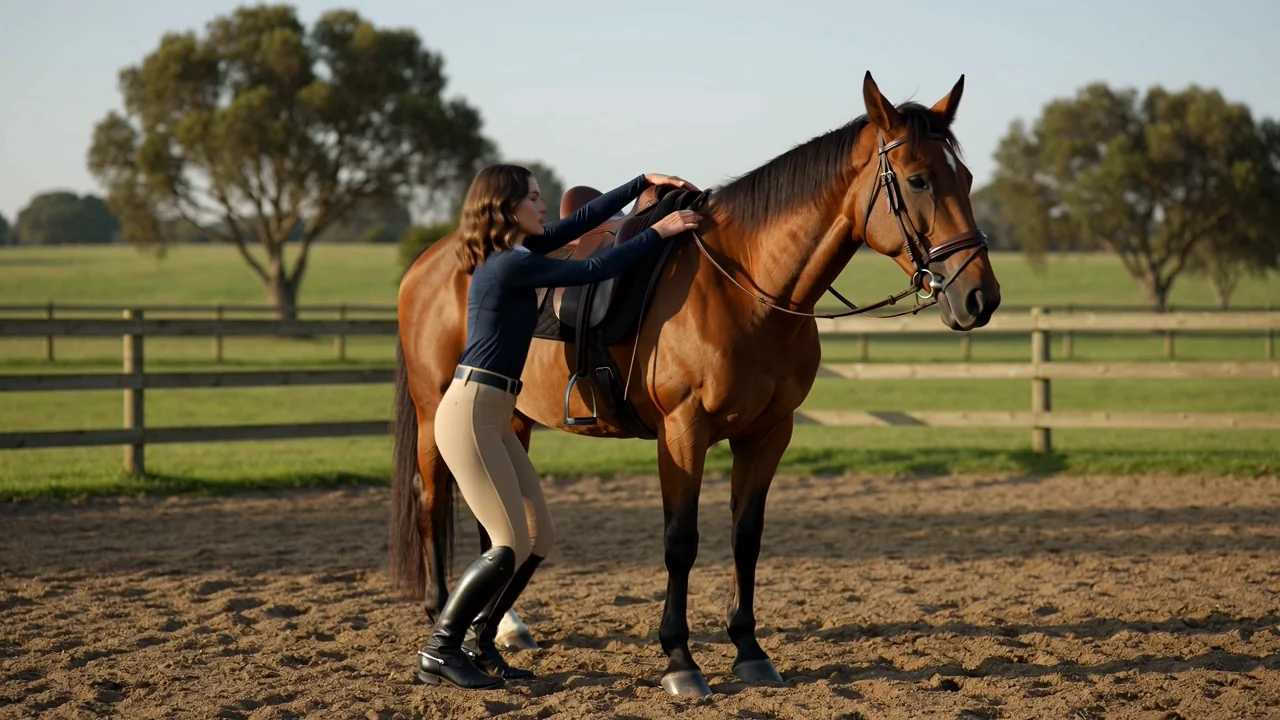
Test kompleks bevægelse og scenekontinuitet med specifikke prompter, og sammenlign derefter genererede klip med den tilsigtede sekvens.
Brug de dokumenterede inputtyper og synlige kontroller i ClipCanva som den operationelle grænse for hvert genereringsforsøg.
Start med en tydelig tekstprompt, og tilføj et referencebillede, når scenen, motivet eller produktet har brug for visuel vejledning.
Juster modelvælgeren, billedformatet, varigheden, opløsningen og indstillingerne for referencebillede, der er synlige før indsendelse.
Forvent genererede videoklip eller referencevejledte videoer, som stadig kræver gennemgang af kvalitet, kontinuitet og formatmatch.
Følg en enkel produktionsvej fra planlægning af prompt til generering og gennemgang, og brug kun de bekræftede kontroller, der vises her.
Definér målgruppe, formål, motiv, miljø, bevægelse og destinationsformat, før du åbner generatoren.
Skriv en kort prompt med den ønskede handling og scene, og forbered kun et referencebillede, når det tilfører tydelig værdi.
Vælg modelvælgeren, billedformatet, varigheden, opløsningen og de referenceindstillinger, der vises før indsendelse.
Generér videoer med HappyHorse 1.0, sammenlign output, find svage detaljer, og justér én instruktion ad gangen.
Match disse anvendelser med reelle oplæg, hvor videoudkast, referencevejledning og struktureret gennemgang er nyttige.
Skab tidlige sceneretninger for stemning, kamerafølelse, belysning og bevægelse, før du forpligter dig til en endelig produktionsplan.
Undersøg, hvordan et produkt kan bevæge sig, rotere eller fremstå i en kort visuel test, mens du kontrollerer detaljer efter generering.
Lav korte udkast styret af en figur eller et motiv, og gennemgå derefter kontinuitet, positur, udtryk og scenekonsistens.
Generér stemningsfulde åbninger eller lokationskoncepter, der hjælper med at fastlægge tone, miljø og bevægelse for en større redigering.
Gennemgå hvert genereret klip som et udkast, fordi kreativt match, kontinuitet, mærkevaredetaljer og fakta kræver menneskelig verificering.
Bekræft, at motivet, handlingen, kompositionen, miljøet og bevægelsen stemmer overens med den oprindelige prompt og produktionsmålet.
Undersøg figurer, produkter, baggrunde, overgange og scenedetaljer for uønskede ændringer eller brud i kontinuiteten.
Kontrollér logoer, produktpåstande, navne, etiketter og faktuelle elementer mod godkendt kildemateriale før brug.
Kontrollér varighed, billedformat, opløsning, beskæring og outputformat i forhold til kravene for destinationskanalen.
Kontrollér tilgængelighed, synlige kontroller, varierende resultater og behovet for menneskelig gennemgang, før et genereret klip betragtes som endeligt.
HappyHorse 1.0 er tilsluttet ClipCanva i dag, så de synlige muligheder før indsendelse angiver den aktuelle tilgængelighed.
Den samme prompt eller det samme referencebillede kan give forskellig bevægelse, komposition, timing eller detaljegrad på tværs af separate kørsler.
ClipCanva viser kun kontrollerne i sin Kie-understøttede generator og ikke alle modelmuligheder på udbydersiden.
Fakta verificeret
Find svar om HappyHorse 1.0's identitet, input, kontroller, tilgængelighed, arbejdsgang, output og gennemgangsansvar.
Sammenlign andre AI-videomodeller efter inputtyper, synlige kontroller, outputadfærd og bekræftet tilgængelighed i ClipCanva.
Begynd med et klart defineret oplæg, prøv HappyHorse 1.0 i den tilsluttede generator, og afsæt tid til grundig gennemgang af outputtet.