
อัปโหลดภาพ
เลือกภาพ JPG, PNG หรือ WebP จากอุปกรณ์ของคุณ.
ใช้เครื่องมือปรับความสว่างและคอนทราสต์ของภาพเพื่อปรับแต่งไฟล์ JPG, PNG หรือ WebP ในเบราว์เซอร์ของคุณ ปรับความสว่างและคอนทราสต์แยกกัน ดูตัวอย่างผลลัพธ์ที่ประมวลผลแล้ว และบันทึกไฟล์เมื่อได้ภาพตามต้องการ.
รูปภาพต้นฉบับ
เลือกรูปภาพเพื่อดูตัวอย่างต้นฉบับ
ผลลัพธ์
เครื่องมือปรับความสว่างและคอนทราสต์ของภาพจะเปลี่ยนความสว่างหรือความมืดของภาพ และระดับการแยกของโทนสี ความสว่างปรับระดับแสงโดยรวม ส่วนคอนทราสต์เพิ่มหรือลดความแตกต่างระหว่างเงา โทนกลาง และส่วนสว่าง.
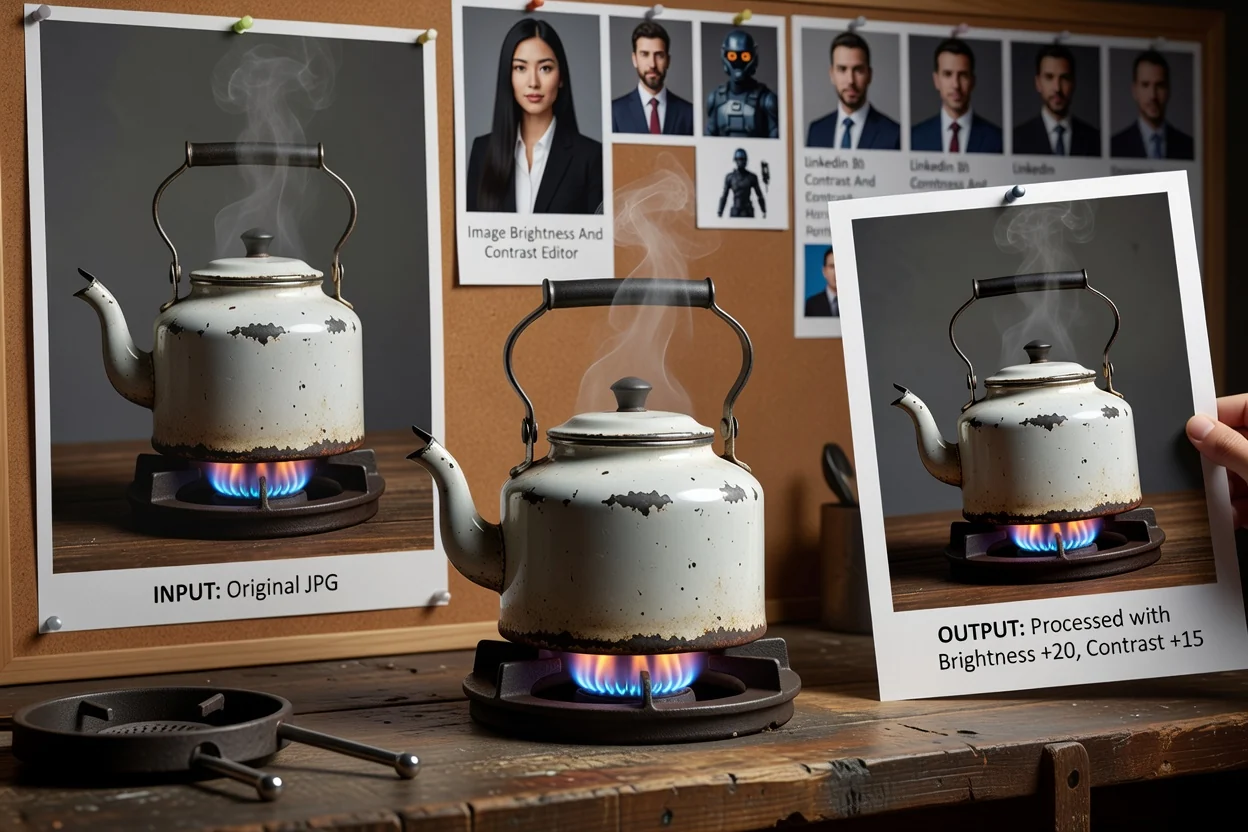
ประมวลผลภาพด้วยขั้นตอนสั้น ๆ ที่ตรวจสอบผลได้.
เลือกภาพ JPG, PNG หรือ WebP จากอุปกรณ์ของคุณ.
ใช้แถบเลื่อนความสว่างเพื่อปรับความสว่างของภาพ แล้วใช้แถบเลื่อนคอนทราสต์เพื่อเปลี่ยนคอนทราสต์ตามต้องการ.
ตรวจสอบตัวอย่างที่ประมวลผลแล้ว และปรับการตั้งค่าต่อจนผลลัพธ์ของภาพดูเหมาะสม.
เครื่องมือนี้ออกแบบสำหรับขั้นตอนการแก้ไขความสว่างและคอนทราสต์ที่ตรงไปตรงมา รองรับรูปแบบภาพและมีผลลัพธ์ให้ตรวจสอบ.
อัปโหลดภาพ JPG, PNG หรือ WebP.
ผลลัพธ์คือภาพที่ประมวลผลแล้ว ซึ่งตรวจสอบได้ก่อนบันทึกเป็นไฟล์ที่ดาวน์โหลดได้.
ใช้ตัวควบคุมความสว่างและคอนทราสต์แยกกัน แต่ละตัวควบคุมจะแก้ไขพิกเซลจริง ดังนั้นการเปลี่ยนแปลงที่เห็นในตัวอย่างจะเป็นส่วนหนึ่งของไฟล์ที่ประมวลผลแล้ว.
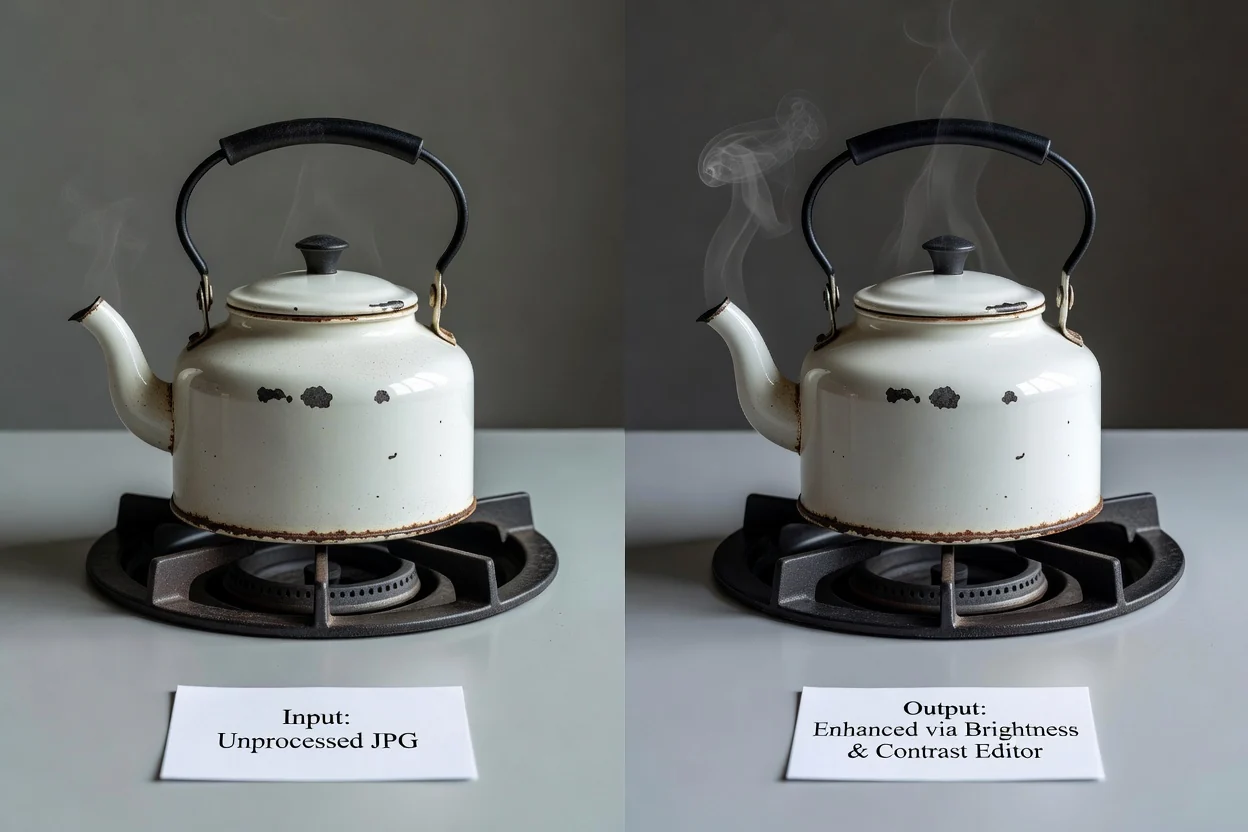
ตัวควบคุมที่เน้นเฉพาะงานช่วยให้คุณปรับผลลัพธ์ได้โดยไม่ต้องสลับไปมาระหว่างหลายเครื่องมือ.
ปรับความสว่างและคอนทราสต์แยกกัน เพื่อไม่ให้การแก้ไขอย่างหนึ่งบังคับให้อีกอย่างเปลี่ยนตาม คุณอาจปรับความสว่างก่อน แล้วจูนคอนทราสต์เพื่อให้ได้ภาพสุดท้ายที่ต้องการ.
การแก้ไขจะใช้กับพิกเซลจริงของภาพ ทำให้ตัวอย่างใกล้เคียงกับผลลัพธ์ที่ประมวลผลแล้วมากกว่าฟิลเตอร์ที่เปลี่ยนเพียงการแสดงผล.
ประมวลผลไฟล์ในขั้นตอนการทำงานภายในเบราว์เซอร์บนเครื่อง ซึ่งออกแบบมาสำหรับงานปรับภาพเดี่ยว.
ใช้ตัวอย่างเปรียบเทียบลักษณะปัจจุบันก่อนบันทึก โดยเฉพาะหลังเปลี่ยนคอนทราสต์ของภาพที่มีเงาหรือส่วนสว่างชัดเจน.
วิธีใช้งานทั่วไปเมื่อภาพต้องการการแก้ไขโทนอย่างรวดเร็ว.
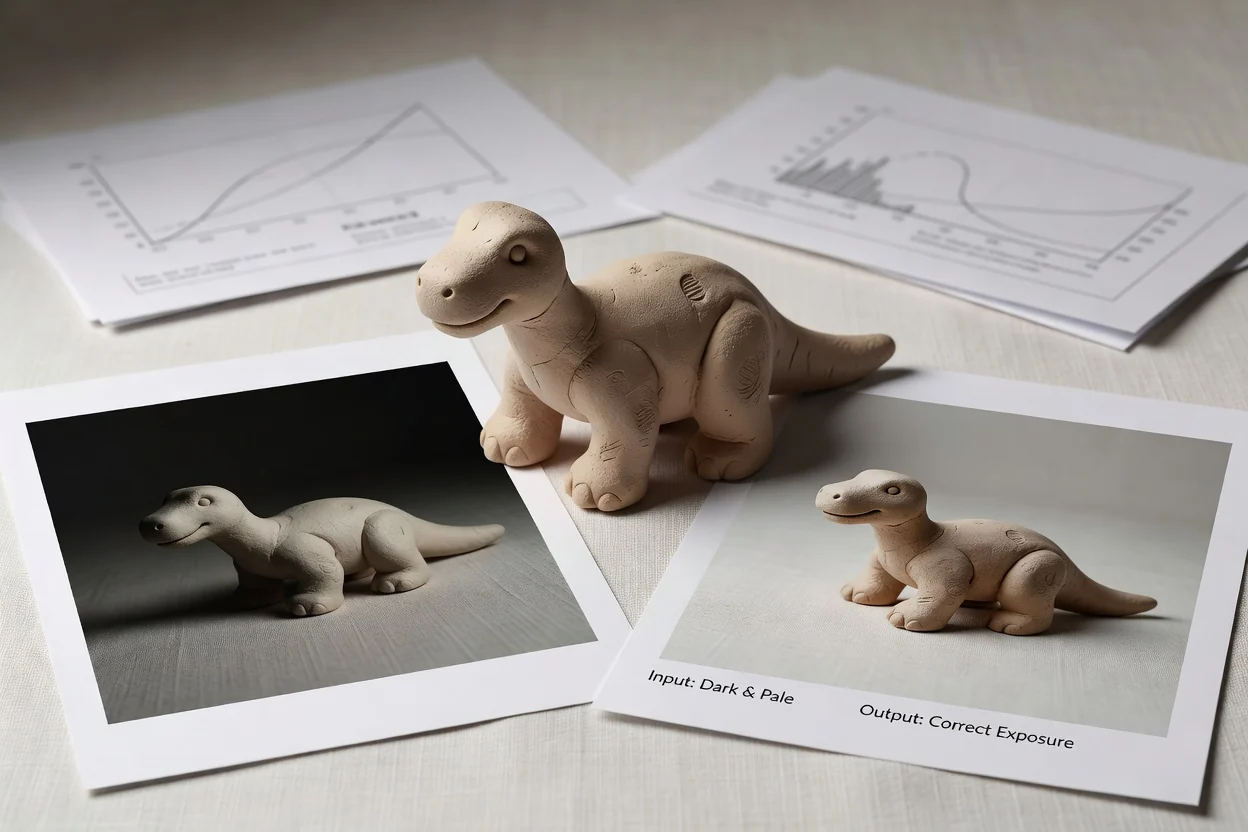
ปรับความสว่างของภาพเมื่อภาพสินค้า รูปโปรไฟล์ หรือโพสต์โซเชียลดูมืดหรือซีดเกินไป.
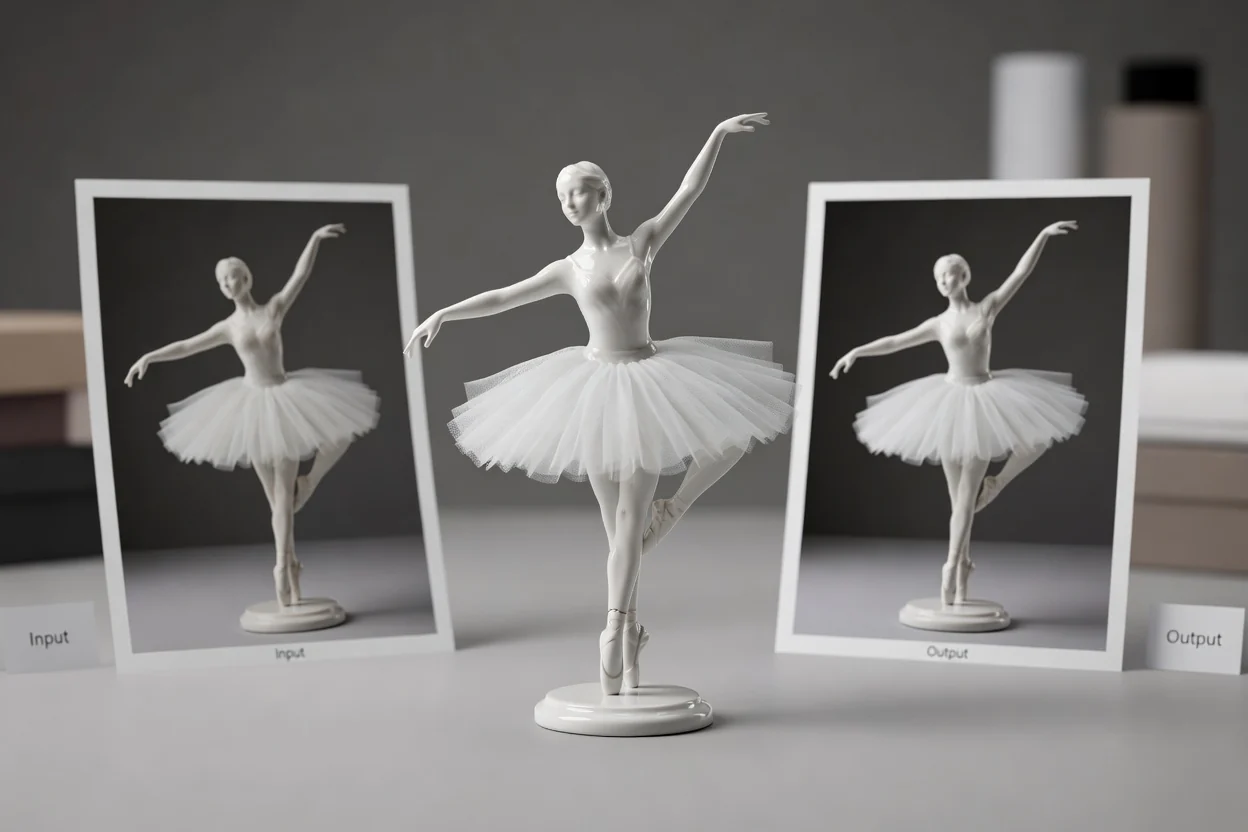
เปลี่ยนคอนทราสต์ของภาพเพื่อให้โทนดูชัดขึ้นสำหรับงานนำเสนอ รายการสินค้า ภาพขนาดย่อ หรือภาพบรรณาธิการ.
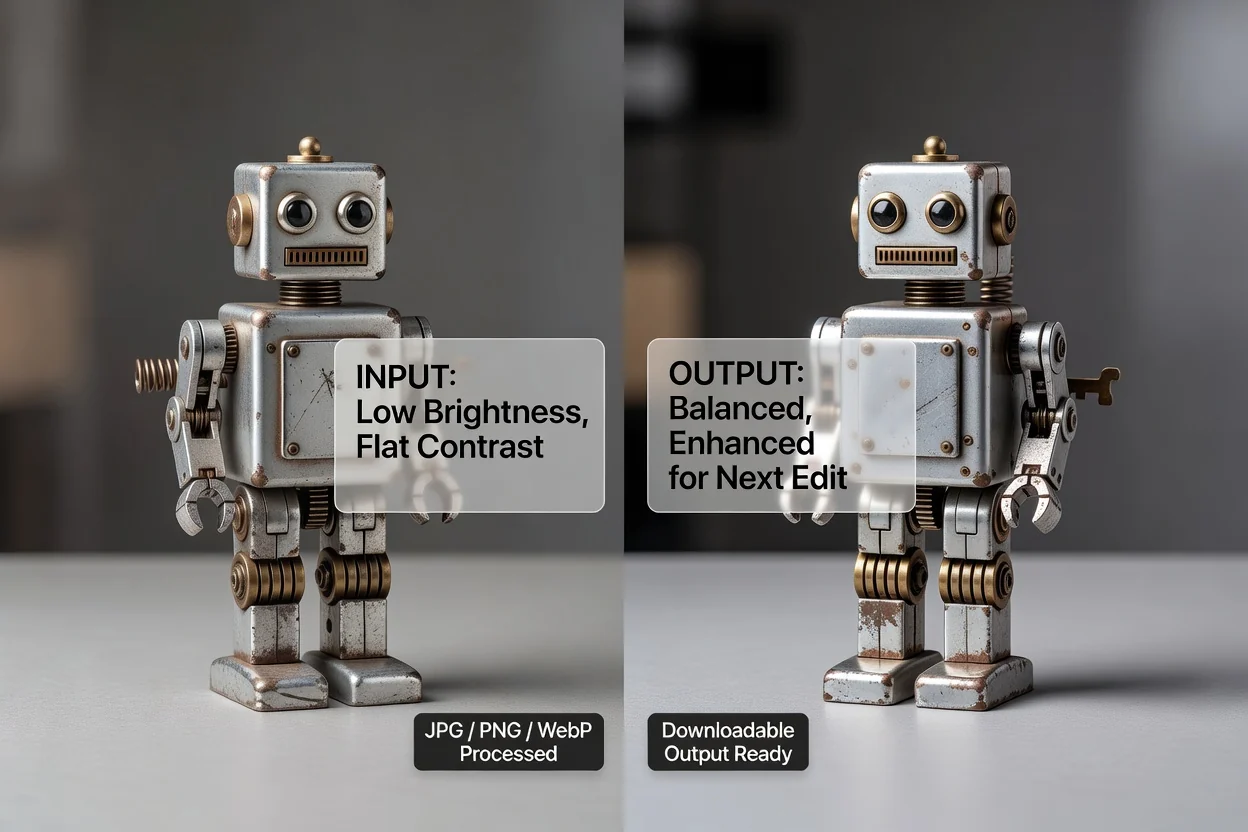
ใช้ตัวควบคุมแยกกันเพื่อเตรียมภาพให้สมดุลยิ่งขึ้นก่อนปรับขนาด ครอบตัด หรือแปลงไฟล์.
การปรับความสว่างและคอนทราสต์มีประโยชน์สำหรับการแก้ไขโทนโดยรวม แต่ไม่สามารถแก้ปัญหาจากต้นฉบับได้ทุกกรณี.
การปรับมีผลกับทั้งภาพ ไม่ใช่เฉพาะบริเวณ วัตถุ หรือพื้นที่พื้นหลังที่เลือก.
หากรายละเอียดในต้นฉบับหายไปอย่างสมบูรณ์ เครื่องมือไม่สามารถสร้างข้อมูลที่ไม่มีอยู่แล้วขึ้นใหม่ได้.
การตั้งค่าที่แรงมากอาจทำให้ภาพดูซีด มืดเกินไป หรือแข็งกระด้าง ควรตรวจสอบผลลัพธ์ก่อนบันทึก.
คำตอบสำหรับคำถามที่พบบ่อยเกี่ยวกับการใช้เครื่องมือปรับความสว่างและคอนทราสต์ของภาพ.
ใช้เครื่องมือจัดการภาพอื่นต่อได้เมื่องานปรับความสว่างและคอนทราสต์เสร็จสิ้น.
อัปโหลดภาพที่รองรับ ตั้งค่าความสว่างและคอนทราสต์ ตรวจสอบผลลัพธ์ แล้วบันทึกไฟล์ที่ประมวลผลแล้ว.