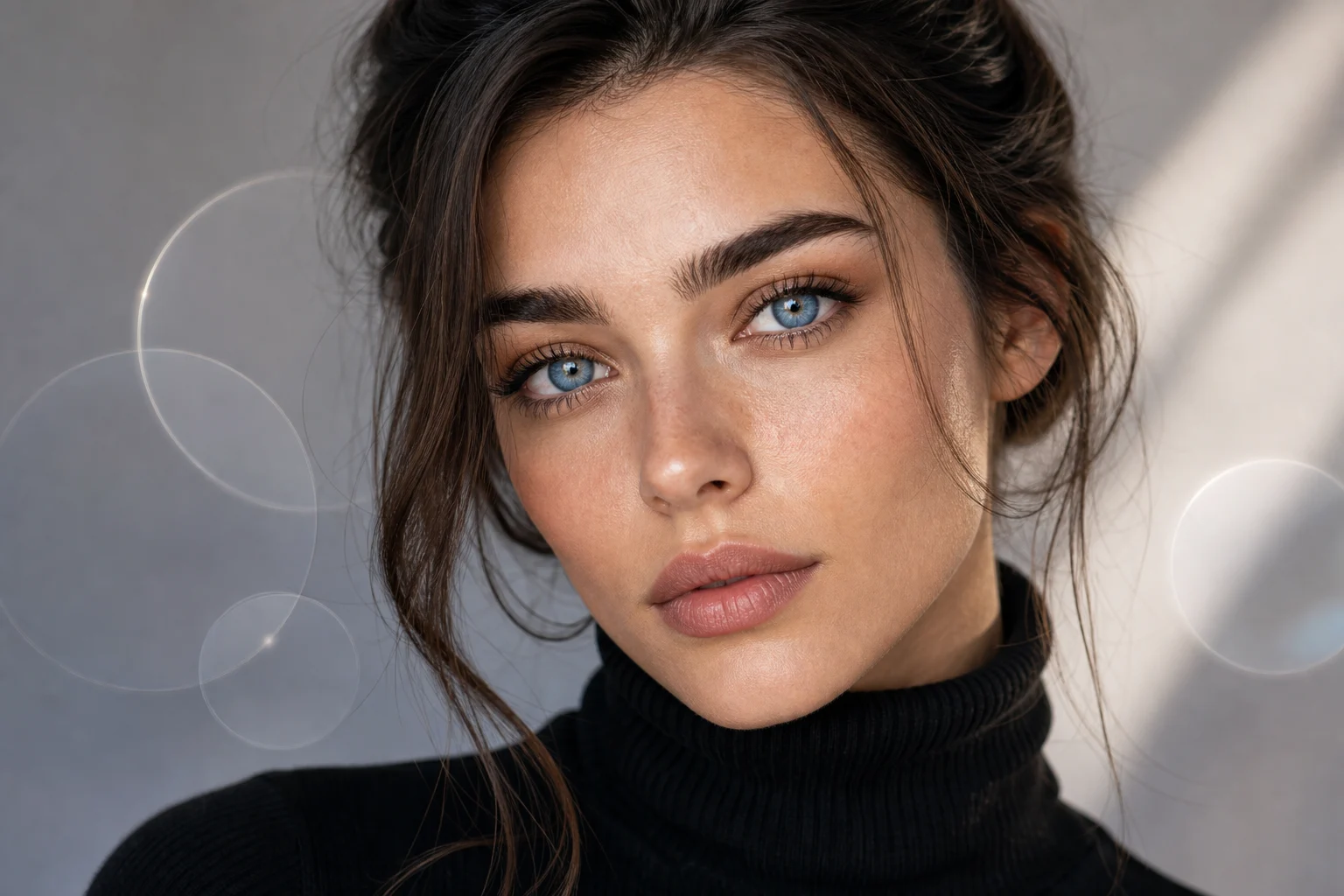
AI Blue Eye Filter with 20 Free Credits

AI Blue Eye Filter with 20 Free Credits

Change only the irises in a clear portrait to a believable blue while preserving the same face, expression, skin tone, lighting, angle, hair, clothing, and background details.

AI Blue Eye Filter example
0 / 2000
Template prompt

AI Blue Eye Filter with 20 Free Credits

Apply the AI Blue Eye Filter effect to the uploaded portrait. Preserve the same person, face shape, facial features, expression, pose, clothing, lighting, camera angle, background, skin tone, hair, and makeup. Change only the iris color to natural blue with realistic depth, radial texture, catchlights, shadows, and eye moisture. Do not alter eye shape or any other part of the image.

AI Blue Eye Filter example

What this blue eye filter does

The AI Blue Eye Filter with 20 Free Credits is designed for portraits where you want the eyes to appear naturally blue without changing the person or the scene. It focuses on the iris color, texture, catchlights, shadows, and facial lighting so the result feels like a realistic eye-color preview rather than a full portrait makeover.

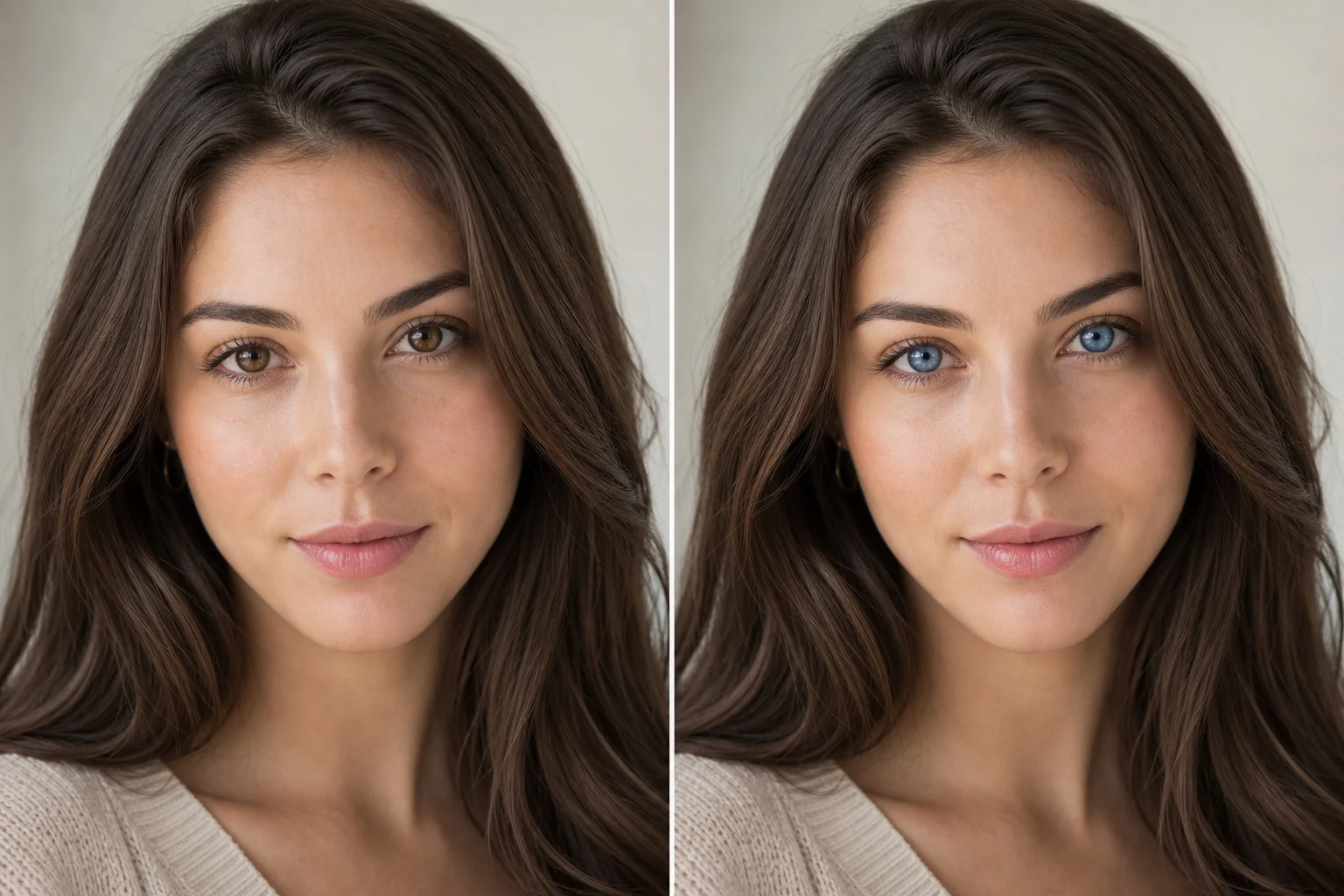
From original portrait to blue eyes

This template is meant for a precise eye-color transformation, not a complete portrait restyle. The visual change should stay concentrated in the irises so the original photo remains familiar.

What changes

  • Change only the eye color to a believable blue while keeping your face, expression, skin tone, camera angle, and surrounding details intact.
  • Preview a blue eye look with 20 Free Credits as part of this template experience.
  • Generate natural blue irises with matching catchlights, texture, shadows, and facial lighting.
  • Keep identity, expression, skin tone, hair, clothing, pose, and background stable while only changing eye color.

What stays the same

  • Preserve the same person, face shape, facial features, expression, pose, clothing, lighting, camera angle, background, skin tone, hair, and makeup.
  • Keep the main subject recognizable from the source image.
  • Maintain defining colors, pose, silhouette, and important subject details so the portrait stays coherent.

How to use the AI blue eye filter

Follow a simple process to create a Blue Eye Filter with 20 Free Credits online result that stays focused on the irises.

1

Upload a clear portrait

Select a sharp image where the eyes are visible and the face, lighting, and surrounding details are clear enough to preserve.

2

Set the eye-color direction

Describe a natural blue iris change and specify that the face, expression, eye shape, skin tone, hair, makeup, clothing, pose, and background should remain unchanged.

3

Review the result

Generate the blue eye preview and compare it with the original image to confirm the edit only affects the intended area.

4

Refine the blue tone

If needed, adjust the prompt for a softer, deeper, brighter, or more realistic blue, then create another version for comparison.

Blue eye filter examples

Explore different examples of natural blue eye edits, from subtle portrait enhancement to more striking blue iris previews.

AI Blue Eye Filter background

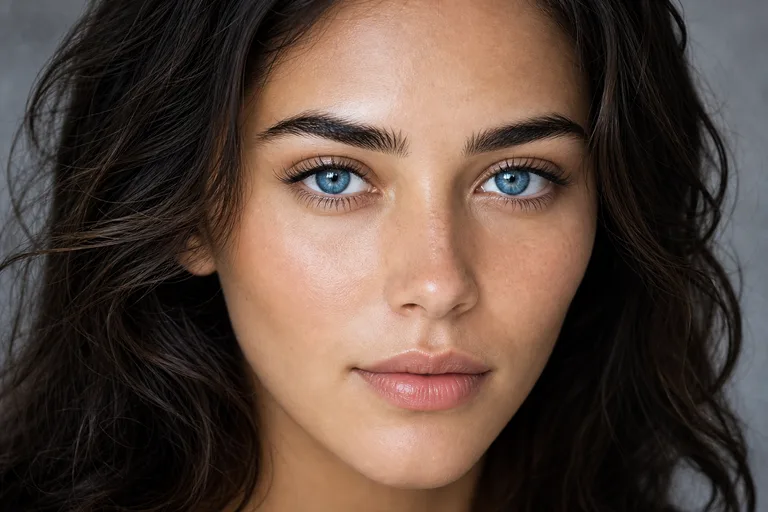
Natural blue portrait preview

A balanced blue eye result that keeps the portrait’s lighting, expression, and facial details stable.

AI Blue Eye Filter example 1

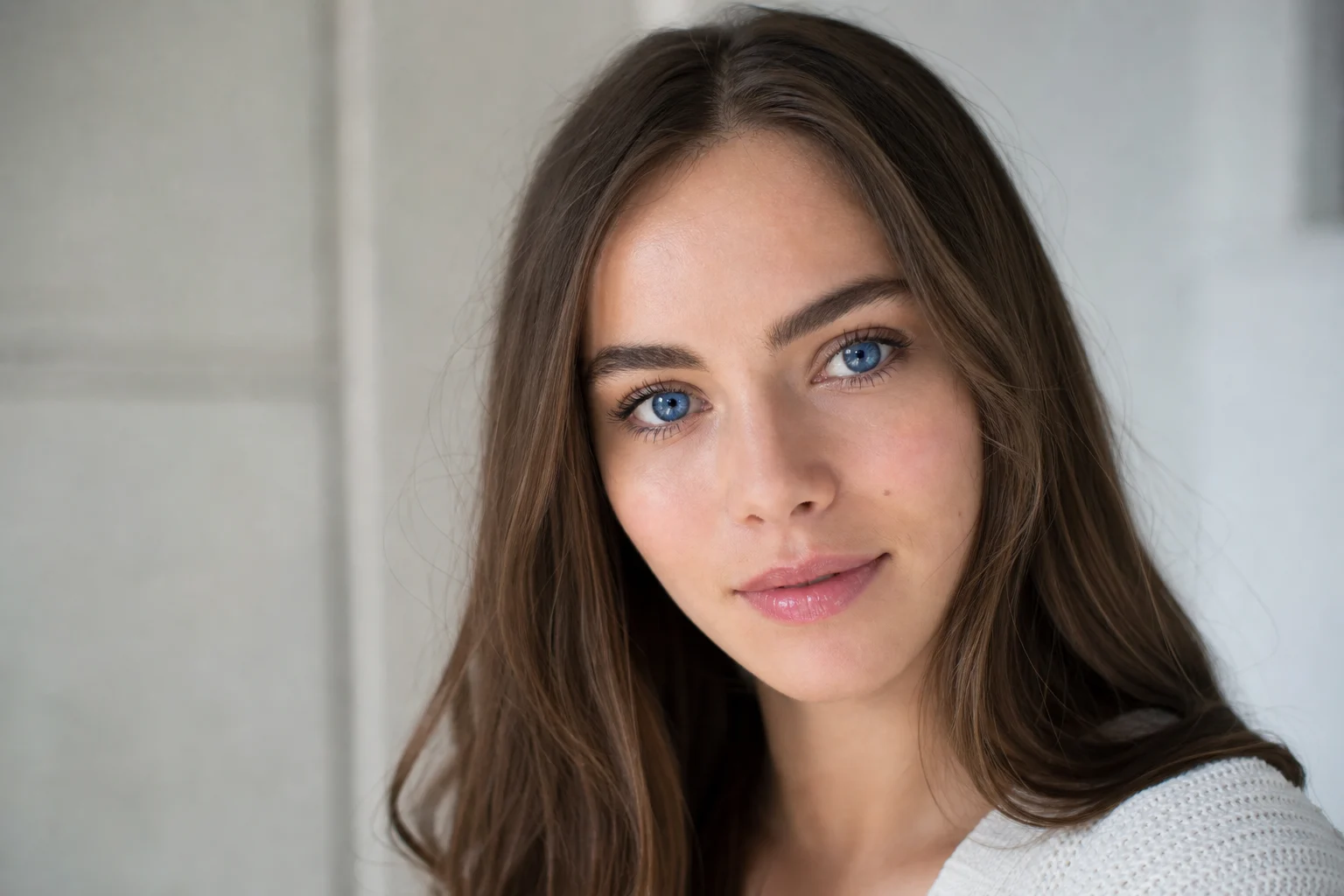
Realistic iris color change

A clear blue iris effect designed to blend with existing catchlights, shadows, and skin tones.

AI Blue Eye Filter example 2

Brighter blue eye style

A more noticeable blue eye look while preserving the same person, pose, hair, clothing, and background.

AI Blue Eye Filter example 3

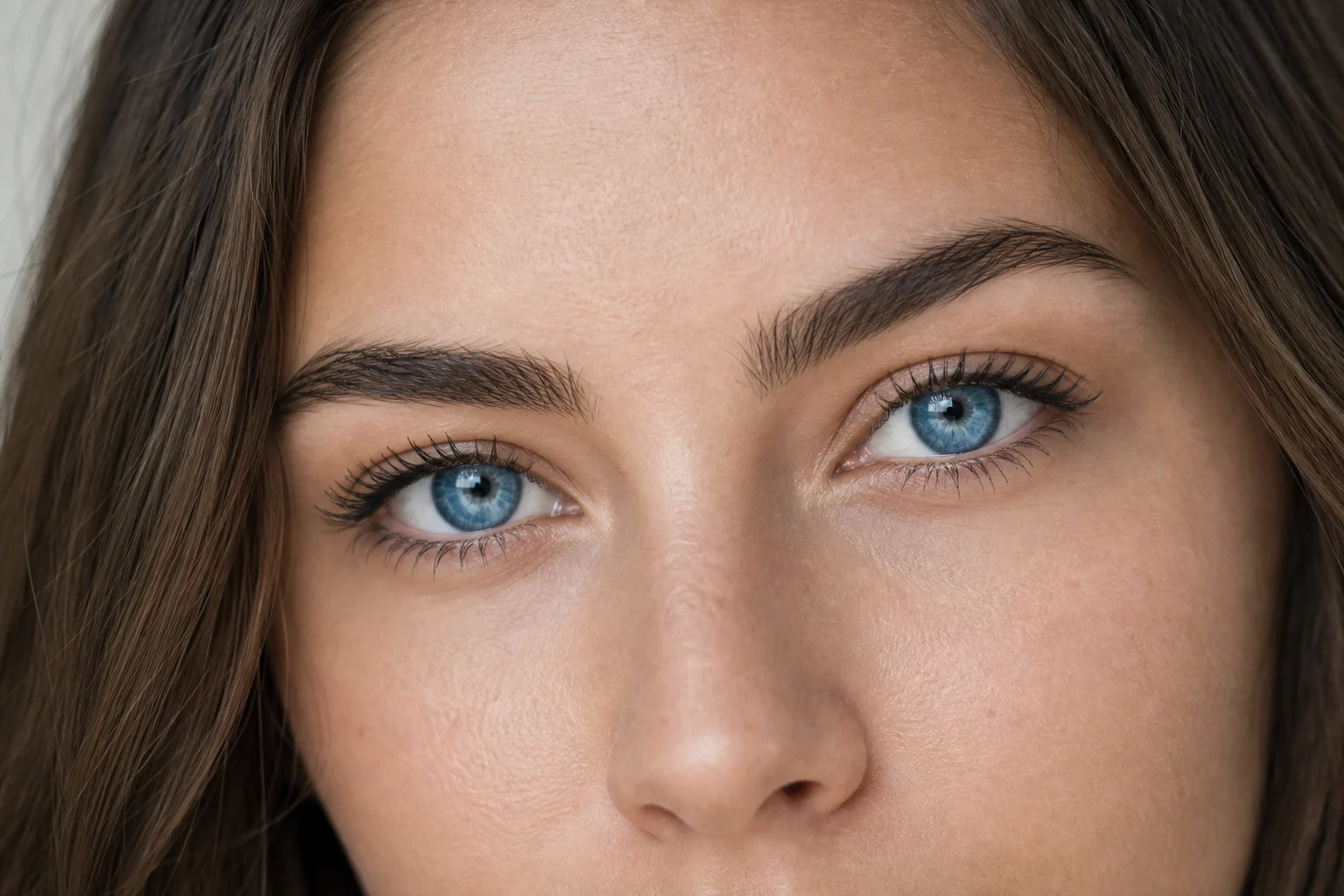
Detailed blue eye close-up

A close portrait style that emphasizes believable blue iris texture and natural eye reflections.

Best uses for this template

Use the ai blue eye filter when you need a believable eye-color preview without rebuilding the whole portrait.

Create a first version fast

Create an initial blue-eyed version of a portrait to see whether the color works with the face, lighting, and overall mood.

Adapt the style to your project

Match the blue eye look to a personal edit, profile concept, character reference, beauty test, or visual mood board.

Create another version

Try another version with a softer, brighter, deeper, or more subtle blue while keeping the same source portrait recognizable.

Preview a specific blue eye look

Build a focused AI Blue Eye Filter with 20 Free Credits preview for a personal or creative project.

Compare before refining

Compare the visual direction before refining, sharing, or presenting the result to someone else.

How to get a natural blue eye result

A clear, front-facing or lightly angled portrait usually gives the most believable result. The eyes should be visible enough for the blue color, iris texture, reflections, and shadows to blend with the original lighting.

Source image checks

  • Use a sharp source image with the main subject clearly visible.
  • Avoid heavy blur, blocked eye details, extreme crops, harsh glare, or confusing overlaps.
  • Choose a source whose pose and framing support a natural AI Blue Eye Filter with 20 Free Credits result.

Prompt guidance

Ask for only the iris color to change to natural blue. Mention realistic depth, radial iris texture, catchlights, shadows, eye moisture, and preservation of face shape, expression, makeup, skin tone, hair, clothing, camera angle, and background.

What to check before using the result

Generated details can vary, so review the image before sharing or using it in a project. If the edit changes more than the eye color, try a clearer source image or a more specific prompt.

Compare identity and expression

Make sure the same person remains recognizable, with the original face shape, expression, pose, silhouette, and defining features preserved.

Inspect the eye color realism

Check that the blue irises match the photo’s lighting, shadows, catchlights, texture, and eye moisture rather than looking flat or pasted on.

Review the full image

Look around eyelids, lashes, brows, skin, hair, clothing, background transitions, and small details for artifacts or unintended edits.

AI Blue Eye Filter FAQs

Answers to common questions about using a Blue Eye Filter with 20 Free Credits online for portrait edits.

Is the AI Blue Eye Filter free?
The template is presented as AI Blue Eye Filter with 20 Free Credits, so you can start testing the blue eye look with the available starter credits shown on the page.
Will it only change my eye color?
It is intended to change only the iris color to blue while keeping the eye shape, face, expression, skin tone, hair, clothing, lighting, and background stable. You should still review the result for any unwanted changes.
What photo works best?
Use a sharp portrait where the eyes are visible, well lit, and not heavily covered by hair, glasses glare, shadows, motion blur, or extreme cropping.
Can it make blue eyes look natural?
Yes, the template is built for realistic blue irises with depth, radial texture, moisture, catchlights, shadows, and lighting that match the original portrait.
Can I use it for profile photos?
Yes, it can help preview a blue-eyed version of a portrait for profile photos, creative concepts, style tests, or personal image ideas. Check the final image carefully before using it anywhere important.
Can I use generated blue eye images commercially?
Usage rights can depend on the platform terms, your source image, and how the result is used. Review the applicable terms before using generated images in commercial projects.
What details should I include for AI Blue Eye Filter with 20 Free Credits?
Include that only the iris color should become natural blue, and ask to preserve the same person, face shape, expression, lighting, camera angle, skin tone, hair, makeup, clothing, and background.
What makes AI Blue Eye Filter with 20 Free Credits useful?
It helps you test a believable blue eye color change quickly while keeping the rest of the portrait recognizable, making it useful for comparisons, previews, and creative direction checks.

Try the AI Blue Eye Filter with 20 Free Credits

Upload a clear portrait and create a focused blue eye edit that keeps the same person, pose, lighting, and surrounding details intact.