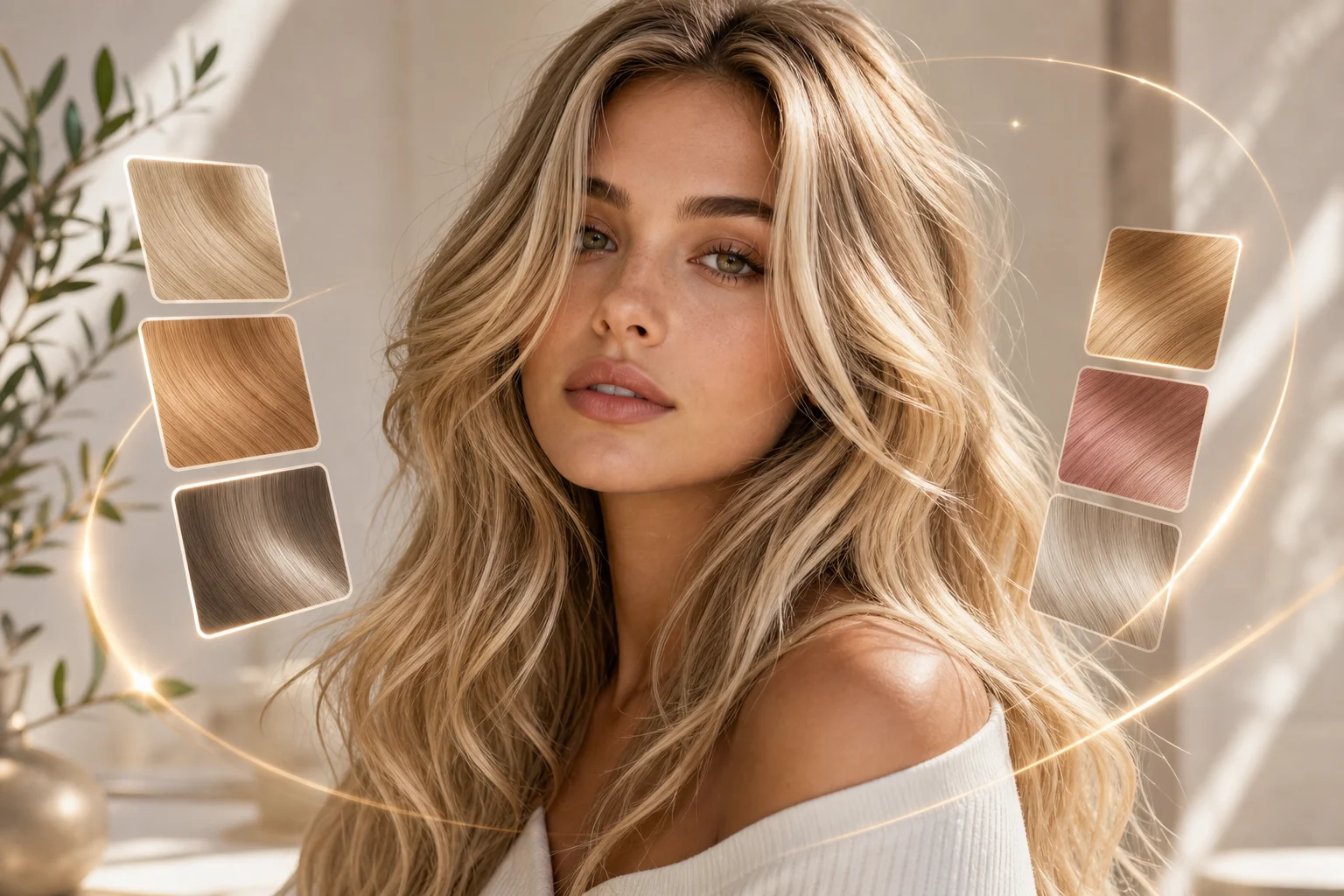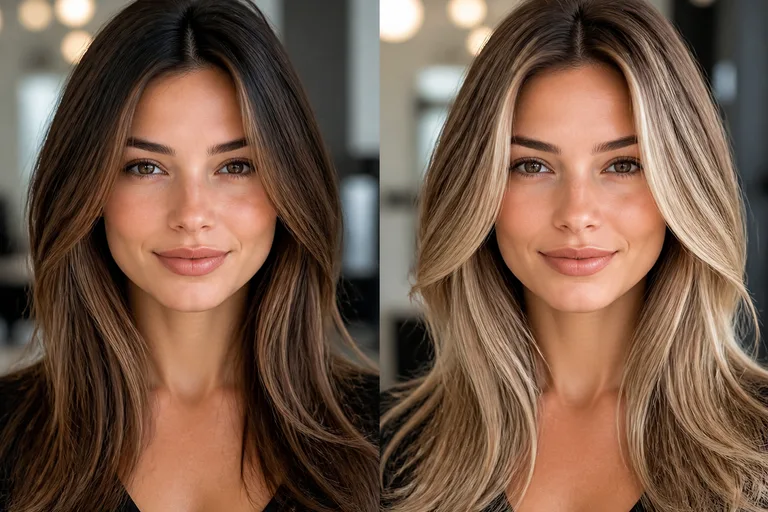
AI Blonde Hair Filter for Natural Hair Color Previews

AI Blonde Hair Filter for Natural Hair Color Previews

Upload a portrait and preview realistic Blonde Hair while keeping your face, pose, lighting, clothing, and background consistent with the original photo.

AI Blonde Hair Filter blonde hair preview background
0 / 2000
Template prompt

AI Blonde Hair Filter for Natural Hair Color Previews

Apply the AI Blonde Hair Filter effect to the uploaded portrait. Preserve the same person, face shape, expression, pose, clothing, lighting, camera angle, and background. Change only the hair color to a realistic blonde shade with natural roots, highlights, strand texture, shadows, and light response. Keep hairstyle shape and all non-hair details unchanged.

AI Blonde Hair Filter blonde hair preview background

What is the AI Blonde Hair Filter?

The AI Blonde Hair Filter changes the visible hair color in a portrait to a realistic blonde shade while preserving the person’s recognizable identity, expression, pose, framing, and surrounding scene. It is designed for people who want to test a blonde look before refining a profile image, style idea, or social post.

Blonde hair transformation details

This template focuses the edit on hair color, creating a Blonde preview that responds to the original photo’s light, shadows, and hairstyle detail.

What changes

  • Upload a portrait and try blonde hair with AI while keeping the rest of the image visually consistent.
  • Try the blonde hair filter with daily credits before committing to a new look.
  • Generate natural blonde hair with texture, lighting, and facial proportions that match the original photo.
  • Create a preview in seconds for profile photos, style planning, or social posts.

What stays the same

  • Preserve the same person, face shape, expression, pose, clothing, lighting, camera angle, and background.
  • Keep hairstyle shape and all non-hair details unchanged.
  • The main subject remains recognizable from the source image.
  • Defining colors, pose, silhouette, and important subject details stay coherent.

How it works

Create a Blonde Hair preview from a clear portrait in a short, practical workflow.

1

Upload your portrait

Choose a sharp portrait where the subject’s face, hairline, hairstyle, and lighting are easy to understand.

2

Apply the blonde hair filter

Use the template guidance to change only the hair color to blonde while preserving the person, pose, clothing, camera angle, and background.

3

Review and refine

Check the hairline, strand texture, highlights, and overall identity match. If needed, use a clearer source or a more specific prompt for another version.

AI Blonde Hair Filter examples

Explore different Blonde Hair preview examples while keeping the source portrait’s identity, pose, and atmosphere coherent.

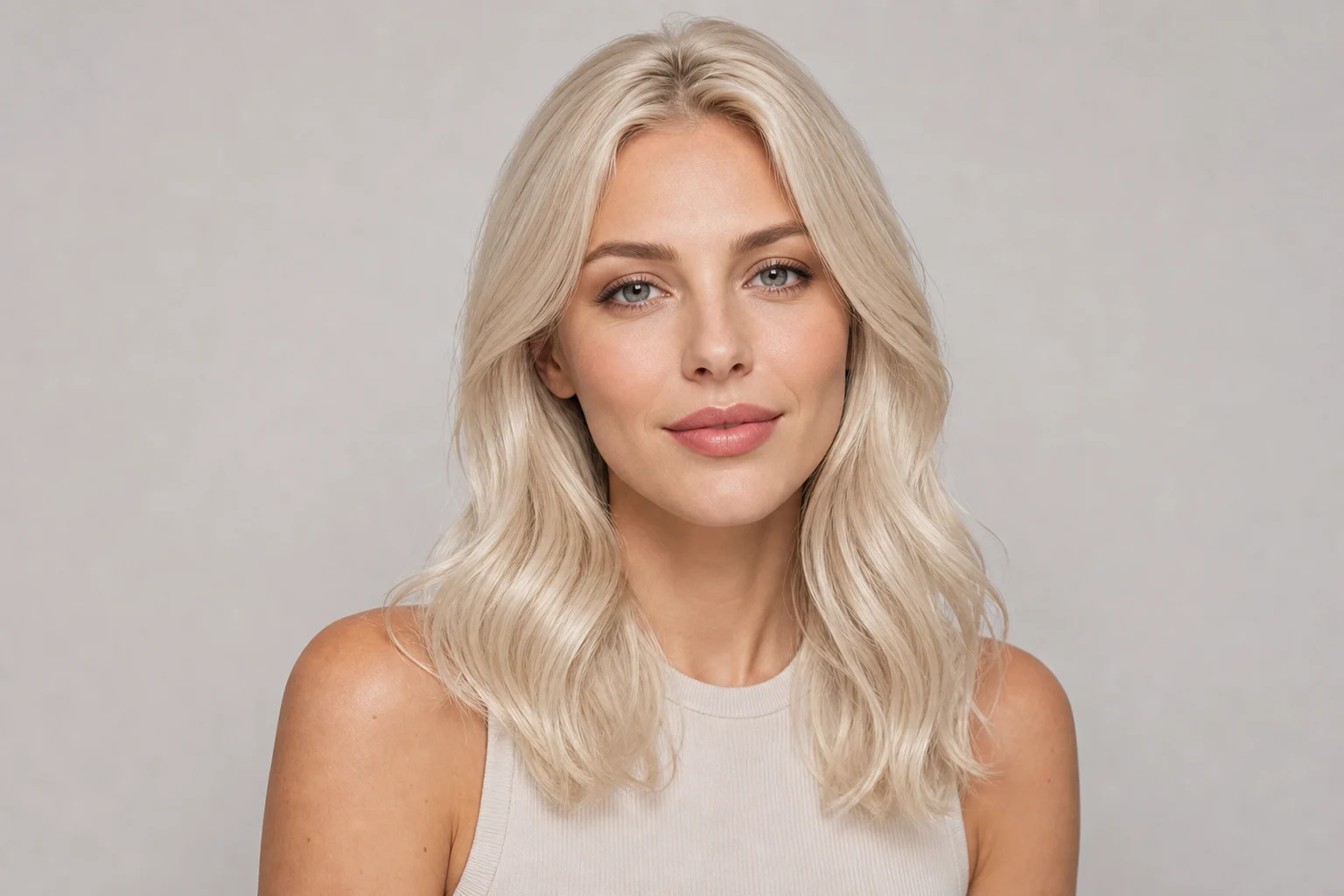
blonde hair preview made with AI Blonde Hair Filter

Natural blonde preview

A natural blonde preview that balances warm highlights with the portrait’s existing light and shadows.

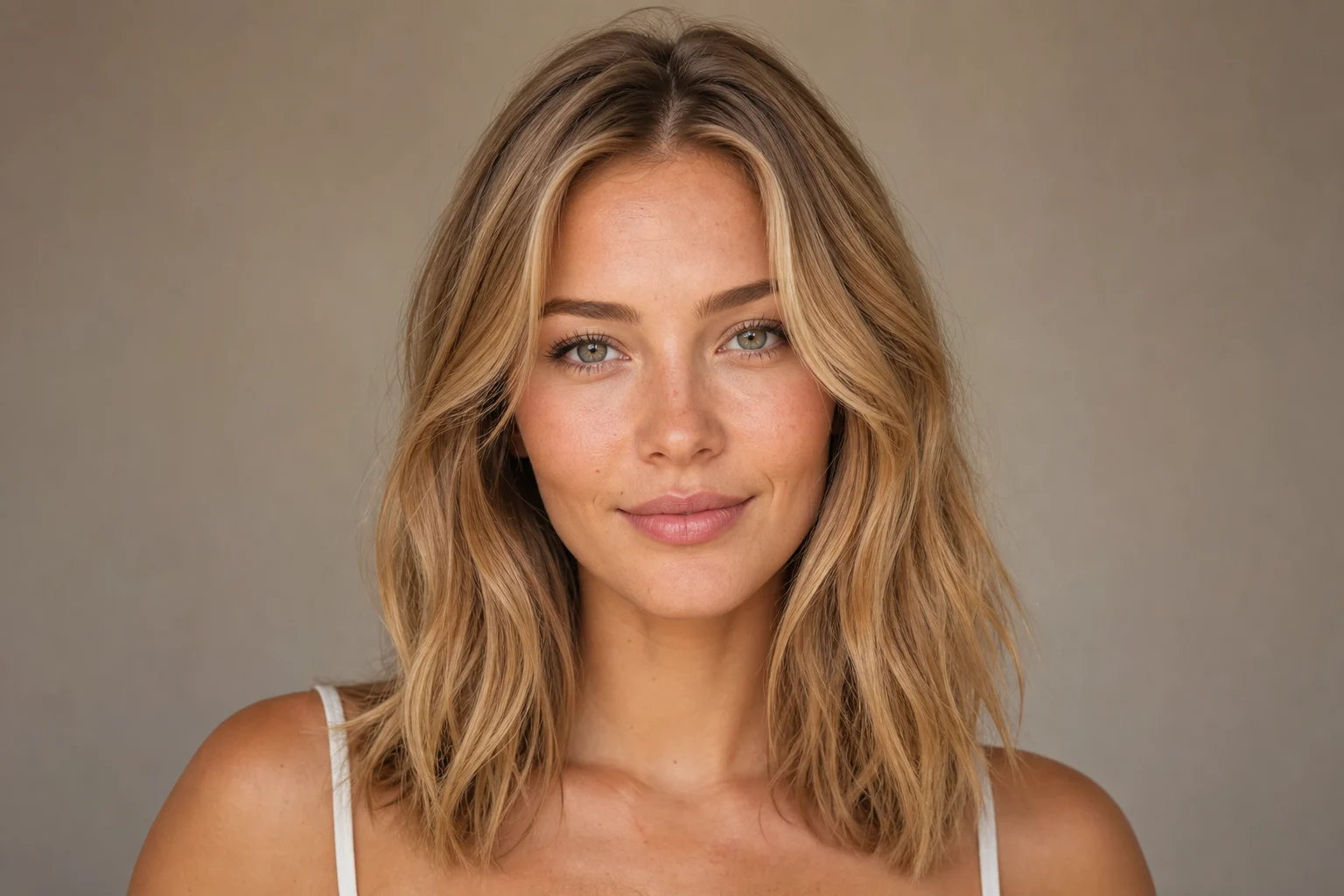
AI Blonde Hair Filter blonde hair preview example 1

Profile-ready blonde look

A polished blonde hair result designed for profile photos, style planning, and clean portrait updates.

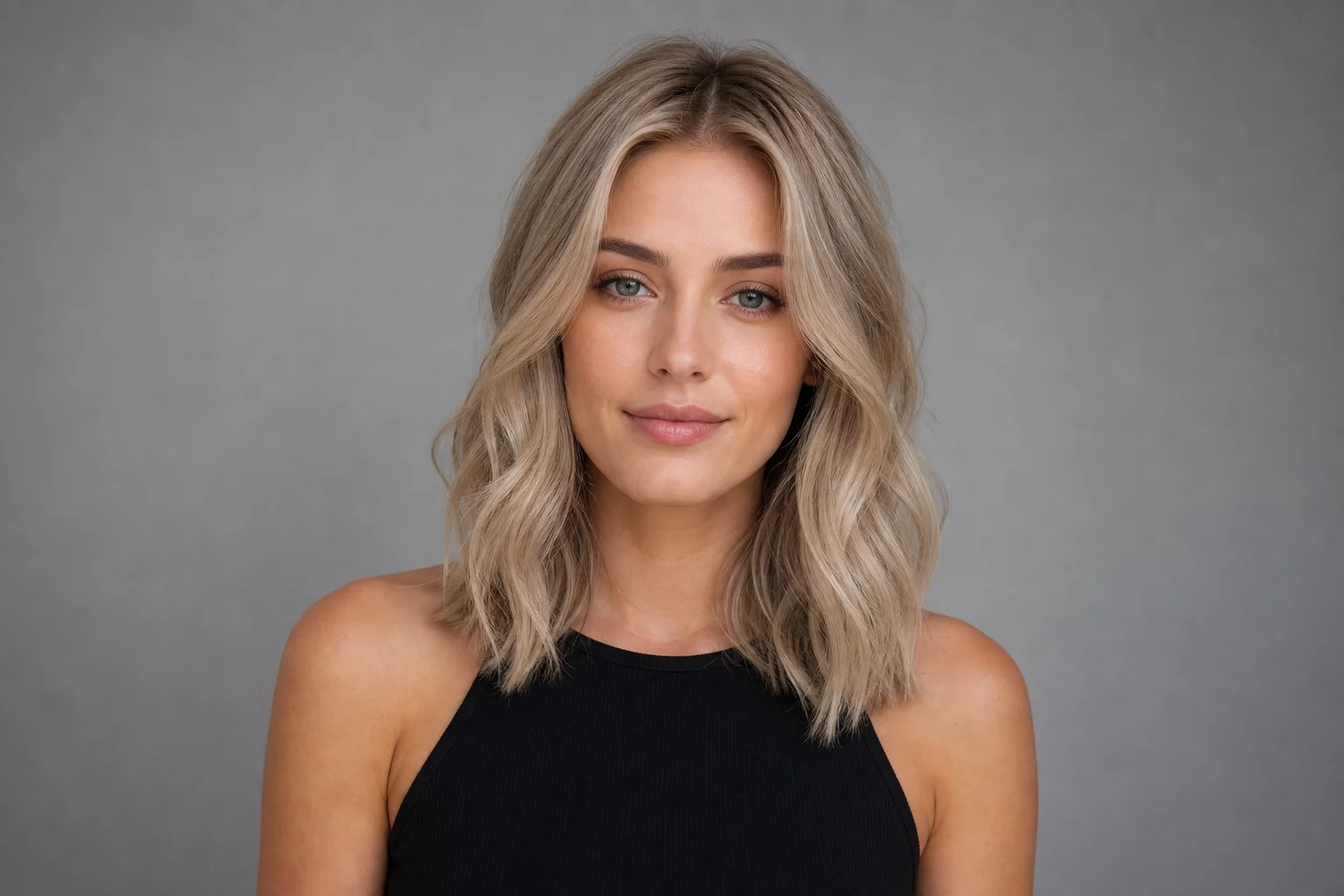
AI Blonde Hair Filter blonde hair preview example 2

Bright blonde style

A brighter blonde direction that keeps facial proportions, expression, and background consistent with the original image.

AI Blonde Hair Filter blonde hair preview example 3

Soft blonde finish

A soft blonde result that follows hairstyle shape, hairline detail, and natural texture for a realistic preview.

Popular ways to use this template

Use the AI Blonde Hair Filter when you want a quick, focused preview of a blonde look without rebuilding the entire portrait.

Plan a new look

Create a focused AI Blonde Hair Filter preview for a personal mood board, profile image idea, hairstyle discussion, or creative portrait direction.

Compare before you decide

Compare the visual direction before refining, sharing, or presenting the result, especially when choosing between subtle blonde, brighter highlights, or warmer tones.

How to prepare your portrait

A strong source photo and a focused prompt help the blonde color blend with the original hairstyle instead of looking like a flat mask.

Source image checklist

  • Use a sharp source image with the main subject clearly visible.
  • Avoid heavy blur, blocked details, extreme crops, or confusing overlaps.
  • Choose a source whose pose and framing support the intended AI Blonde Hair Filter result.

Prompt guidance

Ask for only the hair color to change to a realistic blonde shade. Mention natural roots, highlights, strand texture, shadows, and light response. Also state that the same person, face shape, expression, pose, clothing, lighting, camera angle, background, and hairstyle shape should be preserved.

What to review after generation

Generated details can vary between runs, so review the full portrait before using the result as a style reference or finished visual.

Check identity and pose

Compare the face shape, expression, pose, silhouette, and key details with the original portrait to make sure the person remains recognizable.

Review the blonde treatment

Look closely at the hairline, roots, highlights, curls, bangs, flyaways, and layered sections to confirm the Blonde Hair effect follows the real hairstyle.

Inspect the full image

Inspect faces, hands, text, edges, small objects, and background transitions for artifacts or unintended changes before sharing or refining the image.

AI Blonde Hair Filter FAQ

Quick answers about using the Blonde Hair Filter online and preparing a portrait for a natural-looking result.

What is the AI Blonde Hair Filter?
The AI Blonde Hair Filter is a portrait effect that changes only the hair color to a blonde look while keeping the face, pose, clothing, lighting, camera angle, and background aligned with the source image.
Is the AI Blonde Hair Filter free?
You can try the blonde hair filter with daily credits. Availability may vary by account or session, so check your current credit balance before creating more previews.
How do I get the best blonde hair preview?
Use a sharp, well-lit portrait where the hairline, face, and hairstyle are easy to see. Clear curls, bangs, layers, and flyaways help the blonde result follow the original hair shape more naturally.
Will it change the rest of my photo?
The intended change is limited to the Hair. The subject’s face shape, expression, pose, clothing, lighting, background, and camera angle should stay consistent with the uploaded portrait.
Can I use the result commercially?
Usage depends on the source image, the result, and any terms that apply to your project. Review the output carefully and make sure you have the rights you need before publishing or using it in a public context.
What AI Blonde Hair Filter changes?
It changes the hair color to a realistic Blonde shade with natural roots, highlights, strand texture, shadows, and light response. It should not intentionally reshape the hairstyle or alter non-hair details.
Which source image works best?
Choose a portrait with the main subject clearly visible, minimal blur, and no heavy obstructions over the hair. Avoid extreme crops or confusing overlaps that make the hair boundary hard to understand.
How to keep the subject recognizable?
Start with a clear image and use guidance that asks to preserve the same person, face shape, expression, pose, clothing, lighting, camera angle, and background. Then review the result for identity, edges, and hairline consistency.

Try the AI Blonde Hair Filter on your photo

Upload a clear portrait and see how a Blonde Hair look fits your face, lighting, and original hairstyle shape.