
विचार वर्णन गर्नुहोस्
हेर्न चाहेको कुरा सामान्य भाषामा लेख्नुहोस्। लम्बाइभन्दा विषय र उद्देश्य उल्लेख गर्नु महत्त्वपूर्ण हुन्छ।
प्रॉम्प्ट योजना
एउटा सामान्य विचार वर्णन गर्नुहोस्, छविको प्रकार, शैली, लक्षित मोडेल र अनुपात छान्नुहोस्, अनि छवि प्रॉम्प्ट जेनेरेटरले कपी गर्न मिल्ने संरचित प्रॉम्प्ट, छोटो संस्करण र नेगेटिभ प्रॉम्प्ट लेख्छ।
प्रम्प्ट कार्यक्षेत्र
विचारबाट प्रतिलिपि गर्न मिल्ने छवि प्रम्प्टसम्म
एक छोटो वाक्य पर्याप्त छ। उपकरणले संरचना, शैली, प्रकाश र संरचना थप्छ।
परिणामयोां चयनित मोडेल, अनुपात, शैली र आउटपुट गिनती सँग दिखाई देंगे।.
परिणामयोां चयनित मोडेल, अनुपात, शैली र आउटपुट गिनती सँग दिखाई देंगे।.
एक छोटो वाक्य पर्याप्त छ। उपकरणले संरचना, शैली, प्रकाश र संरचना थप्छ।
विचारबाट प्रतिलिपि गर्न मिल्ने छवि प्रम्प्टसम्म
छवि जनरेटरमा प्रयोग गर्नुहोस्यसले छोटो वर्णनलाई छवि मोडेलले काम गर्न सक्ने प्रॉम्प्ट भाषामा बदल्छ। वाक्यांश अनुमान गर्नुको सट्टा, तपाईं छविको प्रकार, दृश्य शैली, लक्षित मोडेल र आस्पेक्ट रेसियो सेट गर्नुहुन्छ र विषय, संरचना, प्रकाश तथा फ्रेमबाहिर राख्नुपर्ने कुरा उल्लेख भएको प्रॉम्प्ट पाउनुहुन्छ।
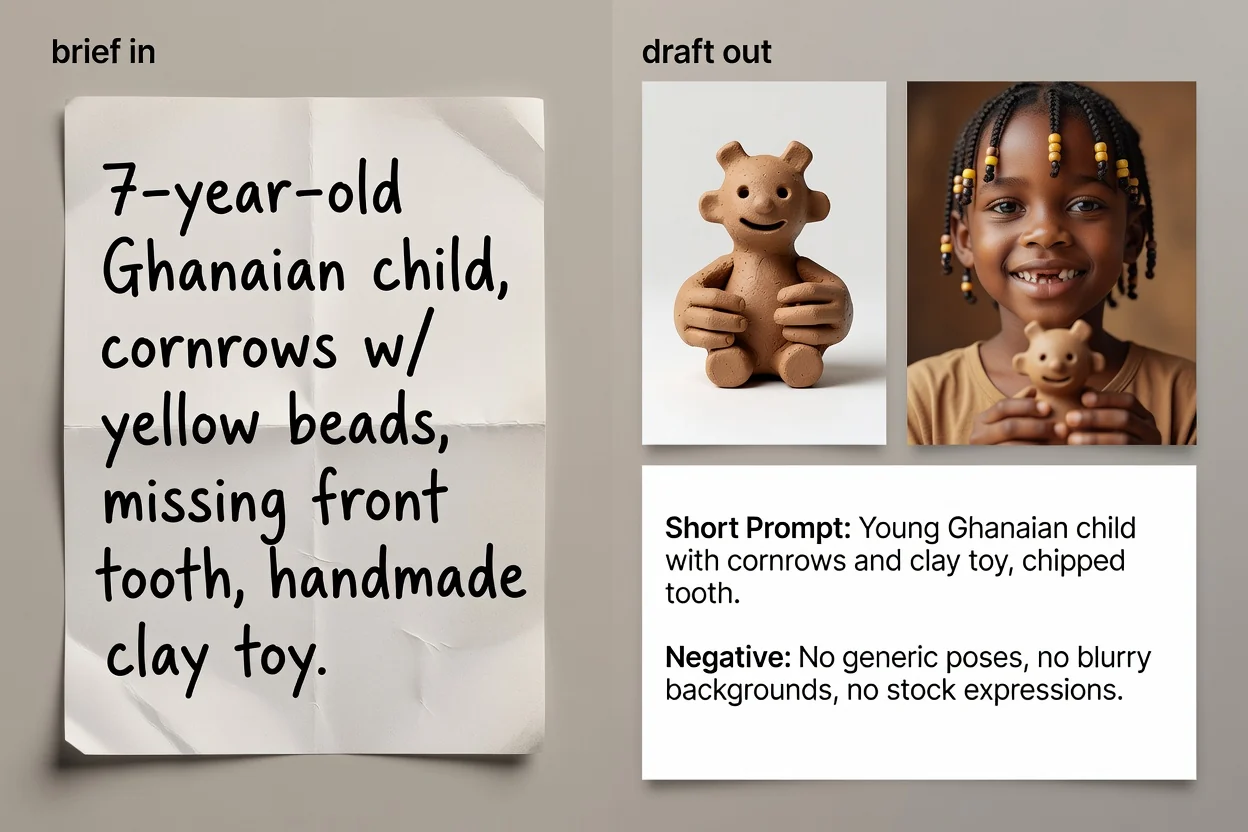
विचारबाट कपी गर्न तयार प्रॉम्प्ट पाठसम्मका चार चरण।
हेर्न चाहेको कुरा सामान्य भाषामा लेख्नुहोस्। लम्बाइभन्दा विषय र उद्देश्य उल्लेख गर्नु महत्त्वपूर्ण हुन्छ।
छविको प्रकार र दृश्य शैली छान्नुहोस्, ताकि प्रॉम्प्टले त्यस वर्गका लागि सही शब्दावली प्रयोग गरोस्।
प्रयोग गर्ने योजना भएको मोडेल र आस्पेक्ट रेसियो छान्नुहोस्, ताकि वाक्यांश र फ्रेमिङ गन्तव्यसँग मिलोस्।
प्रॉम्प्ट बनाउनुहोस्, समीक्षा गर्नुहोस्, अनि चाहेमा शब्दावली कसिलो बनाउन र छुटेका विवरण थप्न AI सुधार चरण चलाउनुहोस्।
तीन फरक अवस्थाका लागि प्रॉम्प्टका तीन संस्करण।
विषय, संरचना, प्रकाश, शैली र फ्रेमिङ क्रम मिलाएर स्पष्ट गरिएको पूर्ण प्रॉम्प्ट।
छोटो वर्णनले खुला छोडेका खाली ठाउँ भरी वाक्यांश कसिलो बनाउने वैकल्पिक पुनर्लेखित संस्करण।
कडा इनपुट सीमाभएका इन्टरफेस वा छिटो पुनरावृत्तिका लागि संक्षिप्त संस्करण।
पाठ, वाटरमार्क वा विकृत विवरणजस्ता छविबाट बाहिर राख्नुपर्ने कुराहरूको सूची।
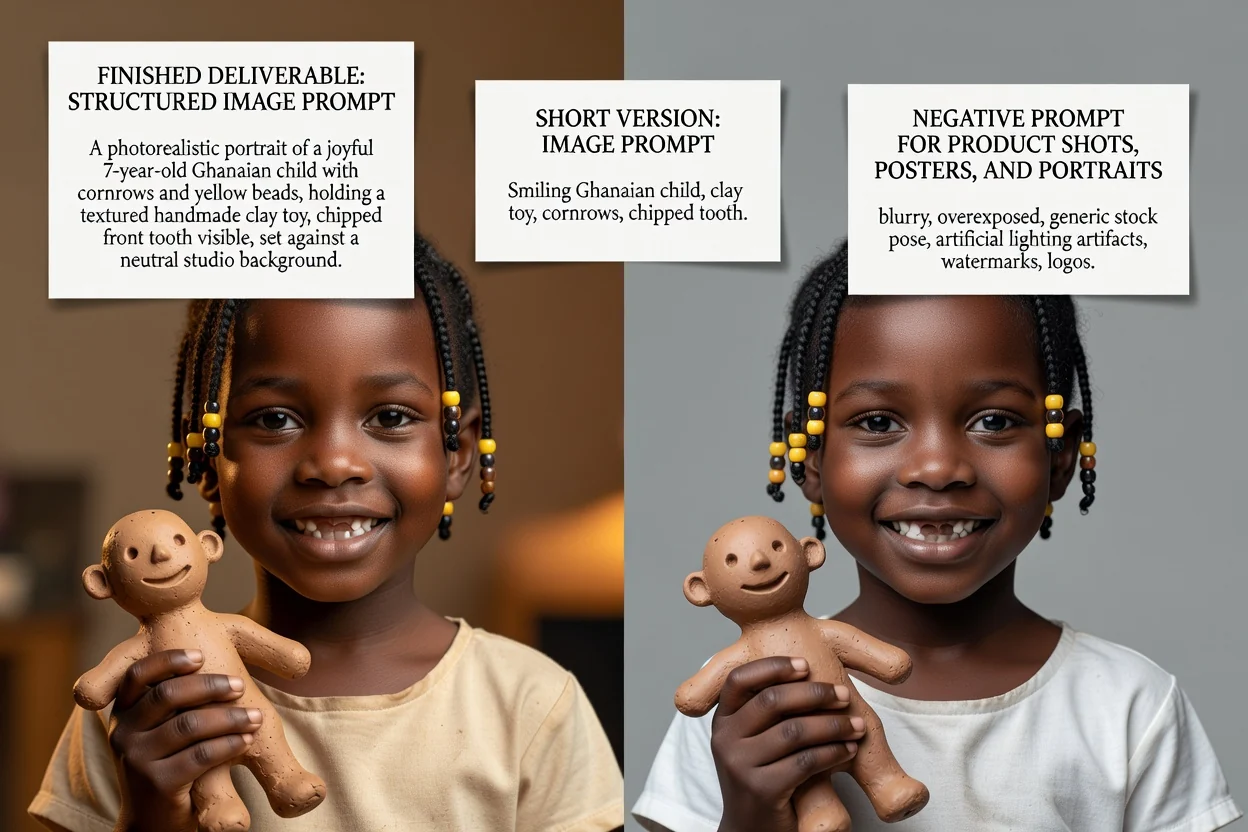
हरेक नियन्त्रणले लेबल मात्र होइन, शब्दावली पनि बदल्छ।
उत्पादन तस्बिर, पोर्ट्रेट, पोस्टर, लोगो, सामाजिक ग्राफिक वा चित्रण। यसले कुन संरचना-सम्बन्धी शब्दहरू देखिने तय गर्छ।
फोटोरियलिस्टिक, सिनेम्याटिक, सम्पादकीय, मिनिमल, 3D रेन्डर वा एनिमे; यसले प्रकाश र रेन्डरिङसम्बन्धी भाषा तय गर्छ।
GPT Image, Midjourney, Flux, Stable Diffusion वा DALL-E। यिनका वाक्यांश प्रयोग गर्ने परम्परा फरक हुन्छन्।
वर्गाकार, तेर्सो, ठाडो वा पोर्ट्रेट, ताकि फ्रेमिङ र खाली ठाउँ अन्तिम स्थानअनुकूल होस्।
यहाँबाट सुरु हुने प्रायः गरिने कामहरू।
सतह, प्रकाश र खाली ठाउँ उल्लेख हुने प्रॉम्प्ट लेख्नुहोस्, ताकि उत्पादन तस्बिरमा हेडलाइन पाठका लागि पनि ठाउँ रहोस्।
उत्पादन प्रॉम्प्ट बनाउनुहोस्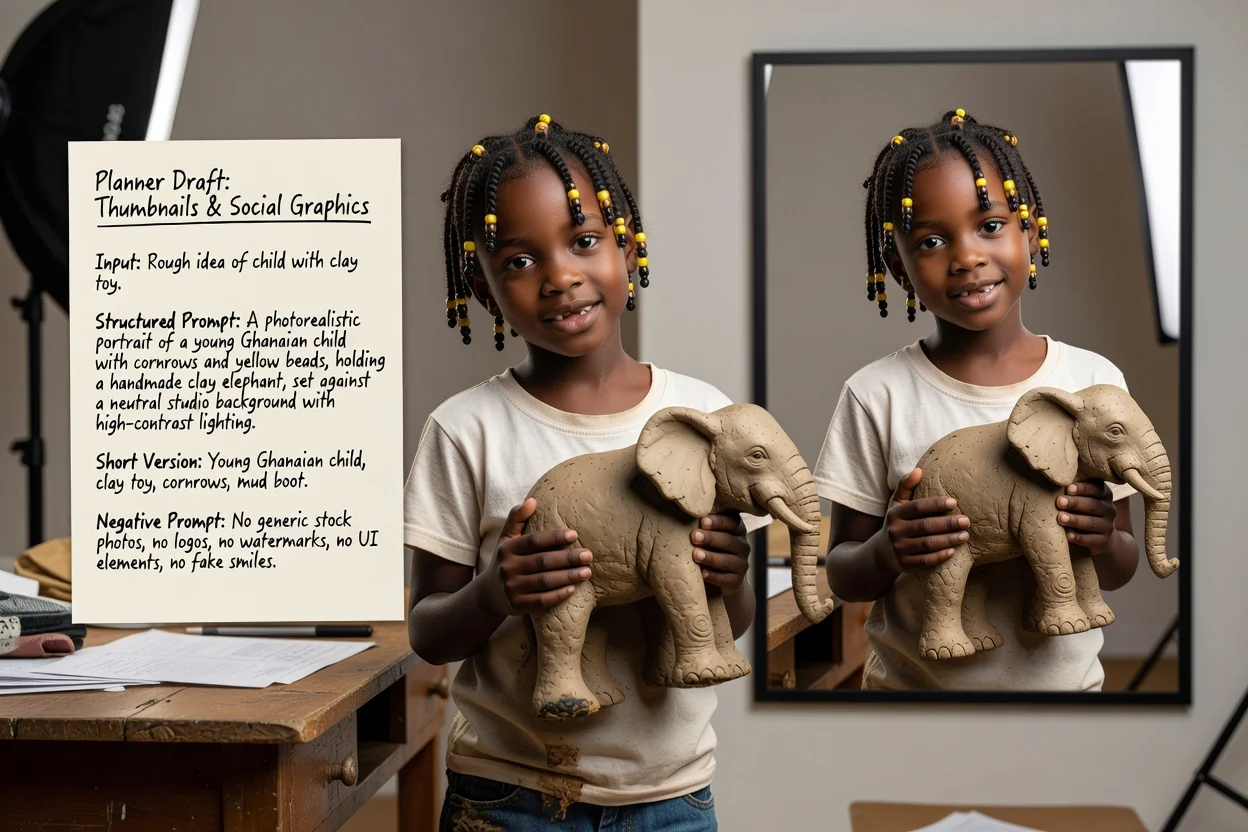
ठाडो वा तेर्सो अनुपात र उच्च-कन्ट्रास्ट शैली सेट गर्नुहोस्, ताकि नतिजा सानो आकारमा पनि स्पष्ट देखियोस्।
सामाजिक प्रॉम्प्ट बनाउनुहोस्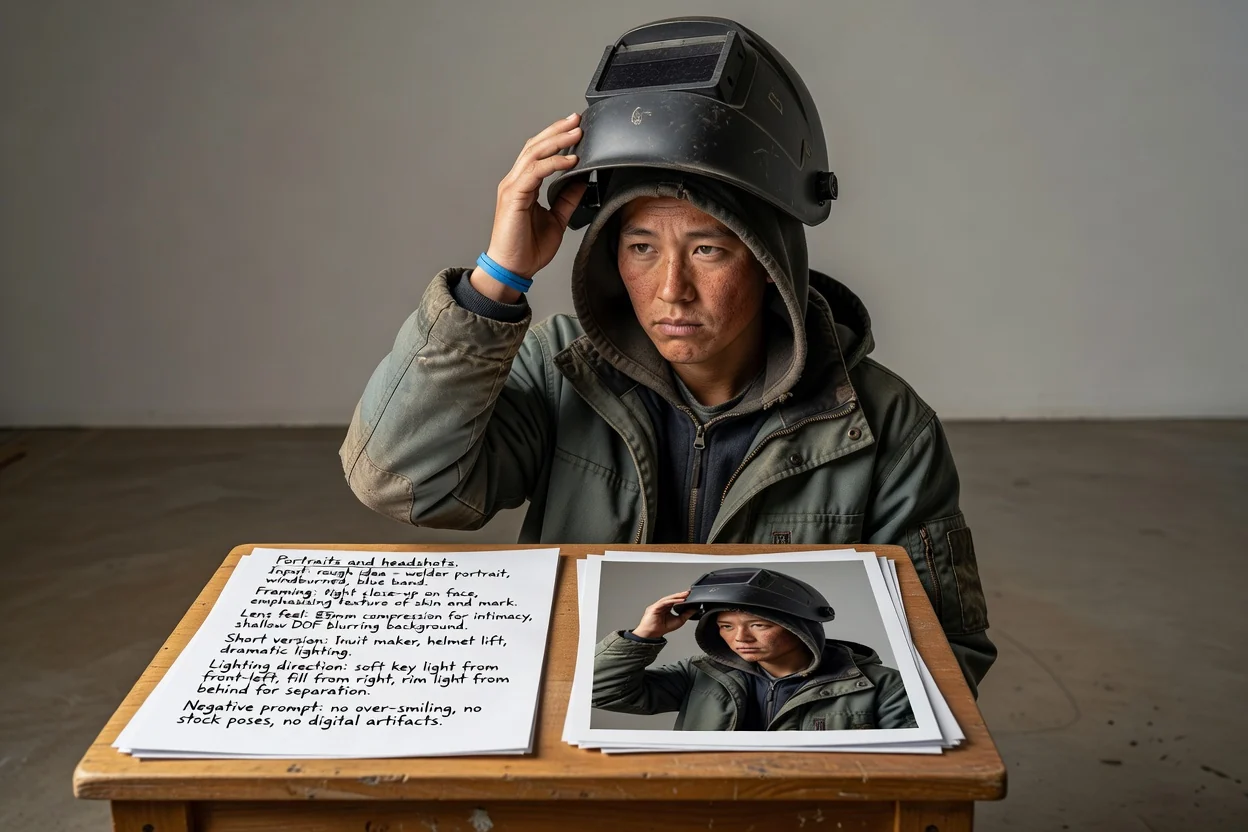
मोडेललाई लुक अनुमान गर्न दिनुको सट्टा फ्रेमिङ, लेन्सको अनुभूति र प्रकाशको दिशा वर्णन गर्नुहोस्।
पोर्ट्रेट प्रॉम्प्ट बनाउनुहोस्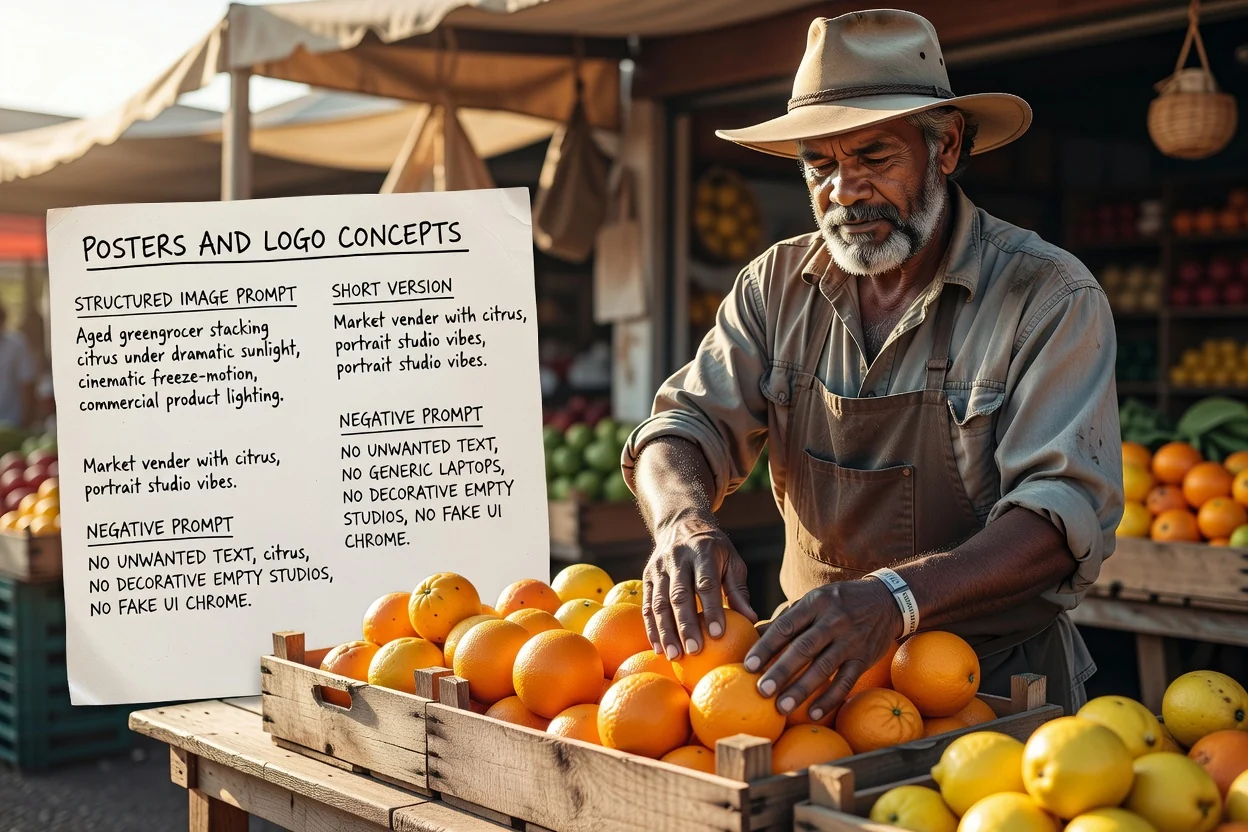
लेआउट र टाइपोग्राफीका लागि ठाउँ सुरुमै योजना बनाउनुहोस्, अनि नचाहिने पाठ नियन्त्रण गर्न नेगेटिभ प्रॉम्प्ट प्रयोग गर्नुहोस्।
पोस्टर प्रॉम्प्ट बनाउनुहोस्फेरि प्रयास घटाउने चार छिटा जाँचहरू।
प्रॉम्प्टमा प्रतिस्पर्धी दुई विषय छन् भने, भीडभाड भएको एउटै फ्रेमको सट्टा दुई प्रॉम्प्टमा विभाजन गर्नुहोस्।
ठाडो अनुपातलाई ठाडो संरचनासम्बन्धी भाषा चाहिन्छ। नमिल्दा अनौठो क्रप हुने सम्भावना सबैभन्दा बढी हुन्छ।
पछि छविमाथि पाठ राखिने भए, प्रॉम्प्टले सही ठाउँमा खाली ठाउँ मागेको सुनिश्चित गर्नुहोस्।
नचाहिने निषेध हटाउनुहोस्, किनकि अत्यधिक लामो नेगेटिभ प्रॉम्प्टले नतिजालाई सपाट बनाउन सक्छ।
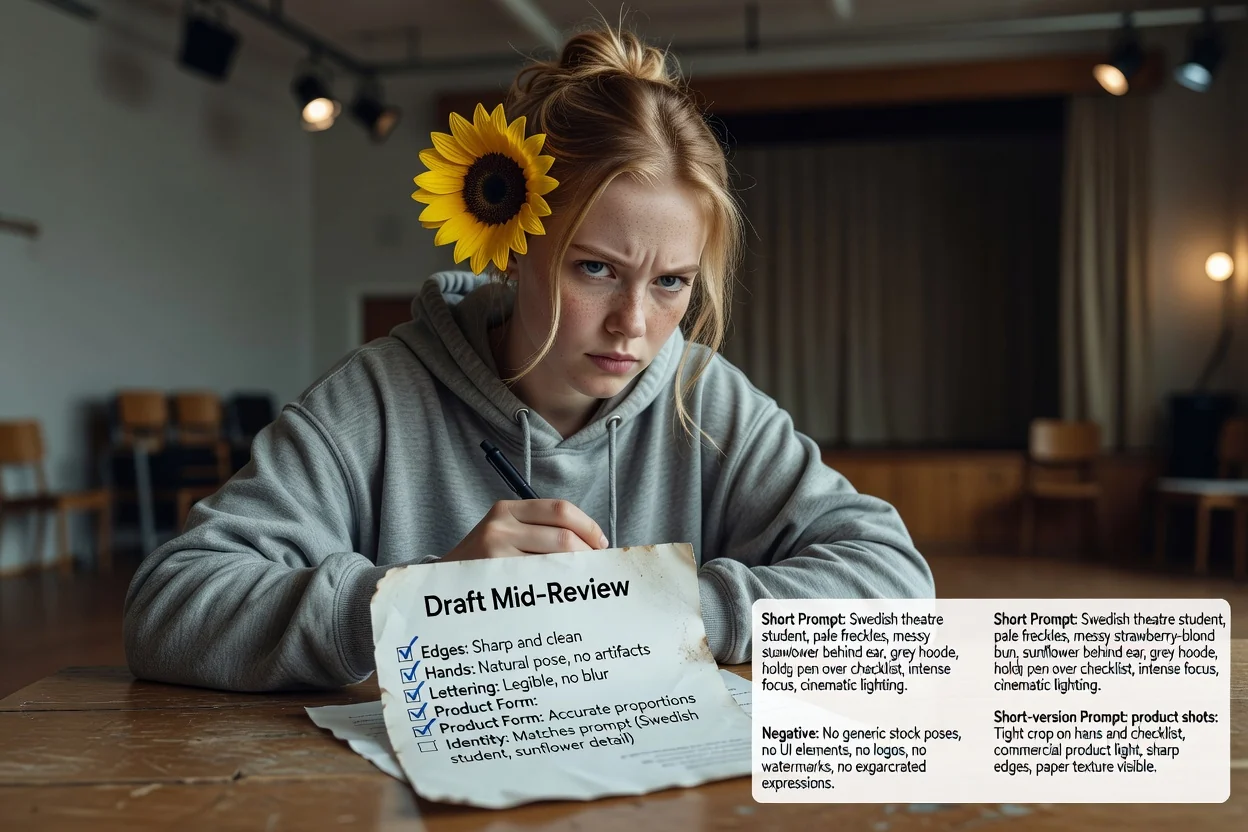
यसमा भर पर्नुअघि जान्न लायक सीमाहरू।
तस्बिर बनाउने काम छवि कार्यप्रवाहमा हुन्छ। यो चरणले त्यहाँ पठाउने पाठ मात्र तयार गर्छ।
एउटै प्रॉम्प्टले मोडेल र संस्करणअनुसार फरक नतिजा दिन्छ। पहिलो आउटपुटलाई परीक्षण मान्नुहोस्।
छविभित्र ठीक शब्द माग्दा प्रायः असफल हुन्छ। त्यसको सट्टा लेआउट बनाउँदा वास्तविक टाइपोग्राफी थप्ने योजना बनाउनुहोस्।
AI छवि मोडेलका लागि प्रॉम्प्ट लेख्नेबारे सामान्य प्रश्नहरू।
छवि प्रॉम्प्ट जेनेरेटरलाई सामान्य विचार दिनुहोस् र परीक्षणका लागि पूर्ण प्रॉम्प्ट, छोटो प्रॉम्प्ट र नेगेटिभ प्रॉम्प्ट पाउनुहोस्।