


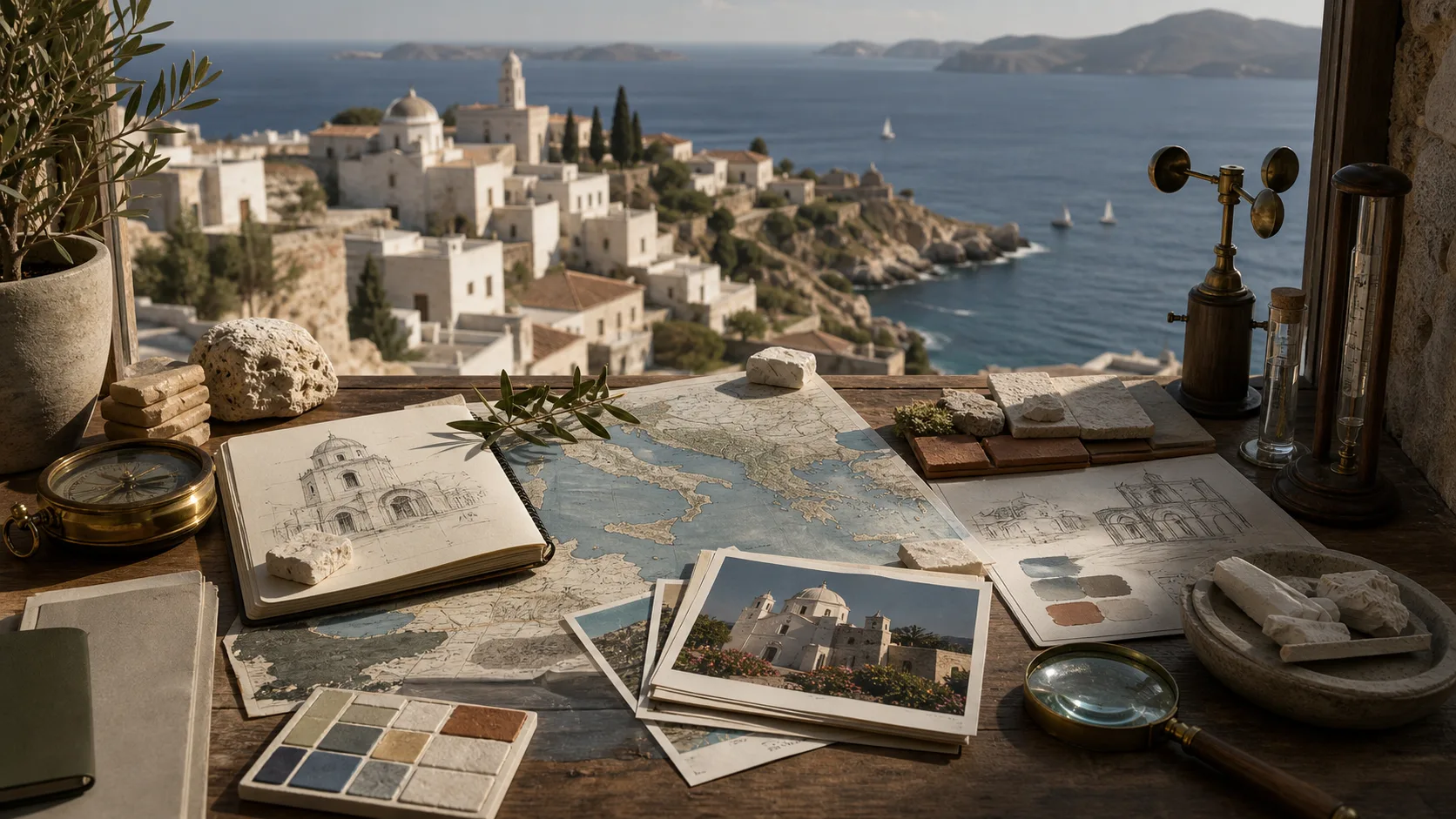
सविस्तर प्रॉम्प्टवरून प्रतिमा दृश्ये
विषय, परिसर, कॅमेरा, प्रकाशयोजना, रचना आणि अपेक्षित स्वरूपाचे वर्णन करून गुंतागुंतीच्या दृश्याला स्पष्ट दिशा द्या.
एका नेमक्या इमेज ब्रीफमधून सविस्तर प्रॉम्प्ट किंवा संदर्भ प्रतिमेचे उत्पादन व्हिज्युअल्स, मजकूर-केंद्रित ग्राफिक्स आणि सर्जनशील संकल्पनांमध्ये रूपांतर करा.
GPT Image 2 हे प्रॉम्प्ट-आधारित निर्मिती, संदर्भ-मार्गदर्शित बदल आणि विषय, रचना व लहान मजकूर एकत्र करणाऱ्या व्हिज्युअल्ससाठीचे प्रतिमा निर्मिती व संपादन मॉडेल आहे.
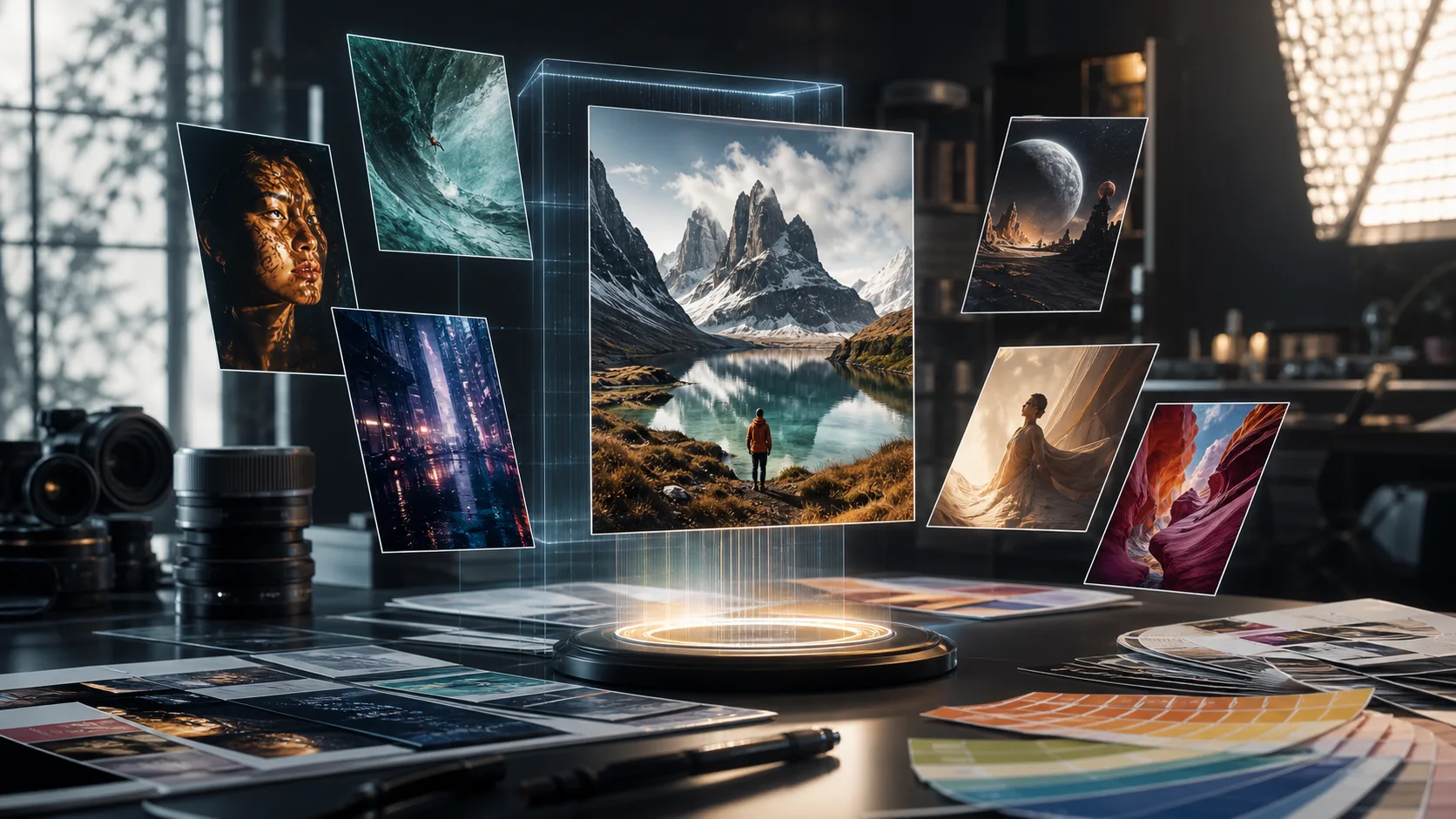
ही वैशिष्ट्ये अशा सविस्तर ब्रीफसाठी उपयुक्त आहेत जिथे सूचनांचे पालन, दिसणारा मजकूर, संदर्भ मार्गदर्शन किंवा दृश्य सातत्य महत्त्वाचे असते.
विषय, परिसर, कॅमेरा, प्रकाशयोजना, रचना आणि अपेक्षित स्वरूपाचे वर्णन करून गुंतागुंतीच्या दृश्याला स्पष्ट दिशा द्या.
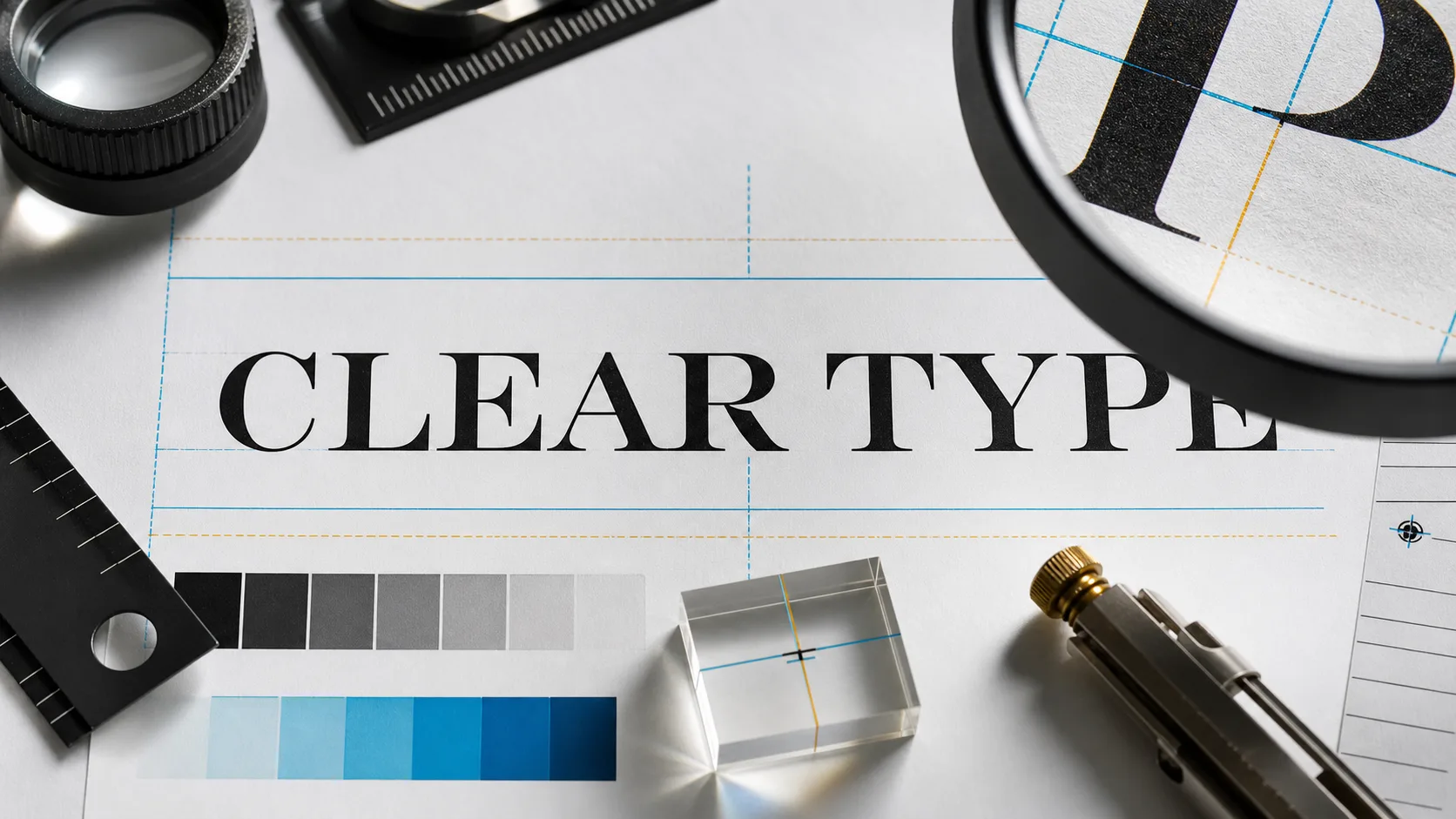
लहान मजकूर असलेली पोस्टर्स, मेन्यू, लेबल्स, कव्हर्स आणि सोशल ग्राफिक्स तयार करा, मग प्रकाशित करण्यापूर्वी प्रत्येक शब्द तपासा.
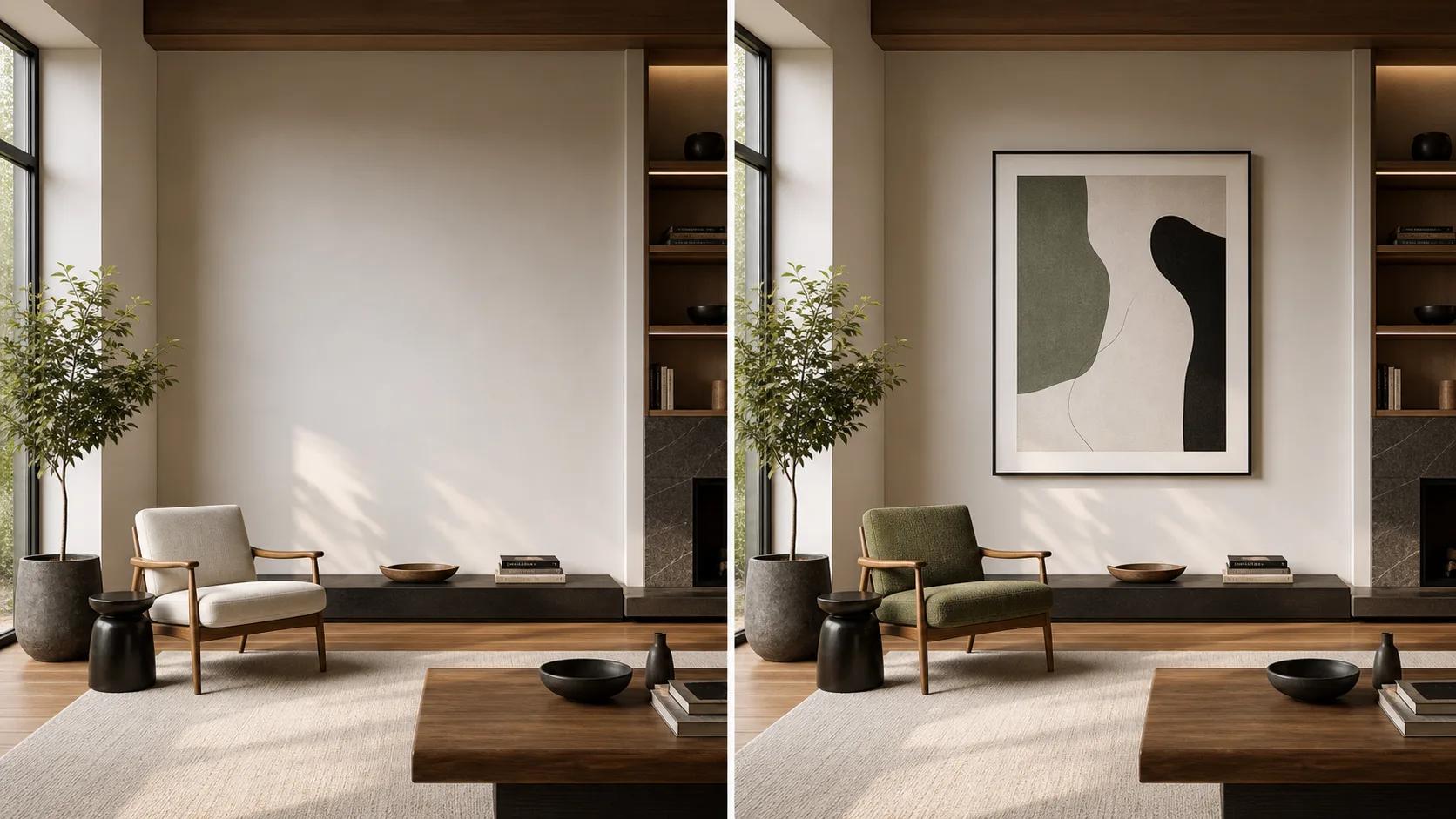
विशिष्ट बदलासाठी मार्गदर्शन मिळवण्यासाठी प्रतिमा अपलोड करा, दृश्याची शैली बदला, उत्पादन मांडणी समायोजित करा किंवा ब्रीफ जपून रचना सुधारित करा.
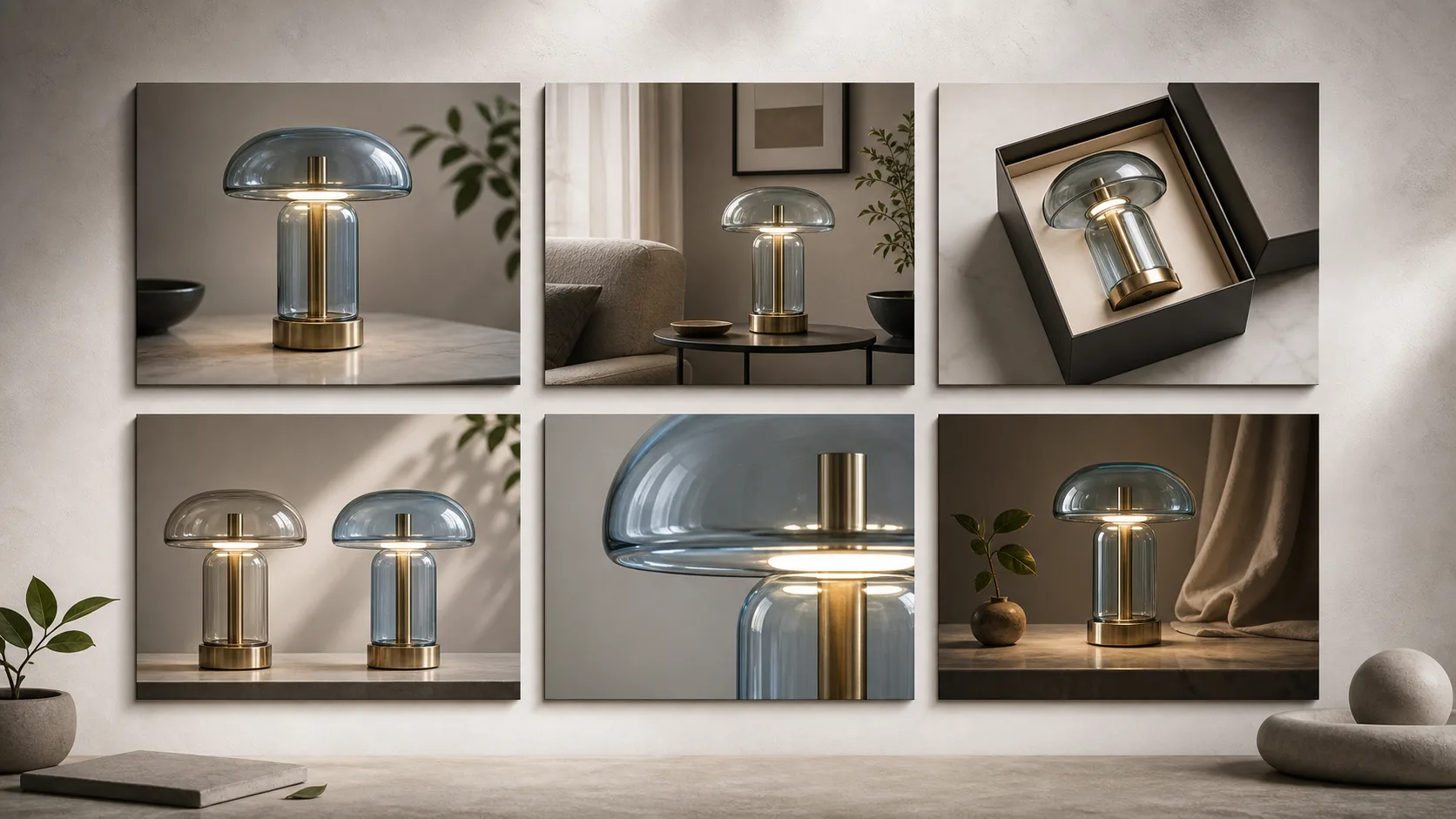
संबंधित संच तयार करताना संदर्भ प्रतिमा पुन्हा वापरा आणि विषय किंवा शैलीचे ठराविक तपशील कायम ठेवा, नंतर प्रत्येक निकालातील विचलनाची तुलना करा.
आधी तुमचे इनपुट तयार करा, नंतर लक्ष केंद्रित केलेल्या निर्मिती किंवा संपादनासाठी GPT Image 2 कसे वापरायचे ते ठरवण्यासाठी दृश्यमान नियंत्रणे वापरा.
मजकूर प्रॉम्प्ट लिहा आणि स्रोत विषय, रचना किंवा दृश्य दिशा निकालाला मार्गदर्शन करणे आवश्यक असल्यास संदर्भ प्रतिमा जोडा.
निर्मितीपूर्वी दाखवलेल्या मॉडेल, आस्पेक्ट रेशो, आउटपुट संख्या, रिझोल्यूशन, शैली, प्रॉम्प्ट सुधारणा, वेग आणि संदर्भ प्रतिमा पर्यायांमधून निवडा.
निकाल क्षेत्रातील निर्मित प्रतिमांचे प्रकार तपासा आणि निकाल वापरण्यापूर्वी मापे, मजकूर, विषय तपशील व क्रॉप पडताळा.
विचारपूर्वक प्रॉम्प्ट कार्यप्रवाह वापरा, ज्यामुळे प्रत्येक प्रयत्नात कोणत्या सूचनेने आउटपुट बदलले आणि अजून काय तपासायचे आहे ते दिसेल.
विषय, अपेक्षित वापर, परिसर, रचना, दृश्य शैली आणि दिसणे आवश्यक असलेला कोणताही नेमका मजकूर नमूद करा.
ओळख, उत्पादनाचा आकार, फ्रेमिंग, रंगसंगती किंवा विद्यमान लेआउट निकालाचा आधार असावा तेव्हा स्रोत प्रतिमा अपलोड करा.
अंतिम वापराच्या स्वरूपाशी जुळणारे आस्पेक्ट रेशो, रिझोल्यूशन, आउटपुट संख्या आणि इतर थेट नियंत्रणे निवडा.
लक्ष केंद्रित केलेला पहिला प्रयत्न तयार करा, प्रॉम्प्टशी जुळवणी व तपशील तपासा, मग पुन्हा निर्मितीपूर्वी एक कमकुवत सूचना बदला.
वास्तविक डिलिव्हरेबलपासून सुरुवात करा आणि त्याचे प्रेक्षक, स्वरूप व परीक्षण गरजांभोवती प्रॉम्प्ट लिहा.
स्पष्ट उत्पादन व ब्रँड ब्रीफमधून ईकॉमर्स हिरो प्रतिमा, उत्पादन मांडणी, जाहिरात संकल्पना आणि पॅकेजिंग दिशा तयार करा.
नियोजित मजकूर-सुरक्षित क्षेत्रांसह मथळा-केंद्रित पोस्टर्स, कार्यक्रम ग्राफिक्स, घोषणा आणि सोशल संकल्पना शोधा.
मंजूर लेआउट डिझाइन साधनात पुन्हा तयार करण्यापूर्वी लँडिंग पेजेस, डॅशबोर्ड्स, मेन्यू आणि सादरीकरण दिशांचे दृश्यरूप करा.
स्रोत प्रतिमेला दृश्य मार्गदर्शन म्हणून ठेवत पर्यायी पार्श्वभूमी, शैलीकरण, उत्पादन दृश्ये किंवा मोहिमेची रूपांतरे तयार करा.
अंतिम माध्यमासाठी आवश्यक तपशील तपासले जाईपर्यंत प्रत्येक निर्मित प्रतिमेला मसुदा माना.
मुख्य विषय, कृती, रचना आणि संदर्भ तपशील मूळ ब्रीफशी जुळतात याची खात्री करा.
प्रत्येक मथळा, लेबल, पाटी, इंटरफेस घटक आणि लहान शब्द पूर्ण आकारात वाचा.
लोगो, पॅकेजिंग, रंग, उत्पादनाचा आकार, साहित्य आणि दावे मंजूर स्रोत सामग्रीशी तपासा.
निर्यातीपूर्वी रिझोल्यूशन, आस्पेक्ट रेशो, सुरक्षित क्षेत्रे आणि क्रॉप अंतिम वापराच्या ठिकाणाशी पडताळा.
सध्याच्या संरचनेसाठी या पृष्ठावरील थेट नियंत्रणे वापरा, तसेच उपलब्धता, मॉडेलमधील फरक आणि प्रकाशन तपासण्या लक्षात ठेवा.
GPT Image 2 या पृष्ठावर जोडलेले आहे आणि सबमिट करण्यापूर्वी दाखवलेली नियंत्रणे प्रत्येक निर्मितीसाठी सध्याची अंतिम माहिती आहेत.
एकाच प्रॉम्प्ट किंवा संदर्भातून वेगळी रचना, टायपोग्राफी आणि सूक्ष्म तपशील तयार होऊ शकतात, म्हणून एक निवडण्यापूर्वी आउटपुटची तुलना करा.
मानवी परीक्षणाशिवाय मॉडेल आउटपुटला पडताळलेली ब्रँड प्रत, तथ्यात्मक माहिती किंवा अंतिम कलाकृती समजू नका.
माहिती पडताळणी
GPT Image 2 प्रॉम्प्ट्स, संदर्भ प्रतिमा, टायपोग्राफी, नियंत्रणे, प्रकाशन वेळ आणि तपासणीच्या पायऱ्यांविषयी उत्तरे शोधा.
संदर्भ हाताळणी, लेआउटचे वर्तन, निर्मिती सेटिंग्ज किंवा दृश्य शैली एका मॉडेलच्या नावापेक्षा अधिक महत्त्वाची असेल, तेव्हा जवळचे प्रतिमा मॉडेल निवडा.
विशिष्ट दृश्य ब्रीफ लिहा, अंतिम वापराचे स्वरूप ठरवा आणि संकल्पना विस्तारण्यापूर्वी लहान पहिल्या प्रयत्नाचे परीक्षण करा.